
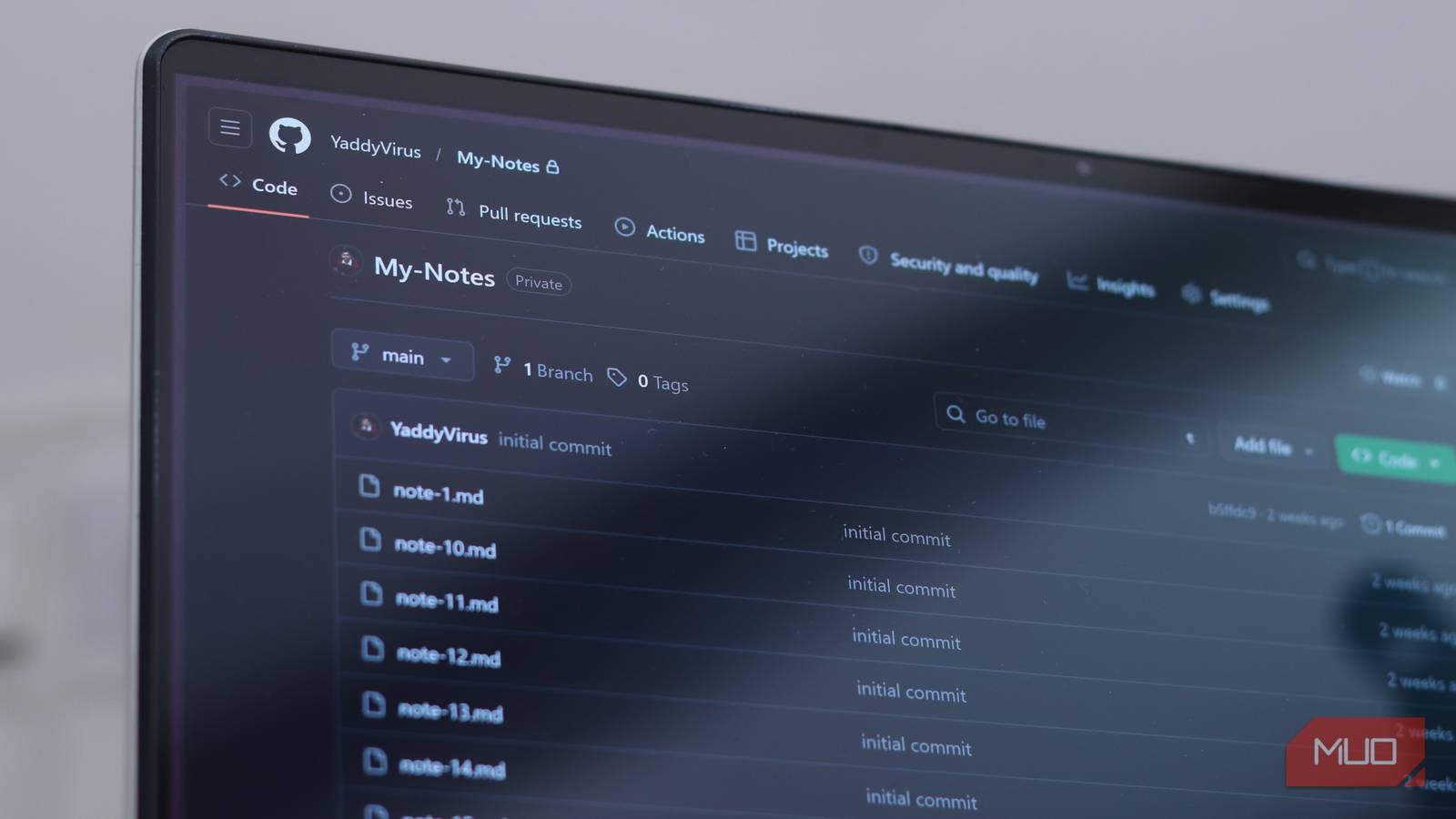
If every time you hear the word “git” and immediately start picturing developers hunched over terminals, I won’t blame you. The version tracking tool was built for code and has lived in that world for decades now. However, at its core, Git is just a very clever way of tracking changes made to a file over time. It doesn’t know or care what those files contain. Whether it’s a C script or a notes file, it’ll track changes just the same.
I use Git for non-programmer tasks daily, and this usage has nothing to do with writing code. Once you understand that Git is really just about tracking a file’s history, it stops being a developer-exclusive tool and starts being useful in a lot more situations.
My notes sync themselves now
Using Git as a versioned, cross-device notebook
One of my most basic use cases for Git is to sync my notes, and it’s way easier than you think. I keep a folder of plain-text Markdown notes — research, notes, random ideas, snippets of code, and text I don’t want to lose — and the entire folder is a Git repository.
Instead of stacking your notes into some proprietary database that you can’t access without an account or specific app, you can keep them as plain text or Markdown files inside an ordinary folder, which Git can track for you. Every time you commit a change, Git saves the state of those files, meaning you can see what changed, roll back changes, or recover something you deleted.
Another benefit is Git’s distributed design. You can have a full copy of your notes on every device, then use a service like GitHub, GitLab, Gitea, or a self-hosted server as a central point where everything syncs. Your notes will still work offline, and you’re not locked to a vendor just to keep everything in sync.
My Linux setup never breaks anymore
Tracking dotfiles so configs are always recoverable
I keep multiple Linux installations divided across my virtual machines and Linux server. These installations often get reset or reinstalled as I keep breaking things while running different experiments. And if you’ve ever spent an afternoon getting your terminal, shell prompt, and keybindings, you know the dread of setting up a new machine and having to set it all up again from memory. A little Git magic combined with dotfile management helps avoid that hassle.
Dotfiles are the hidden configuration files that live in your home directory. Files like .bashrc, .vimrc, and .config/i3/config all collect your fine-tuned settings for various programs and system aspects. By storing them in a Git repository, you get the full history of every tweak you’ve ever made, and the ability to clone your setups with a few commands.

5 programs you need to know about as a Linux user
Linux is more than a backup OS, and these programs prove it.
My particular workflow involves creating a bare repo in ~/.dotfiles and a simple alias that lets me run Git commands against my home directory without turning the whole thing into a repository. When I change something like a keyboard shortcut or update my shell aliases, I stage and commit the updated files. You can also make branches for different machines to keep track of different configurations in the same repository.
I write everything in Git now
Articles, drafts, and edits — with full history built in

I write all my articles in Markdown, and they all live inside a Git repository. This is very similar to how my note syncing works, but can be expanded so that every article I write lives inside a Git repository.
The primary function here is the diff command. When I get feedback, or I’m not sure which version to choose between multiple rounds of revisions, I can run git diff and see every single line I added, removed, or edited. This saves the hassle of opening multiple documents side-by-side in Google Docs or using complicated file names to tell different versions apart. There’s one file, and Git does the heavy lifting of remembering everything.
The branching feature also comes in handy here. If I want to experiment with another angle, structure, or individual parts of a draft, I can create a branch, work freely, and either merge it with the original draft or discard it without permanently changing the original file. That freedom to experiment without the fear of wrecking an under-progress draft is hard to put a price on, and Git really makes the process much easier to follow and keep track of.
Git is way bigger than coding
Apart from these ways, you can use Git for just about any task where you need to keep track of changes in a single file. The point isn’t that Git is the best tool for these tasks in isolation. There are apps specifically designed for writing, note-taking, and managing configuration files. But if you already know Git, even if it’s just the basics, using it across different use cases gives you one less tool to learn or manage, one less sync service to pay for, and a powerful version history whenever you need it.
Yes, you’ll have to deal with the terminal. And if you’ve never used Git, getting into this might sound intimidating. However, at the end of it, you’ll pick up a genuinely useful skill, and perhaps more importantly, total control of your files. You decide if and when your data leaves your device, which service provider you trust, what editors you use, and how often you sync your files. It’s also a great way to start learning Git while getting something practical out of it.
