
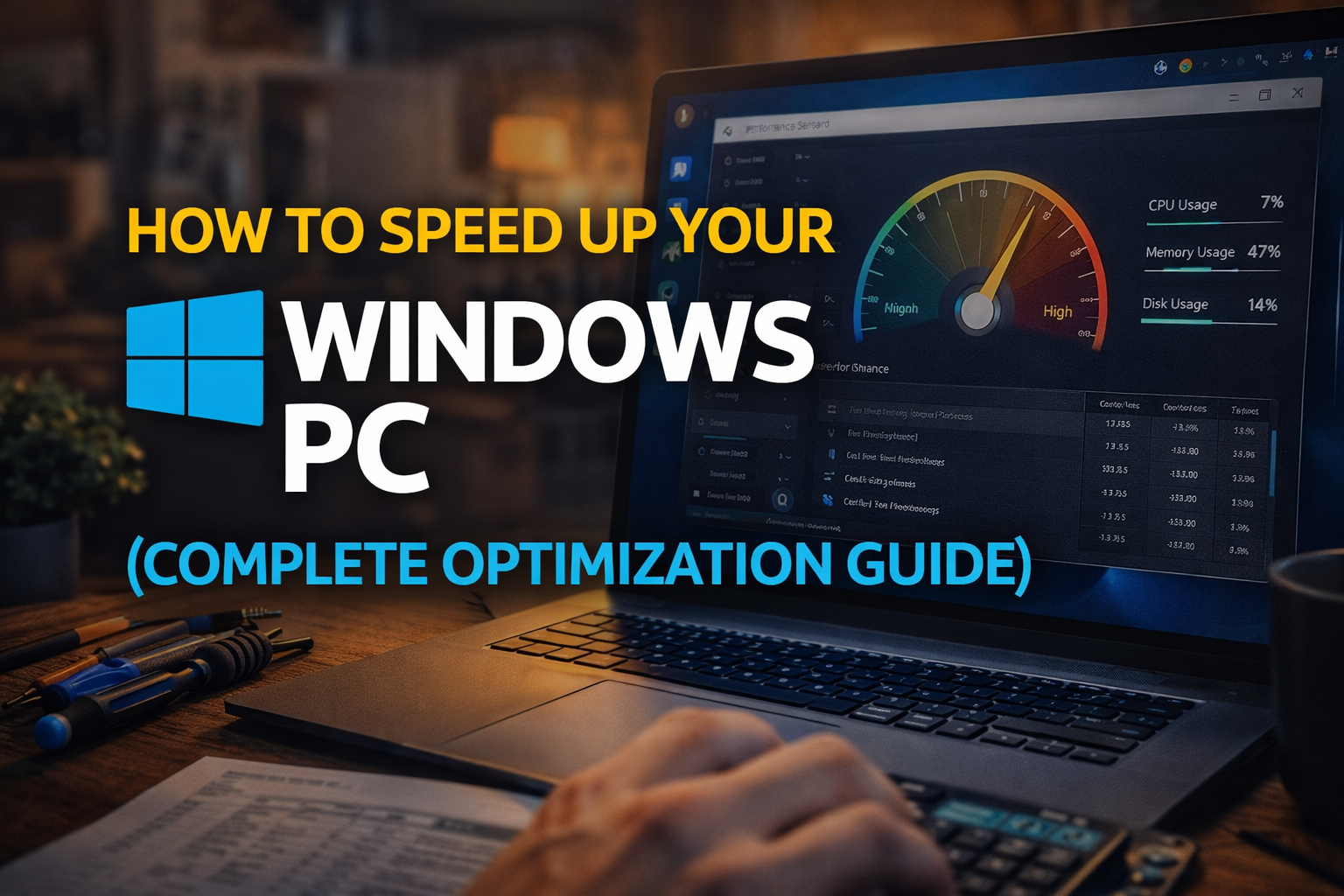
A slow computer can be frustrating, especially when you need to finish work, study, or browse the internet smoothly. Over time, any system running on Microsoft Windows may begin to lag due to software clutter, background processes, outdated settings, or hardware limitations.
The good news is that you don’t always need to buy a new PC to fix the problem. With the right optimization steps, you can significantly improve performance and make your Windows computer run faster and more efficiently.
This complete guide will walk you through practical, step-by-step methods to speed up your Windows PC using simple techniques that anyone can follow.
Why Windows PCs Slow Down Over Time
Before fixing the problem, it’s important to understand what causes it.
Common Reasons for Slow Performance
- Too many startup programs
- Background apps consuming memory
- Low disk space
- Outdated system or drivers
- Malware or unwanted software
- Too many temporary files
- Heavy visual effects
- Insufficient RAM or storage
Quick Overview: What Affects PC Speed?
Here’s a simple breakdown:
| Component | Impact on Speed |
|---|---|
| RAM | Affects multitasking |
| Storage | Impacts loading times |
| CPU | Handles processing tasks |
| Startup apps | Delay boot time |
| Background apps | Consume system resources |
Step 1: Restart Your PC Regularly
This may sound simple, but restarting your computer clears temporary memory and stops unnecessary processes.
Why Restarting Helps:
- Clears RAM usage
- Stops background tasks
- Fixes minor glitches
- Refreshes system performance
Recommendation:
- Restart at least once every 1–2 days
Step 2: Disable Startup Programs
Many apps automatically launch when Windows starts, slowing down boot time.
How to Disable Startup Apps:
- Press Ctrl + Shift + Esc to open Task Manager
- Go to the “Startup” tab
- Select unnecessary apps
- Click “Disable”
Tip:
Disable apps like:
- Messaging apps
- Updaters
- Background utilities you don’t need
Step 3: Uninstall Unused Programs
Unused software takes up storage and may run background services.
Steps:
- Open Settings
- Go to Apps
- Select Installed Apps
- Uninstall programs you don’t use
Examples of removable apps:
- Old games
- Trial software
- Duplicate tools
Step 4: Free Up Disk Space
Low storage can slow down your system significantly.
Ways to Free Space:
- Delete temporary files
- Remove large unused files
- Empty Recycle Bin
- Move files to external storage
Use Disk Cleanup Tool
Steps:
- Search for “Disk Cleanup”
- Select drive (usually C:)
- Check file categories
- Click “Clean up system files”
Step 5: Optimize Storage with Storage Sense
Windows includes a built-in cleanup tool.
How to Enable:
- Open Settings
- Go to System > Storage
- Turn on Storage Sense
This feature automatically deletes:
- Temporary files
- Recycle Bin items
- Old downloads
Step 6: Update Windows and Drivers
Updates improve performance, fix bugs, and enhance security.
Why Updates Matter:
- Improve compatibility
- Fix performance issues
- Add new features
How to Update Windows:
- Go to Settings
- Click Windows Update
- Check for updates
- Install available updates
Step 7: Adjust Visual Effects
Windows includes animations that can slow older systems.
How to Optimize:
- Search “Performance” in Start Menu
- Click “Adjust the appearance and performance”
- Select “Adjust for best performance”
Or manually disable:
- Animations
- Shadows
- Transparency
Step 8: Scan for Malware
Malware can significantly slow down your PC.
Use Windows Security:
- Open Windows Security
- Go to Virus & Threat Protection
- Run a full scan
Benefits:
- Removes viruses
- Improves performance
- Enhances security
Step 9: Upgrade RAM (If Possible)
If your system still feels slow, hardware upgrades may help.
Why RAM Matters:
- More RAM = better multitasking
- Fewer slowdowns when switching apps
Recommended RAM:
| Usage Type | Recommended RAM |
|---|---|
| Basic tasks | 4–8 GB |
| Moderate use | 8–16 GB |
| Heavy use | 16 GB+ |
Step 10: Upgrade to SSD Storage
If you’re still using a traditional hard drive (HDD), switching to an SSD can drastically improve speed.
Benefits of SSD:
- Faster boot times
- Quick file access
- Improved app loading
Step 11: Limit Background Apps
Background apps consume system resources even when not in use.
How to Disable:
- Open Settings
- Go to Privacy & Security
- Click Background apps
- Turn off unnecessary apps
Step 12: Manage Power Settings
Windows power settings affect performance.
Steps:
- Open Control Panel
- Go to Power Options
- Select “High Performance”
When to Use:
- Desktops
- When performance is more important than battery
Step 13: Clean Your Browser
Browsers can slow down your PC if overloaded.
Tips:
- Clear cache and cookies
- Remove unused extensions
- Limit open tabs
- Update your browser
Step 14: Defragment Hard Drive (HDD Only)
If you use an HDD, defragmentation can improve performance.
Steps:
- Search “Defragment and Optimize Drives”
- Select drive
- Click Optimize
Note: SSDs do not need defragmentation.
Step 15: Disable Visual Widgets and Background Sync
Features like widgets and sync services may run in the background.
Recommendations:
- Disable unnecessary widgets
- Turn off sync for unused apps
- Reduce background activity
Step 16: Keep Desktop Organized
A cluttered desktop can slow down performance.
Best Practices:
- Avoid storing too many files on desktop
- Use folders to organize files
- Remove unused shortcuts
Step 17: Use Lightweight Alternatives
Heavy software can slow your system.
Examples:
- Use lightweight browsers
- Avoid heavy editing software if not needed
- Choose optimized apps
Step 18: Monitor System Performance
Use Task Manager to identify issues.
How to Open:
- Press Ctrl + Shift + Esc
What to Check:
- CPU usage
- Memory usage
- Disk usage
Identify apps consuming high resources.
Step 19: Disable Unnecessary Services (Advanced)
Some background services are not needed.
Warning:
Only disable services if you understand their purpose.
Steps:
- Press Windows + R
- Type
msconfig - Go to Services tab
- Disable unnecessary services
Step 20: Reset or Refresh Windows (Last Option)
If nothing works, resetting Windows can restore performance.
Steps:
- Open Settings
- Go to System > Recovery
- Click Reset this PC
- Choose an option:
- Keep my files
- Remove everything
Performance Optimization Summary
Here’s a quick overview of the most effective methods:
| Method | Impact Level |
|---|---|
| Disable startup apps | High |
| Free up storage | High |
| Upgrade to SSD | Very High |
| Increase RAM | Very High |
| Remove malware | High |
| Adjust visual effects | Medium |
| Clean system files | Medium |
Common Mistakes to Avoid
- Installing too many unnecessary apps
- Ignoring system updates
- Keeping low disk space
- Running too many startup programs
- Not scanning for malware
Best Practices for Long-Term Performance
- Restart your PC regularly
- Keep your system updated
- Clean files monthly
- Monitor resource usage
- Avoid installing untrusted software
- Maintain adequate storage space
Final Thoughts
Speeding up a Windows PC is not about a single fix—it’s about combining multiple optimization techniques. By managing startup programs, cleaning storage, updating your system, and upgrading hardware when needed, you can dramatically improve performance.
The operating system provided by Microsoft Windows is designed to be flexible, but it requires regular maintenance to stay fast and efficient.
Conclusion
A slow PC doesn’t have to stay slow. With the right steps, you can bring your system back to life and enjoy smoother performance.
In simple terms:
- Software cleanup improves responsiveness
- Hardware upgrades boost speed significantly
- Regular maintenance prevents future slowdowns
By following this complete optimization guide, you can keep your Windows PC running efficiently for years without unnecessary upgrades.
If you apply even a few of these techniques, you’ll notice a clear improvement in boot time, app loading speed, and overall system responsiveness.
