
Syncing your notes might sound trivial, but it becomes a necessity real quick when you realize the device you made your notes on isn’t with you. Most note-taking apps will happily sync your notes for you, but many require a cloud subscription to save all your data on a server that can be accessed across all your devices.
Now there are offline-first note apps that sync only when you decide, but these, too, either require a cloud subscription or that you self-host your own infrastructure. But if that doesn’t work for you either, there is a free tool that can sync your notes across devices and much more.
Why Git is weirdly perfect for syncing notes
Version control isn’t just for code—it’s your notes’ secret weapon
At its core, Git is a version control system that stores your files as a series of snapshots over time. So, instead of stacking your notes into some proprietary database that you can’t access without an account or specific app, you can keep them as plain text or Markdown files inside an ordinary folder, which Git can track for you. Every time you commit a change, Git saves the state of those files, meaning you can see what changed, roll back changes, or recover something you deleted.
Another benefit is Git’s distributed design. You can have a full copy of your notes on every device, then use a service like GitHub, GitLab, Gitea, or a self-hosted server as a central point where everything syncs. Your notes will still work offline, and you’re not locked to a vendor just to keep everything in sync.
What this setup actually looks like (no fluff)
A dead-simple workflow that doesn’t require DevOps brain
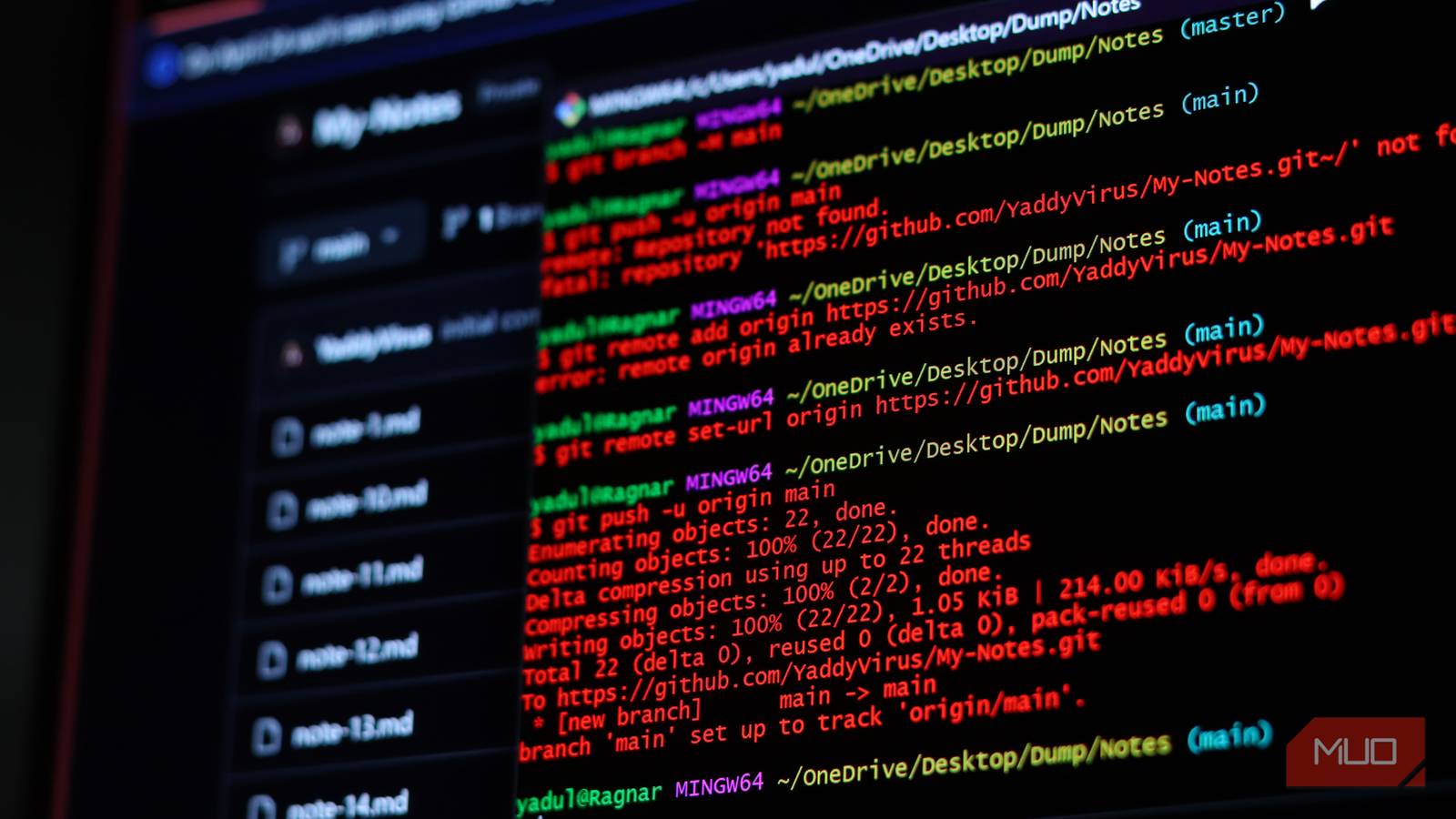
Setting Git up for your notes work exactly how you’d set it up for your codebases. I already use Git to sync my notes, and it’s easier than you think. You create a Git repository in the folder where your notes reside and connect it to a repository you control. This control repository can sit on platforms like GitHub, GitLab, or any other Git-supported service.
Then, on your main machine, you can initialize Git in your notes directory, make an initial commit, and then add the remote URL for your repository. Once that’s in place, you can keep writing notes exactly as before, but now you occasionally run a few Git commands to sync changes up and down.
If you’ve never used Git before, it can seem daunting, especially considering the default way to use it is via the terminal. Thankfully, you only need to know a handful of commands to use Git for note-taking.
Start by downloading Git for your Windows, macOS, or Linux machine and running the installer to get it set up. Then, create a folder for your notes and initialize it by running
git init
Once done, run the following commands to create your first snapshot.
git add .
git commit -m "initial Note commit"
Feel free to change the commit message to something else if you like. These messages mark changes in your repository, so it’s important to learn how to write an effective and useful Git commit message. If you want cloud syncing capabilities, create your first repository on GitHub and run the following command to connect it to your notes folder.
git remote add origin [repository URL]
On other devices, you reverse the process. Instead of creating a fresh repository, you clone the remote into a local folder, which pulls down all your existing notes and their full history in one go. From this point, the workflow becomes the same: write your notes as you want, commit when you’re done, and pull to grab changes from any other device connected to your repository.
Use any device, any editor
Your notes, your tools, your rules
The best thing about this approach is that Git doesn’t care what editor you use as long as it’s working with the files in your notes repository. On a desktop, you can use anything from a plain text editor to VS Code, which might just be the perfect writing app, and also has built-in Git integration. You can also use more Markdown-centric apps like Obsidian or Logseq by pointing them at your repository folder. These apps treat the repository as a normal notes directory, while Git handles the sync and history in the background.
On mobile, you’d want to lean towards Git-enabled note apps like GitJournal. It stores your notes locally as Markdown and syncs them to any Git repository accessible over SSH, including GitHub, GitLab, or a self-hosted instance. You also get a touch-friendly UX on your phone, but still keep the same repo that your desktop uses, so everything stays synced without the need for a paid sync service.
You can use a regular notes app on your phone, too, but you’ll have to pair a mobile Git client with your editor of choice. The basic habit remains the same: pull changes before you start editing, then commit and push when you’re done so your other devices can see the latest versions. It’s not fully automatic the way a cloud sync app works, but this trade-off is well worth the reliability, control, and money you save.
When things break: conflicts, merges, and reality
It’s not magic, but it’s way less painful than you think

Git is built for collaboration, so it’s pretty good at merging changes from multiple devices, even if the changes happen close together. If you edit different notes on different devices and then sync, Git will usually just fast-forward, and you will never notice anything special happening. Even if you accidentally edit the same content in the same note on two devices, Git will ask you which version you want to keep, instead of overwriting the latest changes like general note apps do.
My daily use revolves around a simple routine: write notes, commit periodically, pull before any long writing sessions, push when done. If you’re keen to avoid typing in multiple commands all the time, you can script this behavior into a one-liner as follows:
git pull --rebase && git add -A && git commit -m "update notes" && git push
Alternatively, there are also tools like git-auto-sync or gitwatch that can watch a folder and auto-commit and sync on a schedule if you want a more set it and forget it approach. Regardless, even without the automation, the extra friction is usually only a couple of commands per session. In my opinion, that’s a small price to pay for full portability, offline access, and a detailed history of your thought process.
Git beats most paid note sync services
No subscriptions, no lock-in, no nonsense
Cloud-first note apps sell convenience, but they often come with hidden strings. Subscription fees, storage caps, proprietary formats, and the risk that a company shuts down or pivots in a few years. When you build your note system around Git, you keep everything as plain files that can be read by just about every editor you can download. You’re also free to move your repository from a mainstream service like GitHub or GitLab to a self-hosted Gitea instance or another provider entirely, without changing your workflow.

This simple note-taking app is a minimalist’s dream
Capture your thoughts and ideas without the clutter.
Most importantly, you keep your notes under your control. You decide if and when they leave your device, which service provider you trust, what editors you use, and how often you sync them. If you’re already comfortable with even the basics of Git, turning it into a private sync layer for your notes is an upgrade that costs nothing but quietly improves your writing life. And if you’re not, it’s a great way to start learning Git while getting something practical out of it.
