
Microsoft Store is a lot more useful and stable than it was a few years ago. A lot more Windows apps are now available exclusively via the Microsoft Store, and for the most part, it works, until it doesn’t.
I recently tried to install an app from the Store, and the download just sat there at “Pending” for minutes before eventually failing with a generic error code. Restarting the Store didn’t help, and the issue persisted even after I restarted my PC. This is the kind of thing that shouldn’t happen on a platform that’s had over a decade to mature, but it does, and it happens more often than you’d expect. To Microsoft’s credit, it does offer a built-in command that fixed the store without needing to reinstall the app, and I wish I’d known about it sooner.
Microsoft Store downloads fail more often than they should
A problem that’s plagued the Store since its early days
To be honest, Microsoft Store’s interface has improved significantly over the years. It’s cleaner, faster to browse, and no longer feels like an afterthought bolted onto Windows. But the download experience still hasn’t caught up.
Downloads getting stuck on “Pending” or “Starting download” is frustratingly common. Sometimes a download will crawl to 80 or 90 percent and then just fail, forcing you to start over. Other times, the progress bar stops updating entirely, leaving you guessing whether anything is actually happening. I’ve even had my Microsoft Store downloads run terribly slow, needing a whole different workaround, which is a separate but equally annoying problem.
Compare this to equivalent app stores on phones, which rarely have these issues. I can’t remember the last time Google Play or the Apple App Store failed to download something. Even the Mac App Store works without drama most of the time. But Microsoft Store on a full desktop operating system with a wired gigabit connection still manages to choke on a 50MB app. The Store’s download infrastructure has been a weak spot since its inception, and while the UI has gotten better, the reliability of actually getting apps onto your machine hasn’t kept pace.
wsreset.exe clears the Store cache without touching your apps
A built-in command that resets the Store’s local cache
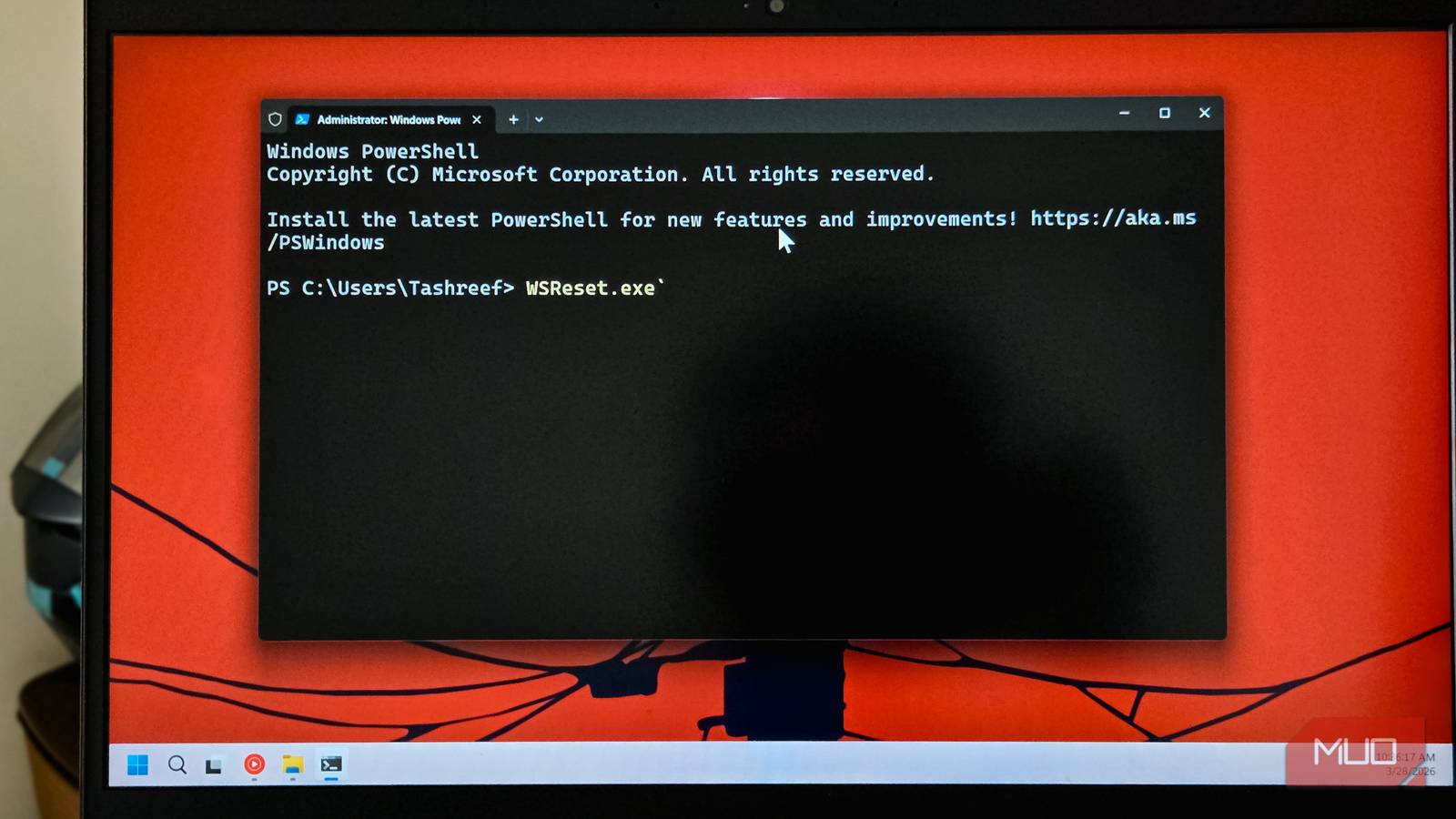
The fix that worked for me was wsreset.exe, a command that’s been built into Windows since Windows 8. It clears the Microsoft Store’s local cache and forces it to rebuild a fresh one. It’s a fairly non-destructive process as it doesn’t uninstall apps, nor affects your personal data. It only affects the Store’s cached data.
To run it, press Win + R to open the Run dialog, type wsreset.exe, and hit Enter. You can also use Windows Terminal to execute the command if you want. A blank command prompt window opens for a few seconds while the cache clears, and then the Microsoft Store launches automatically. That’s it.
The process is akin to clearing your browser cache when a website won’t load properly. The Store’s cache holds metadata about apps, download progress, and licensing information. When that cache gets corrupted or overloaded after months of installs and updates, the Store can’t correctly track what’s happening with your downloads. It might think a download is still in progress when it isn’t, or hold onto invalid data that blocks new downloads from starting.
After I ran wsreset.exe, the app that had been stuck on “Pending” downloaded and installed without any issues. The Store felt noticeably snappier too, which was a nice bonus. It’s the kind of fix that’s so simple and effective that it’s worth trying before anything else when the Store misbehaves.
When wsreset alone isn’t enough
Cache isn’t always the problem

WSReset fixes cache-related issues, but not every Store problem comes down to a bad cache. If your downloads keep failing after clearing them, the issue might be deeper.
Corrupt Windows Store components are one common culprit. You can try repairing them by going to Settings > Apps > Installed apps, finding Microsoft Store, clicking the three-dot menu, selecting Advanced options, and then hitting Repair. If that doesn’t work, the Reset button on the same page reinstalls the Store entirely, though you’ll lose your Store preferences.
Network problems can also cause persistent download failures. A VPN, a misconfigured DNS, or even an overly aggressive firewall can interfere with the Store’s connection to Microsoft’s servers. And if you’re signed into multiple Microsoft accounts, account sync conflicts can quietly break downloads in ways that no cache reset will fix. Signing out and back in with your primary account sometimes resolves this.
If the Store keeps letting you down despite all of this, you can bypass it altogether. Tools like UniGetUI give you a graphical interface for WinGet, Windows’ built-in package manager. I’ve replaced the Microsoft Store with UniGetUI on one of my machines, and it installs and updates the same apps without the Store’s reliability headaches.
A quick fix that should be better known
WSReset.exe isn’t new, and it’s not a hidden power-user secret. But it’s one of those commands that most people don’t know about until they’ve already spent 20 minutes restarting their PC and re-signing into their Microsoft account, trying to fix a stuck download. For a problem that’s been part of the Microsoft Store experience for years, it’s the fastest and least disruptive first step.
That said, the fact that a cache reset command needs to exist at all says something about the Store’s reliability. It’s gotten better, and for most people most of the time, it works fine. But when it breaks, it breaks in ways that feel like they belong to an earlier era of Windows.
