
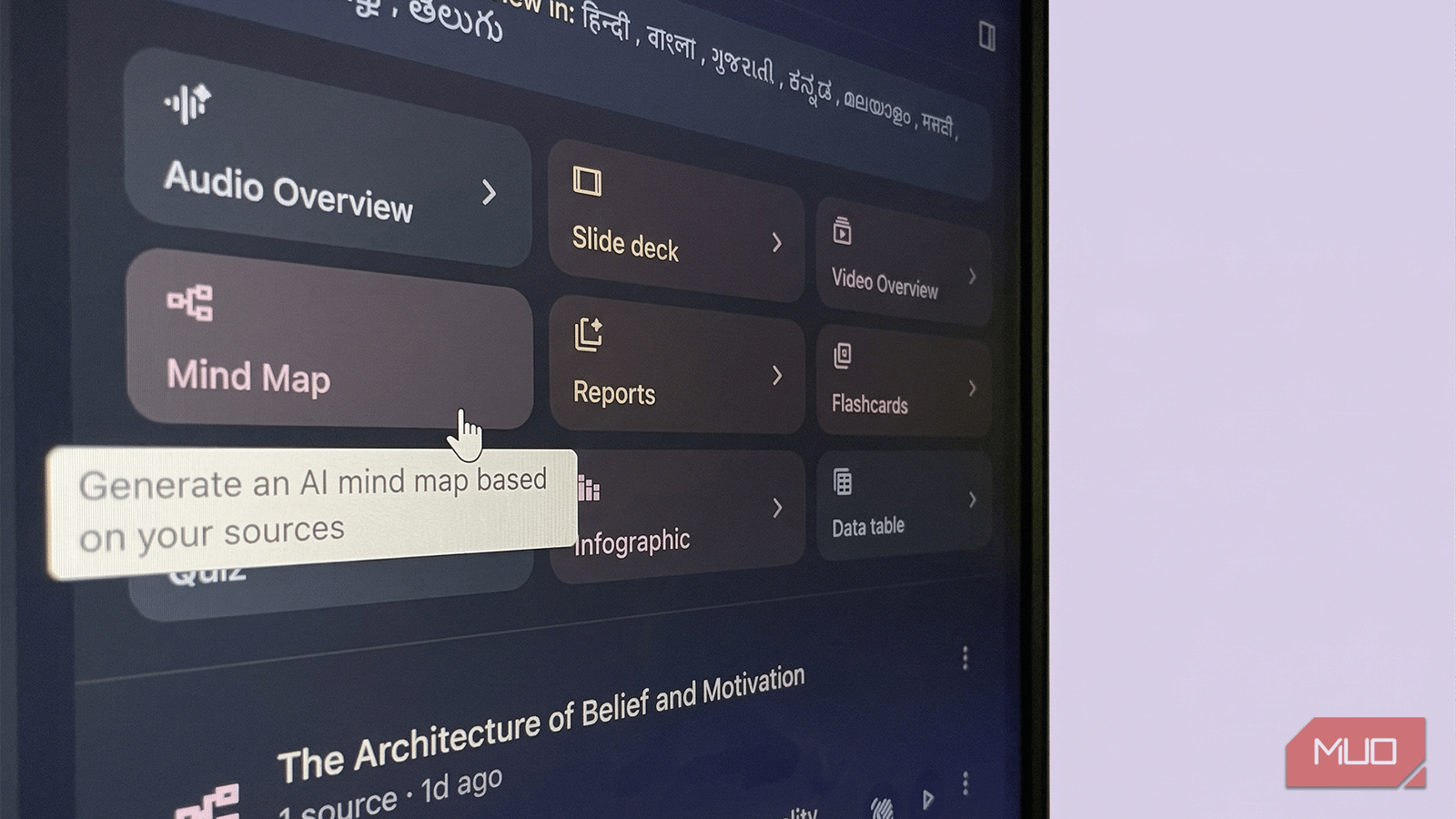
NotebookLM’s mind map feature automatically turns your uploaded documents into an interactive visual map. But that’s just the first part of the story. How can we get the best results from a mind map in NotebookLM is the second part.
For a technology writer who has spent countless hours keeping my head above the information tsunami, this feature changes how I process information visually. Instead of drowning in dense research, we can generate a structured overview with a single click. This allows us to break down complex ideas into simple chunks quickly. But simply looking at the generated map barely scratches the surface of its potential.
- OS
-
Android, iOS, Web-based app
- Developer
-
Google
- Pricing model
-
Free
NotebookLM is Google’s AI-powered research notebook that that reads what you upload and helps you transform it into structured summaries, explanations, and visuals.
Keep your notebook to one specific topic
A clean source list builds a better map

NotebookLM generates a visual mind map based entirely on the sources you upload to a specific notebook. If you dump unrelated documents into one workspace, you will end up with a messy visual outline. The best practical takeaway is to create a dedicated notebook for a single clear goal; this ensures the tool groups your ideas into logical, highly relevant branches.
I sometimes feel tempted to throw every PDF and article I find into a single overarching research notebook. It seems much faster to keep all my data in one place rather than managing dozens of separate notebooks.
But doing this ruins the tool’s ability to cluster concepts accurately. When you organize NotebookLM sources thoughtfully and use clean titles for your sources, the generated map becomes a highly useful outline rather than a chaotic web. The idea is to reduce confusion from the onset and make the map easier to navigate.
NotebookLM uses source titles for context when generating the mind map. Rename every source to something descriptive before you tap on the Mind Map button.
Click on nodes to chat with context
Turn passive maps into focused chats
Every node in a NotebookLM mind map is interactive; clicking on a specific idea instantly opens a chat panel. This action automatically applies the context of that specific branch to your conversation so you can dive deep into targeted areas. You can dive into the subtopic with smart NotebookLM prompts without needing to re-explain the premise.
I used to just read through the overarching map, go back to the source, and try to mentally connect the dots myself. Relying on an AI chat to explain a specific branch felt like a lazy shortcut that might make me miss nuances in the original text.
Now, by clicking a node to start a focused conversation, I bypass irrelevant information and instantly extract the exact details I need. But I also resist the urge to immediately expand every branch. Instead, I read the top-level nodes first and see if the top-level branches feel too broad. This usually means the notebook covers too wide a scope. You can always split it into smaller notebooks and regenerate. Conversely, if the branches feel too narrow, you may need more varied sources.
Convert visual branches into outlines
Map out your writing projects easily

The mind map serves as an automated structural framework for scattered research materials. You can use the top-level branches as your main document headings and the sub-branches as your specific talking points to build the first writer’s block-defeating draft.
I was hesitant about using an AI-generated map to replace my traditional outlining process while taking notes. Like most writers, I manually organize my thoughts in a word processor to ensure the narrative flows exactly as I want.
While manual outlining offers control, it often consumes hours of valuable time before words come together in the first paragraph. The mind map grounds your structure directly in your sources and lets you spot missing gaps immediately. You can immediately translate those visual nodes into a better outline with or without prompts.

How I Used ChatGPT to Reverse Outline My Ideas—and You Can Too
My messiest ideas finally made sense—thanks, ChatGPT.
Filter out the noise from dense data
Cherry-pick only what you truly need

NotebookLM allows you to expand or collapse specific branches to control exactly how much detail you see on your screen. This makes it incredibly easy to cherry-pick relevant subtopics while actively ignoring concepts that are too technical or off-topic for your goals. You can quickly curate the best ideas and hide the distracting noise with a single click.
Does collapsing branches mean I might accidentally overlook a crucial piece of data? Possibly. So, expanding every single node feels like the only safe way to ensure I have done a thorough review of my uploaded documents.
Then again, expanding everything can also turn into cognitive overload and defeat the entire purpose of visual simplification. By intentionally shrinking irrelevant nodes, you keep the mind map neat and focused solely on the parts that actually matter for your final project. This is a trade-off. You have to adjust depending on the sources and the end goal. For instance, if you are using NotebookLM for a presentation, you might not need an over-complicated map.
Scan your nodes to drive next actions
Transform concepts into clear tasks

A mind map can serve as an active planning dashboard rather than just a static study aid. By viewing the map, you can identify weak branches that require further research and turn them into to-do tasks, such as finding data or writing a section. You essentially transform a visual outline into a dynamic checklist for your upcoming deadlines.
I usually keep my task management software completely separate from my research environment. But with NotebookLM, you can directly prompt those weak areas, search for more sources, or go over to Gemini to continue your research.
Looking at a mind map as a visual thinking and planning aid keeps your goals tied directly to your reference materials. When you use the map to highlight which topics need more sources, you can streamline your planning and research, saving time. You can also easily export this visual plan to your colleagues on collaborative projects. They’ll see the same interactive mind map in their Studio Panel.
Try a NotebookLM mind map with messy information
There are times when a topic is too complex or the information is fuzzy. Upload your background documents, generate a map, and use the branches to draft a one-pager overview document. Generate more than one mind map for the same source and see if the AI gives you different results (yes, it does!). Treat the first map as a draft and the second or third version after source curation as the working map. You will immediately see how the bird’s-eye view from a mind map improves your clarity and gives you a starting point.
