
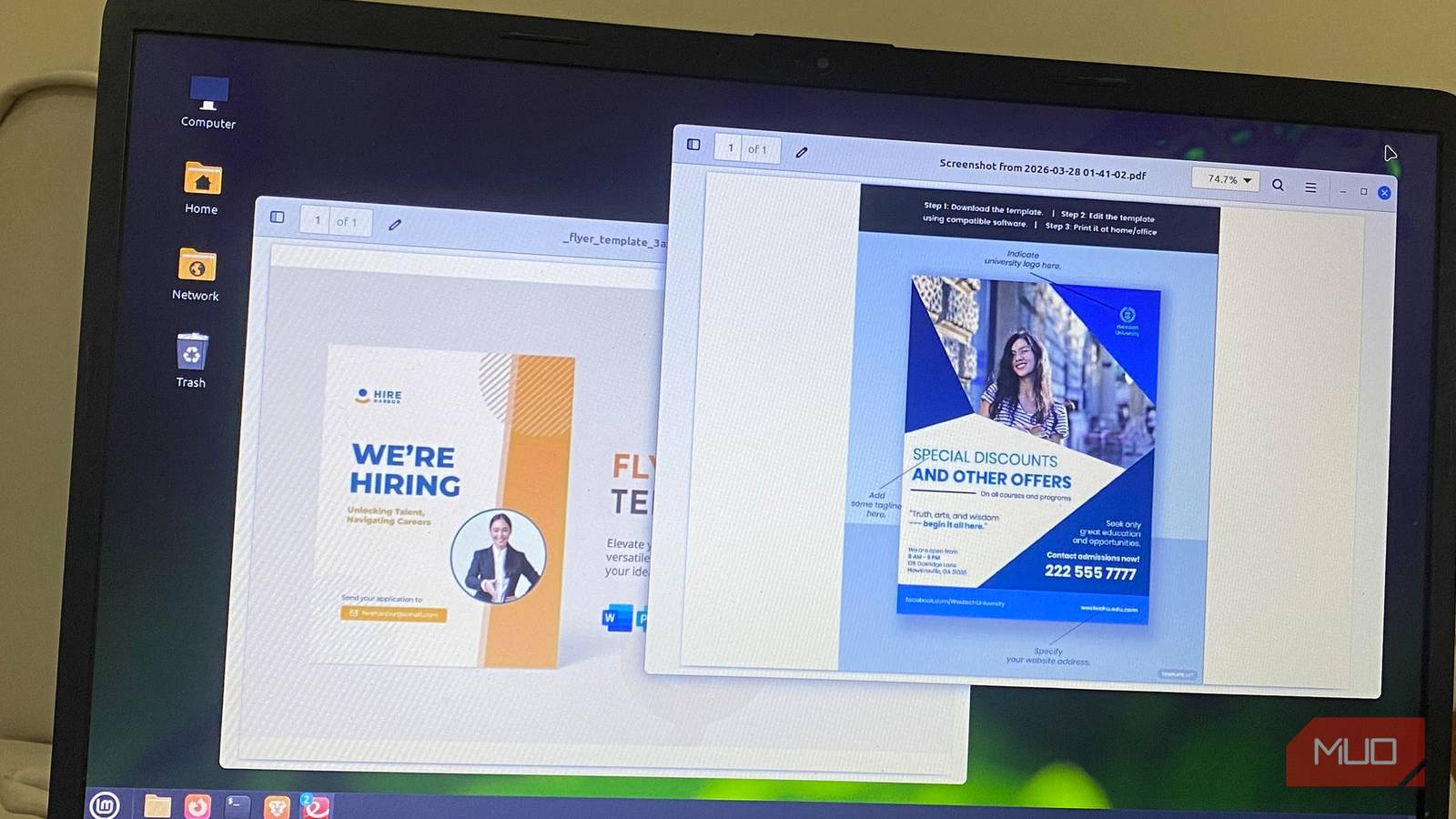
For a while, I used three different document apps, and each has felt invaluable. One scanned, one read PDFs, and the last annotated PDFs. I didn’t complain because it worked. But switching to GNOME Document Scanner has made me realize that I’ve been overcomplicating things for years.
It included many features I actually needed. Once I paired it with Evince, it was clear that I had found a reliable document workflow. Now I feel like I truly have the ultimate PDF solution.
I installed a scanner app I’d never heard of
Turns out Simple Scan and Document Scanner are the same thing
I came across Simple Scan online some years back. What I did not know was that it was the very same app that I had just installed because it showed up as Document Scanner on my Linux computer.
The first appeal was the UI. It had no clutter, and there wasn’t an overwhelming set of settings. In fact, it didn’t feel like a typical legacy tool. It runs on the SANE (Scanner Access Now Easy) framework and is built around simplicity. SANE ensures that, without relying on proprietary software, you still get broad scanner compatibility.
Once I connected my scanner, the app detected the scanner almost instantly. This may not be the same experience for everyone, as you may need extra backend packages or drivers for certain Canon and Epson models to work well. But typically, it’s smooth sailing after initial setup. I didn’t need to install anything additional, and it felt like I was using a tool that actually belonged on my system.
The scanning workflow is where it won me over
From paper to a clean PDF without opening anything else

Document Scanner’s workflow is what won me over. Detecting a scanner is just the first step; it excels at making the process effortless. Once you open the app, you only need to select whether it’s a single- or multiple-page scan, and you start scanning instantly. New pages stack perfectly in the interface, and it lets you reorder pages, a feature that comes in handy when scanning documents that are not in sequence.
You can make important adjustments before exporting. I sometimes tweak the resolution and set the appropriate page type. You can also adjust brightness and contrast levels using clear numerical feedback. I use its crop and rotate tools rather than exporting to a different app for these adjustments.
It lets you save as PDF or in image formats such as JPEG or PNG. However, the one limitation is its lack of a built-in OCR. You will have to depend on other tools for that feature. Compared to alternatives like VueScan, Document Scanner’s simplicity gives it the edge.
Feature | GNOME Document Scanner | VueScan |
|---|---|---|
Cost | Free | Paid |
Setup | Usually automatic, may need drivers | Manual setup |
Output formats | PDF, JPEG, PNG | PDF, TIFF, JPEG, RAW |
Ease of use | Very simple | Advanced, more complex |
Evince handles reading and annotation
There’s one important catch
After scanning PDFs, opening them is the next step, and this is where I use Evince. On distros like Ubuntu and Linux Mint, it’s the default PDF viewer. I have used it for so long, but casual use actually hides what it really can do. It’s a fast option for viewing or reading PDFs because of its smooth navigation and how it handles very large documents without strain.
While this will suffice for most people, I started using it for annotations, and it was a winner. It lets me add notes to PDFs, highlight text, underline sections, and strike-through content. I can open and view the annotations on other tools because Evince saves the annotations in PDF metadata.
The one drawback to my workflow is that its annotation tools only work if the PDF has selectable text, which is fine most of the time. But occasionally, when I have a raw scan, it’s impossible to mark it up.
What’s worth noting is that recent releases like Ubuntu 25.04 have transitioned to Papers as a replacement for Evince. However, the workflow in most cases remains the same. Below is how Evince and Papers stack up against some other options:
Feature | Evince / Papers | Okular | Foxit Reader |
|---|---|---|---|
Annotation | Basic (text PDFs only) | Advanced | Advanced |
PDF editing | No | Limited | Yes |
Performance | Lightweight | Moderate | Heavier |
Integration | Native GNOME | KDE-focused | External |

- OS
-
Linux
- Price model
-
Free
Evince is an open-source document viewer designed for the GNOME desktop environment with support for PDF, PostScript, DjVu, TIFF, and comic book (CBR/CBZ) formats.
This one install replaced three tools for me
It took just a few days to realize I was no longer reaching for some of the tools I had used for years. This workflow had everything I needed for daily work with PDFs. This is what my workflow before and after felt like:
Task | What I used before | What I use now |
|---|---|---|
Scanning | Third-party scanner app | Document Scanner |
Reading | Separate PDF reader | Evince |
Annotating | Dedicated annotation tool | Evince (for text PDFs) |
The workflow may not be for everyone, but it’s more than enough if everyday tasks include scanning and submitting signed forms and digitizing receipts.
The only times I would not recommend this setup are for workflows that are heavy on OCR, advanced PDF editing, or merging and splitting documents. In those cases, I’d recommend Okular and a dedicated OCR tool.

I replaced GNOME with the new COSMIC, and it feels like the future of Linux
It’s fast, furious, and somewhat bonkers, but it gets the job done.
