
Having trouble logging into Canva? Follow this step-by-step guide to fix common Canva login issues, password errors, account access problems, and browser glitches.
Canva’s user-friendly interface and powerful design tools have made it a go-to platform for creating graphics, presentations, and social media content. Whether you’re a professional designer or an educator preparing classroom materials, logging in seamlessly is crucial to maintaining productivity.
When login issues arise—such as being unable to access your account or receiving error messages—it’s important to approach the problem methodically to minimize downtime.
One of the first steps to resolve Canva login issues is to verify your internet connection and ensure that Canva’s servers are operational.
You can check the status of Canva’s services through Canva’s official status page, which provides real-time updates on outages or disruptions. If the platform is running smoothly, the issue may lie with your browser or device. Clearing cache and cookies, disabling browser extensions, or trying a different browser like Chrome or Firefox often resolves unexpected login failures.
Incorrect credentials are a common cause of login problems. If you’re seeing an “invalid email or password” message, use the “Forgot password?” option on the login screen to reset your password securely. Be sure to check for typos and ensure that caps lock is off.
For users who rely on third-party logins (such as Google or Facebook), confirm that you’re using the correct linked account and that it’s still active. More information on secure login practices can be found on Canva’s Help Center.
If standard troubleshooting doesn’t work, consider updating the Canva app or accessing your account from another device to isolate the issue.
Persistent problems may require reaching out to Canva Support directly for personalized assistance.
By following these structured steps, most users can regain access quickly and get back to creating without significant interruption.
1. Check Your Internet Connection
Before attempting advanced troubleshooting steps, it’s essential to verify that your device has a stable internet connection. Canva relies heavily on continuous connectivity to load design elements, save progress, and authenticate user sessions.
An unstable or weak network may result in timeouts, failed logins, or incomplete page rendering. You can test your connection by opening multiple websites such as Google or Wikipedia to ensure data is loading consistently.
If you’re using Wi-Fi, consider moving closer to the router or restarting the modem to refresh the signal. Alternatively, switch to mobile data to determine if the issue persists across different networks. This simple step can help isolate whether the problem lies with your internet service rather than Canva itself.
For more information on diagnosing network issues, visit Speedtest by Ookla to measure your current connection speed and stability.
Keep in mind that public or shared networks may impose restrictions or bandwidth limits that interfere with web applications like Canva.
If you’re on a corporate or school network, firewall settings might block certain features. In such cases, contacting your network administrator or trying a different connection environment can be helpful.
A reliable connection not only improves access to Canva but also enhances overall performance and user experience.
2. Verify Your Login Credentials
One of the most frequent causes of login issues is entering an incorrect username or password. Always ensure that you’re using the exact email address associated with your account, as even a small typo can prevent access. It’s also important to verify that the Caps Lock key is disabled when typing your password, since passwords are case-sensitive and an uppercase letter where it shouldn’t be can lead to authentication failure.
If you continue to have trouble logging in, take advantage of the “Forgot Password” feature typically found on login pages. This tool allows you to securely reset your password through a verification link sent to your registered email. Following this process ensures that only authorized users regain access to their accounts. For more information on secure login practices, visit Australian Cyber Security Centre.
Many platforms, including major services like Google and Microsoft, offer step-by-step recovery options to help users restore access safely. These systems are designed to protect your data while minimizing disruption. To learn more about account recovery best practices, refer to Google Account Help.
3. Use the Correct Login Method
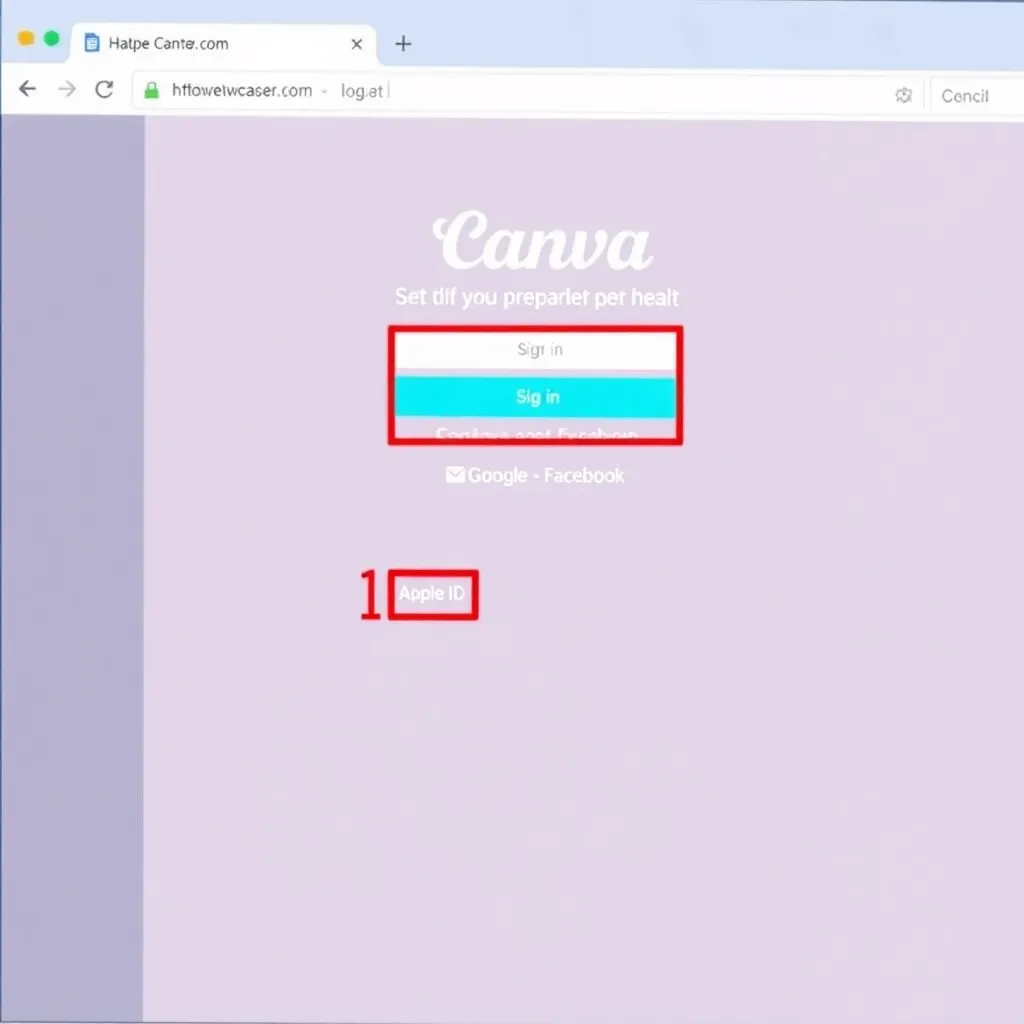
Canva offers several convenient login methods to suit different user preferences, including email and password, Google, Facebook, Apple ID, and Single Sign-On (SSO) for team accounts.
This flexibility allows users to choose the most secure and accessible option for their needs. It’s important to remember which method was used during account creation, as switching between authentication types isn’t always seamless without additional setup.
For instance, if you originally signed up using your Google account, attempting to log in with an email and password will not work unless you’ve explicitly set a standalone password for your Canva account. This is because third-party sign-in methods rely on the external service to verify identity, rather than storing login credentials directly with Canva.
Users who want more login flexibility can link multiple methods in their account settings to avoid access issues.
To prevent login difficulties, it’s recommended to keep your preferred method active and updated. If you’re managing a Canva for Teams account, SSO integration streamlines access through your organization’s identity provider, enhancing both security and user management.
More information about Canva’s login options and account security can be found on the official Canva Help Center.
4. Clear Browser Cache and Cookies
Corrupted or outdated browser data, such as cache and cookies, can often disrupt the login functionality on web applications like Canva. These stored files help websites load faster and remember user preferences, but when they become damaged or obsolete, they may prevent proper authentication.
To resolve this, it’s recommended to clear your browser’s cache and cookies through the settings menu. This process varies slightly depending on the browser, but instructions for Google Chrome, Firefox, and Safari can be found on their official support pages at Google Support.
After clearing the data, restart your browser completely to ensure all changes take effect. Then, navigate directly to Canva.com and attempt to log in again using your credentials.
This often resolves issues related to failed login attempts or being stuck on a loading screen.
For a quick diagnostic test, consider using an incognito or private browsing window, which automatically disables cached data and third-party cookies. If you’re able to log in successfully in this mode, it confirms that the issue was indeed caused by stored browser data.
Regularly maintaining your browser’s data can prevent similar issues in the future and improve overall browsing performance.
5. Try a Different Browser or Device
If you’re experiencing login issues with Canva, the problem might stem from browser-specific bugs or conflicting extensions. Certain add-ons, such as ad blockers or privacy tools, can interfere with authentication processes. To troubleshoot, try accessing Canva using a different browser like Google Chrome, Mozilla Firefox, or Apple Safari. This helps determine whether the issue is tied to your current browser’s settings or extensions.
Another effective way to isolate the problem is by attempting to log in from a different device, such as a smartphone or tablet.
If you can successfully access your Canva account from another device, it suggests that the issue is specific to your original machine.
This could point to cached data, outdated software, or local network issues affecting the login process.
Clearing your browser cache and cookies can also resolve unexpected login behavior, especially after recent updates or changes to Canva’s website. For detailed instructions on managing browser data, visit the support pages of your respective browser, such as Chrome Help or Firefox Support.
These resources provide safe, step-by-step guidance tailored to your setup.
6. Disable Browser Extensions Temporarily
Certain browser extensions, especially ad blockers and privacy-focused tools, can unintentionally disrupt Canva’s authentication process.
These extensions often block scripts or modify page content to enhance user privacy or remove ads, but in doing so, they may interfere with Canva’s login mechanisms or session management. This can result in failed logins, repeated authentication prompts, or restricted access to certain features within the platform.
To troubleshoot this issue, it’s recommended to disable browser extensions one at a time and test Canva’s functionality after each removal.
This systematic approach helps pinpoint the specific extension causing the conflict. Common culprits include uBlock Origin, Privacy Badger, and various script-blocking tools that may restrict essential Canva domains or third-party services required for authentication.
Once the problematic extension is identified, the best solution is often to add Canva to the extension’s allowlist (also known as a whitelist).
This setting permits Canva to operate normally while maintaining protection on other sites. For example, in Privacy Badger or uBlock Origin, users can click the extension icon while on Canva’s site and toggle protection off for that domain.
Maintaining a balance between online privacy and service functionality is key. While these tools are valuable for protecting your data, selectively allowing trusted platforms like Canva ensures uninterrupted access to creative tools. For more information on managing extensions, refer to your browser’s support site such as Chrome Help or Mozilla Support.
7. Check for Service Outages
If troubleshooting steps such as clearing your browser cache, restarting your device, or trying a different network don’t resolve the issue, the problem may stem from Canva’s servers rather than your local setup. In such cases, it’s advisable to check Canva’s official status page for real-time updates on system performance, ongoing outages, or scheduled maintenance that could be disrupting service.
Service disruptions are not uncommon with cloud-based platforms, and Canva is no exception. When widespread issues occur, the company typically posts detailed incident reports on their status dashboard, including affected features, start times, and resolution progress.
This transparency helps users determine whether the problem is isolated or part of a larger outage.
In addition to the official status page, social media platforms—particularly Canva’s Twitter (X) account—can serve as reliable sources for timely updates.
Users often report access problems, and Canva’s support team frequently responds with confirmation and estimated fixes, making it a useful channel for staying informed during outages.
8. Contact Canva Support
If you’ve gone through all the standard troubleshooting steps—such as resetting your password, clearing your browser cache, and checking your internet connection—but still can’t log in to your Canva account, it may be time to contact Canva Support directly.
Their support team is equipped to handle a wide range of account-related issues, from login failures to potential security concerns, and they can often resolve problems that aren’t fixable on the user end.
When reaching out, make sure to provide key details to help expedite the process. Include the email address associated with your Canva account, a clear description of the issue, any error messages you’ve encountered (such as “Invalid credentials” or “Something went wrong”), and a summary of the troubleshooting steps you’ve already attempted.
This information allows the support team to pinpoint the cause more efficiently, whether it’s a problem with account verification, a system outage, or an issue requiring manual intervention.
Canva’s support portal offers multiple ways to get help, including live chat for immediate assistance and email support for less urgent matters.
Response times are typically quick, especially for account access issues, which are prioritized due to their impact on user experience. For more details on how to submit a support request, visit the official Canva Contact Page.
In some cases, particularly with account recovery, you may be asked to verify your identity or ownership of the email linked to the account.
Be prepared to provide additional proof if necessary, such as previous order numbers or screenshots of error messages. By working closely with Canva’s support team, most login issues can be resolved securely and promptly.
Conclusion: Stay Calm and Troubleshoot Step by Step
Experiencing login issues with Canva can be frustrating, but most problems are resolvable with a few straightforward steps.
Start by verifying your internet connection, as unstable or weak connectivity can prevent the login page from loading properly.
If your connection is stable, double-check your username and password for any typos—remember that passwords are case-sensitive.
If you’ve forgotten your credentials, use the Canva password recovery tool to reset your password securely.
Browser-related issues are another common cause of login failures. Clear your browser’s cache and cookies, or try logging in using a private/incognito window to rule out interference from extensions or stored data. Ensure your browser is up to date, as outdated versions may not support Canva’s latest security features.
For persistent issues, consider switching to a different browser or device to isolate the problem.
External factors such as temporary server outages on Canva’s end can also disrupt access. Check Canva’s official status page to see if there are ongoing service disruptions.
If everything appears normal, it may be worth disabling any ad blockers or firewall settings that could be interfering with authentication processes.
Once you’ve regained access, take steps to prevent future issues. Store your login details securely using a trusted password manager, and strongly consider enabling two-factor authentication (2FA) through Canva’s account settings.
This adds an extra layer of security, protecting your designs and personal information from unauthorized access. For more tips on account security, visit Canva’s help center on account safety.
