

software tips for beginner should learn to work efficiently, boost productivity, and master essential digital tools quickly.
Starting out in the world of software can feel like stepping into a maze with no map, but small, consistent steps lead to big gains. One of the most important habits for beginners is learning keyboard shortcuts—tools like Microsoft Office or Visual Studio Code offer extensive shortcut guides that dramatically speed up your workflow.
Instead of relying solely on menus and buttons, taking time to memorize just a few key combinations can save hours over time and deepen your understanding of how software functions behind the scenes.
Equally vital is the practice of organizing your digital workspace. Whether you’re coding, designing, or managing documents, keeping files neatly structured in clearly named folders helps prevent confusion and data loss.
Tools like Google Drive or Dropbox not only offer cloud backup but also encourage systematic file management.
Naming conventions, version control (like adding “_v1”, “_final”), and regular backups are simple yet powerful techniques that professional developers and designers use daily.
Another cornerstone of success is knowing where to seek help. Online communities such as Stack Overflow for coding or Adobe Community for creative software provide invaluable support when you’re stuck. Rather than struggling in silence, asking clear, specific questions in these forums often leads to quick, expert-level solutions. Learning how to search effectively—using precise terms and error messages—can turn frustration into progress within minutes.
Finally, embrace the mindset that mistakes are part of the process. Software environments are designed to be forgiving; features like undo history, versioning, and sandbox modes exist so you can experiment safely.
Don’t be afraid to break something in a test project—it’s often the fastest way to learn how things really work. With patience and curiosity, each small discovery builds confidence and skill, laying the foundation for long-term growth in any tech-related field.
1. Master Keyboard Shortcuts
Mastering keyboard shortcuts is one of the simplest yet most effective ways to enhance productivity and streamline daily computer tasks. Instead of repeatedly switching between the keyboard and mouse, using combinations like Ctrl+C for copy, Ctrl+V for paste, and Ctrl+Z for undo allows for a smoother, faster workflow.
These universal shortcuts are supported across most operating systems and applications, making them essential tools for anyone working with digital content.
Beyond the basics, many programs offer specialized shortcuts that can dramatically reduce time spent on repetitive actions.
For example, in web browsers, Ctrl+T opens a new tab, while Ctrl+W closes the current one—small actions that add up over time. Learning these key combinations not only boosts efficiency but also reduces physical strain caused by excessive mouse use, promoting better ergonomics during long work sessions.
To get started, users can consult official documentation from software providers such as Microsoft Support or Google Support, which list common shortcuts for their applications.
Many text editors, design tools, and development environments also include customizable shortcut settings, allowing individuals to tailor workflows to their preferences.
With consistent practice, keyboard shortcuts become second nature, transforming the way you interact with technology.
Whether you’re writing, editing, or navigating complex software, taking the time to learn and apply these combinations pays off in both speed and precision. For an extensive list of shortcuts across platforms, resources like How-To Geek offer clear, up-to-date guides suitable for all skill levels.

2. Save and Backup Your Work Frequently
It’s a harsh reality that no digital workspace is immune to unexpected failures. Software can crash without warning, computers may freeze during critical moments, and sudden power outages can erase hours of unsaved work.
These disruptions don’t discriminate—whether you’re drafting an important document or editing a complex spreadsheet, the risk is always present. That’s why developing the reflex to save your progress frequently is one of the simplest yet most effective habits you can adopt. A quick press of Ctrl+S could be the difference between minor inconvenience and total data loss.
But manual saving alone isn’t enough in today’s fast-paced digital environment. To add a layer of protection, leverage cloud storage solutions like Google Drive or Dropbox, which automatically sync your files in real time. These services not only back up your work seamlessly but also allow access from multiple devices, ensuring continuity even if your primary machine fails.
Knowing your files are safely stored offsite brings peace of mind and minimizes downtime when technical issues arise.
The combination of disciplined saving habits and automated cloud backups creates a robust defense against data loss. Think of it as insurance for your digital efforts—small actions that prevent major setbacks.
In moments of intense focus, it’s easy to forget these precautions, but forming these routines early turns them into second nature. Over time, the few seconds spent saving or syncing become an invisible part of your workflow, quietly safeguarding everything you create.
3. Understand the User Interface
When diving into new software, taking a moment to explore its interface can make a significant difference in your overall experience. Start by scanning the menu bar at the top of the application—this is typically where core functions like File, Edit, and View are housed.
These menus often contain essential tools that may not be immediately visible on the main screen but are crucial for advanced tasks.
Understanding their layout helps you anticipate where certain features might be located, streamlining your workflow from the start.
Next, examine the toolbars and panels scattered around the workspace. These areas usually provide quick access to frequently used commands, such as formatting options, layer management, or export settings.
Spend a few minutes hovering over icons to reveal tooltips or consulting the software’s built-in help guide to learn their functions. Many applications, like those from Adobe or Microsoft, offer customizable toolbars, allowing you to tailor the interface to your preferences over time.
Don’t overlook the settings or preferences panel, typically found under the File or Edit menu.
This is where you can adjust default behaviors, keyboard shortcuts, and display options to better suit your working style.
Becoming familiar with these configurations early on can prevent confusion later, especially when collaborating with others or switching between devices.
For detailed guidance, most reputable software providers maintain comprehensive support pages—check out resources like Google Support or Autodesk Help for trusted tutorials and FAQs.

4. Use Undo and Version History
One of the most empowering features in modern software is the ‘Undo’ function, a simple yet transformative tool that encourages users to explore and experiment without fear of permanent mistakes.
Whether you’re editing a document, designing a graphic, or coding a script, a quick keyboard shortcut—often Ctrl+Z or Command+Z—can reverse your last action, providing a safety net that fosters creativity and confidence.
This functionality is so widely adopted across applications that it’s become an expected standard in user interface design.
Many advanced programs go even further by offering a ‘Redo’ option, allowing you to reapply actions after undoing them, giving you full control over your workflow.
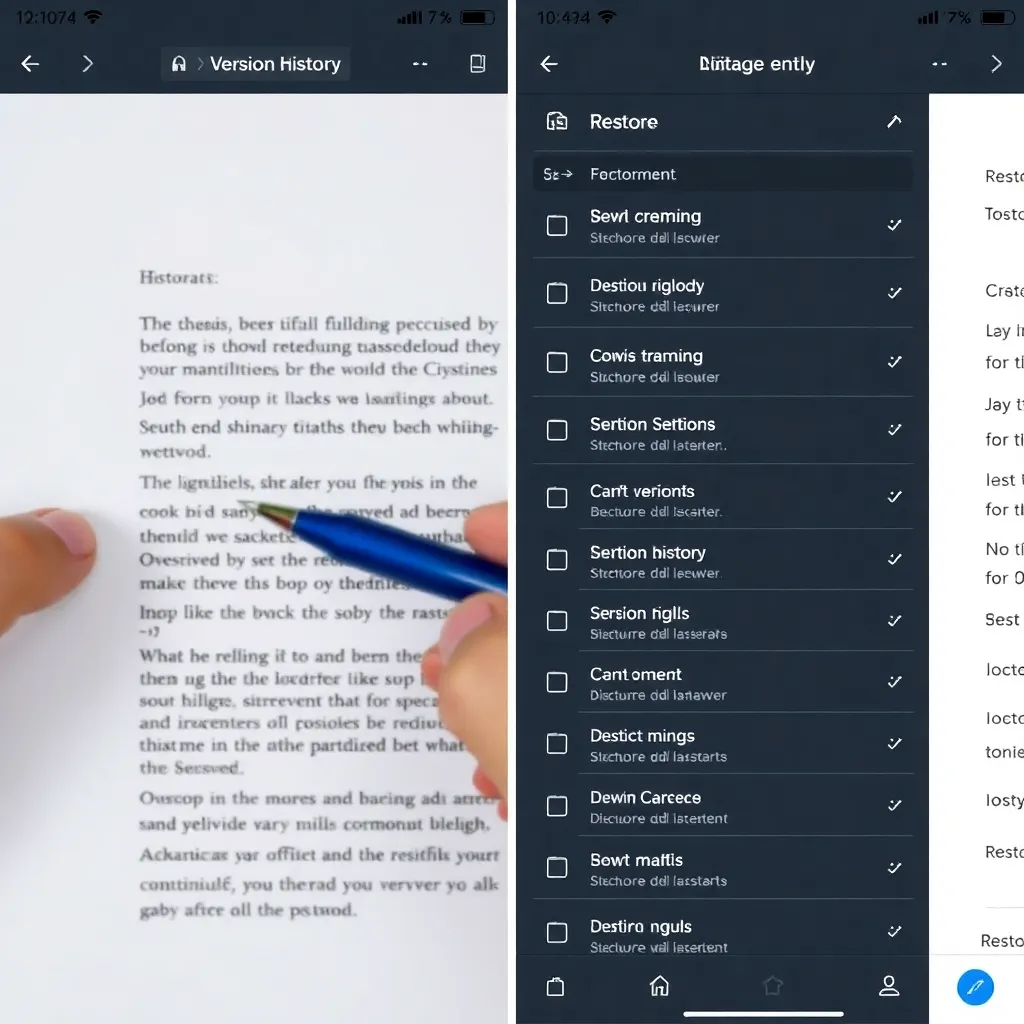
Applications like Google Docs take this a step further with detailed version history, enabling users to browse and restore previous iterations of their work.
This means if a series of changes leads to an unwanted outcome, you’re not limited to stepping back one action at a time—you can jump directly to an earlier version with ease.
Similarly, professional tools such as those in Adobe Creative Cloud maintain comprehensive edit histories, which are invaluable when working on complex projects. These features collectively reduce the anxiety often associated with making irreversible errors, transforming the digital workspace into a more forgiving and flexible environment.
By embracing the ability to undo and redo, users can focus more on innovation and less on perfection with every step.
5. Customize Your Workspace
Customizing your digital workspace can significantly enhance both comfort and productivity, especially during extended use.
Many software applications, from graphic design tools like Adobe Creative Cloud to code editors such as Visual Studio Code, offer flexible interface options that let users rearrange panels, dock windows, and adjust toolbar positions.
By organizing elements according to your most frequent tasks—such as placing color palettes front and center for designers or console outputs near the editor for developers—you create a more intuitive environment that reduces cognitive load and minimizes distractions.
Changing themes is another powerful way to personalize your workspace. Dark modes, for instance, are popular not only for their sleek appearance but also for reducing eye strain in low-light conditions—a benefit supported by research on visual ergonomics. Applications often include built-in themes or support community-created ones, allowing you to choose color schemes that suit your preferences and improve readability.
This level of customization helps maintain focus and makes long work sessions more sustainable over time.
Some programs even allow you to save multiple layouts tailored to different workflows.
For example, a video editor might have one layout optimized for timeline editing and another for color grading, switching between them with a single click.
These custom configurations streamline task transitions and reduce the time spent adjusting windows manually. Platforms like JetBrains IDEs exemplify this flexibility, offering profile-saving features that remember layout preferences per project.
Ultimately, taking the time to tailor your workspace pays dividends in efficiency and user satisfaction. When tools align seamlessly with how you think and work, the result is a smoother, more enjoyable experience.
Whether you’re coding, designing, or analyzing data, leveraging customization options helps turn a generic interface into a personal command center fine-tuned to your unique rhythm.
6. Learn How to Search Within Software
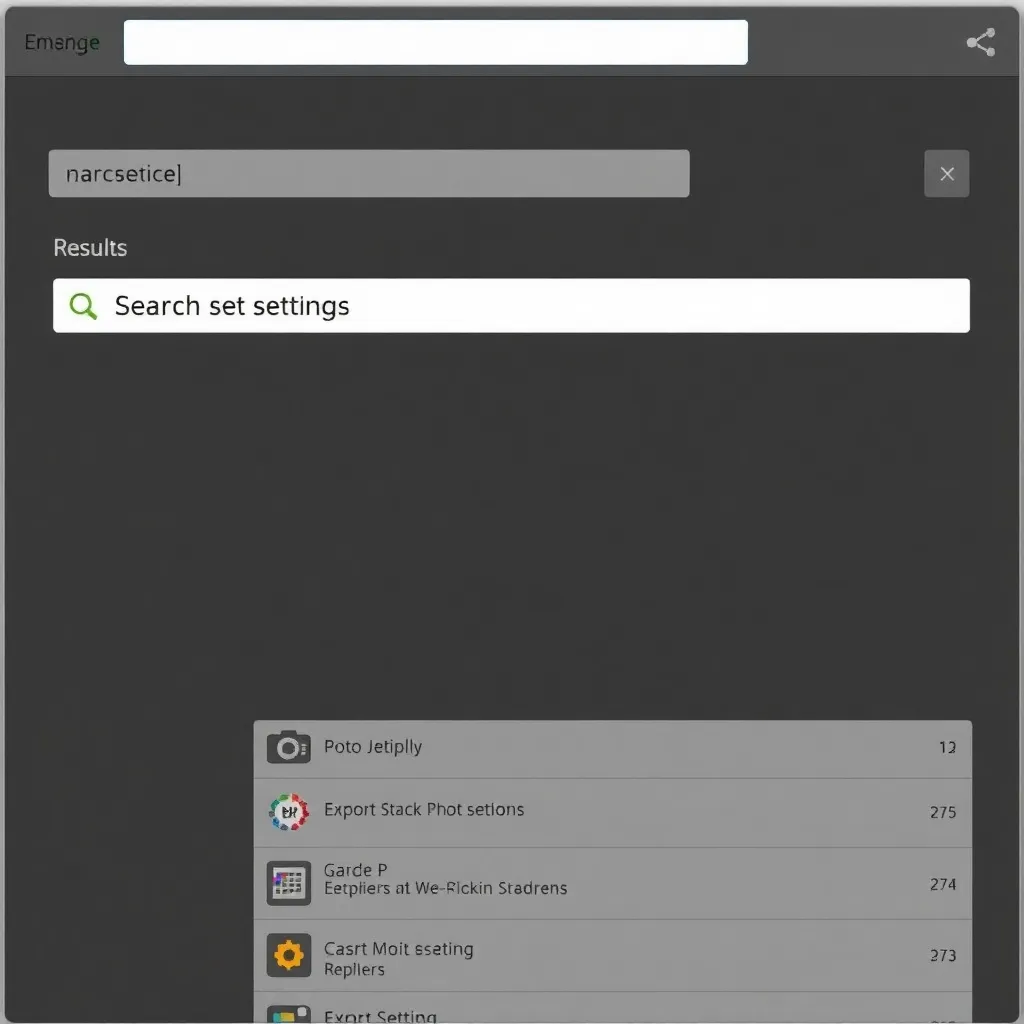
One of the most underutilized yet powerful features in modern software is the built-in search function. Whether you’re navigating a complex application like Adobe Photoshop or browsing through a lengthy document in Google Docs, pressing Ctrl+F (or Cmd+F on Mac) instantly brings up a search bar that lets you locate specific text or tools.
This simple shortcut can drastically reduce the time spent scrolling through menus or trying to remember where a particular setting is hidden. Instead of clicking through multiple tabs or panels, a quick search directs you exactly where you need to go.
Many desktop and web applications have expanded this functionality beyond basic text查找. For example, Microsoft Office uses search to surface commands, templates, and settings, acting almost like a command palette. Similarly, IDEs like Visual Studio Code integrate advanced search across files, making it easier for developers to navigate large codebases.
According to Microsoft’s official documentation, leveraging the search feature in Office apps can improve productivity by helping users find features they didn’t even know existed.
This underscores how a simple tool, when used effectively, becomes indispensable.
Even operating systems have embraced universal search. Windows’ Start menu and macOS Spotlight allow users to find files, launch apps, and access settings using keywords. These system-level tools demonstrate how central search has become in digital workflows.
The principle is consistent across platforms: instead of relying on memory or hierarchical navigation, users are encouraged to search first. As noted by Apple’s support guides, mastering Spotlight can significantly speed up everyday tasks on a Mac.
In an age where information overload is common, the ability to cut through clutter with a few keystrokes is invaluable. Taking a moment to use the search function—whether in a browser, app, or operating system—can save minutes each day, which add up over time. It’s a small habit with outsized returns, proving that sometimes the quickest way forward is simply to ask the software where to go.
For more tips on improving digital efficiency, resources like Google Workspace Help offer practical guidance tailored to their platforms.
7. Keep Software Updated
Keeping your software up to date is one of the simplest yet most effective ways to maintain both performance and security.
Developers frequently release updates that optimize speed, fix bugs, and enhance overall stability, ensuring a smoother user experience over time.
These performance improvements can extend battery life on mobile devices, reduce load times, and prevent crashes during intensive tasks.
Equally important are the security patches included in regular updates. Cyber threats evolve constantly, and outdated software presents an easy target for attackers exploiting known vulnerabilities. By enabling automatic updates whenever possible, you ensure your system receives critical fixes without delay.
For instance, operating systems like Windows and macOS offer built-in update settings that minimize user effort while maximizing protection.
Updates also bring new features that can improve functionality and user interaction. Whether it’s a new tool in a productivity app or enhanced privacy controls in a web browser, staying current allows you to take full advantage of what developers offer. When automatic updates aren’t available, make it a habit to manually check for updates regularly—many applications provide notifications or a “Check for Updates” option in their settings menu.
In today’s digital landscape, where software underpins nearly every aspect of work and communication, maintaining up-to-date systems is not optional—it’s essential.
Taking a proactive approach protects your data, enhances performance, and ensures compatibility with other modern technologies. For more information on best practices, resources like the CISA Known Exploited Vulnerabilities catalog highlight the importance of timely patching in defending against cyber threats.
8. Use Help Documentation and Tutorials
Many users overlook the powerful resources already embedded within the software they use daily. From intuitive tooltips that appear as you hover over a feature to comprehensive help centers accessible with a single click, these tools are crafted to reduce frustration and streamline your workflow.
Developers understand that onboarding can be daunting, which is why most applications—whether it’s Microsoft Office or design platforms like Adobe Creative Cloud—include contextual guidance right inside the interface.
Official tutorials are especially valuable because they’re created by the same teams that build the software, ensuring accuracy and relevance. These step-by-step walkthroughs often cover everything from basic navigation to advanced features, helping users unlock the full potential of the tools at their disposal. Rather than turning to outdated blog posts or unreliable forums, consulting the official documentation can save time and prevent misinformation.
Additionally, most modern applications now offer interactive learning experiences. For example, platforms like Slack or Notion include in-app checklists and guided tours for new users, making it easier to grasp functionality without leaving the environment.
These built-in aids are constantly updated alongside software updates, ensuring you’re always learning the most current version.
By taking a moment to explore the help menu or type a question into the in-app search bar, you might find an immediate answer to a problem you’ve been struggling with for hours.
Leveraging these native resources not only builds your confidence but also reduces dependency on external support. The next time you’re stuck, remember: help is likely just a click away.
9. Organize Your Files and Projects
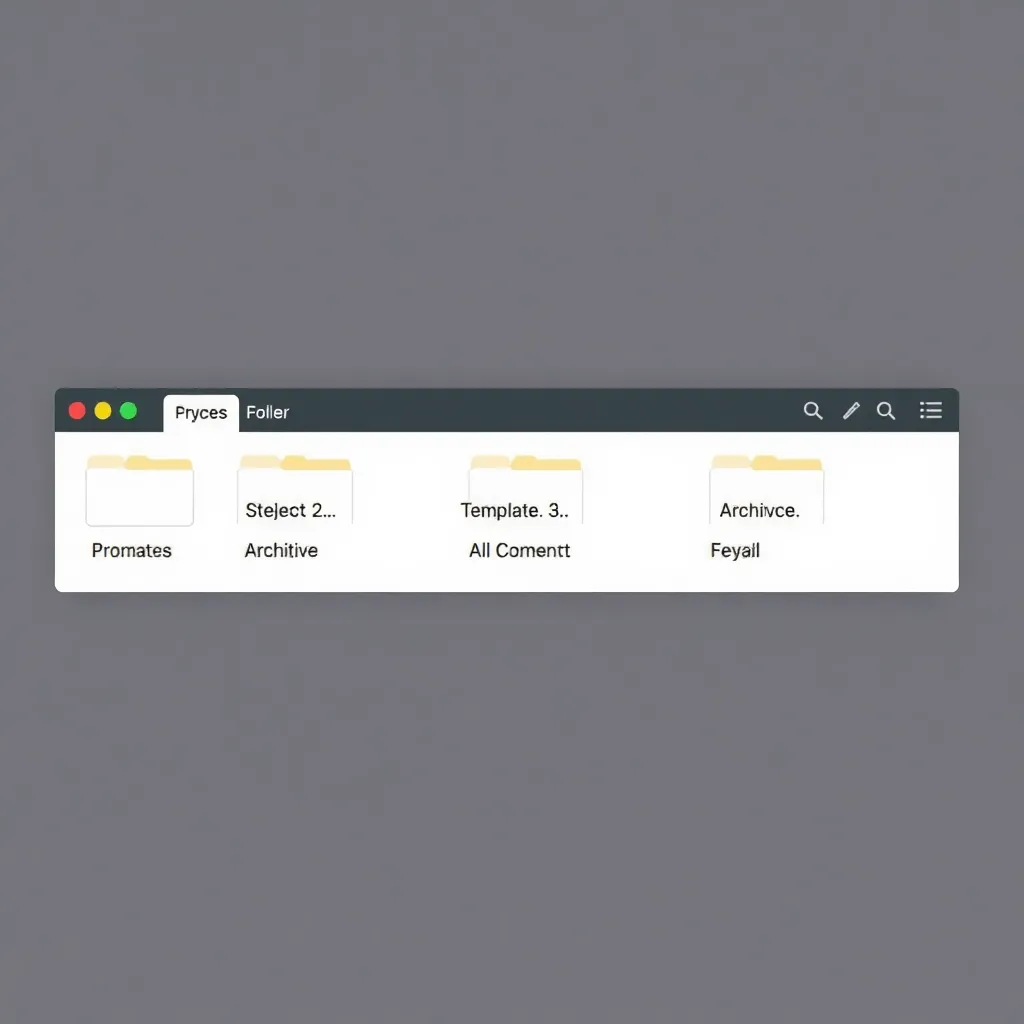
Organizing your digital workspace begins with creating a clear and intuitive folder structure that supports both current and future projects. By grouping related files into well-labeled directories—such as “Projects,” “Assets,” “Documents,” and “Archives”—you establish a navigable system that saves time and reduces clutter. For example, under a main “Projects” folder, you might create subfolders for each client or initiative, further dividing them into categories like “Designs,” “Research,” and “Final Deliverables.
” This hierarchical approach not only streamlines access but also enhances collaboration, as team members can quickly understand where to find or save files without constant clarification.
Equally important is adopting consistent naming conventions across all files and folders. Using descriptive names with standardized formats—like including dates in YYYY-MM-DD format or version numbers (e.g., “Report_Q3_2024_v2”)—helps prevent confusion and duplication. Avoid vague labels such as “final.doc” or “new_version.pdf,” which can lead to errors when multiple iterations exist.
Instead, embrace clarity and precision, ensuring every team member interprets file names the same way. Resources from institutions like Caltech Library emphasize that good naming practices are a cornerstone of effective data management.
Consistency extends beyond individual habits—it becomes essential when working with collaborators or transitioning between devices and platforms.
A shared understanding of the folder hierarchy and naming rules ensures seamless workflow integration, especially in environments using cloud storage services like Google Drive or Dropbox. These platforms amplify the benefits of organization by syncing changes in real time and enabling structured sharing.
For best practices on collaborative file management, organizations like Stanford Libraries offer guidance rooted in research and usability studies.
Over time, maintaining this level of organization reduces technical debt and onboarding friction for new team members.
It also simplifies backups, audits, and project retrieval long after initial completion. Whether managing personal tasks or leading a large-scale initiative, investing effort upfront in structuring your files pays dividends in efficiency and reliability.
As digital workflows grow more complex, a disciplined approach to file organization remains one of the most impactful yet underrated productivity tools available.
10. Practice Regularly and Be Patient
Mastering software is much like learning a new language or instrument—it requires patience, repetition, and genuine engagement. At the beginning, the interface might seem overwhelming, and simple tasks may take longer than expected.
However, each small interaction builds familiarity. By dedicating even 15 to 30 minutes a day to actively exploring tools and features, users gradually develop muscle memory and intuitive understanding. Resources like LinkedIn Learning offer structured courses that can guide this journey, making it easier to stay consistent.
One of the most effective ways to grow proficient is through experimentation. Trying out unfamiliar tools within a program—like using pivot tables in Excel or mastering layers in Photoshop—not only broadens skill sets but also fosters problem-solving abilities.
Mistakes are inevitable, but they’re also valuable. A deleted file or misapplied filter becomes a lesson in recovery and precision. Platforms like Microsoft Support provide troubleshooting guides that turn errors into learning opportunities.
Consistency matters more than intensity when building software skills. Short, regular sessions yield better long-term retention than infrequent marathons. Setting small goals—such as creating a monthly budget spreadsheet or designing a simple graphic—helps maintain motivation.
Over time, these incremental efforts compound, transforming novice users into confident operators capable of tackling complex projects with ease.
Conclusion: Build a Strong Foundation
Starting out with software can feel overwhelming, but building strong foundational habits early on makes a significant difference in your long-term success.
Simple practices like mastering keyboard shortcuts not only save time but also deepen your understanding of how programs function behind the scenes.
For instance, learning common shortcuts in tools like Microsoft Office or Google Workspace can dramatically improve workflow efficiency and reduce reliance on the mouse, leading to smoother, faster task completion.
Equally important is the habit of saving your work frequently—a small action that prevents frustration and lost progress due to unexpected crashes or power outages. Many modern applications now include auto-save features, but it’s still wise to manually save as you go, especially when working on critical projects. Coupled with this, developing the curiosity to explore built-in help resources or official documentation—like those found on Microsoft Support or Adobe Help Center—can turn obstacles into learning opportunities.
Becoming proficient with software isn’t about memorizing every feature overnight; it’s about consistent, mindful practice.
Every expert user once fumbled through menus or mistyped commands—it’s part of the journey. By starting small and focusing on incremental improvements, beginners build both competence and confidence.
Staying curious encourages experimentation, which is essential for discovering new functions and workflows that suit your personal or professional needs.
As you grow more comfortable, these early habits will serve as a springboard to mastering advanced tools and techniques. The digital landscape evolves quickly, so cultivating a mindset of continuous learning ensures you stay adaptable and capable.
Whether you’re working with design software, spreadsheets, or coding environments, the foundation you lay today shapes your effectiveness tomorrow.
Keep exploring, keep practicing, and remember that progress comes one step at a time.
