
Task Scheduler is one of those tools that you either use too much or never touch. There’s no in between. With it, you can automate almost anything on your Windows PC, from simple daily reminders to complex system-level tasks. The problem is not what it can do, but how it feels to use.
FluentTaskScheduler is essentially a wrapper for the Task Scheduler API, so it doesn’t replace the core functionality. What makes it worth using, though, is its thoughtful design. It also follows Microsoft’s Fluent Design System, which means it has a clean, modern look that feels consistent with newer Windows apps.
- OS
-
Windows
- Price model
-
Free
FluentTaskScheduler is a wrapper for the Windows Task Scheduler. It simplifies automating tasks on your PC with a clean, intuitive UI.
FluentTaskScheduler is a modern replacement for Task Scheduler
Windows automation, modernized
If you’ve ever tried using the built-in Windows Task Scheduler, you already know how dated it looks compared to other built-in tools. Sure, it gets the job done, but it’s not exactly user-friendly. Navigating through menus and options can feel cluttered, especially if you’re using it for the first time.
FluentTaskScheduler is a sleek Task Scheduler alternative made by TRGamer-tech. It’s a portable tool that doesn’t require any installation, which means you can just download it, open it, and even carry it on your USB drive along with your other portable apps.
When you first open it, the interface gives you a clear view of all your tasks. The filters at the bottom let you see tasks that are currently running, enabled, or disabled. You can then use the toggles next to each task to enable or disable it.
Clicking on a task brings up more details about the task, including its history, as well as options to edit, stop, or delete it. You also get checkboxes that make it easy to modify several tasks at once. And unlike Task Scheduler, there’s a handy search bar that lets you find a specific task without having to scroll through a long list.
My favorite thing about FluentTaskScheduler is the support for keyboard shortcuts. Ctrl + N to create a new task, Ctrl + E to modify one, and Ctrl + R to run the selected task. Once you get used to these, managing tasks becomes even faster.
A clean dashboard with a built-in script library
Everything you need, at a glance

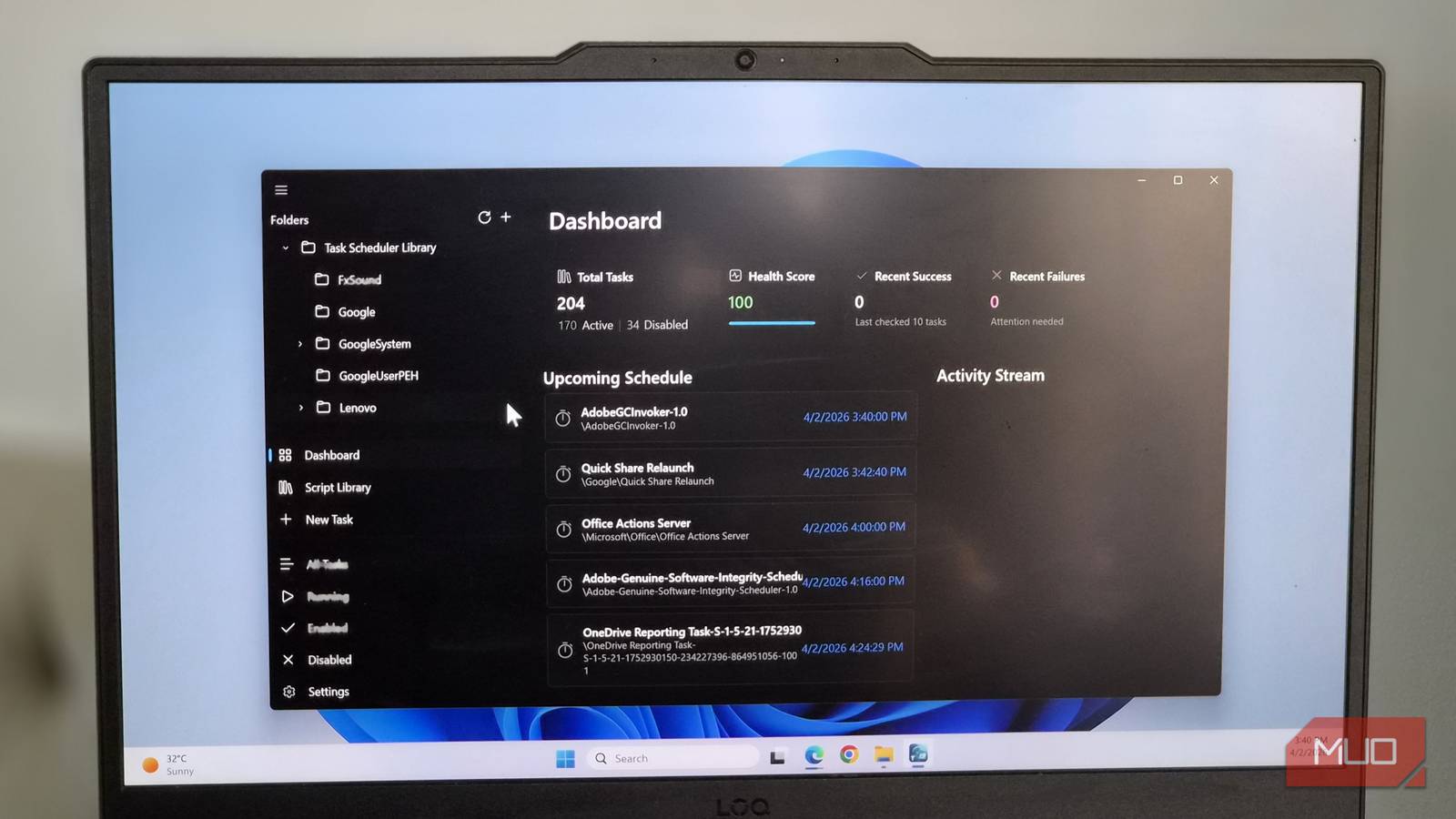
One of the highlights of FluentTaskScheduler is its Dashboard. It’s where you see the total number of scheduled tasks and their recent success rate. Right below that, you can check out tasks scheduled for the next few hours and ones that are currently running. Finally, the Run History section shows success and failure trends over the past week. This gives you a simple visual so you don’t have to dive into individual logs.
What’s really impressive is the built-in Script Library. Instead of setting up a PowerShell script from scratch, you can use read-to-use ones to automate useful Windows maintenance tasks. This includes things like running the System File Check (or SFC) scan, performing Disk Cleanup, and flushing the DNS cache.
There are also other templates, like generating a battery report, shutting down your PC, or automatically clearing out the Recycle Bin and Temp folder. These are all tasks that you probably already do, and FluentTaskScheduler makes it easy to automate them.
Using these is as easy as it gets. Click the Schedule This button, specify when you want the task to run, and how often. The library covers the essential, though it’s not exhaustive. If you need more, there is an option to create your own templates.

These 3 tiny utilities are the best thing to happen to the Windows taskbar in years
Make your Windows 11 taskbar more useful.
Thoughtful features that make all the difference
Features that just make sense

FluentTaskScheduler isn’t all about looks. It also comes with a few handy features so you can customize it however you like. For starters, there’s dark mode, which is something you don’t get with Task Scheduler. It may be a small thing, but for anyone who loves using dark mode everywhere, it’s a nice win.
FluentTaskScheduler also keeps you updated on your tasks with regular notifications. You’ll get an alert five minutes before a task runs and also after it has run successfully.
And if you’ve created too many tasks, the built-in tags and categories can help you organize them. That way, you can find what you need faster without scrolling or searching. Finally, if you ever need to move your setup to another system, there are import and export options.
It’s not perfect… but that’s okay
FluentTaskScheduler does a lot right, but it’s in its early stages. That means it doesn’t have the same level of polish as the built-in Task Scheduler. So yes, you can expect to run into a few bugs and occasional glitches every once in a while, just like I did.
Also, it’s not an official tool. While it works on top of Windows features, it’s still a third-party app developed independently. That’s usually not a problem, but it’s something to keep in mind. The good thing is that the developer is active on Reddit and is constantly improving the tool based on user feedback. So it’s only a matter of time before it becomes near perfect.
