
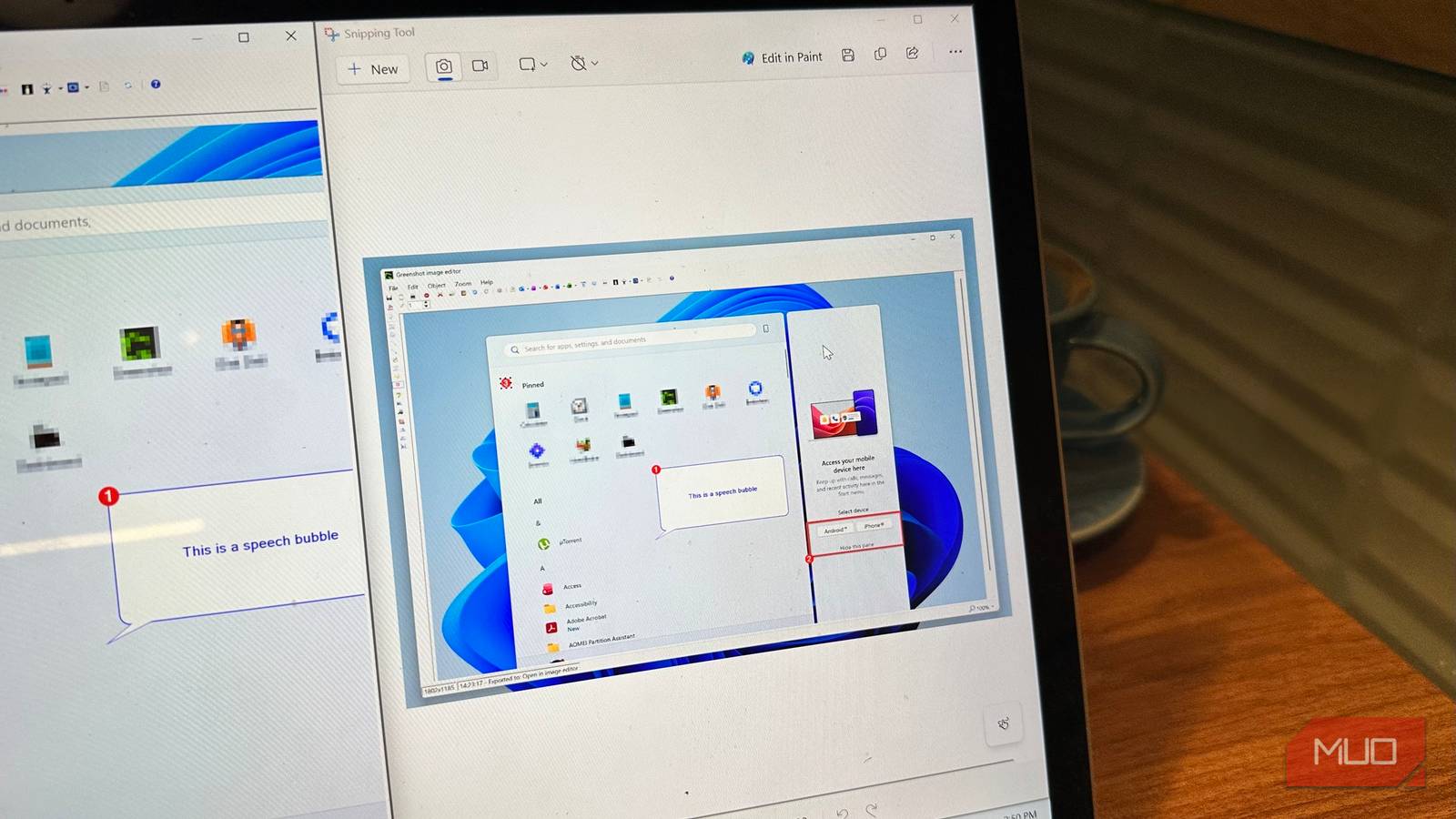
I write about tech every day, and taking screenshots in Windows is a big part of my work. And for the longest time, I relied on the Windows Snipping Tool for taking screenshots and doing basic annotation. It’s actually not that bad, and recent Windows updates have made Snipping Tool even better: it now includes Quick Markup, a color picker, and screen recording. However, it still falls short compared to my current favorite, Greenshot, a lightweight, free, and open-source screenshot tool.
Greenshot lets me do more than just basic editing
Obfuscation, auto-cropping, speech bubbles, it’s all there
One of the most glaring Snipping Tool misses is the lack of a good image editor. Yes, you can click the Edit in Paint option and make your edits there, but it’s an added step to something that should be there from the get-go. What you do get in the Snipping Tool itself is basic markup, cropping, and optical image recognition (OCR). Granted, these features are usually enough for the average user who seldom takes screenshots, but they don’t nearly cut it for users who take screenshots frequently and want to modify them in more ways.
Greenshot comes with a more fleshed-out editor, which is impressive considering how lightweight the tool is. One of my favorite features is the ability to obfuscate sensitive information in the editor itself: this lets me hide my email, the IMEI, and other sensitive device info when taking readers through certain Windows Settings that display them. Additionally, there’s a counter that lets me number multiple steps in one screenshot. And this is just the tip of the iceberg. Greenshot also lets you add speech bubbles, text boxes, shapes (or draw freehand), and effect presets to your screenshots. Again, you may not use these features all the time, but they are there when you need them.
- OS
-
Windows, macOS
- Individual Pricing
-
Windows (Free), macOS (Paid)
Greenshot is a free, open-source screenshot tool for Windows that captures regions, windows, or your full screen, then lets you annotate, obfuscate, and export your shots directly to Office apps, email, or the cloud.
In terms of screen capture mechanics, Greenshot can capture the entire screen, a specific window, a specific area, and repeat area capture. Of course, you can set up hotkeys for all these actions. I also prefer Greenshot’s zoomed-in screen capture cursor over Snipping Tool’s: it’s quite useful when you want to be precise in your selection.
Multiple ways to save my screenshots
The rich feature set isn’t limited to just capturing and editing

Another advantage of Greenshot over Snipping Tool is its integration with other tools. You can take a screenshot, edit it, and directly upload it to Dropbox, Imgur, Jira, or Photobucket in a single click. Just be mindful to select these plugins at the time of installation. Oh, and you can add images directly to Microsoft Word, PowerPoint, Excel, OneNote, and Outlook using the Greenshot editor itself. Over time, this saves you a lot of time if you have to perform these actions repeatedly.
You can also choose what happens after you capture a screenshot. For example, if you want all captured images uploaded to Dropbox without being opened in the editor first, you can do so quite easily. Go to Preferences -> Destination, and tick the option for what you want to happen after screenshot capture. You can select multiple actions, too. You can configure Greenshot to copy your image to the clipboard and upload it to Flickr at the same time. Again, these options
Stay in the Preferences window, and click on the Output tab. Here, you can choose where screenshots are saved by default and the format they’re saved in. Okay, cool, even Snipping Tool lets me do that. But what about how screenshots are named: Greenshot lets you adjust this too. You can define the filename pattern and even create directories dynamically using the Filename pattern text box. Click on the question mark next to it to understand how exactly to type in the arguments.
Where Greenshot falls short
Snipping Tool still has a few tricks up its sleeve
Despite all its shortcomings, Snipping Tool does some things better than Greenshot. The first is OCR. Greenshot does have a “Windows 10 OCR” button in its editor. Greenshot’s OCR plugin (requiring MODI install) was unreliable in tests; Snipping Tool’s native OCR excels. Snipping Tool’s OCR feature, on the other hand, worked quite smoothly. Snipping Tool also has a Quick Redact feature that automatically redacts email addresses and phone numbers. You can custom redact any text by selecting it and pressing CTRL + R. If your obfuscation needs are limited to text, this is more than enough.
What about screen recordings? Well, Greenshot is strictly for screenshots, whereas Snipping Tool is a capable screen recording tool. There’s also the Bing Visual Search integration in Snipping Tool, which can be useful if you want to know what’s on your screen. Greenshot doesn’t have an equivalent for that either.

Windows 11’s Snipping Tool is now my favorite way to copy text
More accurate text extraction than most dedicated tools.
