
Have you ever clicked a saved link and landed on a page not found error message? You bookmarked that article months ago because it had exactly the information you needed, and now it is gone. The site was restructured, the author deleted it, or the whole domain expired. This is called link rot, and it is far more common these days.
I’ve always accepted this as the cost of saving things online. Then I stumbled on a browser extension that changed the way I save anything on the web. These days, the moment I bookmark a page, I archive it too. It is just part of the same action now, and I have not lost a saved link since.
Your bookmarks are really just wishful thinking
Future you is going to be disappointed
A bookmark isn’t a copy of anything. It’s more like a polite little note to your future self that says, “Hopefully this still exists when you come back.” Because at the end of the day, it’s just a pointer to a URL. And URLs are fragile. They break, they vanish, they get replaced. That slow disappearance has a name: link rot — a form of digital decay and data degradation. It’s that slow, inevitable decay where content disappears, gets moved, or rewritten on someone else’s server. The moment you save a link, you’re trusting someone else’s server, their domain, and their long-term commitment to keeping that page alive. That’s a lot of faith for a tiny star icon.
That is why I stopped treating bookmarks as something reliable. Now, a bookmark is just a reference. The real save happens alongside it, every single time. If I care enough to bookmark something, I care enough to keep a copy of it.
Now, most people, when they want to save a webpage, do the most natural thing in the world: they press Ctrl + S and call it a day. It feels like saving; It looks like saving since a file appears in your Downloads folder. Nothing about this screams disaster until you actually open that saved page later and notice things are missing. The website’s logo may be gone, and an image central to the article may be a blank rectangle with a broken icon. The page looks like it got dressed in the dark.
Here is what Ctrl + S actually does. It saves the HTML of the page as an .htm file and then dumps all associated assets, such as images, stylesheets, and fonts, into a separate folder alongside it. So what you end up with is not one saved file but a fragile pair: a document and a companion folder that it depends on entirely. If you delete or move that folder by accident, or transfer only the .htm file elsewhere, the page breaks. You have saved the skeleton but left the flesh behind. What makes this worse is that even when the folder remains intact, the saved version can still be missing assets hosted on external servers or loaded lazily by JavaScript. The browser grabs what it can and skips the rest.
If you want a more reliable archive, you might be better off saving the webpage as a PDF, but even that has its limits. It flattens everything into a static document, which is fine for reading, but you lose the feel of the original page, and sometimes the structure does not carry over cleanly.
One click, and the page belongs to you
From borrowed content to owned copy
SingleFile is a free, open-source tool that ranks among the browser extensions I immediately install on every new computer. Instead of keeping a fragile reference to the content, it captures the entire page as it exists at that moment and saves it as a single, self-contained HTML file on your device. Not an approximation either, but a pixel-faithful snapshot. With Base64 encoding, it neatly bundles everything into a single file, including CSS, fonts, images, iframes, and even embedded media. What you get is a sturdy little archive that opens in any browser with no internet connection, and it looks exactly the way it did when you saved it.
Once SingleFile is pinned to your toolbar, the workflow becomes second nature. I open a page, let it fully load, hit the bookmark button, and then immediately click the SingleFile icon. A small animated indicator appears on the icon while it works, which typically takes just a few seconds, and then the file downloads automatically to your default Downloads folder.
I never see “page not found” anymore, thanks to this Chrome extension
One of my favorite websites also has a super handy extension, too.
The file it saves is a regular HTML file that any browser can open, on any device, with no extension installed and no internet connection required. You could copy it to a USB drive, send it in an email, or archive it in a folder that will not be touched for a decade, and it will open perfectly every time.
It’s also easy to use across browsers. You’ll find it on Chrome, Firefox, Edge, Safari, Brave, Vivaldi, Opera, pretty much wherever you land. So even if you bounce between browsers over time, it sticks with you. As an AGPL-licensed open-source project, it also collects no data whatsoever; the developer has explicitly disclosed that nothing is uploaded to third-party servers, and all the processing happens locally inside your browser’s memory.

- OS
-
Chrome, Firefox, Edge, Safari
- Developer(s)
-
Gildas Lormeau
SingleFile saves entire web pages as one clean HTML file, preserving layout, images, and styling for offline use. It’s perfect for archiving articles or keeping a permanent copy of pages that might change or disappear.
Small features that pull their weight
Once the basics start to feel second nature, SingleFile opens up in a way that almost invites you to poke around a bit. If you right-click the toolbar icon, you’ll find a context menu that goes well beyond saving the current tab. You can grab just a selected portion of a page, isolate and save a specific embedded frame, or, if you’ve gone a bit tab-happy, save every open tab in one go. That last one has become a staple for me when I’m deep into research and sitting on a small mountain of tabs I’m not ready to lose.
There’s also a keyboard shortcut, Ctrl + Shift + Y, which works as an alternative to clicking the icon. So when you are reading something and want to capture it without breaking your rhythm, not having to reach for the mouse is a big productivity boost.
If you’d rather not have your archives sitting in a random local folder, the extension offers more durable options. Head into the settings by right-clicking the icon and choosing Manage extension, and you’ll find a Destination section where you can point saves straight to Google Drive, Dropbox, GitHub, or even a WebDAV server. Once that’s set, everything goes there automatically, without extra steps.
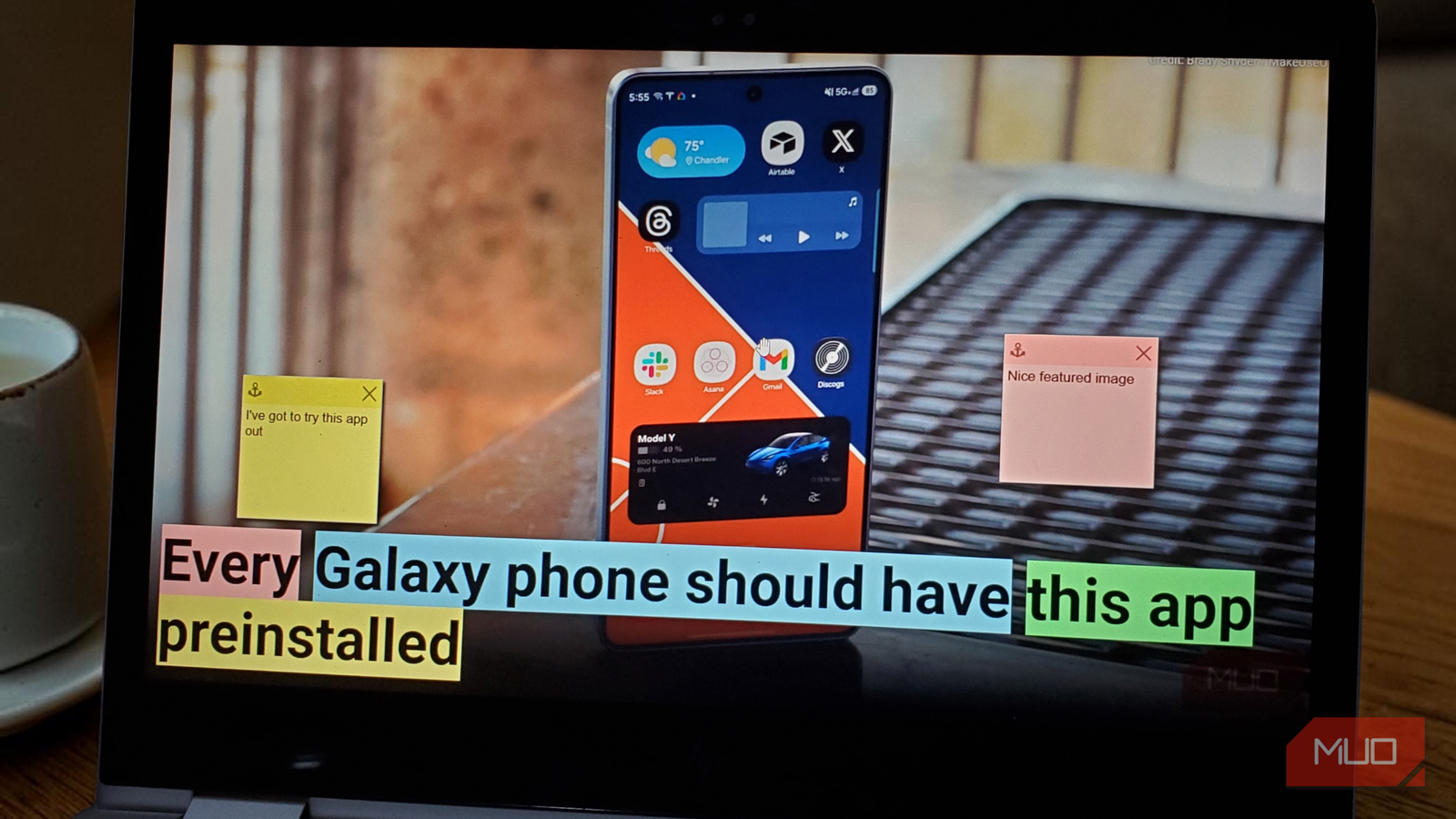
There is also an annotation mode, tucked into that same right-click menu. It lets you highlight text, write notes, and remove content before the page is saved. It turns what would otherwise be a passive archive into an active record of what you found important when you first read something.
The internet forgets, SingleFile doesn’t
The browser’s native save was never really saving anything worth keeping. SingleFile makes that obvious, but more importantly, it changes how you think about saving things in the first place. At this point, I do not bookmark anything without archiving it alongside. It is a small extra step that removes the risk altogether, and once it becomes a habit, losing a saved link no longer even crosses your mind.
