
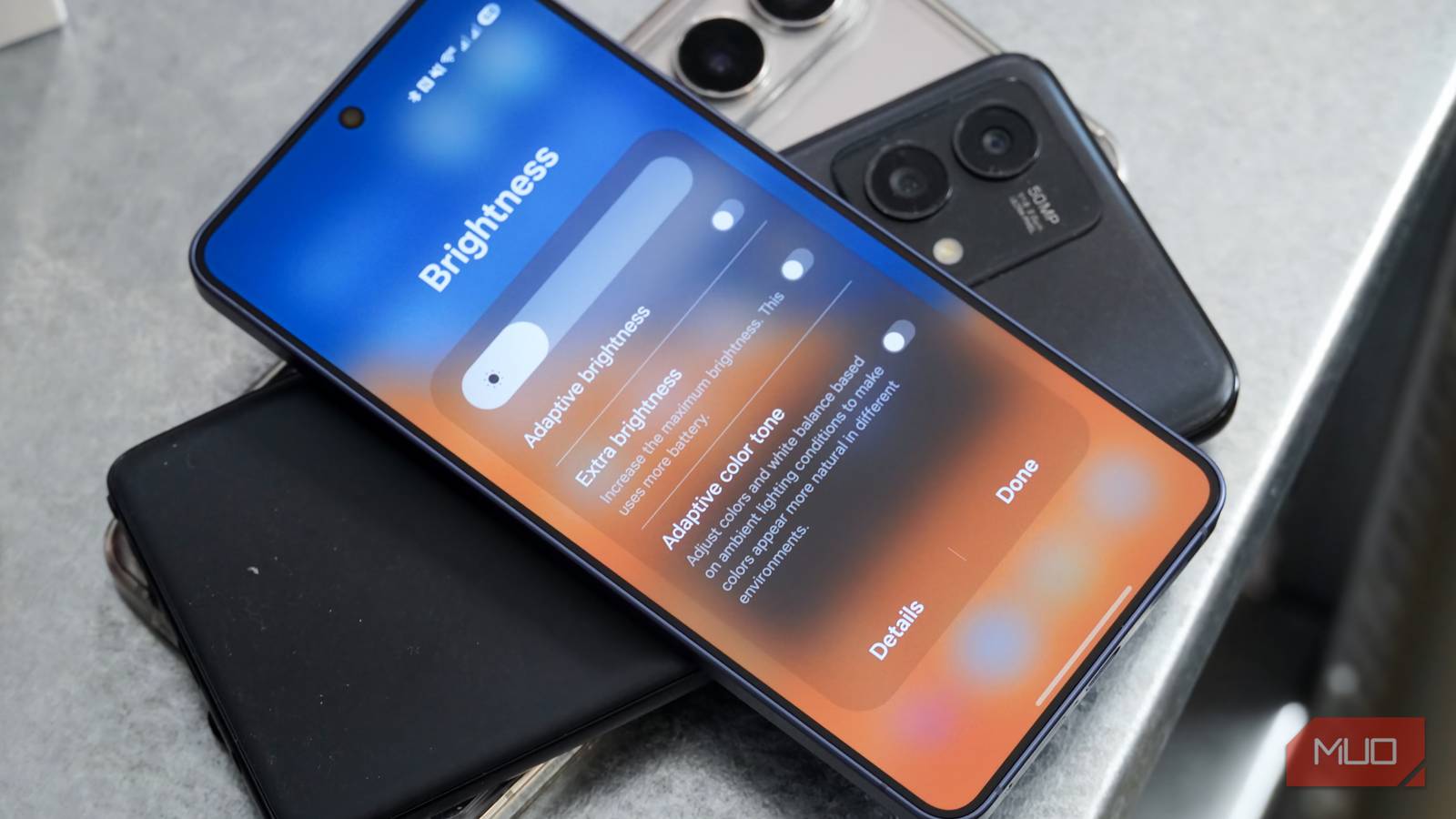
Brightness is a smartphone display spec that seems to change every single year. The screen size, resolution, and refresh rate go unchanged for multiple smartphone generations, but manufacturers often give the maximum brightness a bump yearly to make you feel like you’re getting something new. It’s not a pointless upgrade — brightness is crucial to enjoying your phone daily. You want a phone that’s bright enough to maintain visibility outdoors, and can avoid thermal throttling under load. Conversely, you want a phone that can dim the display enough to protect your eyes in a dark room.
Peak brightness is just one part of finding the best viewing experience for your Android phone. Software plays a major role, and I’m not talking about the brightness slider in the quick settings panel. There are deeper display and accessibility settings you need to know about, plus a clever way to reset wonky automatic brightness habits. If you’re not using them, you’re missing out on a better way to control your Android phone’s screen brightness.
This setting makes your Android phone brighter than normally possible
By default, Android doesn’t let your phone’s screen get as bright as it possibly can. There are numerous software limits that lower your screen’s visible brightness, like adaptive brightness. However, you might not know that there’s extra brightness available beyond the maximum in the default brightness slider. To access it, open the Settings app on your phone and navigate to Display → Extra brightness. Then, flip the toggle on to increase the maximum brightness of your Android phone’s display.
Extra brightness uses more battery, but it does ensure you’re using your phone screen to the fullest potential. It might help improve visibility in harsh lighting conditions, like while using your phone in direct sunlight. I always turn on Extra brightness, because as someone with poor eyesight, every bit of screen brightness helps.
This toggle lowers brightness beyond usual levels for comfortable viewing

Extra brightness is usually easy to find — it’s right in the general display and brightness page for convenient access. The opposite viewing mode, Extra dim, is hidden and much harder to spot. Starting with Android 16, Google Pixel phones added Extra dim to the main brightness slider. When you move a Pixel phone’s brightness to its lowest point on the slider, you’re automatically using Extra dim. However, other models still have Extra dim tucked behind an accessibility settings menu.
For example, Samsung Galaxy users can find the Extra dim toggle in the Settings app by navigating through Accessibility → Vision Enhancements → Extra dim. After flipping the toggle, you’ll be able to add a shortcut for Extra dim to the quick settings panel or using a combination of button presses. More importantly, there’s an Intensity slider for Extra dim that controls just how dim your phone gets when the setting is active.
Few Android users take advantage of Extra dim, but it’s an important setting that can protect your eyes in certain viewing conditions. When using your phone in a dark room, you want your display to be as dim as possible for comfortable viewing. Extra dim lets you do just that, but it’s hidden behind an accessibility menu on most Android phones.

Everyone Should Try These 9 Android Accessibility Features
Even if you don’t rely on them to use Android, these features have something to offer.
Auto or Adaptive brightness
Use your phone’s ambient light sensor to automatically control brightness
Automatic or Adaptive brightness are familiar to smartphone users, and they work by using a device’s ambient light sensor to automatically change the brightness level based on environmental lighting conditions. Casual users might not realize that Adaptive brightness is the reason their phone’s brightness level is constantly changing, which can be frustrating. I keep Adaptive brightness off, so I’m always in control of my phone’s brightness level, and there are no unexpected surprises. However, there’s an Adaptive brightness trick even Android power users probably don’t know about.
Your phone uses algorithms to control Adaptive brightness, and on Google Pixel phones, you can clear that algorithm if automatic brightness is acting up. To do so, navigate to Settings → Apps → Device Health Services → Storage & cache → Manage space → Reset adaptive brightness. You’ll need to tap OK to confirm your choice, but after that, Adaptive brightness will reset to the factory default. This should fix any annoying irregularities with the Adaptive brightness feature — it’s a neat brightness trick to keep in your back pocket.
What Android brightness settings you need to change
Some people like their phone as bright as it can be, while others prefer an approach that’s easier on the eyes. I immediately disable adaptive or automatic brightness on any phone I set up, as I’d rather be able to see my phone clearly than preserve a bit of battery life. When you know about these granular brightness settings, you can change them based on your own settings to create the perfect Android viewing experience.

- Brand
-
Google
- SoC
-
Tensor G5
- Display
-
6.3″ Actua display
- RAM
-
12 GB
- Storage
-
128 GB, 256 GB
- Battery
-
4970 mAh
Google’s flagship smartphone, the Google Pixel 10 features the Tensor G5 processor, an outstanding triple-camera system, and seven years of software updates. Beyond traditional display features, the Pixel 10 includes the “extra dim” feature to make the display brightness seem lower for dark environments.
