
I say this as someone who is deathly afraid of spiders: the idea of OLED burn-in shivers my spine more than any eight-legged freak could. The only real downside to owning an OLED display is the slight (yet still very real) chance it could develop permanent image retention. If you take the right precautionary steps, though, you can more or less banish burn-in fears.
I bought my first OLED TV back in ye olden times of 2015, and I’ve been absolutely hooked by the “light-emitting diode” tech ever since. Yet over the years, I’ve become increasingly fretful regarding screen-burn. Even though modern OLEDs are far better equipped to avoid this display-ruining defect than previous generations of screens, you still need to be careful when using an OLED (especially if you’re using this display tech as a monitor).
Hopefully, the three tips I used to avoid OLED burn-in on an ultrawide that made me immediately stop thinking about window management will help you out.
What is OLED burn-in?
What to know about this screen defect
Whatever you might have read about this worrying display problem, you should know that OLED burn-in isn’t a myth. Far from it.
But what exactly is this particular type of display defect, and how does it manifest? To start with, OLED displays are far more vulnerable to burn-in than LCD screens because they use self-emissive pixels.
A big part of the reason OLEDs can produce perfectly inky black levels is because each on-screen pixel is self-lit. Unfortunately, this also means said pixels are likely to degrade quicker than those of an LED/LCD/Mini-LED screen.
When the pixels of an OLED panel are exposed to static screen elements for too long (say, the taskbar in Windows 11), this can create a ghosting-like image that can never be removed, regardless of how many pixel refresh cycles your display might be able to throw at the problem.
- Resolution
-
5120×1440
- Screen Size
-
49-inch
- Brand
-
Samsung
- Connectivity
-
1x HDMI 2.1, 1x DisplayPort 1.4, 2x USB-A 3.0, 1x Headphone Jack
- Max. Refresh Rate
-
240Hz
- Response Time
-
0.03ms
The Samsung Odyssey OLED G9 is a 49-inch super ultrawide gaming monitor with a 240Hz refresh rate.
Make no mistake: OLED burn-in cannot be resolved. Once those pixels degrade to a certain point, they will always show the faint outline of a previous on-screen image you’ve had on your monitor/TV for extended periods of time. Trust me, I should know. I’ve ruined a couple of OLED screens in the past because I wasn’t vigilant enough when fighting burn-in.
Now let me quickly guide you through the main steps I use to lessen the risk of screen-burn on my OLED monitor. And if said tips don’t work, make sure to read up on the three ways OLEDs prevent burn-in that you don’t even notice.
Make sure you auto-hide your Windows taskbar
Using a Microsoft OS? Make sure you enable this one burn-in reducing feature

If you’re reading this, there’s a good chance your PC or laptop uses Windows 11. If that’s the case, and you own an OLED monitor, the best approach for reducing the prospect of burn-in is by ensuring your taskbar disappears whenever you’re not directly interacting with it.
Thankfully, ensuring that the taskbar in Windows 11 fades from view when not being used is a fairly simple process. All you need to do is navigate to the taskbar, right click then press Taskbar Settings, navigate to Taskbar behaviors, then make sure the Automatically hide the taskbar toggle is ticked.

This cheap Steam app is the best $5 I’ve ever spent
Transform your desktop with this amazing software’s library of animated backgrounds.
Ensuring the most persistent on-screen element of Windows is disabled when you’re not engaging with it is the biggest assist you can give your OLED monitor in helping it to avoid burn-in.
Limit screen brightness
Dial down your display’s brightness settings to combat OLED burn-in

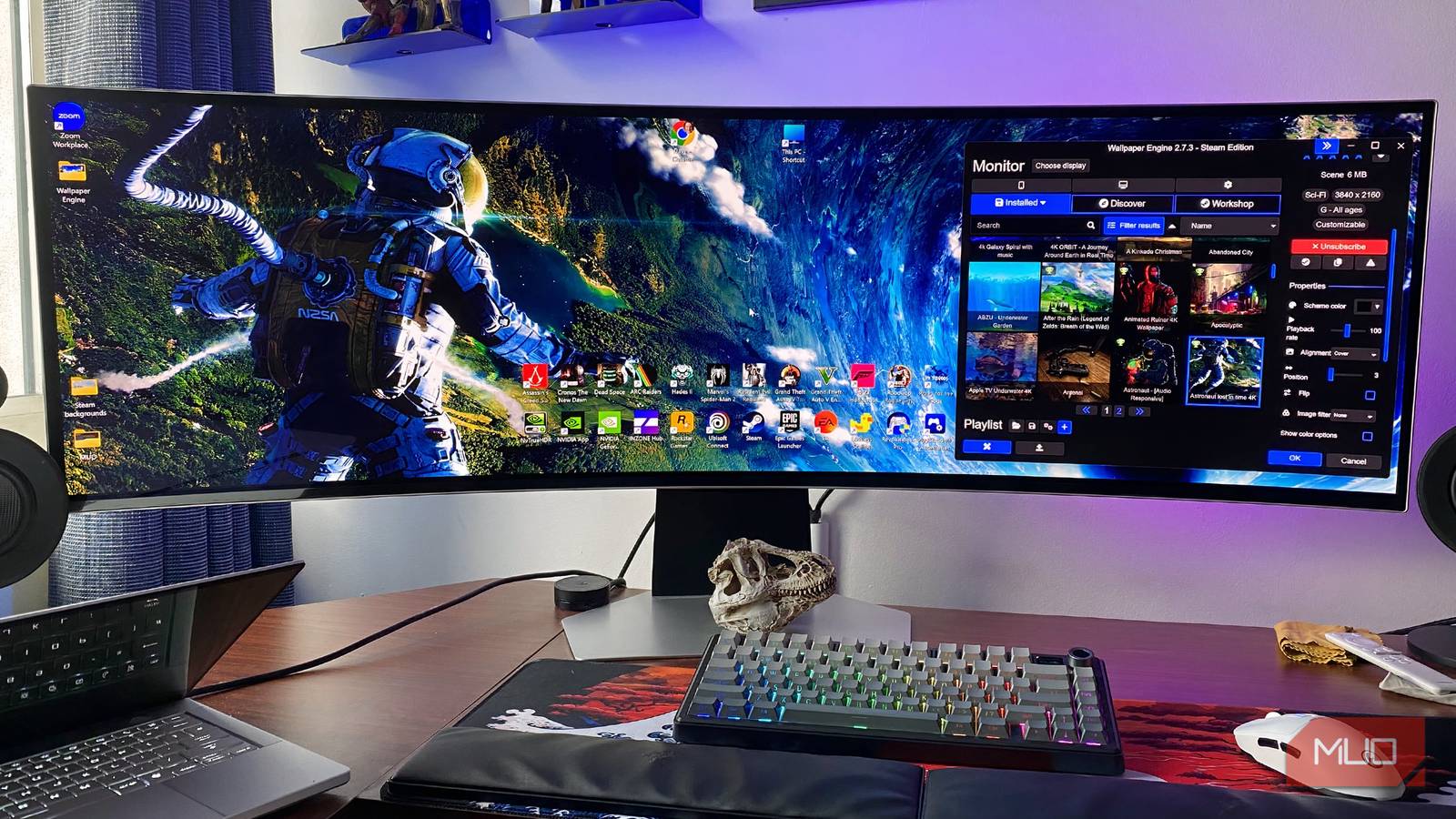
Though OLED displays don’t get as bright as the best Mini-LED screens, dimming your picture settings can help in the fight against burn-in. On my Samsung Odyssey G9 OLED, I have the brightness set to 60%.
I may not love dialing down brightness settings, but my Samsung super ultrawide is still a super-vibrant monitor that can handle HDR content well, even when it’s not set to its most vivid levels.
OLEDs are expensive. If you want to squeeze the most value out of your display as possible, you need to think about the long term. Toning down brightness levels won’t just mean your OLED lasts longer, it should also help your screen avoid burn-in going forward.
Use this one awesome wallpaper app
The best Steam software I’ve ever bought can reduce burn-in threats

Wallpaper Engine is the best $5 I’ve ever spent on Steam. And I say that as someone who has been using Valve’s digital storefront since 2004.
This tremendous piece of software allows you to curate a highly bespoke collection of animated wallpapers that you can switch between on-the-fly. Such is the inherent nature of these constantly moving desktop backgrounds. You automatically reduce your chance of OLED burn-in for those times when you might accidentally forget to enable Windows 11 screensaver settings when you pop out for lunch.
Well, there’s a little more to it than that. You should also ideally limit your number of desktop shortcuts, while also switching away from your desktop every hour or so if you’re not actively using your display. My general rule of thumb when it comes to OLEDs? Don’t have any static on-screen imagery on your monitor or TV for more than two hours.
If you take care for your OLED properly, burn-in shouldn’t be an issue
With automated pixel refresh cycles that kick in regularly on most OLED screens at time of writing, burn-in isn’t the terrifying bogeyman it once was. Still, I have been stung by screen-burn in the past by falling asleep when playing a video game with constant HUD elements.
If you know enough about display tech to appreciate that OLEDs are the absolute cream of the crop, do yourself a favor and don’t sleep on using the tips above to help you reduce the chance of burn-in.
