
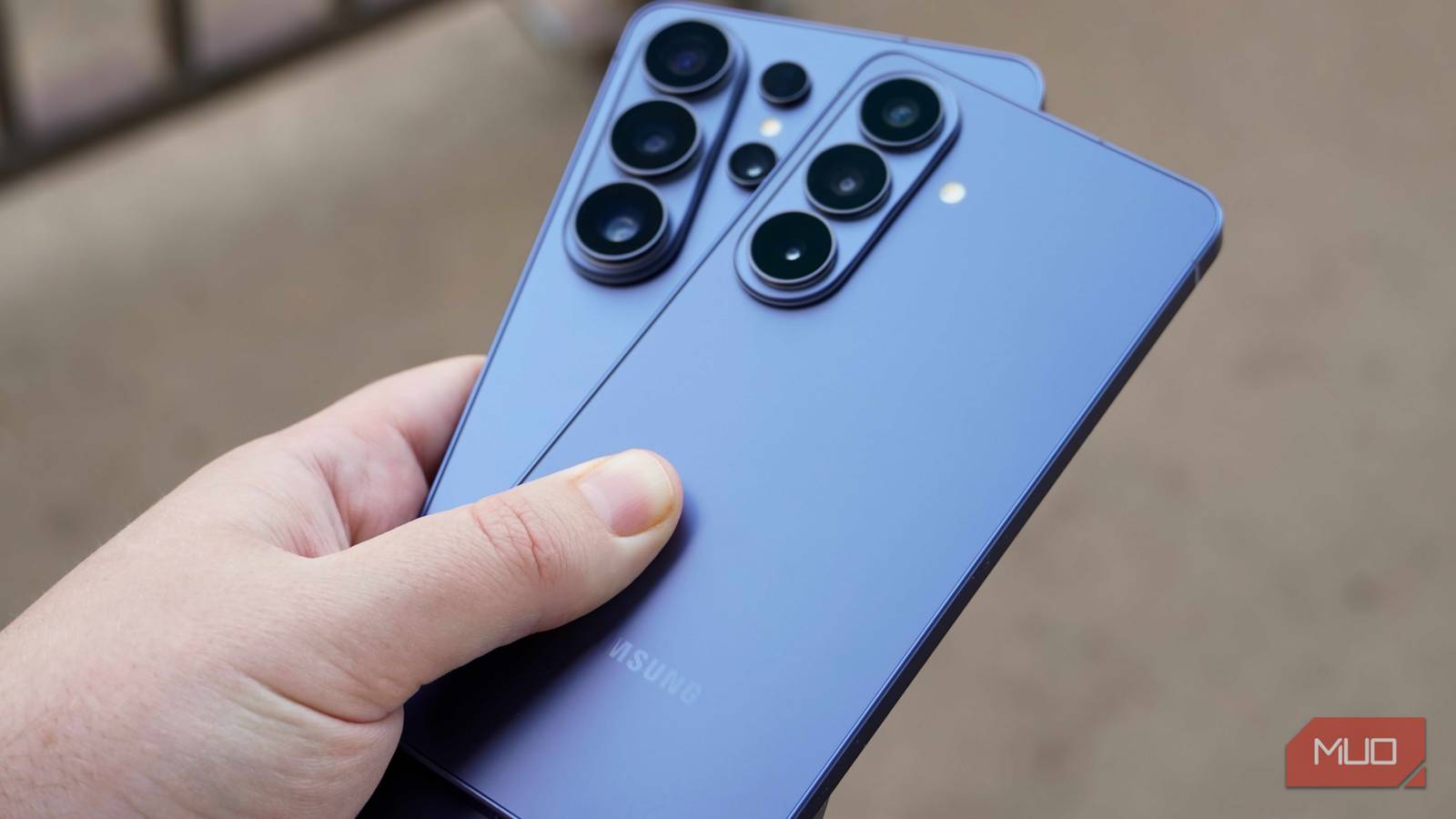
Every phone comes with a suite of AI features that the average consumer probably cares little about. iPhones have Apple Intelligence, Pixel phones have Google AI, and Samsung phones have Galaxy AI. In fact, devices like the Galaxy S26 Ultra include the best of both worlds, providing a mix of Gemini, Google AI, and Galaxy AI tools at your disposal. If you’re frustrated by the amount of AI all over your Galaxy phone, you’ll be happy to know there are simple ways to remove or disable them.
Samsung built Galaxy AI into the One UI 8.5 operating system, so you’ll always see the Galaxy AI tab in the Settings app. Fear not, because every Galaxy AI and Google AI feature on your Samsung phone can be easily disabled. That way, they’re not getting in the way of the features and apps you actually use. Users can also rest assured their personal data and privacy is protected after removing Google AI and Galaxy AI features from their device. Here’s how I remove AI tools from my Galaxy phones in four quick and simple steps.
Sign out of your Samsung account
Or, disable Galaxy AI features individually in Settings
Samsung groups most AI features in the Galaxy AI page in the Settings app. There isn’t a catch-all toggle to disable every Galaxy AI feature at once, though. Instead, Galaxy users must identify the specific AI tool they want to disable in the Settings app and turn off the toggle for it individually. For example, disable Call screening on a Galaxy phone, users need to navigate through Settings → Galaxy AI → Call assist → Call Screening and flip the toggle from On to Off.
To deactivate every Galaxy AI feature on your Samsung phone, you’ll essentially have to repeat the above steps for the tens of individual tools listed on the Galaxy AI page and its subpages. That said, there are some tricks you can use to disable multiple Galaxy AI features at once.
Navigating to Settings → Galaxy AI → Process data only on device and flipping the toggle on will automatically disable every Galaxy AI tool that uses “advanced intelligence.” These include Call assist, Writing assist, Interpreter, Note assist, Transcript assist, Browsing assist, Photo assist, Creative studio, Audio eraser, Weather wallpaper, Now Brief, Now Nudge, Notification highlights, and Health assist. Turning on this one option removes every Galaxy AI feature that uses cloud processing, and that’s most of them.
If you want to disable every Galaxy AI feature in one shot, there’s a way to do it — by signing out of your Samsung account. The second you remove a Samsung account from your phone, Galaxy AI becomes unavailable. It’s an unofficial way to immediately deactivate the entire Galaxy AI suite. And yes, you can keep using your Galaxy phone as usual without a Samsung account.
You don’t actually need a Samsung account to use a Galaxy phone — I tested it
In fact, you don’t even need a Google account. If you’re all about digital privacy, avoiding account logins could be the way to go.
Replace Gemini and Bixby with Google Assistant
It’ll give you the classic digital assistant without modern AI features

Samsung phones come with two digital assistants: Gemini and Bixby. Both heavily incorporate AI, but you can switch back to the Google Assistant for the legacy experience. To do so, start by confirming the Google app is configured as your default digital assistant app in Settings. Navigate through Settings -> Apps -> Choose default apps -> Digital assistant app and make sure you see Google. If you see another default app, like Bixby, ChatGPT, or Meta AI, tap Default digital assistant app and select Google instead.
This will set your Galaxy phone’s digital assistant as Gemini by default, but you can change back to the Google Assistant in the Google app’s settings. Open the Google app, tap your profile picture, and hit Settings. Then, tap Google Assistant and Digital assistants from Google. Here, you can switch from Gemini to Google Assistant.
Google describes Assistant as a “voice-forward conversational helper” and Gemini as a “new AI-powered assistant.” If you don’t like AI, Google Assistant is the one you want.

5 features I disable on Samsung phones before I do anything else
Stop your Galaxy phone from tracking, interrupting, and slowing you down.
Disable Now Bar and Now Brief
This Galaxy AI feature has a tendency to get in the way
You can find Now Bar and Now Brief settings on the Galaxy AI page, and they’ll be automatically disabled if you choose to process data only on your device or sign out of your Samsung account. However, if you don’t go either of those routes, there’s an easy way to specifically remove Now Bar and Now Brief.
To do so, navigate through Settings → Lock screen and AOD → Now Bar. This page offers toggles for disabling individual Now Bar features and the entire Now Brief tool — turn all of them off to eliminate these Now Bar and Brief from your Galaxy phone.
Remove Circle to Search
This AI-powered screen search feature isn’t for everyone

If you’ve made the above changes to your Galaxy phone, Circle to Search should be the only AI tool that remains. Disabling it is as easy as navigating through Settings → Display → Navigation bar and locating the Circle to Search toggle. Flip it off, and Circle to Search won’t activate if you touch and hold the home button or the navigation handle. This is a great way to eliminate frustrating accidental Circle to Search activations, while disabling another Google AI feature in the process.

I made Circle to Search better by removing Gemini from it
I no longer need Google for Circle to Search.
Should you keep using Galaxy AI or remove it?
Samsung doesn’t make it easy to remove all the Galaxy AI or Google AI features with the single flip of a toggle, and there’s a good reason for that. Not every AI tool is bad, and users that give them a shot will probably find a handful they enjoy. I prefer Gemini to Google Assistant and enjoy using Circle to Search instead of the old-school Google Lens. You can always pick and choose which Galaxy AI features you leave enabled, but it’s worth remembering that it is possible to disable them all.

- SoC
-
Snapdragon 8 Elite Gen 5
- Display
-
6.9-inch Dynamic Super AMOLED 2X
- RAM
-
12 or 16 GB
- Storage
-
256GB, 512GB, or 1TB
- Battery
-
5,000 mAh
- Operating System
-
Android
The Samsung Galaxy S26 Ultra isn’t a massive leap in specs compared to the previous generation Samsung Galaxy S25 Ultra, but it boasts improvements in every aspect. It’s jam-packed with Galaxy AI features like the Now Nudge, but you can disable them all to get an AI-free experience.
