
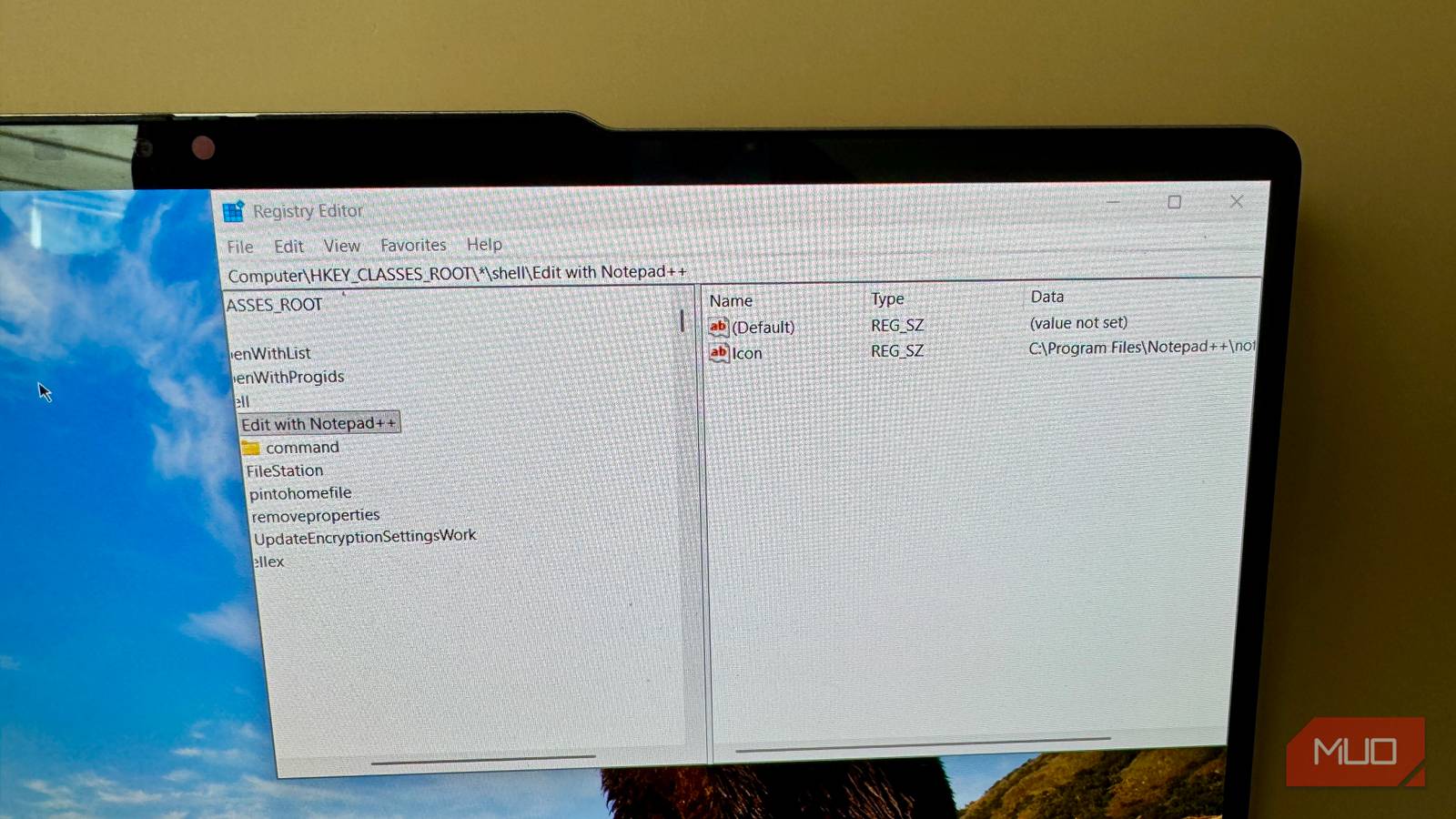
If you’re a long-time Windows user, you may have noticed that Windows 11 broke something fairly useful. If you right click a file and try to open it in Notepad++, you may have wondered where the option has gone. It’s actually buried two clicks deep under “Show more options.” It used to be right there, easily accessible and ready to go whenever we needed it. Now it’s gone and Windows doesn’t give you an easy built-in way to fix it.
The answer is a single registry entry under HKEY_CLASSES_ROOT*shell and takes about two minutes to add. The option is permanent until you remove it, though if Notepad++ runs a major update that reinstalls its shell extension, it could possibly overwrite or conflict with your manual entry. The likelihood of this happening, though, is pretty low.
You can add any app to your right-click contextual menu, too, not just Notepad++, so buckle in and let’s give it a go.
On macOS, right-clicking a file and seeing your preferred app in the menu usually just works. The OS reads each installed app’s declared file support and populates that list automatically. WIndow’s has its own “Open With” menu, but it depends on what apps choose to register at install, and Windows 11 pushed the whole menu behind the “show more options” that most of us don’t even bother with. The HKEY_CLASSES_ROOT*shell path is how we take control back, adding any app as a permanent, top-level right click option for any file on your sytem without touching file associations or changing any defaults.
What HKEY_CLASSES_ROOT*shell actually does
* is the only part that matters

Windows stores its shell behavior (how it handles files, what menus appear, what happens when you double-click, etc.) in the top-level sections of the registry that control file and shell behavior, called hives. The HKEY_CLASSES_ROOT hive contains a path that controls what shows up when you right-click a file in Explorer.
The * is the key detail. Most registry paths target a specific file type, like .txt, .log, .png and the like, the asterisk here is a wildcard that means every file, no matter what the extension. Any entry you create under shell here becomes a menu item that shows up everwhere on any file in File Explorer.
Basically, you’ll create a key with the name you want to appear in the menu, then a command subkey inside it, then set the default value to the path of your executable (i.e., application), followed by “%1” (the placeholder Windows replaces with the path of whatever file you click. That’s it. Because this is a plain shell entry and not a shell extension handler, it’s simpler, more stable and fully user controlled.
Registry edits are permanent until manually reversed. Before making any changes, back up the relevant key: in Registry Editor, right-click HKEY_CLASSES_ROOT*shell, select Export, and save the .reg file somewhere safe. If something goes wrong, double-clicking that file restores the original state.
Follow the steps
Open Registry Editor
- Press Win + R, type regedit, hit Enter
- Navigate to HKEY_CLASSES_ROOT*shell (paste path directly into the address bar)
Create the menu entry
- Right-click shell > New > Key — name it Edit with Notepad++
- Right-click that new key > New > Key — name it command (must be lowercase)
- Click the command key; double-click the (Default) value on the right
- Set the value to: “C:Program FilesNotepad++notepad++.exe” “%1”
- Adjust the path if your Notepad++ installation is in a different location
Add the Notepad++ icon (optional)
- Click back to the Edit with Notepad++ key (the parent, not command)
- Right-click > New > String Value — name it Icon
- Double-click Icon and set value to: C:Program FilesNotepad++notepad++.exe,0
- This pulls the app’s own icon into the menu entry
Test it
- Right-click any file in File Explorer — “Edit with Notepad++” should appear at the top level immediately; no Explorer restart required
- If it doesn’t appear, open Task Manager > find Windows Explorer > right-click > Restart
This works for any app, not just Notepad++
The world is your File Explorer oyster

The same structure applies to any executable on your PC, just swap in the app name and path. It’s useful for portable apps that come unzipped without an installer that never self registers with Windows. Another good candidate for this trick is VS Code. Occasionally an update will wipe the Open with Code contextual menu entry; this registry method makes it more permanent. The Position string value (Top or Bottom) lets you control where in the menu the entry appears, and the Extended string value hides the entry unless you hold Shift while right-clicking. That can be useful if you want to keep your menu decluttered.
Why not just use “Open With?” This menu really only surfaces apps that declare support for the specific file tpye at install time, protable apps and minimalist installs often don’t appear at all. In Windows 11, too, “Open with” is in the “Show more options” submenu; that’s already one click deeper than you want to go for something you use all the time. “Choose another app” let’s you open with any app one time but won’t add it to the menu permanently (without permanently changing the file type’s default association.
This registry method sidesteps all of this and just drops a new menu item where you need it.
A two-minute fix Windows should have made itself
Honestly, this should be a top level part of Windows 11; it’s a shame that it isn’t already there. The prioritization of cleaner look over app compatibility for the right-click menu is fine; it’s just that it would be nicer if there was a non-registry way of doing this. Still, the HKEY_CLASSES_ROOT*shell has been around since Windows XP and works well. Sometimes the best productivity fix takes a little extra effort.
