
Every single time you access the internet with just about any device, you not only get the site or service you’re trying to visit, but also a ton of tracking data with it. Ads, trackers, devices phoning home, just about everything connected to your home network is constantly phoning home.
After I blocked Google’s tracking domains at the router level, I could finally see what my Android phone was hiding. In an attempt to stop my phone from constantly sending data, I found a self-hosted tool that made cleaning up my entire home network as easy as a five-minute install.
This isn’t just another ad blocker
What Pi-hole really does at the network level
Pi-hole is a self-hosted, open-source application that acts as a DNS sinkhole for your entire home network. Essentially, it sits between your devices and an upstream DNS server, intercepts every single DNS request going out of your network, and only allows the requests you want.
When a device asks Pi-hole for the IP address of a known ad server or tracking domain, it simply returns nothing, such as a non-routable address like 0.0.0.0, and the request terminates right there. The ad never loads, the tracker never phones home, the telemetry packet doesn’t leave your network. It’s a rather simple idea, and the reason it works so well is that it operates at the router level, making it significantly more effective than an app or browser extension.
As the name suggests, the program was originally designed to run on a Raspberry Pi. However, you don’t necessarily need to invest in new hardware if you don’t already have one. Pi-hole runs on any Linux system, inside a virtual machine, or as a Docker container with just a few lines of compose configuration. Running it on a Raspberry Pi means you can have a dedicated device doing DNS filtering for you, but if you’ve already got a spare computer lying around, it can run Pi-hole just as well.
Installation comes down to running a single command. Just type the following command in your Linux terminal, Raspberry Pi, or otherwise, and hit enter:
curl -sSL https://install.pi-hole.net | bash
After that, you follow a five-minute interactive setup wizard, and you’re essentially good to go. Pi-hole has built-in blocking lists that automatically block the most popular tracking and ad domains. And if that doesn’t cut it for you, the community has curated lists you can add as an extra layer.
Flip the switch—and everything changes
Watching trackers and ads disappear in real time
Once your Pi-hole is running, and you’ve pointed your router’s DNS settings to its IP address, every device on your network will start going through Pi-hole. No additional installation of any kind is required on any device on your network.
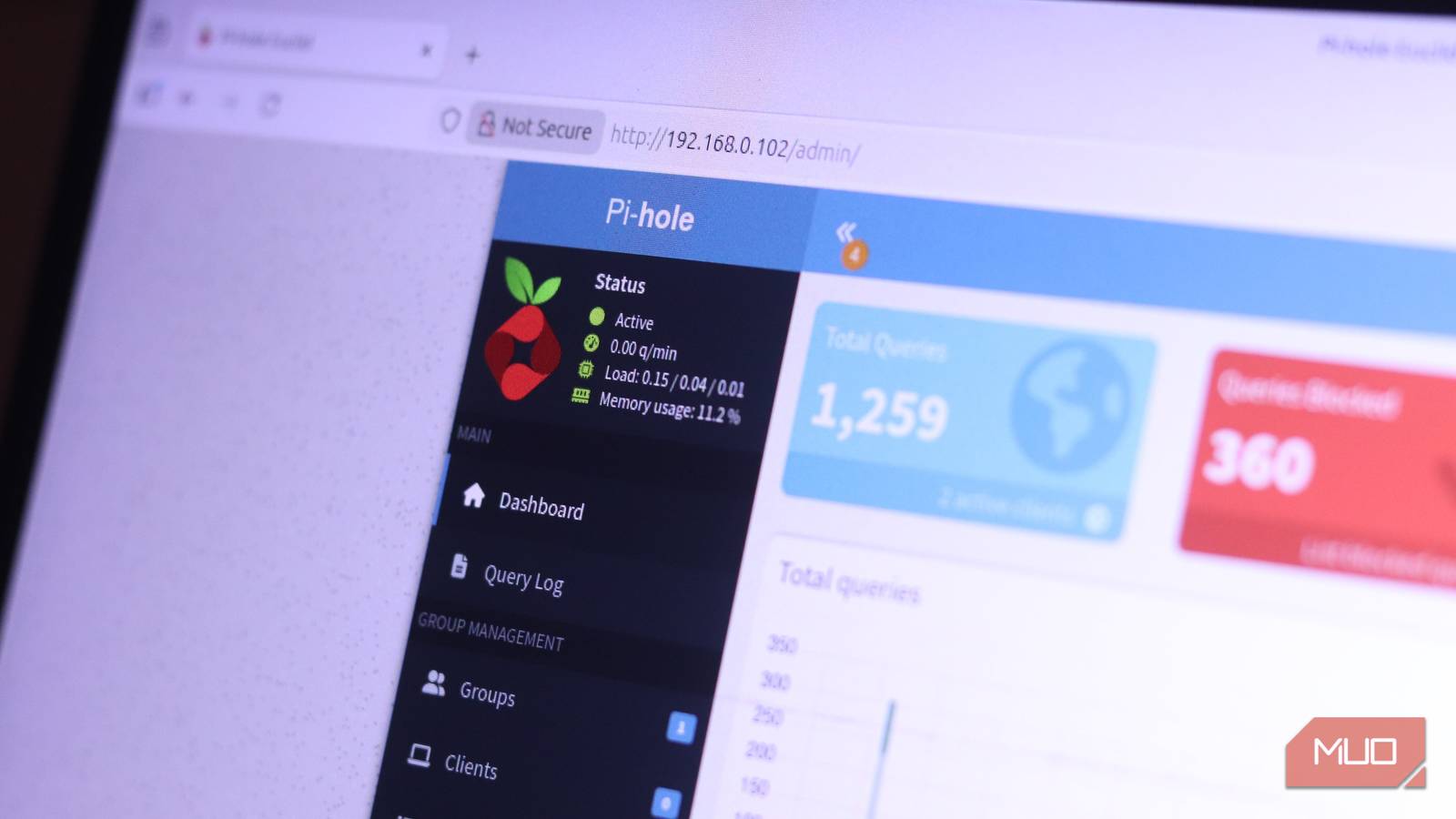
You also get a rather interesting dashboard that monitors your network. This includes everything from a real-time feed of every DNS query your network has made, which device made it, what domain was requested, and whether the request was blocked or allowed.
This is going to be the first time most people will get a true look at what their devices are actually up to in the background, and just how chatty a seemingly idle device can be. You’ll find your Android constantly phoning Google, your TV making dozens of requests to advertising analytics endpoints, and even your PC reaching out to Microsoft’s tracking infrastructure.
Why extensions aren’t enough
Browser tools miss what your network still leaks

Browser-based ad blockers like uBlock Origin are great, but they’re limited by design as they only work inside your browser. Your smart TV doesn’t support browser plugins, nor do your smart speaker, Wi-Fi bulbs, robot vacuum, streaming stick, or any of the dozens of smart home devices that are finding their way into modern homes. This is where Pi-hole stands out from other solutions.
These devices generally don’t expose tracking settings beyond a simple slider that tends not to be very effective. In such cases, it’s best to catch and stop any DNS requests going to tracking or ad-serving servers at the router level. You can swap out your Android’s private DNS to choose what gets blocked, but once again, those domains are only blocked on your phone.

Smart TVs in particular are notorious for snitching on your watch history, tracking viewing habits, and serving targeted ads through firmware-level calls that users have no visible way to disable via settings. Pi-hole intercepts these requests before they leave your network. There are also community-maintained blocklists that exist specifically for smart TV platforms, including dedicated lists for Android TV devices and Amazon Fire TV. This makes blocking unwanted tracking from your TV quite straightforward.
Blocklists do the heavy lifting
Set it once and let curated lists handle the rest

Out of the box, Pi-hole ships with a reasonable default blocklist; however, you can add community-made lists to the mix for stricter control without having to manually fish for DNS addresses to block.
One of the most well-known collections is hosted on a site called Firebog, which organizes lists by category and flags which ones are safe to add without breaking normal browsing. You can add these lists directly via the Pi-hole web interface in under a minute, and Pi-hole will download, parse, and merge them into a single consolidated database called Gravity.
What you really need to understand is that more isn’t always better when it comes to DNS blocking. Overly aggressive blocklists can start blocking legitimate domains or prevent certain apps or OS features from functioning properly. For example, streaming services often use ad-adjacent CDNs, login flows sometimes use third-party auth providers, or apps can bundle their analytics on the same subdomain as their core functionality; all these are examples of situations where blocking everything you see can cause more harm than good.
The best way to run Pi-hole is to strike the right balance. Start with a conservative list, watch the dashboard for false positives, and whitelist domains that break things you actually need.
The downsides are surprisingly small
What might break—and why it’s usually manageable

Pi-hole can deliver an improvement in your browsing experience. Since blocked requests are returned immediately rather than waiting for a server to respond, page loads can feel faster. If you’re on a mobile device, you might see a small improvement in battery life as well. Your phone consumes less power rendering and processing ad content, and removing that load at the router level means less background CPU work for each browsing session.
Pi-hole also adds a level of protection that browser or device-level tools simply can’t match. That said, since it works at the DNS level, it can only block by domain, not by URL path or script content.
This means that something like YouTube ads, which are served via the same youtube.com domain as the video you’re trying to watch, can’t be blocked. It’s also not a replacement for HTTPS inspection, VPNs, or firewalls. What Pi-hole is, and what it does well, is to eliminate multiple third-party tracking and advertising domains that most devices interact with constantly, without user awareness.
It’s one of the highest-impact tweaks you can make
A simple setup that protects every device on your network
A lot of self-hosted tools require constant maintenance to stay useful. Pi-hole, fortunately, is not one of them. Once you’ve set it up, it runs quietly in the background, updating blocklists as scheduled, logging queries, and occasionally showing a dashboard alert.

Your router and phone are probably fighting over DNS without you realizing it
How a DNS conflict might be slowing down your phone’s internet.
What it really gives you in return is way more than ad blocking. For the first time, you can actually see what your network is doing. And once you’ve seen your smart TV making hundreds of outgoing requests to advertising infrastructure in a day, or watched your phone constantly ping analytics domains when it’s just sitting on your desk doing nothing, you’ll quickly realize that a lot of chatter on your home network has nothing to do with you and everything to do with some company’s data collection practices.
