
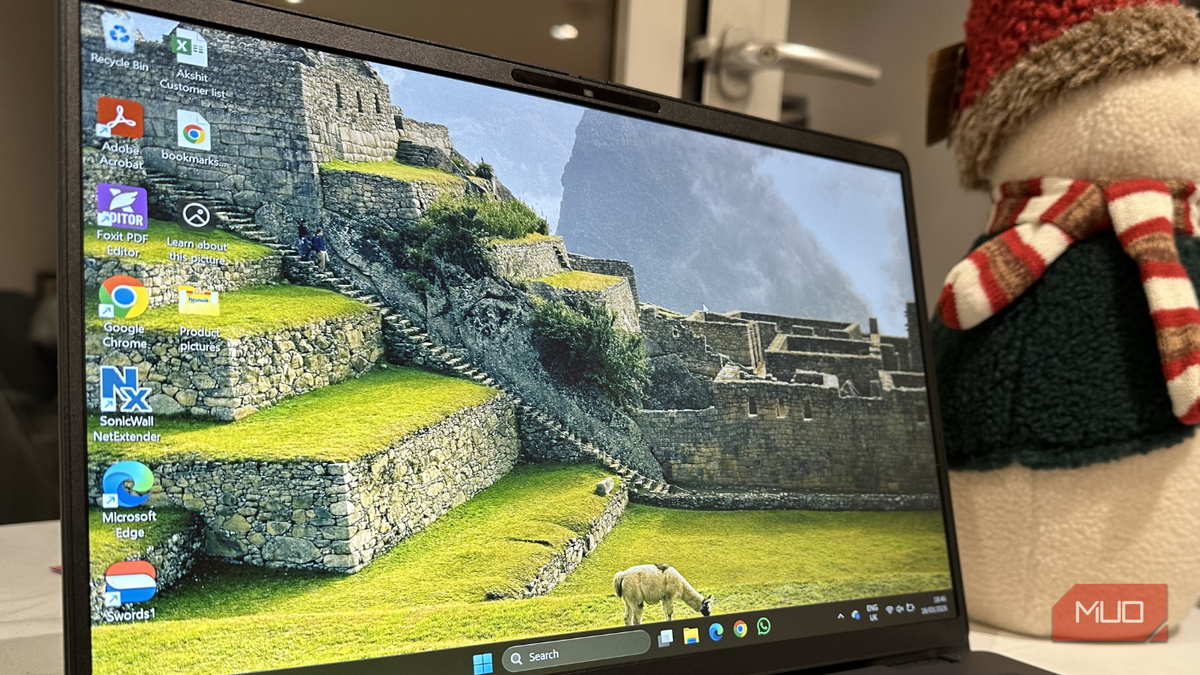
Running Windows from an external drive is one of those ideas that sounds more inconvenient than it’s worth. I assumed sluggish boot times and driver headaches would make it impractical for anything beyond a one-off experiment. So I wasn’t expecting much when I dropped a PCIe 4.0 NVMe SSD into an external enclosure that I normally use for fast file transfers and started using it as a secondary environment on my laptop. It held up better than I gave it credit for, with some caveats worth knowing before you try it yourself.
Setting it up is trickier than installing Windows normally
The standard installer won’t do what you want here
Microsoft doesn’t officially support installing Windows on external drives through the standard setup wizard — it simply refuses to install on removable media. You’ll need Rufus, which handles this cleanly with its Windows To Go mode. Download the Windows 11 ISO, open Rufus, select your external SSD under Device, then click SELECT and point it at the ISO. Once it loads, an Image option dropdown appears. Switch it from Standard Windows installation to Windows To Go, then hit START.
Before you boot into your new install, head into your BIOS and set the external drive as the first boot device. Secure Boot and Fast Startup can both cause problems here. If the drive isn’t being detected, try turning off Secure Boot from your BIOS and disabling Windows Fast Startup from Power Options before trying again. Therefore, disable them if the drive isn’t being detected. Not every machine will cooperate; some laptops with locked-down firmware won’t boot from an external SSD at all.
Once you clear those hurdles, the experience is straightforward:
- Boot with the external drive connected and selected in BIOS.
- Complete the standard Windows 11 setup — region, account, preferences.
- Let Windows install drivers for your specific hardware.
- Install your apps and configure settings as you normally would.
After that, it behaves like any regular Windows installation. Updates, apps, and settings all work exactly as expected.

- OS
-
Windows
- Developer
-
Pete Batard
- Price model
-
Free
Boot times are slower, but not painfully so
The interface is the bottleneck, and not the drive
I cold-booted from the external NVMe drive, which typically took around 25-30 seconds on my laptop, compared to roughly 10 seconds from the internal NVMe drive. That gap is noticeable, but it’s not the painful crawl you might expect from running an OS off external storage. The PCIe 4.0 NVMe is fast, but the USB interface is what’s holding it back, not the drive itself.
Resuming from sleep is a different story. It’s nearly as quick as the internal drive, and I rarely cold-boot anyway. BIOS initialization itself can quietly add several seconds to any cold boot, regardless of how fast your drive is. If you use sleep instead of full shutdowns, the speed difference is no longer a real concern in day-to-day use.
However, if you’re using a slower enclosure or an older USB 3.0 port, expect noticeably slower speeds. The setup matters here. A Thunderbolt enclosure would close the gap further, but even USB 3.2 Gen 2 gets the job done reasonably well with a fast SSD behind it.
Everyday use held up better than expected
Productivity tasks are where this setup earns its keep

For most of what I do daily, writing, browsing, and managing files, the external Windows install felt nearly identical to running from internal storage. App launches were a touch slower on the first launch, but after that, everything ran from RAM anyway. Nothing about the experience felt like a compromise worth complaining about.
The external install maintains its own completely separate user profile, apps, and settings. That isolation is useful since it’s a clean environment that doesn’t interfere with whatever is on the host machine’s internal drive. Plug in, boot up, and you’re in your own space.
File transfers between the internal and external drives are the one area where the setup’s limitations become apparent. Moving large files across the two takes longer than you’d expect from an NVMe drive — again, it’s due to the USB interface. Keep your working files on the external drive itself, and this stops being an issue for most tasks.
I easily installed Windows updates, and the drivers sorted themselves out after the initial boot. The experience is mundane in the best possible way.
There are some limitations that will catch you off guard
It’s not for hardware-intensive work
Anything that hammers the drive consistently, such as video editing, large game installs, and sustained file operations, makes the USB bottleneck obvious. The NVMe can handle it, but the interface can’t keep up. For light-to-moderate workloads, this never surfaces, but if you push the setup hard, it does.
Plugging the drive into a different machine triggers driver reinstallation. Windows handles this reasonably well on its own, but it takes a few minutes every time you switch hardware. The external drive draws power over USB, and depending on your laptop, that’s a meaningful difference over a full day of use. It’s not much, but it’s worth knowing if you’re working away from an outlet.
Windows activation is an unpredictable part. A digital license is tied to the motherboard it first activates on, so when you move to a different machine, you may hit an activation wall. It’s usually solvable if you’ve already linked your Windows product key to a Microsoft account beforehand.
Accidental disconnection mid-session is also a risk. Bumping the cable at the wrong moment can corrupt data or force a hard recovery. It hasn’t happened to me yet, but it’s the kind of thing you stay aware of in a way you simply don’t with internal storage.
If you regularly use shared or work machines and want your own environment without touching the host drive, this setup solves that cleanly. It’s also a natural testing ground — if something breaks, reinstall, and your main drive is completely untouched. Whether it’s worth it comes down to how an NVMe SSD compares to whatever enclosure you can get your hands on.
