
Do you know that you can buy high-speed RAM and still not use it at its rated speed? For several months, my computer has felt a bit off. This wasn’t anything extreme, but just tiny delays that could easily go unnoticed.
However, after checking my RAM speed and realizing that it was running below what I had paid for, I knew I had to act. The XMP/EXPO setting was the answer to this problem. This is the one setting you typically never consider; you may not even know it exists.
- Brand
-
Corsair
- Size
-
32GB
- Technology
-
DDR5
- Speed
-
6000MHz
- RGB
-
Yes
- Latency
-
CL36-44-44-96
Corsair Vengeance RGB DDR5 32GB (2x16GB) delivers high-speed 6000MHz performance with CL36 latency, optimized for Intel XMP 3.0 systems. Featuring dynamic RGB lighting and sleek heat spreaders, it enhances both aesthetics and efficiency. Designed for stability at 1.35V, it’s ideal for gaming, multitasking, and demanding PC workloads.
Your RAM isn’t automatically running at its rated speed
JEDEC values are common defaults

RAM modules use JEDEC standard profiles, which are baseline speed values. It’s more like a conservative baseline to ensure broad compatibility with CPUs and motherboards. The JEDEC value is usually lower than the RAM’s advertised speed rating.
If you insert new RAM into your device and don’t configure anything, it will function at the baseline speed. DDR4’s default JEDEC profile is 2133 MT/s or 2400 MT/s, while the typical rated speed ranges between 3200 and 3600 MT/s. For DDR5, the default is 4800 MT/s, or 5600 MT/s on some systems, with a typical rated speed ranging between 7200 and 8800+ MT/s.
Manufacturers prioritize stability across hardware combinations, so JEDEC defaults are lower than the marketed RAM speed. So no, your RAM doesn’t automatically run at its rated speed.
RAM pre-configured profiles
XMP and EXPO unlock performance

The fix that makes your RAM function at its advertised speed rating is often overlooked. It’s a single setting: XMP (Extreme Memory Profile) on Intel systems and EXPO (Extended Profiles for Overclocking) on AMD.
While these are the widely used names, certain manufacturers may label them differently. For instance, some older ASUS motherboards call it DOCP, and MSI calls the feature A-XMP.
Each RAM kit includes a preconfigured profile that tells the system how to run at the advertised speed. Enabling the XMP or EXPO settings on your device loads this profile and guarantees optimal speed without manually tuning frequency, timings, and voltage.
Technically, enabling XMP is a form of overclocking. Even Intel classifies it as overclocking in its warranty terms. However, it doesn’t carry the same risk as manual overclocking. It’s a standard real-world practice and widely supported by RAM and motherboards, and it should work predictably on supported devices.
It’s an important tweak because your RAM is capable of its rated speed, but the system will keep it at JEDEC defaults unless you enable the XMP/EXPO profile.
How to check if your RAM is running at full speed
Quick verification steps
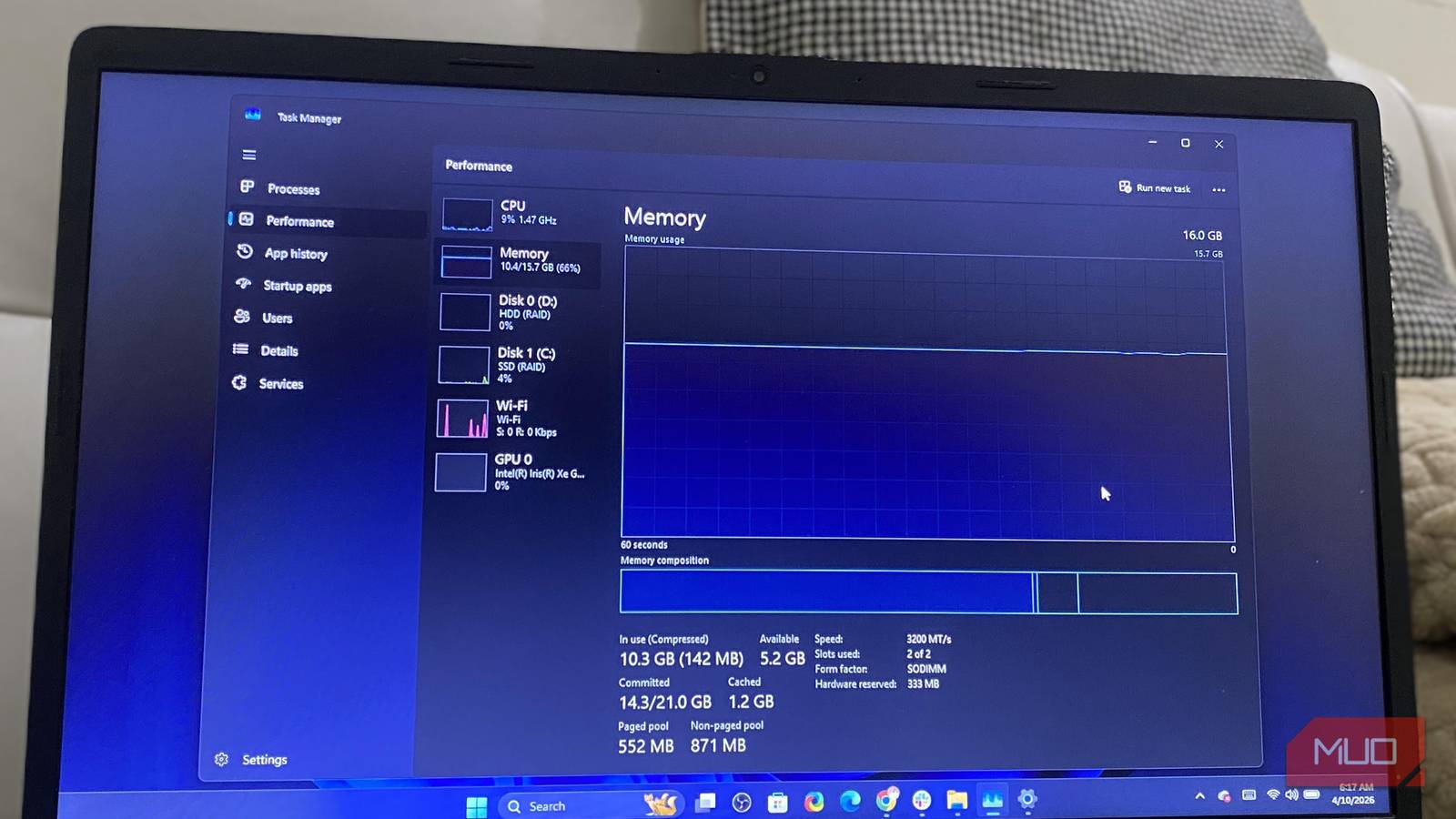
Before you think of making any XMP or EXPO changes, you should check what your computer is doing. The Task Manager offers a fast option to verify RAM speed. Once you open it, navigate to Performance, and under Memory, you should see the RAM speed. It doesn’t tell the whole story, but it’s a starting point.
You can use a tool like CPU-Z for better accuracy. Under its Memory tab, you should see the DRAM Frequency value. However, this value is only the base frequency. To get your actual speed, you must multiply it by 2 since RAM is DDR (Double Data Rate). So, a 1600 MHz DRAM frequency value means the RAM is running at 3200 MT/s. Similarly, 2400 MHz will imply a speed of 4800 MT/s.
With this information, you can check your RAM’s box or the manufacturer’s website to compare the value you found against what it’s actually rated for. When the numbers do not match, you are running RAM at lower speeds.

I always do these 4 things after a new PC build before I consider it actually ready
Relax, this isn’t as complicated as it sounds.
Enabling XMP or EXPO is a one-setting fix
No manual tweaks needed

Enabling XMP or EXPO is quite straightforward. To start, you should boot into your computer’s BIOS. You can usually do this by continuously tapping one of the function keys while the computer is starting up (the exact key varies by manufacturer).
Once you are in the BIOS, look for and enable the XMP (Intel) or EXPO (AMD) option. Again, the exact steps to get to this feature will vary by manufacturer, and in some cases, the manufacturer may label this feature differently. Once enabled, save and exit the BIOS, then restart the computer.
This applies the right profile, allowing your RAM to work at its rated speed. If you need to confirm that enabling XMP or EXPO made a difference, you can check the memory speed again in Task Manager or confirm that CPU-Z’s DRAM frequency value has been updated.
My PC feels different
The difference after enabling XMP doesn’t feel the same across all activities. For everyday use, there’s been a subtle improvement in app launch speed, and I’ve noticed smoother tab switching. While gaming, I have observed a slight improvement in frame pacing and consistency, and I’ve had smoother responsiveness with heavy multitasking.
The change has been more significant for activities that use integrated graphics; these activities require RAM for increased memory bandwidth. I haven’t noticed any drawbacks and would recommend it. It’s one of the performance tweaks that I’ll adopt going forward on any Windows PC build.
If you try enabling XMP or EXPO and don’t see any improvements, confirm your BIOS isn’t outdated and that you’re using the right motherboard slot.
