
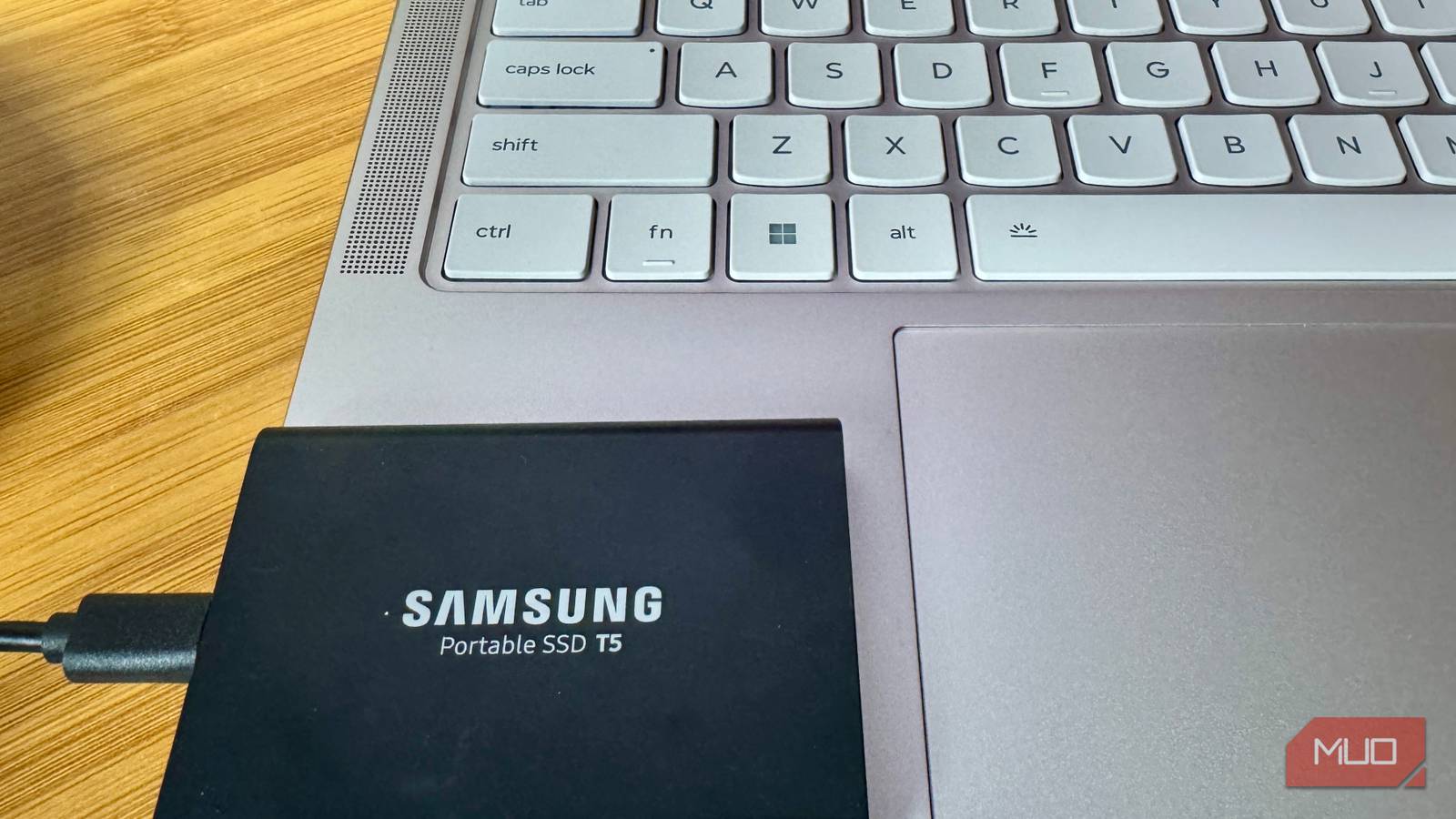
We’ve all done it, plugged in a USB drive or went to wipe an old HDD and found the “Quick Format” box in Windows because we didn’t want to spend hours waiting for a drive to reformat. There’s a reason, though, why a full format takes so long. Quick format doesn’t do anything except hide the map to the files on your drive. After a Quick Format, the data is all there, accessible by anyone with technical know-how. If that matters to you, and it should, then take a look at why you might not want to use Quick Format, when you might be ok with it, and the options available to you from there.
Under the Hood: What “Quick Format” Actually Does

Your drive is like a library, in that it has an index to everything on it. That’s how it finds what you need and lets you interact with every file and app on your machine. Called the File Allocation Table (FAT) or Master File Table (MFT), this index stores the location and detailed metadata that lets your system manage files and security. The older FAT tracks file locations in systems like FAT32 while MFT can support larger volumes with better fault tolerance.
Quick format, then, just erases this index, essentially tricking Windows into thinking the space is empty and can now be overwritten. In reality, the actual bits and bytes of your photos, tax returns, and passwords remain physically on the disk.
Why This Is “Terrifying”
The Security Risk

There are some fairly simple tools like Recuva and PhotoRec that can bring “deleted files” back to life with low effort. That’s great when you’re trying to find photos and files that you’ve deleted yourself, but not great when anyone malicious gets ahold of your hard drive. I know I’ve donated laptops to Goodwill, for example, that had personal data on them. Quick format wouldn’t be a great way to clean them off, as the files are still there.
Another example is when you hand off a USB drive to a friend, thinking you’ve completely wiped it with Quick Format. Surprise! It’s not completely anything.
Unlike a whiteboard, erasing your drive with Quick Format is like painting a thin layer of white over permanent marker: anyone with a scraping tool will be able to see what was under there.

- OS
-
Windows
- Developer
-
Piriform Software
- Price model
-
Free, Paid versions available
Recuva is a free Windows data recovery tool that helps you restore accidentally deleted files from hard drives, USB drives, memory cards, and even the Recycle Bin.
Quick Format vs. Full Format: The Key Differences
Feature | Quick Format | Full Format |
Speed | Near instant | Very slow, depending on size |
Data Erasure | Removes index only | Overwrites data with zeroes (since Vista) |
Bad Sector Check | None | Scans and marks dead spots |
Best for | New drives / Clean OS installs | Selling or discarding old hardware |
When “Quick” Is Actually Okay

There are many times when using Quick Format is just fine. If you’re setting up a brand-new SSD or HDD out of the box, save time and quick format; there’s nothing on the drive to begin with.
If you’re reinstalling Windows, and you’re the only one using the machine, go ahead and use Quick Format; the data underneath is yours anyway, and you’re likely to just be putting your old data back on the drive anyway.
If you’re in a rush and the drive doesn’t have anything sensitive, Quick Format can work just fine, too.
How to Truly “Wipe” Your Data
SSD or HDD?
If you want to get rid of the data on your drive, not just the index to that data, you’ll want to avoid the Quick Format method. There is a difference between SSD and HDD technology, however. If you have an older HDD, then you can safely use the time-honored Full Format method, also known as Zero-filling, as it sets all the bits and bytes on the drive to a zero value.
For a full format with Windows, open Disk Management from the Start menu (search for Create and format hard disk partitions) or hit Win + R and type diskmgmt.msc. Find your drive in the list and make sure you select the right one or you might format your primary drive by accident. Right-click on the partition or volume you want to wipe, and select Format… from the menu. You’ll then need to give your drive a name, choose a file system (NTFS is standard for Windows, while exFAT can be better for cross-platform use), and leave the Allocation Unit Size as is unless you have a specific reason to change it.
Then, and this is the crucial step, uncheck the box labeled Perform a quick format. That will tell Windows to do the Full Format and zero out all sectors on the disk as well as check its health. Click OK and OK on the warning, then wait while your machine formats the drive. It can take anywhere from a few minutes (for smaller drives) to several hours (for large ones), so let it roll.
If you’re looking at a more modern SSD, you don’t want to do that, as they have a finite number of write cycles, and a Full Format will use one of those. That might be fine if you’re going to only do this once, but in the long run, after many rewrites, the SSD will have less of them. Most folks recommend using a Secure Erase, achieved with OEM or third-party apps, instead, as the way it manages the format is not seen by the SSD as a rewrite.
Take your time
Sure, your time is valuable; but making sure all the data is off of your hard drive is pretty important, too. Speed comes at the cost of security, so it’s a good idea to Full Format your hard drives (or Secure Erase your SSDs), especially if you’re passing that drive along. So wait for that slow progress bar knowing full well that you’re protecting your privacy for real.
