
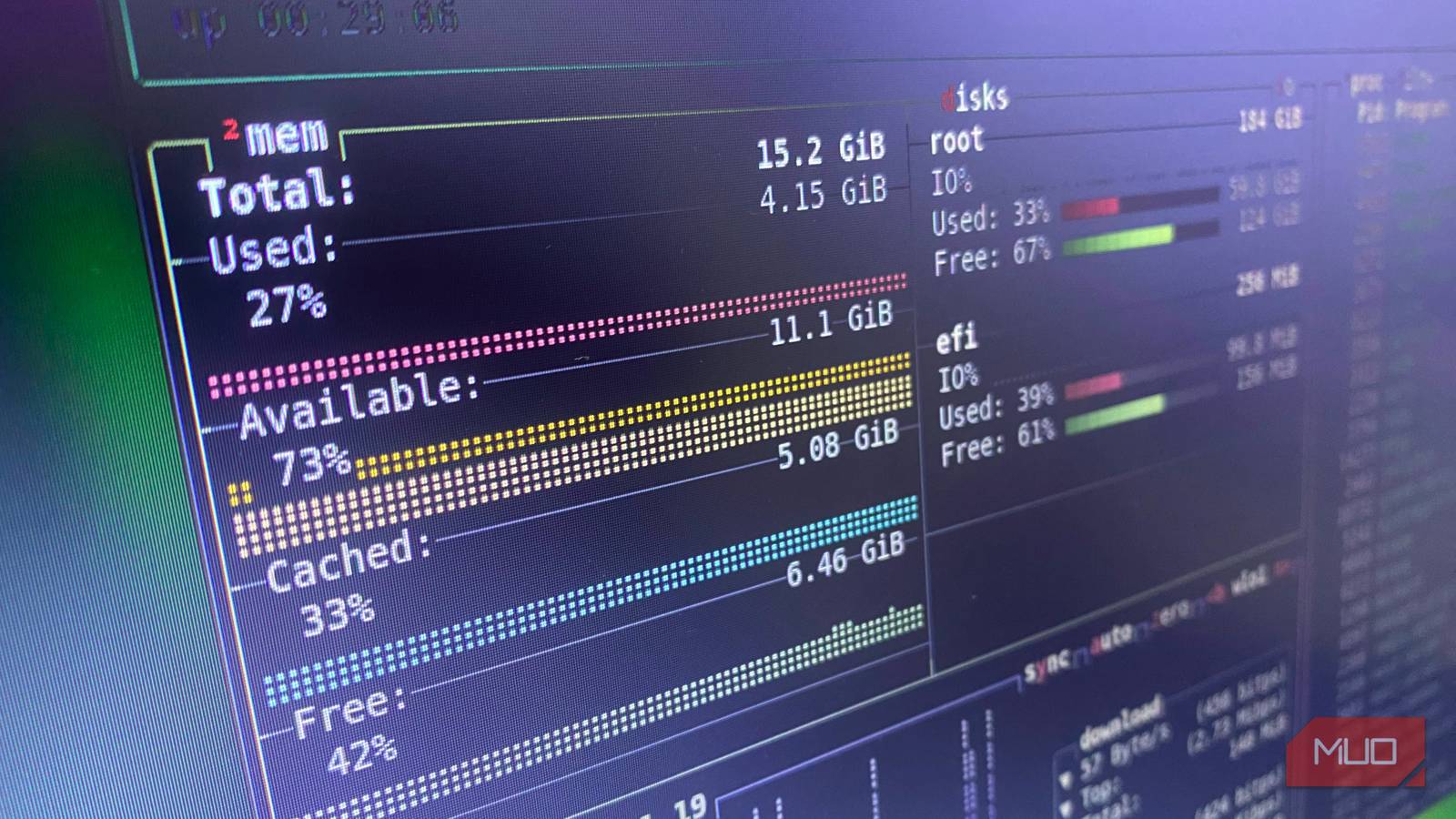
You typically inherit the top command when you start using Linux. It’s not something you consciously choose, but it works and is often your go-to when a process maxes out your CPU. One problem you may have is that top is usually a wall of numbers that you may not have time to interpret, especially if you’re under pressure.
Btop does this much better. It helped me observe problems as they happened in real time, lining up CPU spikes, disk activity, and processes in one view. I completely stopped relying on the top command.
- OS
-
Linux, macOS
- Developer
-
Jakob P. Liljenberg
- Price model
-
Free, Open-source
btop is a modern resource monitor for Linux and macOS that displays real-time CPU, memory, disk, and network usage in a clean, interactive terminal interface.
Btop shows what top hides
A full system view instead of a wall of numbers

If you launch top and btop side by side, the difference becomes obvious. Top will typically produce a dense table that’s text-heavy. It includes CPU usage summarized in a single percentage and a single memory figure. Beyond this, you need a separate tool or the ability to interpret the numbers. Top seems to expect you to already understand which numbers are significant and where to look.
The experience with btop is totally different. Btop moves from top’s flat list to a structured view of your system. What used to be a single CPU percentage in top becomes a per-core CPU graph that updates in real time. It lets me instantly see an uneven workload. It gives you bars for memory and swap usage so you can easily spot pressure. And it introduces a live network panel for throughput. Btop’s view also includes a disk I/O section showing real-time read/write actions.
The difference is significant in practical use.
Feature | top | btop |
|---|---|---|
Per-core CPU view | No | Yes (graph) |
Memory visualization | No | Yes |
Network monitoring | No | Yes |
Disk I/O | No | Yes |
Unified view | No | Yes |
When I switched, the biggest improvement I noticed was how quickly I could make sense of my system. Btop shows how different system parts behave together, rather than displaying them as isolated numbers.
Installing btop and getting started
One command, no setup, and you can follow along immediately

Btop is available in the default repositories of the major Linux distributions and installs with a single command:
- Ubuntu/Mint:
sudo apt install btop - Fedora:
sudo dnf install btop - Arch Linux:
sudo pacman -S btop
With btop installed, you can run the command below:
btop
Instantly, you get a layout that stands out and feels alive, with moving CPU graphs, background traffic displayed on a network panel, and a well-sorted process list. It’s immediately a useful view without the need to learn or configure anything.

5 Linux terminal commands that fix most of my system problems
Essential Linux troubleshooting commands every user should know.
btop changed how I troubleshoot in real time
From interpreting numbers to spotting bottlenecks instantly
It wasn’t until the first time my system slowed down while transferring a large file that I noticed how btop makes me approach problems differently. Top would have shown me elevated CPU usage without explaining why. This would have forced me to use other tools to confirm disk activity.
Btop instantly showed me that while other cores remained idle, CPU usage spiked. This was enough information to know that my workload wasn’t evenly distributed. But I got even more clarity because, simultaneously, I could see a sustained and steady climb in the disk I/O panel. It became clear that my rsync job, which ran in the background, was causing the spike.
This was visibility through the perfect combination of CPU behavior, disk activity, and the exact process, and it did not require guesswork or a new set of tools. I was simply piecing together what the system was clearly telling me.
The interactivity top simply doesn’t have
Filtering, sorting, and control without leaving the screen

Visibility is just one of the advantages. Beyond that, it’s far easier to work with btop. I now rely on btop’s live filtering a lot. I no longer need to scroll or scan to track down a process. I only have to start typing and watch the list narrow down in real time. It’s my go-to whenever I already have an idea of what I need to find.
It also has very quick sorting that allows me to switch from CPU-heavy to memory-heavy in seconds. This quick switching allows a deeper understanding of different workload behavior; you don’t need to restart the tool or change configuration.
Btop also includes built-in process control. So, within the interface, I can kill a process that needs to be stopped. I once had a session where I had to isolate a misbehaving node (Node.js) process and kill it. I achieved this without leaving the interface. In the past, this entire process would require a couple of extra steps.
How btop compares to other top alternatives
There are alternative solutions. So before you switch from top, it’s good to have a general idea of what’s possible. Of the few I’ve tried, here’s how they compare:
Of all these, htop may be the most common alternative. But even though it offers improved readability and adds some basic interactivity, it still pales in comparison with btop’s system-wide visibility. I often recommend Glances because it’s feature-rich and works great for remote monitoring. The only point of concern is its heavier dependency footprint.
There are also tools I have not listed, like bottom (btm) and bpytop, which inspired btop. They may be worth giving another look, even though I love the balance that btop strikes between visibility, performance, and ease of use.
