
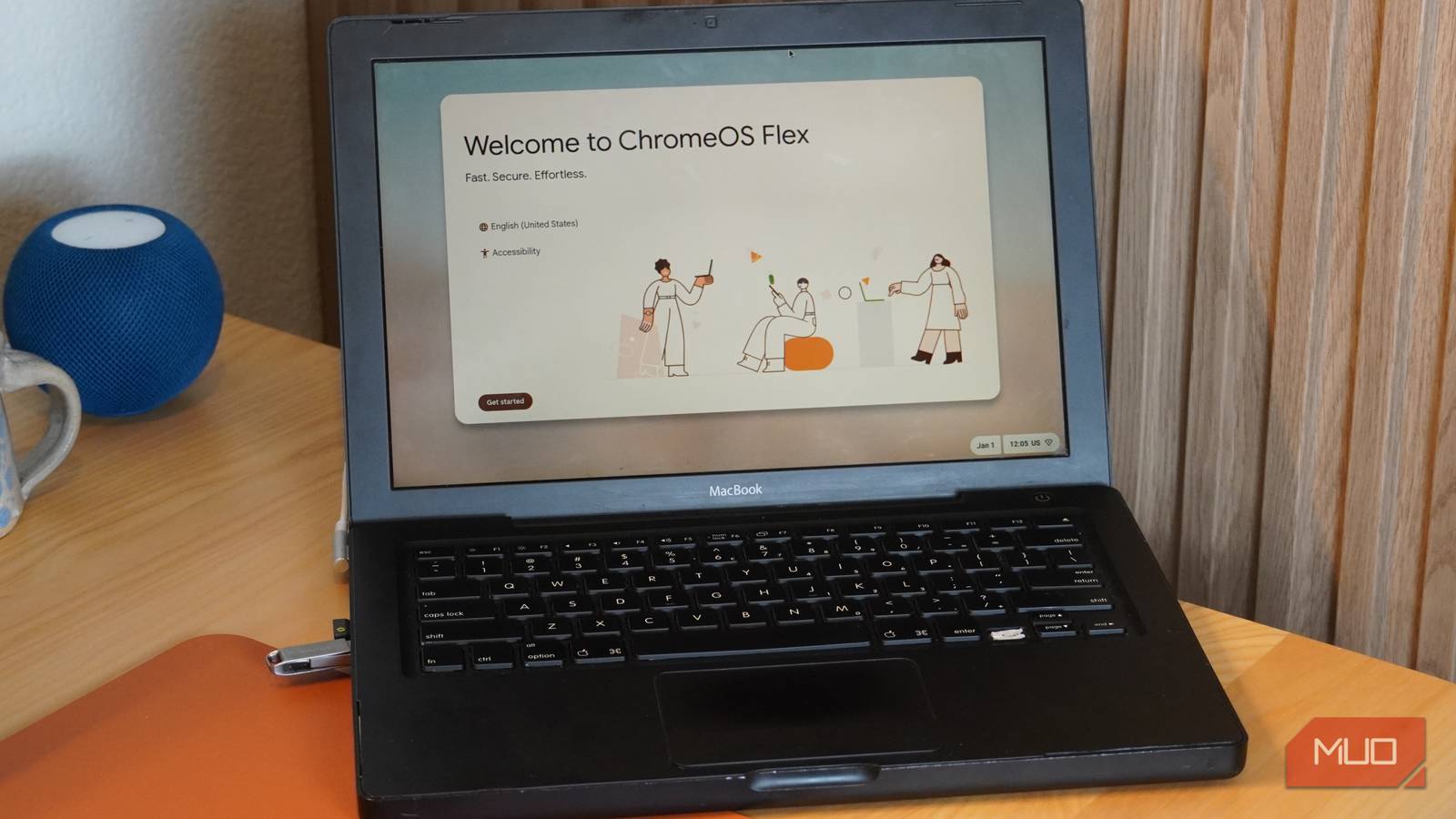
Obsolescence is a painful thing, especially when it affects devices as expensive as laptops and desktop computers. It’s a puzzling process, especially for tech enthusiasts — how is the same device that was a state-of-the-art machine years ago now incapable of performing basic tasks? The tech inside hasn’t changed, but the software that runs on it has. It’s a delicate balance, because we want our old laptops and desktops to get operating system and app upgrades, yet those same updates stress older components by adding demanding features and modern complexity.
The same logic works in reverse. Swapping out a resource-intensive operating system, like macOS or Windows, with a lightweight Linux or ChromeOS build can seriously improve performance. For this purpose, there isn’t a better option than ChromeOS Flex. While ChromeOS is loosely built on the backbone of Linux, it’s heavily customized by Google, and ChromeOS Flex is specifically designed to offload as much processing as possible to the cloud. When you use it, the same aging laptop that couldn’t open multiple Chrome tabs turns into a browsing champion.
I’m a huge fan of using ChromeOS Flex to revive ancient laptops. I’ve successfully used it to refresh laptops that are two decades old, and it actually works. There’s just one issue, and it’s that needing to create a bootable USB installer is a hassle most consumers will never put up with. Google is finally solving that problem with a partnership with Back Market that sells plug-and-play ChromeOS Flex installers for just $3, and it’s a game-changer.
Turn your old laptop into a Chromebook
ChromeOS Flex is a low-power OS that relies on the cloud
Take a look at the specs of a budget Chromebook, and you’ll immediately understand how ChromeOS Flex works. Chromebooks don’t have a lot of performance power inside — that’s how they’re so cheap. Regardless, modern Chromebooks are able to handle browsing, document editing, and even tasks like photo or video editing. They do this by offloading the heavy lifting to cloud servers. Need to create a document, presentation, or spreadsheet in a Microsoft 365 app? You can do that in the Chrome browser. Have to edit a graphic? Run a web-based photo editor such as Canva and you’re all set.
ChromeOS Flex works the exact same way, but with your old laptop as the basic hardware. It’s like the regular version of ChromeOS, except some features are unavailable. Notably, ChromeOS Flex doesn’t support verified boot, firmware integrations, or managed Google Play apps. The experience is even more centered on the cloud and web-based computing than the regular version of ChromeOS, but that’s exactly what you want to make the most of aging hardware.
Think about how much of your daily phone, tablet, and computer usage is done (or could be done) in a browser. I can use social media sites, project management platforms, photo editors, content management systems, and office suites all within a browser. That means I can do each and every one of those things on a two-decades-old laptop running ChromeOS Flex, too. So, before you recycle your old laptop or decide you need to upgrade, give ChromeOS Flex a shot.

I installed ChromeOS on my 9-year-old MacBook Air, and it actually works
ChromeOS on my ancient MacBook Air is surprisingly snappy and easy to setup.
Installing ChromeOS Flex is the easy part
Plug in a USB installer and follow the prompts — it’s that simple

To Google’s credit, it has done an excellent job at making the ChromeOS Flex installation process feel approachable to users of all skill levels. The idea of replacing the stock macOS or Windows operating system that came with a computer is still daunting to the average user regardless. I’ve seen “normal” computer users go years without even applying a simple OS update. Building a USB installer and using it to replace macOS or Windows with ChromeOS is far outside the scope of what a casual user is willing to do to extend the life of their device.
Creating the bootable installer is the hard part. In theory, it’s super simple — Google offers a Chromebook Recovery Utility extension in Chrome that should automate the process. You plug in a USB drive, tell the Chromebook Recovery Utility you want to create a ChromeOS Flex bootable installer, and let the extension do the work. It’s not always that easy, though. You need a USB drive 8GB or larger that’s properly formatted.
The Chrome extensions should handle drive erasure and reformatting, but there’s a catch. If you’re using a Mac or Windows PC to create a ChromeOS Flex bootable installer, you need to grant the ChromeOS Recovery Tool system permissions to write to the USB drive. Without granting the extension the necessary permission, the installer creation will fail, and inexperienced users will be left wondering why. Unless they wait to approve the pop-up that appears midway through the creation process or have the foresight to run Chrome as a system administrator, they won’t end up with a working ChromeOS Flex installer.
It’s a shame, because when you get past that hurdle, ChromeOS Flex is painfully simple. Plug the bootable USB installer into your old Mac or Windows PC, and you can run a working ChromeOS Flex build straight from the flash drive. This allows you to test how ChromeOS Flex functions with your workflows and on your old laptop before replacing Windows or macOS. If you’re sold, installing it on your laptop takes another 20 minutes and only requires following the on-screen prompts.

How to try ChromeOS on any PC using a USB drive
You don’t have to buy a Chromebook to enjoy the web-based desktop experience of ChromeOS. Here’s how to run ChromeOS from a USB drive.
The hard part is making the installer
Google is finally making that easy with a new partnership

Again, ChromeOS Flex is simple and functional, but only if you’re able to figure out how to make the installer. That’s why I’m thrilled about Google’s collaboration with Back Market to sell pre-made ChromeOS Flex USB installers. To be clear, ChromeOS Flex is still completely free, and you can make a no-cost bootable installer for yourself by following Google’s installation guide. This paid alternative is for people who might not have the USB drive or skills required to create a working ChromeOS Flex bootable installer for themselves.
Getting a bootable USB installer from a trusted source for a small fee is totally worth it. Third-party sellers on sites like eBay offer up homemade bootable USB installers for higher prices, and I don’t need to get into all the issues with plugging an unverified USB drive into your PC. Google’s option is cheap, safe, and easy to use. That’s without mentioning that paying $3 for a USB drive with a 16GB capacity is a pretty stellar deal, even in 2026.
If you’ve been curious about trying ChromeOS Flex and the USB creation process was the hiccup, this $3 installer is your solution.

- Capacity
-
16GB
- Connection
-
USB-A
- Durability
-
Swivel Thumb Drive, 16GB, USB 2.0, 2.2″ x 0.75″ x 0.4″
- Brand
-
Google
The Back Market + ChromeOS Flex USB Key is a $3 flash drive pre-installed with a ChromeOS Flex installer. It takes the hassle out of replacing macOS or Windows with ChromeOS. All you need to do is insert the plug-and-play drive to start using ChromeOS Flex or install it on your system. It’s a 16GB swivel flash drive that uses a USB-A connector — perfect for older devices.
