
Google Pixel phones ship with more camera and photo editing features than I can count, and it’s easy to lose sight of them all. As someone who switches between phone brands often, I don’t bother trying to keep track of which phone offers a particular feature. When I’m daily driving a phone for personal use, I end up using the camera in basic point-and-shoot mode. The most complex photo editing feature I use on my Pixels is the cropping tool. Outside of testing, I never use the flashy features like Magic Editor, Photo Unblur, or Best Take.
Sometimes, it feels like I’m missing out. Google phones are known for their camera prowess, especially in terms of software and AI editing tools. That’s why I was thrilled to try the new Google Photos conversational editing feature on the Pixel 10 series. It does the heavy lifting of finding the specific tool or feature you need to complete a photo edit — all you need to do is describe your changes in plain English and the Help me edit mode handles the rest. Conversational editing in the Google Photos app is finally good enough to make me feel confident leaving my mirrorless camera at home.
There’s so many of them, it can be hard to keep track of them all

The Google Photos app is loaded with photo editing features, and Google Pixel phones tack on a few extras. I find it tricky to remember the location, name, and function of all these tools, especially since Google never keeps things the same for long. The original Magic Eraser tool, for example, is now hidden behind the newer Magic Editor tool. If you want to use the offline Magic Eraser tool, you now need to tap the cloud-based Magic Editor feature to use it. These kinds of behavior and name changes can throw even seasoned Google Photos users for a loop.
If you’ve been puzzled by the editing tools in Photos lately, you’re not alone. The company completely overhauled the Photos editor about a year ago, and the new-look editor puts all the Google photo editing tools in one place. Tools like Reimagine or Auto Frame that previously had their own locations now coexist with modes such as Magic Editor or Crop. It’s a great idea in theory, but there’s certainly a learning curve to finding your favorite photo editing tools in their new homes.

Google Photos’ most useful feature isn’t search — it’s this one
The real magic of Google Photos isn’t finding pictures, it’s transforming them.
I use conversational editing to simplify changes
I don’t have to remember every tool — Photos does it for me
The redesigned Google Photos editor puts commonly used utilities like crop, flip image, rotate, and AI Enhance front and center. If you need a specific editing tool, you’ll have to work to find it. After selecting a photo and pressing Edit, you’ll need to tap the Tools button to find the feature you want. The toolbar includes five tabs: Actions, Markup, Filters, Lighting, and Color. Each of these tabs is filled with plenty more individual editing modes.
For example, the Actions page features the following utilities: Crop, Magic Editor, Unblur, Move, Best Take, Portrait Blur, Zoom Enhance, Pop, Sharpen, and Denoise. That’s quite a lot of options, and it’s only one of five pages. To make things more complex, each of these utilities has granular tools of their own. Using Auto Frame requires navigating through these steps: Google Photos → Select photo → Edit → Tools → Actions → Crop → Auto Frame. When editing a photo with a flagship AI feature like Auto Frame requires nearly 10 button presses, the chances of an average user finding it in the Photos app are slim.
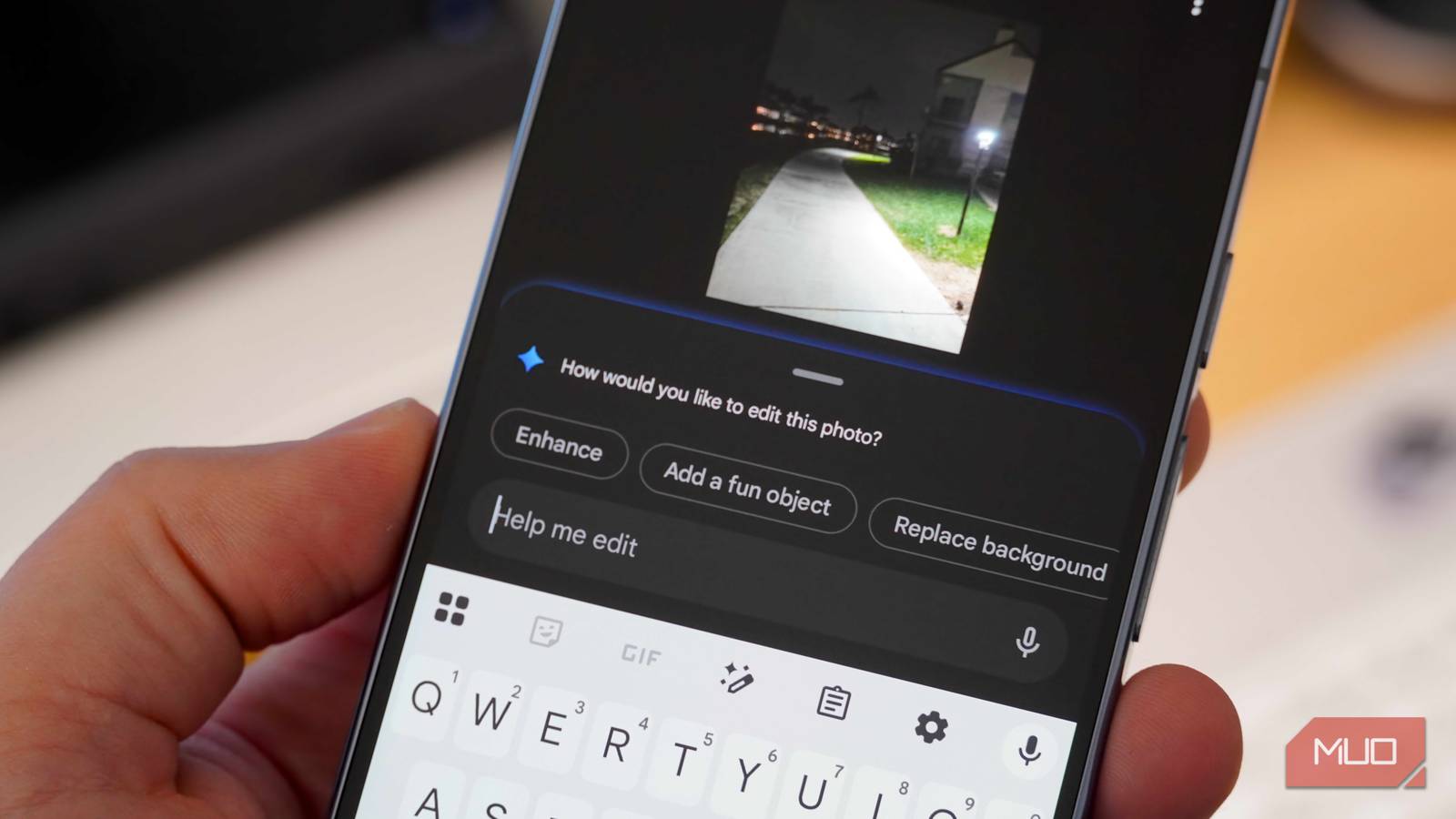
Offering too many options is rarely a bad thing, but it can be if the experience is confusing enough that users opt to ignore their phone’s best features. Luckily, Google thought of this with a new feature called Help me edit. It debuted on the Google Pixel 10 series, and it’s now available more widely in the Google Photos app for iOS and Android. This mode allows you to request changes for a photo in natural language. Using conversational understanding, AI-powered suggestions, and Google AI image editing tools, the Google Photos app can find the specific tool needed to complete your request.
The Help me edit chat box lives on the main Edit page in Google Photos, simplifying quick edits. Instead of using upwards of 10 taps to find and use the editing tool you need, you can simply tap the Edit button on a photo and type out a request. For instance, I can write “Use Auto Frame to crop the image,” and the Google Photos app does it automatically. It saves me time, and helps me use Pixel editing features I didn’t even know were there. Instead of needing to remember exactly which features are available and how to use them, the Photos app now takes a casual request and runs with it.

How to unlock every AI feature on your new Pixel
Circle to search, AI image tools and more
It’s not the camera, it’s the photographer (and the AI)
Google Photos knows what edits to make better than I do

Capturing great photos is about more than just your camera hardware. That’s why if you hand someone a smartphone and a fancy DSLR or mirrorless camera, they’ll probably take better shots with the phone without photography experience. Google Pixel phones are great for beginners because the camera software and AI photo editing features do nearly all the work for them. Tools like Camera Coach or Magic Editor take the complexity out of snapping photos or editing them later.
There’s just one issue — these Pixel and Google Photos editing tools are only useful if you seek them out. With so many tools and features buried in the Google Photos editor, it’s almost impossible to find and use them all. Using the conversational editing feature, Help me edit, in Google Photos means you don’t have to. Treat it like a search engine or AI chatbot, and describe exactly what changes you need to make for a photo in natural language. Google Photos will then find the exact tool you need and use it to fulfill your request, even if it’s a tool you’ve never heard of or if you didn’t use photography jargon correctly.
I own a mirrorless camera for work, but I use smartphone cameras for almost all my personal shots. Between the point-and-shoot experience and the automated photo editing tools in Google Photos, it’s simpler to use my Pixel instead.

- OS
-
iOS, Android
- Price model
-
Free
- App Type
-
Gallery and photo editor
Google Photos is a gallery app, photo editor, and cloud storage solution. It’s an easy way to back up your photo or video collection, make edits using generative AI, or share albums with others. You get up to 15GB of storage completely free. Best of all, it includes a conversational editing feature that helps you edit photos seamlessly.
