
Your ISP is your gatekeeper to the internet. Everything you do online goes through your internet service provider, be that online gaming, streaming, AI, or otherwise.
That gives your ISP serious control over what you do online, let alone the fact that it can see most of what you do online. But there is a better way: a custom DNS.
The problem is that some ISPs send you a router and modem and lock it down, meaning you’re completely locked to its network settings, no matter what they are.
However, there is a workaround — it takes a little time, but it’s well worth doing if you want faster internet speeds and better online privacy for all of your devices.
There are “levels” to DNS on your devices and router
Take back control
When you type a website address into your browser, your device has to translate that name into an IP address using DNS. The process starts locally. First, your system checks the hosts file, a small list of manually defined domain-to-IP mappings. If there’s a match there, it never needs to ask anything else.
If nothing is found, the system checks its DNS cache, which stores recently looked-up addresses to speed things up. Only when both of these fail does your device send a query to its configured DNS servers.
Now, here’s the bit where confusion enters the conversation. Your device doesn’t “fall back” to your ISP’s DNS configuration on your router. It just uses whatever DNS servers it was given to use when it connected to the network.
Because most folks don’t change their DNS settings, ISP-configured DNS servers are often the default.
But as most ISPs don’t make it easy to change your DNS settings on your router, you end up locked into their network settings, applied to every device in your network by default.
However, it doesn’t have to be like that, as if you set your DNS configuration on each device, they’ll override whatever DNS settings your ISP has locked into the router. Think of it like this:
- If your router uses the ISP’s DNS, you’ll use the ISP’s DNS settings
- If your router uses Cloudflare DNS, your devices will use that instead
- If you configure DNS settings on your device, it’ll bypass the router’s DNS settings and use your device’s configuration.
By overriding DNS at the device level — or using encrypted DNS in your browser — you can bypass your ISP’s DNS router settings entirely and take back control of where your queries go.
How to Change Your DNS Settings to Increase Speed
Changing your DNS settings can have a big impact on day-to-day internet speeds, so it’s worth switching from your ISP’s default settings.
Change your DNS settings on your device
Choose a new DNS provider!

The solution, as you may have guessed, is to change the DNS settings on your devices. For households with a small number of devices, this doesn’t take long; you can just update the network settings as and when suits you.
For larger households with more complex networks, you may want to consider running Unbound DNS with a Pi-hole, which will give you much greater customization over your devices.
But for most folks with a smartphone, tablet, laptop, and maybe a smart TV, changing the settings on a handful of devices isn’t too much of a time sink.
First up, you’ll want to choose a new DNS provider. I’d suggest picking one that offers encrypted DNS requests for some extra privacy; Quad9 and Cloudflare are typically good options here.
Provider | IPv4 DNS Addresses | IPv6 DNS Addresses |
|---|---|---|
Cloudflare |
| |
Quad9 |
There are other DNS providers to choose from, and not all because they offer better speeds, like NextDNS. But once you’ve chosen one, or if you’re going with our suggestions, you’ll need to make the DNS changes on your device.
How to change your Windows 11 DNS settings
- Press Win + X to open the Power User Menu and select Network Connections.
- Select Advanced network settings. Then, select the network adapter you’re using, be that Wi-Fi or Ethernet.
- Next, select Hardware properties, then on the next screen, alongside DNS server assignment, select Edit.
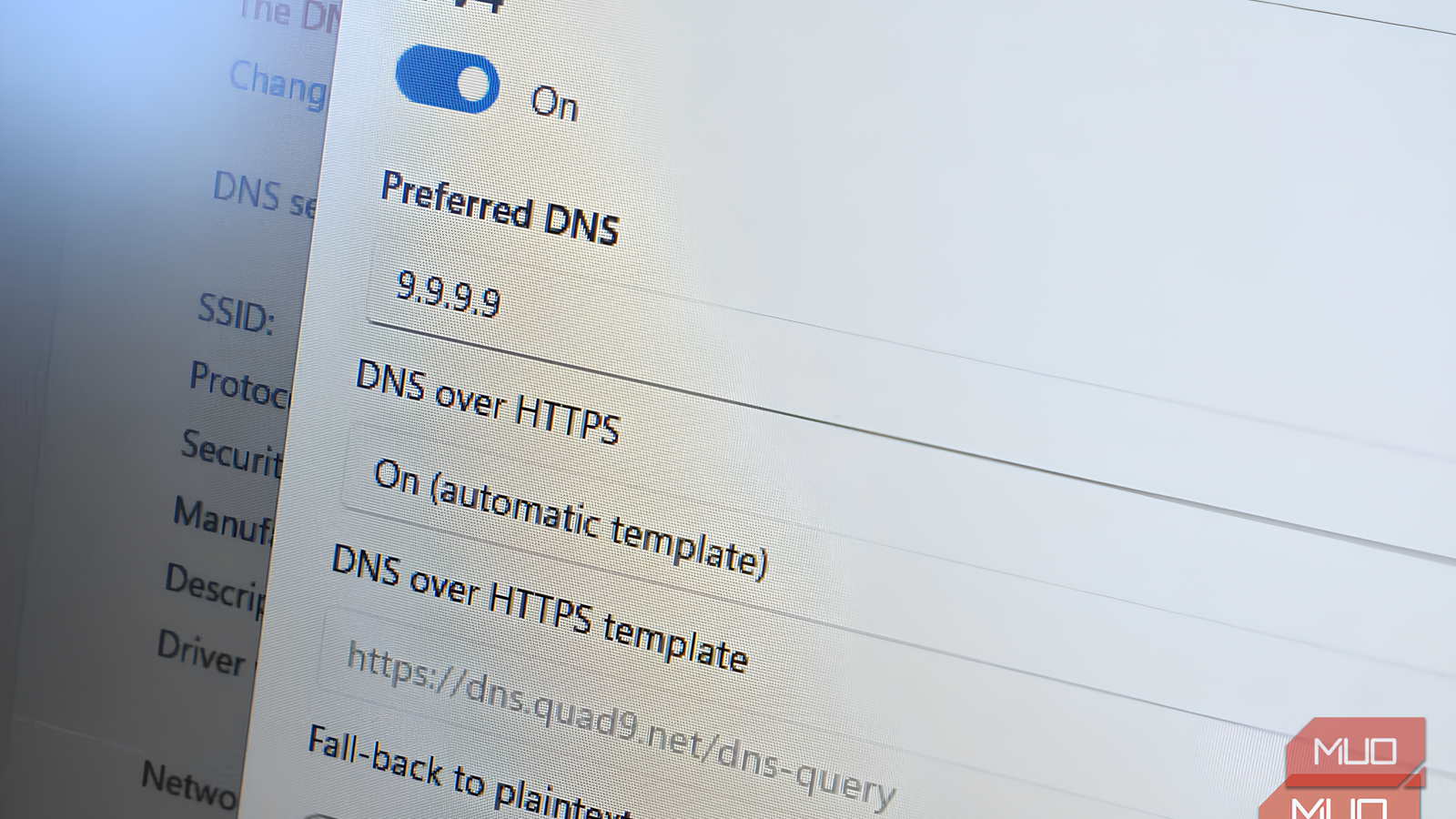
- In the new window, enter the IP addresses for the DNS providers you want to use, for both IPv4 and IPv6. I tend to use one DNS provider for the preferred, and a different provider for the alternative.
- While you’re here, you can also toggle the DNS over HTTPS option on. Set this to On (Automatic template).
Once you’re done, press Save, and your new DNS settings will immediately start working.
How to change your macOS DNS settings

To change your DNS on macOS:
- Open System Preferences.
- Click Network > Advanced.
- Navigate to the DNS tab.
- Unlike on Windows, you can add and remove DNS servers using the + and – buttons on the window’s bottom left. Once you’ve clicked the + icon, you can enter the IP address of your desired provider.
Like Windows, once you confirm the settings, your new DNS provider will be in use.

Your router and phone are probably fighting over DNS without you realizing it
How a DNS conflict might be slowing down your phone’s internet.
How to change your DNS settings on Linux
Given the numerous Linux distributions, the method for changing DNS varies. Furthermore, you can change your DNS settings on Linux via the user interface or through the command line, adding extra options. Considering this, I won’t delve into how to change DNS settings on each Linux distribution; that would be a mammoth undertaking. However, you can check out how to change your Linux DNS settings in GNOME, KDE, and using the terminal, as well as how to change your DNS settings on Ubuntu.
How to change your iPhone DNS settings
It’s similarly simple to change your DNS settings on an iPhone.
- First, head to Settings > Wi-Fi.
- Tap the ‘i‘ icon next to your connected network. This will open a settings page for the network you want to adjust. Scroll the page until you reach the DNS header.
- Tap the Configure DNS option. By default, this will be set to Automatic. Select Manual to enable further options. The Add Server field will appear under DNS Server.
- Tap the button and enter the IP address of your desired provider.
Once complete, tap Save at the top right of the screen.
How to change your DNS settings on Android devices
The steps to change your DNS on Android vary depending on your device. However, for stock Android 9.0 and above, the steps are relatively similar (you may have to account for your specific version of Android, though).


- Open Settings > Network and Internet.
- Tap on the arrow to expand the Advanced settings. By default, the Private DNS field will be set to Automatic. Selecting that option will open an input window.
- Tap Private DNS provider hostname. Here, you will need to use the DNS server’s hostname rather than the IP address, as below.
- Google DNS: dns.google.com
- Cloudflare: 1dot1dot1dot1.cloudflare-dns.com
- OpenDNS: doh.opendns.com
- Quad9: dns.quad9.net
Once you’re done and confirm the settings, your Android device will begin using the new DNS settings.
How to change your DNS settings on Chrome OS
Chromebooks use Chrome OS. It’s a nimble, web-focused operating system frequently found in schools, but millions of people use it worldwide.

- Head to Settings > Security and Privacy.
- Find the Use Secure DNS setting and toggle it on.
- Now, select the With option, then use the dropdown menu to select either Cloudflare (1.1.1.1) or enter a custom DNS.
Your new DNS settings will work on any network you connect your Chromebook to.
Go forth and bypass your ISP’s DNS settings
Being chained to your ISP’s default DNS settings can feel restrictive, especially if you want to boost your privacy. Thankfully, changing the DNS settings on your individual devices is a simple and effective workaround, and best of all, it doesn’t take long.
Another option you can consider is to replace your ISP’s router entirely. You can pick up a decent Wi-Fi 6E router for around 100 bucks, and they’re fairly easy to configure these days, especially with the help of a YouTube tutorial or similar. It’s a little bit more of a time and money investment, but then you can take your router wherever you go, and you can customize other network settings as you see fit.

- Brand
-
TP-Link
- Range
-
2,900 sq. ft
- Wi-Fi Bands
-
2.4GHz, 5GHz, 6GHz
- MU-MIMO
-
Yes
- Mesh Network Compatible
-
Yes
- Ports
-
1 x 2.5Gbps WAN/LAN, 2 x 1Gbps LAN
