
By the time you finish setting up your new Windows 11 PC, it’s likely already sending data to the Microsoft mother ship. Plus, the toggle Microsoft gives you to manage the information flow doesn’t go as far as you might think.
There’s a registry edit that I never knew existed that enforces a stricter limit on what your PC sends back to Microsoft, and unlike the toggle buried in Settings, it sticks. Editing the Allow Telemetry key in the Windows registry applies a policy-level cap on diagnostic data collection, and will even gray out the Settings option entirely (so you know it’s working). If you pair that with disabling the DiagTrack service, you’ve got an effective privacy setup without installing any third-party app. It won’t shut down all the data sent — Microsoft still collects some baseline data across all its Windows editions, but it definitely turns down the fire hose. Here’s how to do it, and what you can actually expect.
What Windows 11 is actually sending to Microsoft
Required vs. optional: the two tiers of telemetry
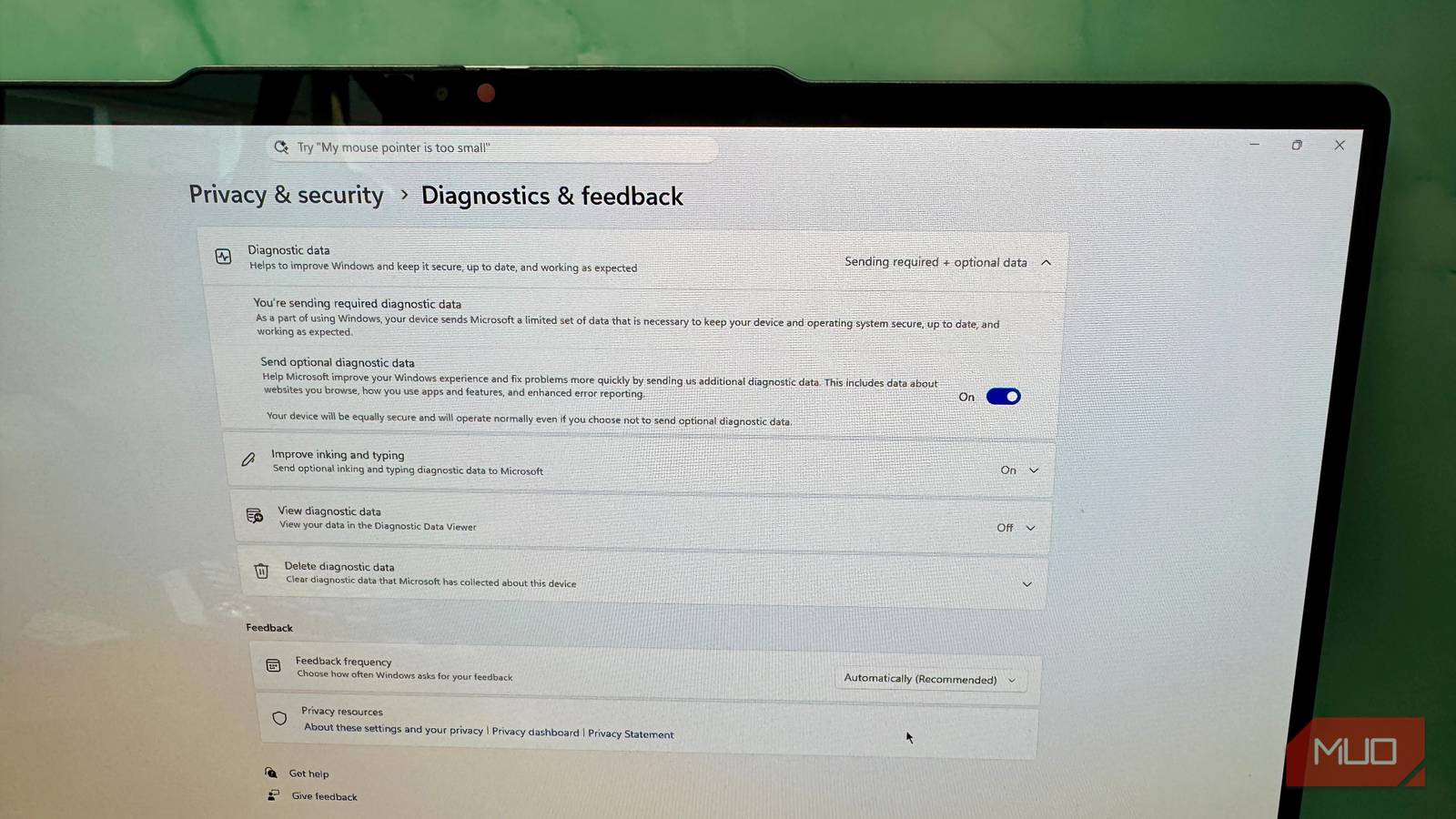
Windows collects data in two tiers. Required diagnostic data is the minimum the company says it needs to keep Windows secure and up to date, while optional diagnostic data is expanded telemetry that can include app usage, site visits for some Microsoft components, feature usage, and enhanced crash dumps that can also contain portions of memory. The Settings toggle under Privacy & Security > Diagnostics & feedback only deals with the optional tier. When you toggle this to OFF, your PC will stop sending the richer telemetry, but the required diagnostic data continues to flow.
At the most basic Required level, Windows collects device information like hardware specs, driver versions, and firmware details, plus system performance data like crash reports, application hangs, and system responsiveness metrics. Microsoft says that an average PC generates about 6 MB of diagnostic data every day.
Why the Settings toggle isn’t enough
The registry only enforces what the UI suggests
The Send optional diagnostic data toggle in Settings may be the most visible privacy control, but it’s not enforced at a policy level, which means it can be overridden or reset. Setting the policy in the registry enforces the lowest diagnostic data level allowed by your specific Windows edition, and this registry change effectively turns off and grays out that optional diagnostic data option in Settings. Windows updates have been reported to reset your telemetry settings in Settings (and even DiagTrack), so this registry key fix is a much more durable enforcement mechanism. Once you take care of AllowTelemetry in the registry, the system stops phoning home, even though updates still work. Background reporting drops dramatically.
Doing this fix will only enforce the lowest level your specific Windows edition supports, which will still include some required data. According to Microsoft, on Home and Pro, setting AllowTelemetry=0 will be treated as a 1, which will continue to allow required diagnostic data like hardware configurations, crash reports, and update info. The only editions this setting will truly be off are Enterprice, Education, and Server versions of Windows.

10 Windows Settings I Never Leave on Default
Windows isn’t as perfect out of the box as you think it is.
How to set AllowTelemetry to 0 in the registry
The exact path, key, and value — with a backup step first
Before you make any changes, you’ll want to back up your registry. Open regedit from the Win + R menu and go to File > Export, select All under Export range, choose a save location, and click Save. That way if anything goes wrong, you can restore from this save. Then you can follow these steps:
- Press Win + R, type regedit, and hit Enter. Click Yes on the User Account Control prompt.
- Navigate to
HKEY_LOCAL_MACHINESOFTWAREPoliciesMicrosoftWindowsDataCollection - If the DataCollection key doesn’t exist, right-click Windows in the left pane, select New > Key, and name it DataCollection.
- Right-click in the empty right pane, select New > DWORD (32-bit) Value, and name it AllowTelemetry.
- Double-click AllowTelemetry, set the Value data to 0, and click OK.
- Restart your PC. Because the key sits under HKEY_LOCAL_MACHINE, a restart is required for the change to apply system-wide.
- To confirm it worked, go to Settings > Privacy & security > Diagnostics & feedback. The Send optional diagnostic data toggle should now be grayed out — that’s your confirmation the policy is enforced.
Disabling the DiagTrack service
Going a little further
The registry key limits what is collected, while disabling the DiagTrack service stops the transmission mechanism itself. The Connected User Experience and Telemetry service in Windows 11 is a background system component that gathers information about how your computer is used, tracks performance, app behavior, crash reports, and error logs and sends that data to Microsoft. Here’s how to disable it:
- Hit Win + R, then type services.msc
- Scroll to Connected User Experiences and Telemetry
- Right-click and select Properties
- Set Startup type to Disabled > click Stop > Apply > OK
- Restart
Disabling this service may disrupt troubleshooting workflows, Windows Update health telemetry, or support scenarios that request richer diagnostic data.
You can’t turn it all off
Ultimately, essential diagnostic data could still be sent after you disable telemetry, and Windows 11 Home users can’t completely turn off the collection of telemetry data, According to Microsoft, the “Diagnostic data off” setting that makes AllowTelemetry=0 fully effective is only available on Windows Server, Windows Enterprise, and Windows Education editions — on Home and Pro, the floor is Required diagnostic data, and it will stay on.
Even with DiagTrack stopped, crash reporting and crash dumps are managed separately by Windows Error Reporting, which operates independently of the Connected User Experiences and Telemetry component — meaning some diagnostic data can still leave your device.
What that all means is that you can’t keep all data from leaving your machine (other than leaving it disconnected from the internet, I suppose), but you can decrease the amount and type of data Microsoft gets from your machine.
