
I’ve used Notepad++ for years; however, lately it’s been a bit laggy. What’s making it worse is that it remembers the open files, so each time I launch the editor, all the previously open tabs come back by default. While tab persistence is needed for some, and Notepad++ does offer a way to disable it, that fix didn’t work for me.
VSCode is naturally the better alternative to Notepad++ if you write code all the time. But for my use case, I needed something a little more lightweight that doesn’t compromise too much on the feature set. That’s when I stumbled upon Kate, a KDE-backed editor I’d only ever seen on Linux. Turns out, it runs just as well on Windows, and after a few weeks of daily use, it has quietly replaced Notepad++ on my HP Pavilion.
Kate is a fully open-source, advanced text editor
A capable editor that runs everywhere
Kate is the KDE Advanced Text Editor, a free and open-source project that has been around since 2001. It’s available on Linux, Windows, and macOS, so I can use the same editor across all my machines without learning a new tool for each operating system. The Windows build is a proper native app too, not a Linux port bolted on with compatibility layers.
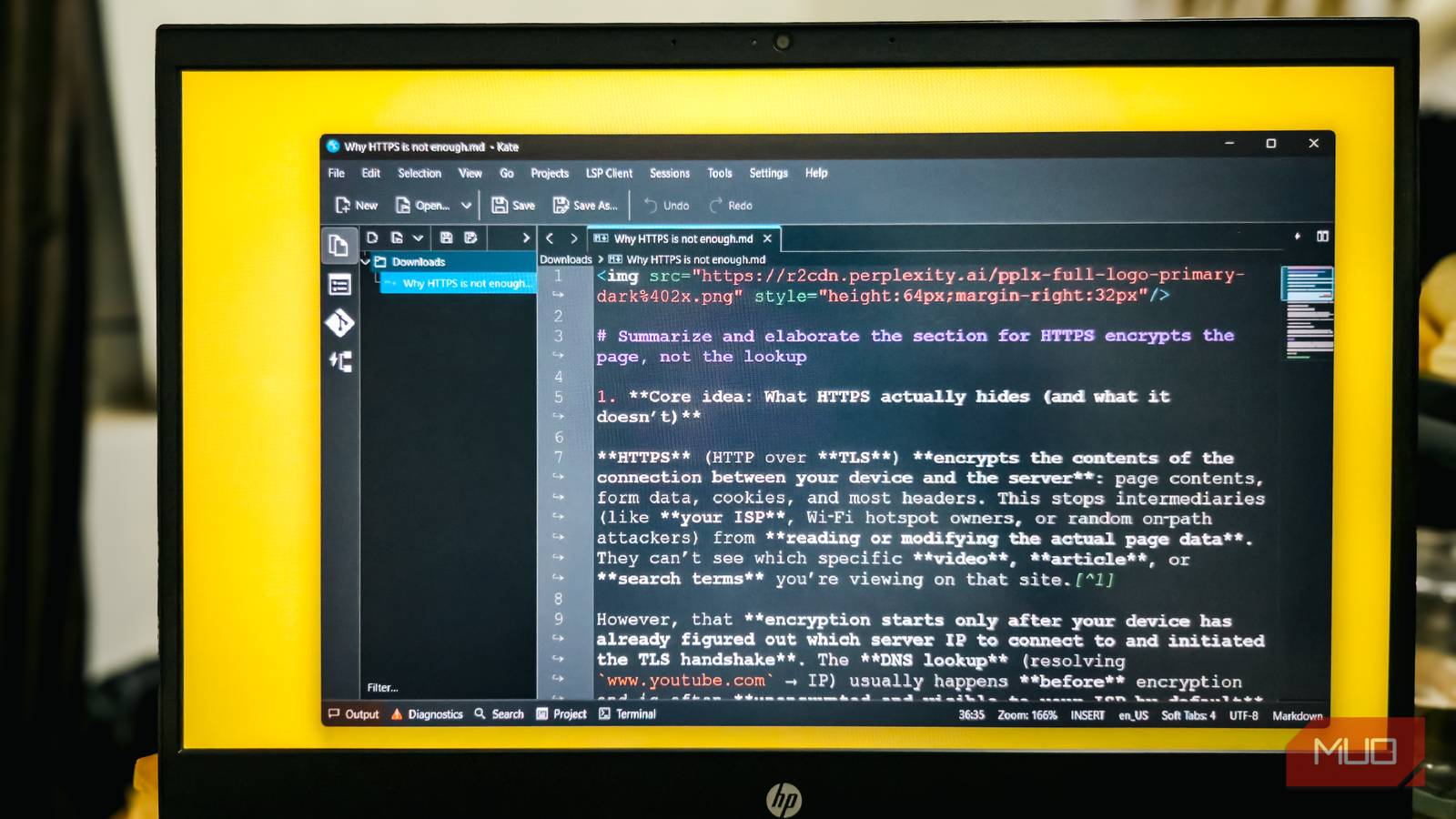
The interface feels familiar if you’ve used any modern editor. You get a tabbed document area in the middle, a sidebar on the left for the project tree and open documents, and a status bar at the bottom with quick access to Output, Diagnostics, Search, Project, and Terminal panels. On the right, a small minimap gives you a quick overview of long files, which is handy when scrolling through a messy config.
What won me over is how well Kate handles multitasking. I can split the editor view vertically or horizontally using Ctrl+Shift+L or Ctrl+Shift+T, which lets me compare two files side by side or edit a Markdown draft while watching the raw text in another pane. The built-in terminal drops down at the press of F4, and the terminal pane can be split too. Session management is another touch I’ve come to rely on, since I sometimes juggle multiple projects at once and Kate restores each one exactly as I left it, a bit like how PowerToys Workspaces saves your app layout on Windows.
I fed my Obsidian vault into NotebookLM — and it changed everything
I let an AI analyze years of scattered notes, and it exposed patterns I’d completely missed.
Kate can handle coding, LSP and key bindings
More than I need, but ready when I do

For the little coding I do, mostly small Python scripts and the odd shell command, Kate offers a lot more than I’ll ever use. But if I ever decide to take coding more seriously, it has enough under the hood to stand in for a proper IDE without feeling limiting.
Kate supports a huge list of languages for syntax highlighting, and it pairs with the Language Server Protocol for IDE-like features such as tab completion, jump-to-definition, and inline diagnostics. The catch is that you need to install a language server for your language separately on your system. Once I installed the Python language server, Kate started showing me auto-completion suggestions, error squiggles, and variable info the moment I opened a .py file. If a server is missing, Kate usually tells you which package to install in the status area, which saved me from digging through forum posts.
The keybinding side of Kate lets you remap almost every action in the editor, and you can switch between different keybinding schemes depending on your mood. The highlight for sure is the Vi mode, which turns Kate into a surprisingly accurate Vim clone. You get normal, insert, and visual modes, commands like dd and yy, motions like 10j, and even a colon command line. You can also add your own normal, insert, and visual mode mappings from the Vi Input Mode settings, so the muscle memory you built up in Vim carries over.
It has plugins, a lot of them
Built-in plugins that just need a toggle

Notepad++ has always been praised for its plugin ecosystem, and rightly so. The Plugins Admin makes it easy to browse and install add-ons for everything from JSON formatting to FTP uploads, which is one reason it still features on lists of lightweight alternatives to Windows’ built-in apps. Kate takes a different approach, and while it’s not as wide open, it covers most of the same ground out of the box.
Instead of a marketplace, Kate ships with a long list of plugins that you enable or disable from Settings > Configure Kate > Plugins. There’s a Color Picker for when I’m poking at HTML and CSS, a Project plugin that adds the sidebar project tree, a Git plugin that lets me stage, commit, and view diffs without leaving the editor, and an LSP client plugin that powers all the coding features above. I also rely on the Build plugin for running quick shell commands.
The one real gap is that there’s no one-click way to install plugins, so third-party plugins are still a bit of a chore to install compared to Notepad++ or VS Code. For me, the built-in list has been more than enough, and I haven’t once felt the urge to hunt for something extra.
The quirks I found
Kate has its flaws

As much as I’ve enjoyed the switch, Kate isn’t without its share of quirks. Starting with the Project view, which shows the files in your current project, but it’s tied closely to version control, and historically, it only listed files tracked by Git. Support for untracked files has improved, but it still doesn’t behave like a regular file explorer where you can freely create folders anywhere you want.
The built-in Git support is helpful, but clearly not trying to replace a full Git client. You can commit, check status, compare branches, and view blame, but if you’re used to the rich SCM panel in VS Code, Kate’s Git sidebar will feel basic. For anything complex, I still drop into the terminal or a dedicated Git tool.
Finally, plugin discovery remains awkward. Getting a Markdown preview going, for example, meant digging through the plugin list, enabling Document Preview, and then realizing it leans on a separate KParts component that isn’t always there on Windows. These are dealbreakers, especially if you are looking for a lightweight Notepad++ replacement, but they’re worth knowing before you switch.

- OS
-
Windows, Linux, macOS
- Price model
-
Free
Kate is a free, open-source text editor from KDE with multi-document support, split views, syntax highlighting for hundreds of languages, built-in terminal, and powerful plugins for serious code editing.
Why Kate earned a permanent spot on my PC
What keeps me on Kate is that almost everything I need is already in the box. I enable a handful of plugins once, tweak a few other settings, and I have an editor that feels close to an IDE without the bloat of extension management. It’s native, it’s open-source, and it’s backed by a long-running KDE community that isn’t chasing AI gimmicks or subscription tiers.
I still keep Notepad++ around for the odd moment I need to open a huge log file, but Kate has taken over as my default editor for writing, light coding, and everything in between. If Notepad++ has been feeling slow to you, too, it’s worth giving Kate a serious try.
