
There’s something oddly satisfying about software that does more with less. While many popular Windows apps nowadays feel bloated, there are still others that stay lightweight and skip all the unnecessary features.
Personally, I rely on a few such lightweight Windows tools to find files faster, free up storage, automate mundane tasks, and monitor my PC’s performance. None of them have a flashy interface, AI bloat, or endless menus to dig through. They’re simple, fast, and focus on doing one thing well.
Everything
Say goodbye to slow search

Windows Search isn’t the most reliable, and that’s just me putting it politely. My biggest frustration is how long it takes to find something, and even then, you can never be sure the results will show what you’re actually looking for.
Everything is a free tool that does only one thing, and it does it brilliantly. It finds your files and folders instantly. Results appear as you type, almost like Google search. What makes this possible is that Everything only indexes file names and folder structures. Unlike Windows Search, it doesn’t waste time scanning file contents, which saves a lot of time. And yes, it has all the useful filters and sort options if you ever need them.
The tool also adapts to your habits over time. For instance, if I always select a specific file after searching for MakeUseOf, it’ll automatically move it to the top of the search results. And the best part is, you can even add its shortcut to the taskbar, so using it is as convenient as Windows Search.

- OS
-
Windows
- Price model
-
Free
Everything is a Windows filename search engine that guarantees fast and accurate file search even without typing entire file names.
MSEdgeRedirect
Redirect Edge without breaking a thing
While Everything takes care of file searches, I still rely on Windows Search to open apps and do quick web lookups. The only problem is, Windows always opens those results in Edge, using Bing, and there’s no way to change that.
MSEdgeRedirect is a simple tool that intercepts any “open in Edge” commands and redirects them to your default browser, which also means your queries always open in your preferred search engine. You only need to set up this tool once, and it doesn’t use any system resources at all.
Also, the effect isn’t limited to just the Start menu. Those links from the Widgets panel, system prompts, and other parts of Windows get redirected as well. This means you never have to worry about Bing or Edge ever again.

- OS
-
Windows
- Price model
-
Free
MSEdgeRedirect is a free tool that directs Windows taskbar search to your default web browser.
AutoHotkey
Automate the boring stuff

AutoHotkey is a free, open-source scripting tool that lets you automate almost any task on your PC. And that’s not an exaggeration. You can create custom keyboard shortcuts, remap keys, launch apps, or even build small workflows that run on their own. It can do almost everything you can think of. For instance, you can set up hotkeys like Ctrl + Alt + U, Ctrl + Alt + Y, and similar to open your favorite websites.
It even lets you create hotkeys that only work in specific apps. So the same shortcut can do one thing in your browser and something completely different in your text editor.
While AutoHotkey requires you to write scripts yourself, that’s no longer an issue with tools like ChatGPT and Claude around. You can simply ask them to generate a script based on what you need and enjoy AutoHotkey without any scripting knowledge.

- OS
-
Windows
- Developer
-
Chris Mallett, Stevel Gray
- Pricing model
-
Free
AutoHotkey is a scripting tool that saves time by letting you automate mundane tasks on your PC.
WizTree
Visualize your storage like never before
The Windows Storage menu gives you a detailed breakdown of what’s taking up your PC’s storage space, but it doesn’t really help track down the exact files or folders responsible.
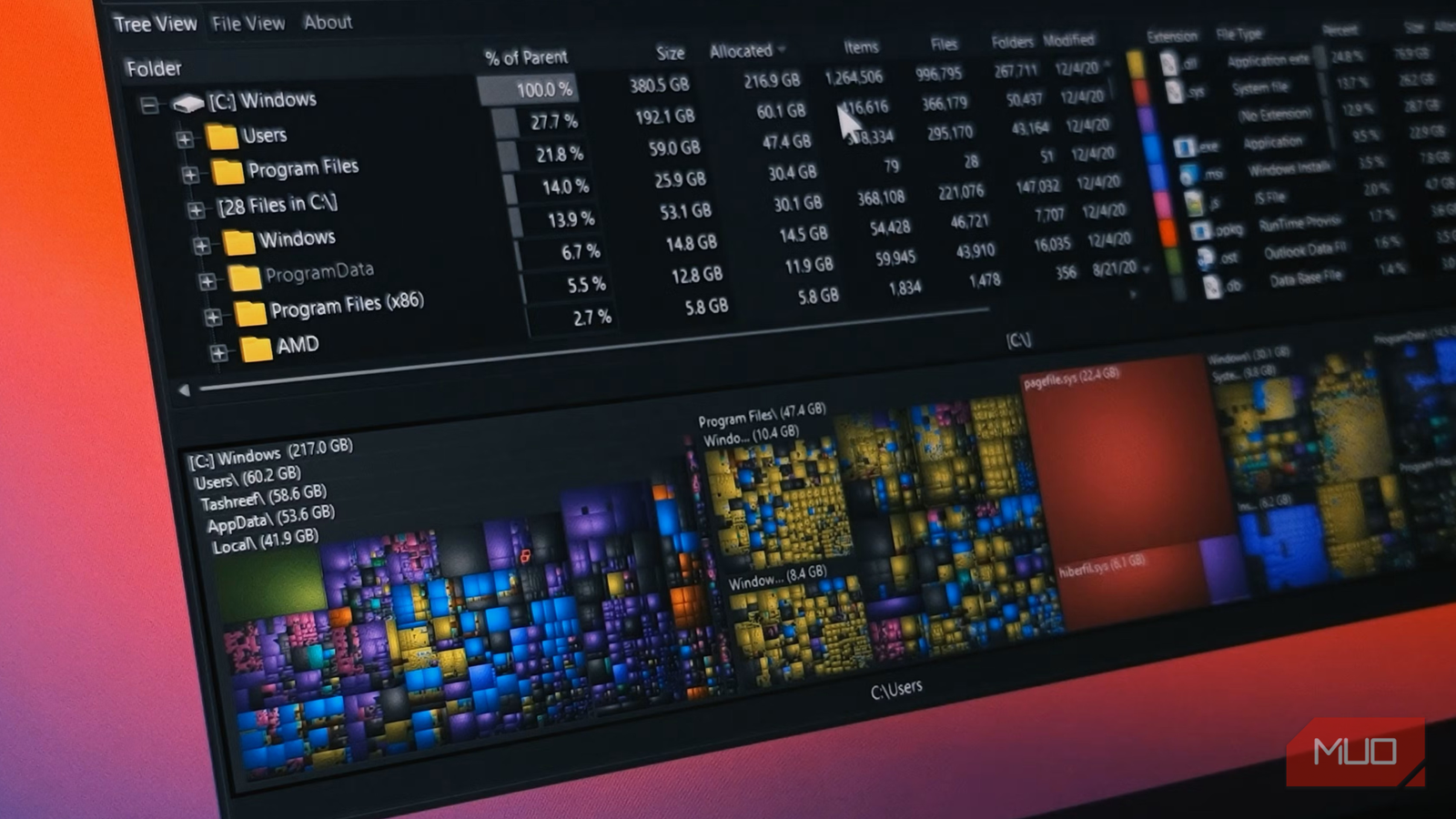
WizTree is a lightweight tool that makes it easy to identify exactly where your storage is going. It uses your drive’s Master File Table (MFT) to scan your PC in seconds and gives you a complete list of folders and a treemap. This makes it easy to spot large files and folders at a glance.
In my case, WizTree helped me locate Audacity’s SessionData folder, which was taking more than 150GB of storage. This is something I’d have never found on my own or with the Settings app. WizTree can also find duplicate files with the same speed and efficiency. Sure, it’s not something I need often, but every time I need to free up storage, it saves me so much time.

- OS
-
Windows
- Developer
-
Antibody Software Limited
- Price model
-
Free/ Business License
Process Explorer
Task Manager isn’t enough
The Task Manager does a decent job. It gives you a basic idea of what’s running and where the system resources are going. But once you use Process Explorer, you realize how barebone Task Manager really is.
One of its best features is color coding. It highlights different processes with different colors, depending on their state or type. Green means it’s a new process, grey indicates the process is currently suspended, and pink is used for protected processes with restricted access.
Another thing that I like about Process Explorer is the level of detail it gives. Hover over any process or service and it shows associated file path and command line arguments. And if you want to go deep, open its properties from the right-click menu for more insights.
If you come across any suspicious entry, you can also check it against the VirusTotal database directly from the right-click menu.

- OS
-
Windows
- Developer
-
Microsoft Sysinternals
- Price model
-
Free
Process Explorer is a powerful, freeware Windows utility that provides a detailed, advanced view of running system processes, offering significantly more information and diagnostic capabilities than the default Windows Task Manager.
We have all gotten used to apps taking hundreds of megabytes just to do one basic task. But these lightweight apps prove that it doesn’t have to be that way. Good software isn’t always about packing in more features, but about doing the right things efficiently.
