
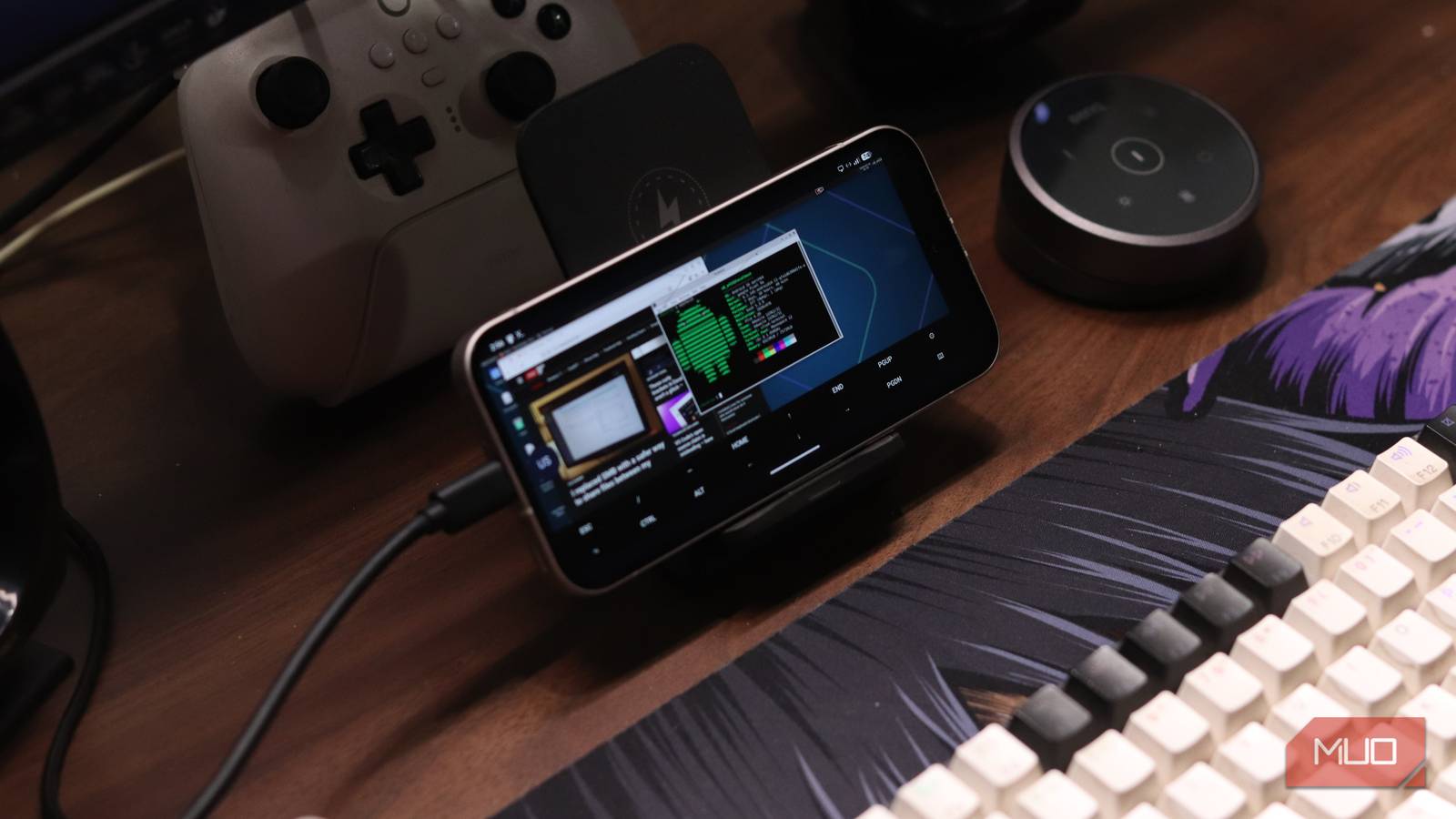
Android now supports a native terminal, and if you’ve ever been interested in doing more with your phone than what Android or apps allow, chances are you’ve looked into it. I expected to mess around with it for a short time, but didn’t expect it to be anywhere near as good as its desktop counterparts.
On top of that, apps like Termux already exist, with thousands of packages and a fully functional terminal. But what Google has shipped isn’t just a flashy demo feature. It’s a full Debian virtual machine on your device using the Android Virtualization Framework (AVF), and it’s so good that I’ve found myself reaching for my phone for a lot more complicated tasks.
Getting started takes almost no effort
A surprisingly smooth setup with minimal tinkering
No matter how advanced or well-made a feature is, if you can’t access it easily, you’re not going to use it much. Getting the terminal app to show up on your phone is a simple matter of enabling developer mode on your Android device and sliding a switch.
- Enable Developer Mode by heading to your phone settings, then the About Phone section, and tapping the build number seven times.
- Head to the developer option settings and tap the Linux development environment option.
- Enable the (Experimental) Run Linux terminal on Android slider.
Once the terminal app shows up, follow these steps to download and get it running:
- Open your app drawer and tap the Terminal app icon.
- You’ll be prompted to download the Terminal (roughly 500 to 600 MB) before launch. Click the Install button.
- Once the installation is complete, you can start typing out commands.
And that’s it. From this point onward, you can use standard Linux commands in the Android terminal. You can use apt to install or update whatever tools you need, and you get access to Debian’s already massive package repository. Any Linux programs you should know about on PC also work on your phone.
This is what completely sold me
The moment it stopped feeling like a gimmick
Now there are a lot of things you can do with a Linux terminal on Android, but so far, different approaches have been limited or require workarounds for otherwise standard processes. But now, since you’re essentially running a Debian VM on your phone, it works exactly as you’d expect on the desktop.
The terminal stopped feeling like a gimmick when I first SSD’d into my remote server. Private key authentication worked exactly as it should—you store your key in the VM, configure ~/.ssh/config, and connect to your server with a simple ssh command.
Beyond SSH, since you have access to the full Debian package repository, you can pull just about every command-line tool you need. Git, Python, curl, nmap, Vim, tmux, all run instantly and exactly as they do on a desktop system. I have since written and tested a bunch of Python and bash scripts while being away from my desk, and they transfer to my servers and Linux machines without any issues.
The shell experience is also rather great, with the biggest limiting factor being your phone’s keyboard rather than the terminal itself. There’s tab support for multitasking between terminal sessions and the ability to allocate your phone’s storage to the Linux VM if you need more space.
On Pixel devices running newer Android 16 builds, it’s now possible to run full desktop Linux applications such as GIMP, LibreOffice, Chromium, and even complete desktop environments like XFCE with GPU acceleration. The feature uses VirGL to translate OpenGL commands from the virtual machine to the Android host. Performance isn’t exactly desktop-grade, but it’s surprisingly functional.
It’s not replacing your PC… yet
Where the terminal shines—and where it still falls short

None of this means your PC is obsolete. At best, Android’s terminal helps me avoid reaching for my PC for small tasks like SSHing into a server to check logs or testing a small script. For anything major, I still need my laptop.
Additionally, even after I managed to run a full Linux desktop on my phone, and performance was surprisingly good, you still need an external display, keyboard, and mouse to get any serious work done. Not to mention the Linux installation itself was done via Termux, as AVF’s desktop implementation is less than ideal at the moment.
No matter how powerful, a Linux distro on a 6 or 7-inch phone is a proof of concept at best. That screen size is way too small for any proper work. The Android keyboard is also not built for terminal use. This means you need an external monitor and keyboard at the very least if you’re looking to replace your laptop. Throw in a mouse too if you’re working for extended hours, and you’ll quickly realize that you’re just carrying a disassembled laptop.
This approach might work better with foldables, where you can access a bigger screen and have a foldable Bluetooth keyboard to handle the typing. But for anyone else, unless you’re willing to carry the entire kit, you’re not going to be able to do much more than basic terminal work.
I’m already changing how I work
Why I reach for my phone before my computer now
Regardless of screen size issues, Android’s Linux terminal has resolved a lot of small frictions for me. There’s no need to fire up my PC for quick tasks that now take seconds on my phone. Anything from testing a script, checking server logs, editing configuration files, or making quick changes or fixes on the fly works extremely well.

4 things you can do with a Linux terminal on Android that no regular app can match
Your phone is more capable than Android lets on.
The Linux terminal has found a place in my workflow in the gaps between small tasks and big ones, where opening a laptop might be overkill. Google may not have designed it to replace my laptop, and it isn’t going to, but it has made my phone a more capable tool than it previously was.
