
Fix ads.txt Error in Google AdSense for Blogger with this step-by-step guide. Remove the “Earnings at risk” warning and protect your revenue fast.
An ads.txt error in Google AdSense can disrupt your site’s ability to serve ads, directly impacting your revenue stream.
The ads.txt file is a critical component that verifies authorized digital sellers, ensuring transparency and preventing ad fraud.
When incorrectly configured or missing, Google AdSense may block ads from appearing on your site. This issue often goes unnoticed because the rest of your AdSense setup might appear functional, making it essential to regularly check the Google AdSense dashboard for any alerts related to ads.txt.
For Blogger users, fixing an ads.txt error typically involves accessing your blog’s dashboard and navigating to the monetization section where you can add or edit the ads.txt content directly.
Google automatically generates part of this file, but if you’ve added third-party ad networks, their entries must be manually included. It’s crucial to ensure no syntax errors or duplicate entries exist, as these can invalidate the entire file. More information on proper formatting can be found on the IAB Tech Lab’s official ads.txt page.
WordPress site owners often need to use plugins like “Ads.txt Manager” or access their site via FTP/cPanel to upload or modify the ads.txt file in the root directory.
If you’re using a caching plugin or CDN, make sure the updated ads.txt file is not being served from cache. For websites with custom domains—especially those hosted on platforms like Squarespace or Wix—verify that the domain settings allow for ads.txt customization and that Google can crawl the file successfully.
After making corrections, use the ads.txt validator tool or Google’s own AdSense troubleshooting features to confirm the file is accessible and error-free. Keep in mind that propagation can take up to 48 hours, so patience is key. Regularly auditing your ads.txt file ensures continued compliance and maximizes your ad revenue potential across all platforms.
Fix ads.txt Error: What Is an ads.txt File and Why It Matters
The ads.txt file plays a crucial role in ensuring transparency and trust within the digital advertising ecosystem. By listing authorized digital sellers, publishers provide a public record of which supply-side platforms (SSPs), ad exchanges, and other partners are permitted to sell their ad inventory.
This simple yet effective measure helps combat domain spoofing and unauthorized reselling, common forms of ad fraud that can undermine publisher revenue and advertiser confidence.
The initiative was introduced by the Interactive Advertising Bureau (IAB) Tech Lab as part of its efforts to increase accountability across programmatic advertising channels. More information about the standard and its implementation can be found on the IAB Tech Lab’s official ads.txt page.
For publishers using Google AdSense, maintaining a correctly configured ads.txt file is not optional—it’s a requirement.
Google relies on this file to verify that only approved partners are monetizing a site’s traffic. If the ads.txt file is missing, improperly formatted, or contains outdated entries, AdSense may display warnings or errors in the publisher’s account, potentially affecting ad serving and revenue.
Publishers must ensure that their ads.txt includes the line google.com, pub-XXXXXXXXXXXXXXXX, DIRECT, f08c47fec0942fa0, replacing the placeholder with their actual publisher ID. Detailed guidance on setting up and troubleshooting ads.txt for AdSense is available through the official Google AdSense help center.
Beyond compliance, a well-maintained ads.txt file can enhance a publisher’s reputation with advertisers and ad networks.
Demand partners often check ads.txt before bidding on inventory, and discrepancies can lead to reduced competition and lower CPMs. Regular audits of the file are recommended, especially after changes in ad tech partnerships.
Removing deprecated or inactive vendor entries ensures clarity and minimizes confusion for buyers. Tools like the AdTech Toolbox’s ads.txt crawler can assist in validating file accessibility and content accuracy.
While ads.txt significantly improves transparency, it is not a complete solution for ad fraud prevention. It primarily addresses unauthorized seller impersonation but does not protect against other threats such as bot traffic or malicious creatives.
Publishers should therefore adopt a layered security approach, combining ads.txt with complementary standards like app-ads.txt for mobile apps and sellers.json for more detailed seller information. Together, these tools form part of the broader OpenRTB Supply Chain Object framework, reinforcing trust and integrity across the digital advertising supply chain.
Step 1: Locate and Verify Your Current ads.txt File
To resolve the ads.txt error, start by verifying the existence and accessibility of your ads.txt file. Simply open a web browser and navigate to yourwebsite.com/ads.txt, replacing “yourwebsite.com” with your actual domain. If the file is properly configured, you should see a plain text file containing at least one line with your AdSense publisher ID, which typically begins with google.com followed by your unique publisher number and account type. This confirms that the file is correctly uploaded and publicly accessible.
If instead you encounter a 404 Not Found error or a completely blank page, this indicates that the ads.txt file is either missing or not placed in the correct root directory of your website.
Common causes include incorrect file upload location, server configuration issues, or caching problems. Ensure that the file is uploaded directly to the root folder (e.g., public_html or www) via your hosting provider’s file manager or FTP client. For more guidance on proper setup, refer to Google’s official AdSense help page on ads.txt.
After re-uploading the file, clear any caching plugins or CDN caches that might be serving outdated content. Then revisit yourwebsite.com/ads.txt to confirm the content appears as expected.
It may take some time for ad partners to recognize the update, but once the file is correctly accessible, the ads.txt error in your AdSense account should resolve within a few hours to a day. Regularly checking this file ensures continued compliance and monetization eligibility.
How to Fix ads.txt Error on Blogger (Blogspot)
When you connect your AdSense account to Blogger, the platform automatically generates an ads.txt file, which is essential for authorized digital sellers and helps prevent ad fraud.
This file verifies that you are a legitimate publisher and allows advertising networks to confidently buy ad inventory from your blog. You don’t need to manually create or upload the file—Blogger handles this process once AdSense is properly linked.
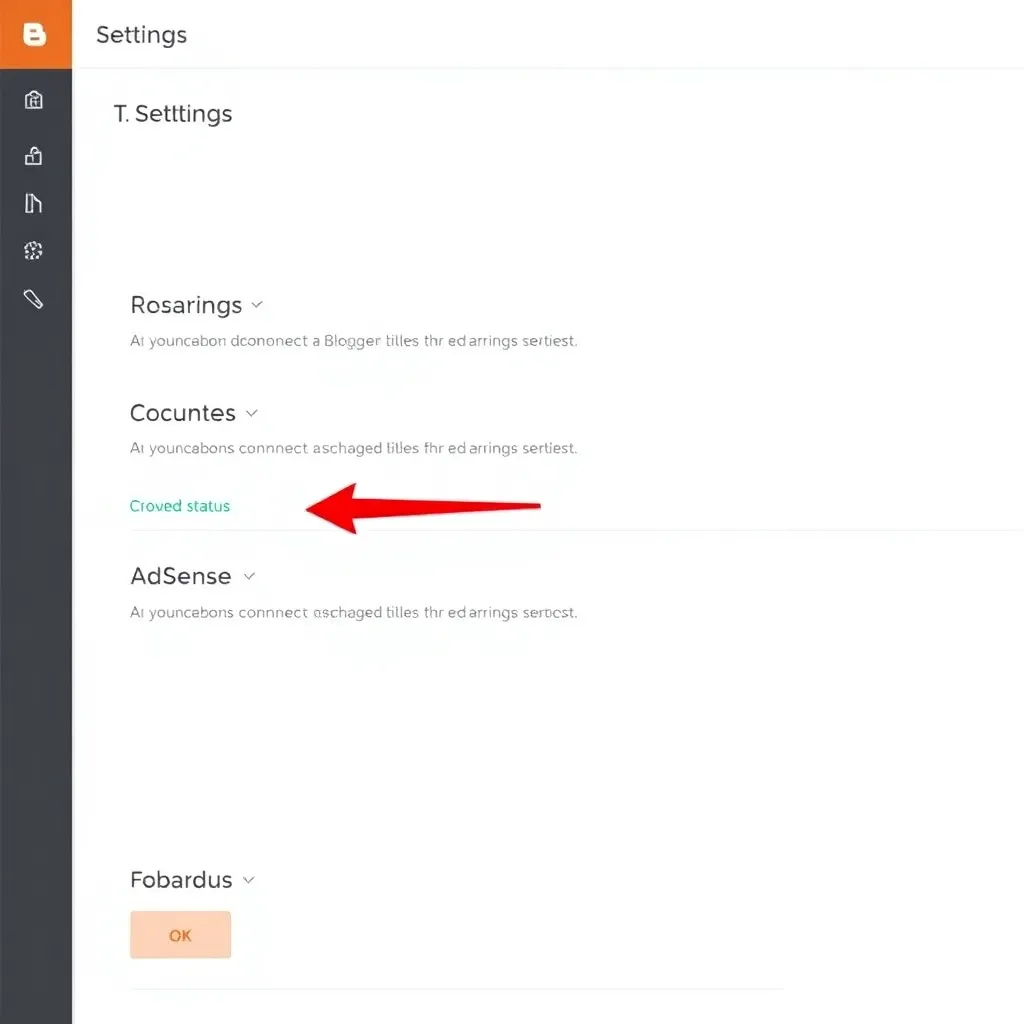
To confirm that your ads.txt file is active, navigate to your Blogger dashboard, then go to Settings > Earnings > AdSense. Make sure your AdSense account status shows as connected. Once confirmed, visit yourblogname.blogspot.com/ads.txt (replacing “yourblogname” with your actual blog address) to view the file. It should display lines containing Google’s authorized seller entries, such as google.com, pub-XXXXXXXXXXXX, DIRECT, f08c47fec0942fa0.
If the ads.txt file doesn’t appear or returns a 404 error, try disconnecting and reconnecting your AdSense account through the Earnings section.
Sometimes, it may take up to 24–48 hours after setting up AdSense for the file to generate and become publicly accessible. Patience is key during this propagation period.
For more information about the purpose and importance of ads.txt, you can refer to the official IAB Ads.txt guidelines. Additionally, Google’s AdSense help page on ads.txt provides detailed instructions tailored to publishers using their platform.
Fixing ads.txt on WordPress Sites
To add an ads.txt file to a WordPress site, one of the easiest methods is using plugins such as Insert Headers and Footers or All in One SEO.
These tools allow you to paste your ads.txt content directly into the header or footer section of your site without needing to access server files. While this method works for basic implementations, it’s important to note that some ad partners may require the file to be served as a physical .txt file rather than injected via JavaScript or HTML.
For full compliance with advertising networks like Google AdSense, manually uploading the ads.txt file via FTP or through your hosting control panel (such as cPanel) is recommended.
Using an FTP client like FileZilla or the file manager in cPanel, navigate to your site’s root directory—typically labeled public_html—and upload the properly formatted ads.txt file directly there. Avoid placing it inside subdirectories like /wp-content/ or /wp-includes/, as this can prevent crawlers from locating it correctly.
The filename must be exactly ads.txt with no variations in spelling, capitalization, or file extension.
Additionally, ensure the file is accessible via the correct domain version—whether www.yourdomain.com/ads.txt or yourdomain.com/ads.txt. Mismatches between your canonical URL and where the file is hosted can lead to validation errors in platforms like Google Ad Manager or AdSense.
After uploading, verify the file is publicly accessible by typing your domain followed by /ads.txt in a browser (e.g., https://example.com/ads.txt). If the content displays correctly, your setup is complete. For more details on ads.txt specifications and best practices, refer to the official IAB Tech Lab Ads.txt documentation.
Handling Custom Domains and DNS Providers
When using a custom domain from providers like GoDaddy, Namecheap, or Cloudflare, it’s essential to configure DNS settings properly to ensure your domain points to the correct hosting server.
This typically involves setting A records or CNAME records as specified by your hosting platform. Incorrect configuration can lead to downtime or content not loading as expected, so double-checking these settings is crucial for seamless operation.
To verify domain ownership and monitor indexing status, tools like Google Search Console are invaluable. Once your domain is added, you can use verification methods such as DNS record insertion or HTML file upload. Google Search Console also allows you to check whether critical files like ads.txt are accessible to crawlers, which is especially important for monetized sites relying on ad revenue.
If your domain uses forwarding, avoid URL masking, as it can interfere with SEO and prevent proper access to backend files. Instead, implement 301 redirects to preserve search engine rankings and ensure that both users and crawlers are directed to the correct destination.
This method maintains link equity and supports a clean transition between domains or platforms.
Ensuring your domain setup follows best practices not only improves site visibility but also strengthens trust with search engines.
By combining accurate DNS configuration, proper redirect methods, and verification through authoritative tools like Google Search Console, you create a solid technical foundation for your online presence.
Common Mistakes and How to Avoid Them
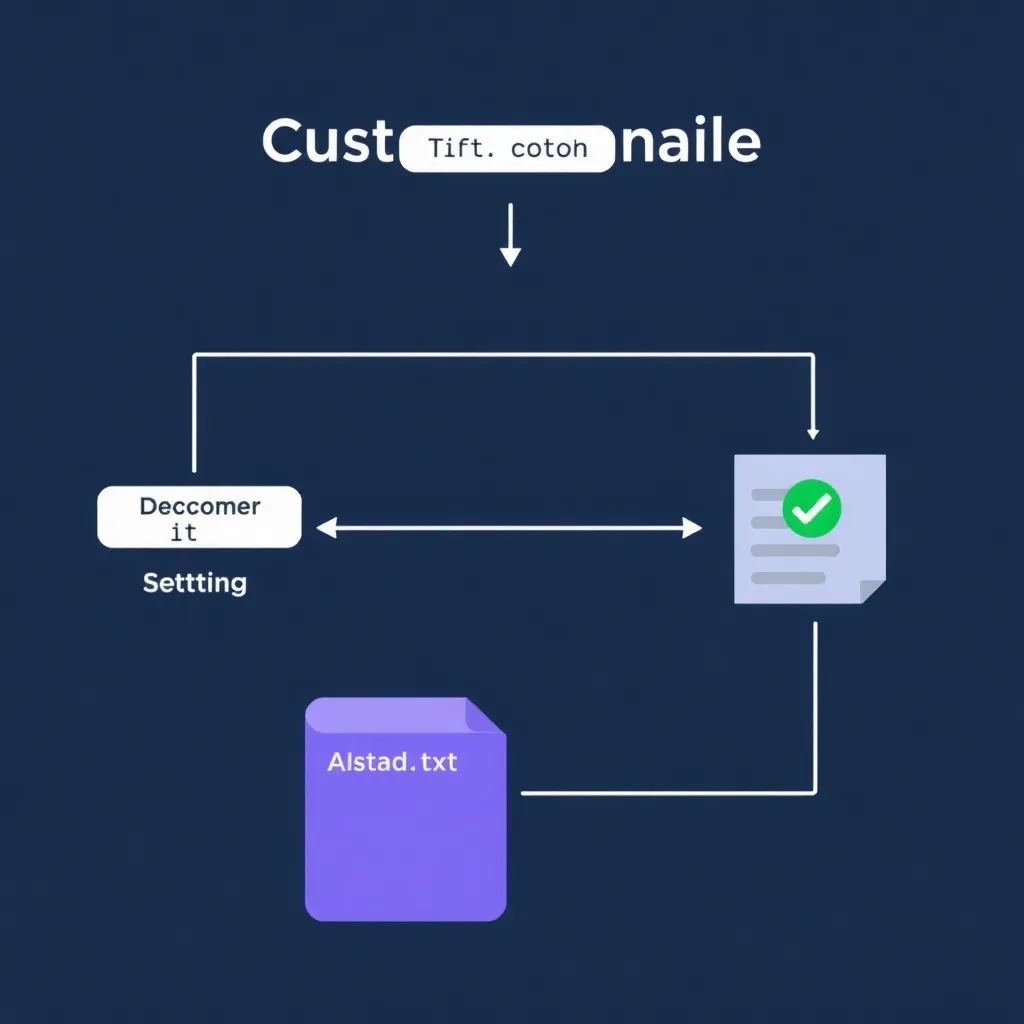
One of the most common issues publishers face when setting up their ads.txt file is simple human error, such as typos in the publisher ID or incorrect formatting of the AdSense-provided line.
Even a minor mistake like an extra space or missing comma can prevent proper ad serving and revenue tracking. It’s crucial to copy the exact string provided by Google AdSense and paste it directly into your ads.txt file without alterations.
Always verify that the domain name, publisher ID, and relationship type (e.g., “DIRECT” or “RESELLER”) are accurate to ensure proper authorization.
Another frequent problem arises from incorrect file placement or server configuration. The ads.txt file must be located in the root directory of your domain (e.g., https://example.com/ads.txt) to be properly recognized by advertising platforms.
Placing it in subdirectories renders it ineffective. Additionally, ensure that access to the file isn’t blocked by your robots.txt file, as this can prevent crawlers from reading it. You can check your site’s robots.txt rules at Google’s robots.txt documentation.
Duplicate entries in the ads.txt file can also cause confusion for ad exchanges and may lead to reduced ad performance. Each authorized seller should appear only once per line unless multiple accounts are legitimately involved. Furthermore, make sure the file is hosted on your site’s canonical version—whether it includes www or not—to avoid discrepancies.
For example, if your canonical URL is https://www.example.com, the ads.txt file should be accessible there and preferably redirected from the non-www version.
After making any changes, always test your ads.txt file using Google’s official Ads.txt Validator tool to confirm it’s correctly formatted and publicly accessible.
This tool helps identify syntax errors, unreachable files, and other issues that might impact monetization. Regular validation ensures ongoing compliance and helps maintain trust with advertisers relying on transparent inventory sourcing.
Conclusion: Keep Your Revenue Flowing
Fixing an ads.txt error is a crucial step in maintaining your website’s ad visibility and ensuring uninterrupted monetization through Google AdSense. The ads.txt file acts as a digital authorization that tells advertisers they are permitted to buy ad inventory on your site.
When this file contains errors or is improperly placed, it can lead to reduced ad impressions, lower revenue, or even account warnings from Google.
Whether you’re using Blogger, WordPress, or a custom domain setup, adding or correcting your ads.txt file is straightforward. On Blogger, you can navigate to the “Settings” tab and locate the “Search preferences” section to edit your ads.txt directly.
For WordPress users, plugins like Ads.txt Manager or direct access via FTP/cPanel allow for easy updates. Custom domains typically require uploading the file to the root directory of your web server.
It’s important to monitor your AdSense dashboard regularly for any alerts related to ads.txt. Google often sends notifications if discrepancies are detected.
Additionally, whenever you onboard new advertising partners or networks, ensure their authorized seller entries are added to your ads.txt file using the correct format: partner-domain.com, publisher-id, DIRECT or RESELLER, account-id.
A properly configured ads.txt file not only safeguards your site against unauthorized ad sales but also enhances trust with advertisers.
By taking a few minutes to verify and maintain this small but powerful file, you protect your site’s integrity and keep your monetization efforts strong over time. For detailed guidance, refer to the official IAB Tech Lab Ads.txt documentation.
