

Learn how to fix slow Google Chrome performance with simple tips and tricks to speed up browsing, reduce lag, and improve overall browser efficiency.
Google Chrome’s reputation for speed and efficiency makes it a top choice for millions of users worldwide, but even the most reliable tools can falter under certain conditions.
Over time, performance issues may arise due to an accumulation of open tabs, each consuming valuable system resources.
Running too many tabs simultaneously can overwhelm your device’s memory, leading to sluggish response times and unresponsive pages. To maintain optimal performance, consider using Chrome’s built-in Task Manager—accessible via Shift + Esc—to identify which tabs or extensions are using excessive CPU or memory and close them selectively.
Another common culprit behind slow Chrome performance is outdated software. Google frequently releases updates that include performance improvements, security patches, and bug fixes.
If you’re running an older version of Chrome, you may miss out on these enhancements, leaving your browser vulnerable and inefficient.
Ensuring your browser is up to date is simple: navigate to the three-dot menu, select “Help” and then “About Google Chrome,” where the browser will automatically check for and install updates. Similarly, keeping your operating system current supports better browser functionality, as modern browsers rely on updated system libraries and drivers.
Unwanted or poorly coded extensions can also significantly degrade Chrome’s performance. While extensions enhance functionality, each one runs in the background and can slow down page loading times or cause crashes. It’s wise to periodically review your installed extensions by visiting chrome://extensions and removing any that are unnecessary or unrecognized.
For a cleaner slate, you might start Chrome in incognito mode—where extensions are disabled by default—and compare performance to determine if an extension is the root cause.
For persistent slowdowns, resetting Chrome settings can provide a fresh start without affecting bookmarks or saved passwords. This action reverts flags, startup pages, and search engines to their defaults, often resolving hidden configuration issues.
You can reset settings through “Settings” > “Advanced” > “Reset and clean up” > “Restore settings to their original defaults.” Additionally, clearing cached data and cookies from Chrome’s privacy settings can free up space and resolve conflicts causing delays. These steps, when applied systematically, can restore Chrome to its intended speed and responsiveness.

Clear Browsing Data Regularly to Fix Slow Google Chrome
Over time, Google Chrome accumulates browsing data such as cache, cookies, and history, which can contribute to slower performance.
These files are designed to speed up website loading initially, but an excess buildup may have the opposite effect, consuming system resources and potentially causing unresponsiveness.
This is especially noticeable on devices with limited storage or memory, where bloated browser data interferes with smooth operation.
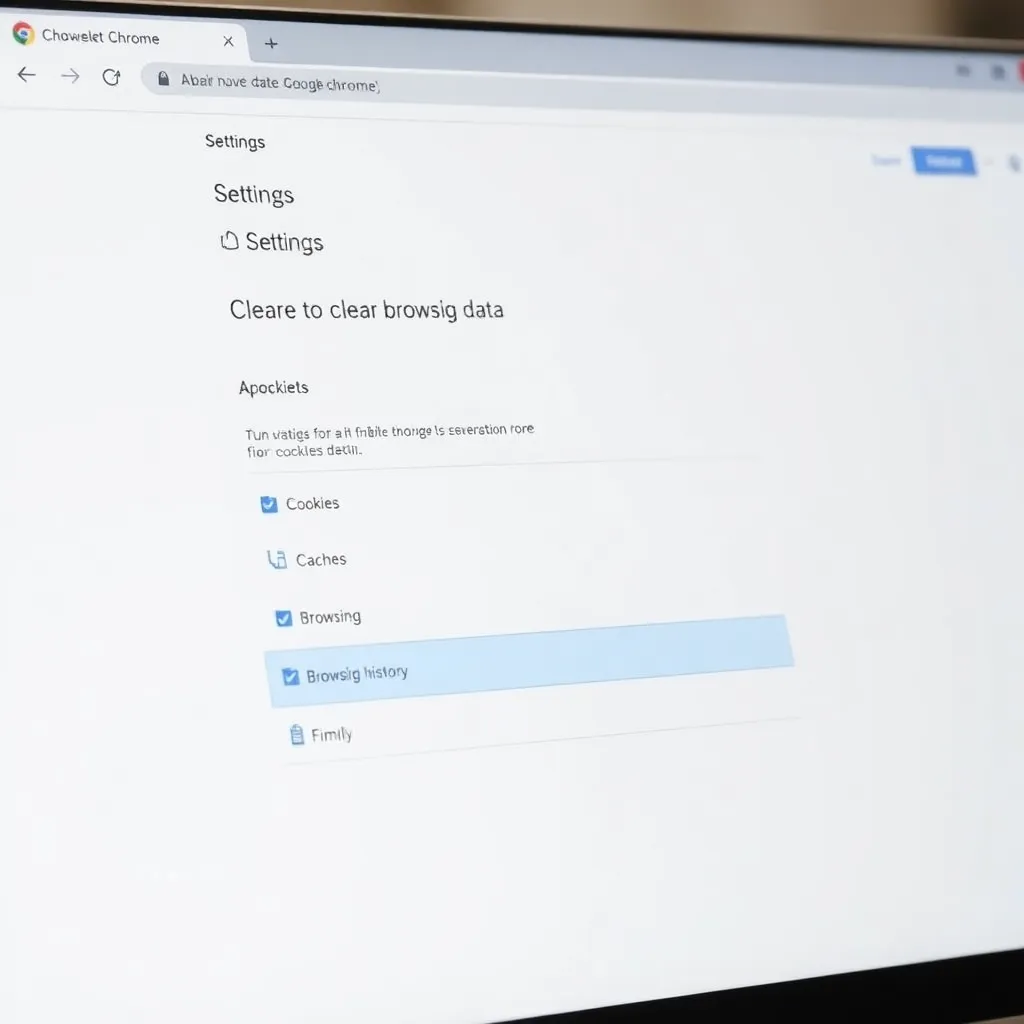
To address this, users can navigate to Chrome’s Settings, then proceed to Privacy and Security, and select Clear Browsing Data.
For a comprehensive cleanup, choosing the “All time” option ensures no residual data remains. It’s recommended to check the boxes for “Cookies and other site data” and “Cached images and files,” as these often take up the most space and directly impact browsing speed.
Regularly clearing this data not only enhances performance but can also resolve issues with websites not loading correctly or displaying outdated content. While some login sessions may need to be re-established afterward, the trade-off is typically worth it for a faster, more responsive browsing experience.
For best practices and further details on managing Chrome settings, visit the official Google Chrome Help Center.
Manage and Remove Unnecessary Extensions
Browser extensions can significantly enhance your browsing experience by adding useful features, but they often come at a cost to system performance.
Each active extension consumes memory and CPU resources, especially those that run in the background even when not in use. Over time, an accumulation of unused or unnecessary extensions can slow down Chrome, leading to longer load times and reduced responsiveness.
To maintain optimal browser performance, it’s important to periodically review the extensions you have installed. You can do this by navigating to chrome://extensions in your address bar, where a full list of your extensions will be displayed. Take the time to evaluate each one—consider whether you actively use it or if it’s simply taking up space. Disabling or removing unused extensions helps free up valuable system resources.
Focus particularly on extensions that operate continuously in the background, as these are the most likely to impact performance. Removing outdated or unsupported add-ons also reduces potential security risks. For more information on managing Chrome extensions safely, visit the official Chrome Web Store Help page.
By keeping your extensions lean and relevant, you not only improve speed and efficiency but also create a cleaner, more reliable browsing environment.
This simple maintenance step can make a noticeable difference in how quickly Chrome responds, especially on devices with limited hardware capabilities.
Update Chrome to the Latest Version to Fix Slow Google Chrome
Running an outdated version of Google Chrome can expose your system to known security vulnerabilities, putting your personal data at risk.
Cybercriminals often exploit flaws in older software versions, and browsers are a common target due to their constant interaction with the web. By keeping Chrome updated, you benefit from the latest security patches that protect against emerging threats.
Google regularly releases updates to address these vulnerabilities, ensuring a safer browsing experience for users worldwide. More information on Chrome’s security features can be found on the official Google Chrome website.
Performance improvements are another key reason to stay current with Chrome updates. Newer versions are optimized for speed and efficiency, leading to faster page loading times and smoother navigation.
Over time, outdated browsers may become sluggish or incompatible with modern web standards, causing websites to load incorrectly or crash unexpectedly. When you update Chrome, you also gain access to enhanced features and improved stability across different platforms and devices.
To check for updates, simply click the three-dot menu in the top-right corner of your browser, then navigate to Help > About Google Chrome.
The browser will automatically search for the latest version and install it if one is available. This process requires only a brief restart of the browser and takes just a few moments.
Making this quick check a regular habit ensures you’re always running the most secure and efficient version of Chrome.
Limit Open Tabs and Use a Tab Manager
Keeping dozens of browser tabs open might feel productive, but it often leads to sluggish performance. Each tab, especially those running media or complex scripts, consumes a portion of your system’s memory and processing power.
Over time, this can result in longer load times, unresponsive pages, and even browser crashes—particularly on devices with limited RAM. The impact becomes more noticeable when multitasking across resource-heavy applications.
To maintain efficiency without sacrificing access to important pages, consider leveraging tools designed to manage tab overload.
Modern browsers like Google Chrome offer built-in features such as Tab Groups, allowing you to organize related pages and collapse them when not in use. This not only reduces visual clutter but also helps you mentally prioritize tasks, improving focus and workflow continuity.
For more aggressive memory management, extensions like OneTab convert all open tabs into a single list, significantly reducing memory usage while preserving access to each page.
When you need to revisit a site, it’s just one click away. These tools strike a balance between convenience and performance, helping you maintain a responsive browsing experience without losing track of your research or open projects.
Disable Hardware Acceleration (If Necessary)
Hardware acceleration is designed to enhance browser performance by offloading tasks like video rendering and complex animations to the GPU, freeing up the CPU for other processes.
While this feature generally results in smoother browsing, especially on media-rich websites, it can occasionally lead to instability, crashes, or high resource usage on certain systems—particularly those with older or less compatible graphics drivers.
This inconsistency often stems from how well the GPU drivers interact with Chrome’s rendering engine.
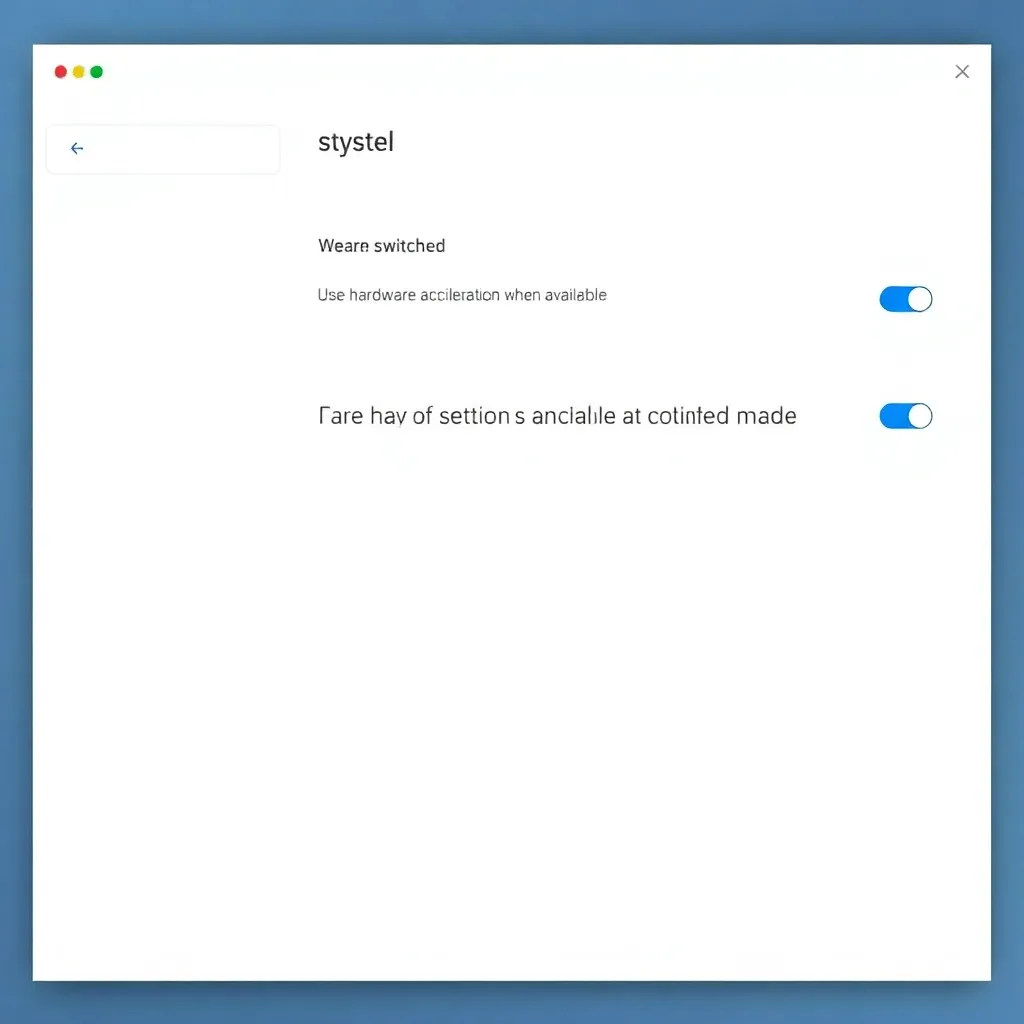
To determine if hardware acceleration is causing performance issues, you can temporarily disable it through Chrome’s settings. Navigate to Settings > System and toggle off the option labeled “Use hardware acceleration when available.” After making this change, restart the browser completely to ensure the setting takes full effect.
Once Chrome reopens, browse as usual and observe whether page loading times, scrolling smoothness, or overall responsiveness have improved.
If disabling hardware acceleration resolves the issue, consider updating your graphics drivers to the latest version provided by your GPU manufacturer—whether it’s NVIDIA, AMD, or Intel. In some cases, re-enabling hardware acceleration after a driver update may provide both stability and performance.
For users on integrated graphics or older systems, keeping the feature disabled might be the most reliable long-term solution.
Conclusion: Optimize Chrome for Faster Browsing
Slow Chrome performance can often stem from accumulated browsing data and cache that bog down the browser over time.
Regularly clearing your browsing history, cookies, and cached images can free up resources and lead to quicker load times.
Google itself recommends periodic cleanup to maintain optimal performance, especially for users who spend significant time online. You can easily manage this through Chrome’s settings under “Privacy and security” by selecting “Clear browsing data.” Doing this weekly or even monthly helps keep the browser running smoothly.
Extensions are another common culprit behind sluggish performance. While they add functionality, each one consumes memory and processing power. Disabling or removing unused extensions—accessible via chrome://extensions—can greatly improve speed.
It’s also wise to review extension permissions and update them regularly, as outdated add-ons may conflict with current versions of Chrome. The Chrome Developer Documentation emphasizes maintaining lightweight, well-coded extensions to avoid performance hits.
Ensuring Chrome is up to date is essential for both security and speed. Updates often include performance optimizations and bug fixes that directly impact responsiveness.
You can check for updates under “About Chrome” in the menu. Additionally, limiting the number of open tabs reduces memory usage significantly—each tab runs as a separate process, which can strain system resources. Consider using bookmarking or tab management extensions to save sessions instead of keeping dozens of tabs active.
Adjusting internal settings like hardware acceleration can further enhance performance, particularly on capable machines.
This feature offloads tasks like video rendering to your GPU, improving efficiency. It can be toggled in Chrome’s settings under “System,” though it should be disabled if you encounter instability. For more advanced tuning, visiting Google’s official Chrome Help Center offers guidance tailored to different devices and usage patterns. Implementing these practices consistently ensures a faster, more reliable browsing experience.
