
“Unlock hidden software features to boost productivity, save time, and master your favorite programs effortlessly.”
The Secret Layer Inside the Tools You Use Every Day
Most people use software the same way they use a Swiss Army knife — they find the blade, and they stop there. The corkscrew, the saw, the tiny scissors? Untouched. Still sealed in factory plastic.
Modern software is engineered the same way. Beneath the surface of every app you open daily — your word processor, your browser, your email client — lies a dense layer of features that the average user never discovers. These aren’t experimental or buggy afterthoughts. They are fully developed, often brilliant capabilities that can dramatically reshape how you work, create, and communicate.
The numbers tell the story bluntly: research by software analytics firm Pendo found that 80% of features in the average software product are rarely or never used. That means the tools you pay for monthly — and depend on daily — are almost certainly operating at a fraction of their potential.
This isn’t about memorizing obscure keyboard shortcuts. It’s about genuinely transforming your productivity by learning what your software can actually do. This guide walks through 10 of the world’s most popular programs and surfaces the hidden features, productivity hacks, and software tips and tricks that even experienced users routinely miss.
Let’s open the knife — all the way.
Why Do Software Companies Bury Their Best Features?
Before we dive into the tools themselves, it’s worth understanding a genuine paradox: why would a company build a powerful feature and then make it nearly impossible to find?
The answer is more strategic than it seems.
Simplicity sells. Software products are designed to feel approachable during the critical first-use experience. Onboarding flows are ruthlessly simplified so that new users don’t feel overwhelmed and churn. Advanced features are deliberately pushed into secondary menus, settings panels, and right-click contexts — places that confident beginners rarely explore.
Feature discovery is a retention strategy. When a power user stumbles across a capability they didn’t know existed — one that solves a genuine problem — their loyalty to that product deepens instantly. Software companies know that discovery moments create emotional investment. Hidden features, in a sense, reward curiosity.
Legacy architecture creates accidental obscurity. Some features are buried not by design, but by the accumulated weight of decades of updates. Microsoft Word has been shipping since 1983. Many of its most powerful features aren’t hidden by strategy — they’re just buried under forty years of menus.
Avoiding cognitive overload. Showing every available feature at once would paralyze users. Progressive disclosure — revealing complexity gradually as users grow — is a foundational principle of UX design. The downside is that many users never graduate past the surface layer.
Understanding this helps you approach software differently. Every program you use regularly almost certainly has a layer of capability you haven’t reached yet. Here’s what that layer looks like across ten tools you probably already have open right now.
1. Microsoft Word — More Than a Digital Typewriter
Microsoft Word processes an almost incomprehensible volume of documents globally, yet the majority of its users treat it as a glorified typewriter with spell-check.
Hidden Feature #1: Focus Mode
How it works: Click View → Focus (or on macOS, View → Focus Mode). Word strips away every ribbon, toolbar, and UI element, leaving only your document against a dark background. Why it matters: Distraction-free writing environments have been shown to significantly increase output quality and word count per session. You don’t need a separate app — Word already has one built in. Real-world use: A legal brief writer uses Focus Mode to eliminate toolbar distractions during first drafts, cutting revision time by avoiding overuse of formatting shortcuts.
Hidden Feature #2: Compare Documents
How it works: Review → Compare → Compare. Select two versions of a document. Word generates a third document showing every addition, deletion, and formatting change between them — tracked precisely. Why it matters: Version control is a nightmare in Word without this. The Compare tool is a complete document diff engine. Real-world use: A contract attorney receives a client’s revised version of a 40-page agreement. Rather than reading it line by line, she runs Compare in under a minute and sees exactly what changed.
Hidden Feature #3: Read Aloud with Word Highlighting
How it works: Review → Read Aloud. Word reads your document aloud while simultaneously highlighting each word as it’s spoken. Why it matters: Hearing your own writing is one of the fastest ways to catch awkward phrasing, missing words, and rhythm problems that visual proofreading misses. Real-world use: A marketing copywriter uses Read Aloud on every client deliverable before sending — it consistently catches errors that three visual passes didn’t.
Hidden Feature #4: Researcher (Built-in Research Tool)
How it works: References → Researcher. A panel opens on the right side allowing you to search topics and insert credible sources, images, and summaries directly into your document — with citations auto-formatted. Real-world use: Students writing research papers can pull structured information and properly formatted citations without switching between a browser and Word.
2. Microsoft Excel — The Iceberg of Spreadsheet Power
Excel users fall into two camps: those who type numbers into cells, and those who have glimpsed what Excel can actually do. The gap between them is enormous.
Hidden Feature #1: Flash Fill
How it works: Type a pattern in a new column next to existing data (e.g., extract a first name from a full name column). Press Ctrl + E. Excel recognizes the pattern and fills the entire column instantly. Why it matters: Tasks that used to require complex formulas or manual data manipulation take seconds. Real-world use: An HR coordinator has a column of 2,000 employee email addresses in the format firstname.lastname@company.com. She uses Flash Fill to extract just first names into a new column for a mail merge — done in under five seconds.
Hidden Feature #2: Camera Tool (Live Cell Preview)
How it works: Add the Camera tool to your Quick Access Toolbar. Select a cell range, click Camera, then click elsewhere in the workbook. A live image of that range is pasted — it updates dynamically whenever the source data changes. Why it matters: Build live dashboards by pulling together data from multiple sheets into one visual summary view without complex cross-sheet formulas.
Hidden Feature #3: Name Manager for Readable Formulas
How it works: Formulas → Name Manager. Assign a name to any range, formula, or constant. Your formulas transform from =SUM(B2:B47) into =SUM(Q3_Revenue) — readable by any human being. Real-world use: A financial analyst documents a complex budget model. Colleagues can understand and audit the formulas without a 20-minute walkthrough.
Hidden Feature #4: Inquire Add-In for Workbook Analysis
How it works: Enable via File → Options → Add-ins → COM Add-ins → Inquire. This opens a full workbook auditing tool that maps cell relationships, identifies errors, and compares workbooks. Real-world use: An auditor uses Inquire to map every formula dependency in a 15-sheet financial model before presenting it to the board — catching a circular reference that would have caused cascading errors.
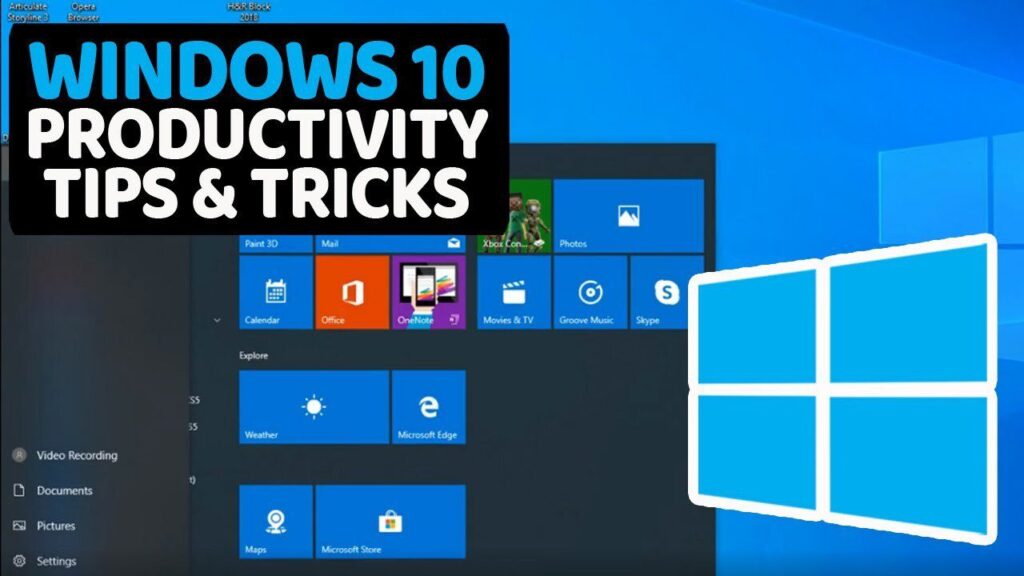
3. Google Chrome — The Browser With a Hidden OS Inside
Chrome commands over 65% of global browser market share, yet most users only scratch the surface of what it can do.
Hidden Feature #1: Tab Groups with Color Coding
How it works: Right-click any tab → Add tab to new group. Name the group, assign a color, and collapse or expand it with a single click. Why it matters: Research multitasking across dozens of tabs creates cognitive overload. Tab Groups create visual separation between projects — your client work in blue, research in green, admin in red. Real-world use: A journalist covering three simultaneous stories keeps each story’s sources, documents, and references in a separate colored tab group — instantly collapsible when context-switching.
Hidden Feature #2: chrome://flags — The Experimental Feature Lab
How it works: Type chrome://flags in the address bar. You’ll find hundreds of experimental Chrome features you can enable or disable before they reach the general public. Visual cue: The page looks like a long settings list with yellow warning banners. Each feature has a dropdown: Default, Enabled, or Disabled. Real-world use: Developers and power users enable features like smooth scrolling enhancements, memory saving optimizations, and UI experiments months before official release.
Hidden Feature #3: Built-In Screenshot Tool
How it works: Open DevTools (F12), press Ctrl + Shift + P (or Cmd + Shift + P on Mac) to open the command palette, type “screenshot.” Options include full-page screenshot and screenshot of a specific node. Why it matters: Captures the full length of a webpage — including content below the fold — without any extension.
Hidden Feature #4: Reading List for Offline Access
How it works: Right-click any page → Save to Reading List, or click the bookmarks panel icon on the right. Pages saved to Reading List are available offline. Real-world use: A researcher saves 15 articles to their Reading List before boarding a flight, then reads and annotates them offline without any internet access.
4. Windows 11 — The Operating System Full of Overlooked Power
Hidden Feature #1: God Mode
How it works: Create a new folder anywhere on your desktop. Name it exactly: GodMode.{ED7BA470-8E54-465E-825C-99712043E01C}. The folder icon changes and opens a single panel with access to every Windows setting and control — all 200+ — in one place. Visual cue: The folder transforms into a Control Panel icon. Inside, settings are organized in categorized groups without the fragmentation of the normal Settings app. Real-world use: IT administrators use God Mode to access obscure settings quickly without navigating through multiple Settings submenus.
Hidden Feature #2: Clipboard History
How it works: Press Windows Key + V. Instead of only your most recent copy, a panel shows your entire clipboard history for the session — text, images, and HTML snippets you copied earlier. Why it matters: Eliminates the maddening experience of overwriting a copied item. Copy multiple things, paste them in any order.
Hidden Feature #3: Virtual Desktops for Workflow Separation
How it works: Click the Task View button (or press Windows Key + Tab), then click New Desktop in the top left. Create as many desktops as needed. Switch between them with Windows Key + Ctrl + Left/Right Arrow. Real-world use: A remote worker maintains Desktop 1 for client work (browser, email, project tool), Desktop 2 for internal ops (Slack, calendar, HR system), and Desktop 3 for personal tasks. Switching contexts takes one keystroke.
5. macOS — Apple’s Hidden Productivity Arsenal
Hidden Feature #1: Quick Note from Any App
How it works: Move your cursor to the bottom-right corner of the screen (if configured as a Hot Corner via System Settings → Desktop & Dock → Hot Corners). A new Quick Note appears over whatever you’re doing — jot a thought, link a webpage, drag in content — then dismiss it. The note is saved in the Notes app. Real-world use: A developer sees a relevant Stack Overflow answer mid-debugging. She swipes to a Quick Note, pastes the URL and a brief annotation, and returns to her code without losing her place.
Hidden Feature #2: Text Replacement System-Wide
How it works: System Settings → Keyboard → Text Replacements. Add shortcuts that expand to any phrase or paragraph you type frequently. Configured once, they work in every app on macOS. Real-world use: A customer support agent types /sorry which auto-expands to a full, professionally worded apology template — saving 30 seconds per ticket, multiplied across 80 tickets a day.
Hidden Feature #3: Spotlight as a Calculator, Converter, and Dictionary
How it works: Open Spotlight (Cmd + Space). Type any math expression, currency conversion, unit conversion, or word — and get instant results without opening any app. Visual cue: Type “145 USD in EUR” and the conversion result appears immediately below the search bar in large text.
6. Adobe Photoshop — The Features Even Designers Don’t Know
Hidden Feature #1: Content-Aware Fill Workspace
How it works: Select an unwanted object with the Lasso tool. Go to Edit → Content-Aware Fill. A dedicated workspace opens showing a green sampling overlay and a live preview of the removal result. You can paint over areas to control which parts of the image Photoshop uses to fill. Why it matters: Far more precise than the basic Content-Aware delete — the dedicated workspace gives you control over sampling areas, dramatically improving results on complex backgrounds.
Hidden Feature #2: Actions for Batch Automation
How it works: Window → Actions. Record any sequence of steps — resizing, color correction, watermarking, export settings — as an Action. Then use File → Automate → Batch to apply that Action to an entire folder of images. Real-world use: A real estate photographer processes 300 property photos — resizing, sharpening, color-correcting, and exporting at web resolution — using a single Action. What used to take four hours runs in 12 minutes.
Hidden Feature #3: Scrubby Zoom
How it works: Hold Z (the Zoom tool shortcut) and click-drag left or right anywhere on your canvas. Dragging right zooms in smoothly; dragging left zooms out — without clicking the zoom tool in the toolbar or using keyboard shortcuts repeatedly. Visual cue: Your cursor shows a magnifying glass with arrows. The canvas zooms in real time as you drag.
7. Gmail — Your Email Client Has Superpowers
Hidden Feature #1: Schedule Send
How it works: Instead of clicking the blue Send button, click the small arrow next to it and select Schedule send. Choose a preset time or set a custom date and time. Why it matters: Compose emails at 11 PM without signaling to clients or colleagues that you work at 11 PM. Maintain professional communication windows effortlessly.
Hidden Feature #2: Undo Send (Extended Window)
How it works: Settings → See All Settings → General → Undo Send. Set the cancellation period to 30 seconds. After sending any email, a yellow banner at the bottom of the screen says “Message sent — Undo.” Click Undo within 30 seconds to pull it back. Real-world use: A manager hits Send on a performance review email, then realizes she sent it to the wrong address. With the 30-second window, she catches it in time.
Hidden Feature #3: Advanced Search Operators
How it works: Gmail’s search bar accepts precise operators that most users don’t know exist. Examples:
has:attachment larger:5mb— finds all emails with attachments over 5MBolder_than:1y is:unread— surfaces unread emails older than one year for bulk deletionfrom:boss@company.com has:attachment before:2024/01/01— targeted, surgical searches Real-world use: A user reclaiming storage space useshas:attachment larger:10mbto find and delete the 50 emails eating most of their storage quota — in under two minutes.
8. Slack — Communication Features Most Teams Never Activate
Hidden Feature #1: Remind Me on Any Message
How it works: Hover over any message → click the three-dot menu → Remind me about this. Choose 20 minutes, 1 hour, tomorrow, or a custom time. Slackbot will resurface that message as a DM at your chosen time. Real-world use: A product manager reads a feature request in a busy channel during a meeting. She sets a “Remind me tomorrow morning” so it’s waiting for her when she starts work — not buried under 200 new messages.
Hidden Feature #2: Workflow Builder for Zero-Code Automation
How it works: Tools → Workflow Builder. Create multi-step automated sequences — triggered by channel joins, messages, scheduled times, or emoji reactions — that send messages, collect form responses, or post updates. No coding required. Real-world use: An HR team builds a Workflow that triggers when someone posts in #new-hires. It automatically sends a welcome message, a list of essential Slack channels to join, and a link to the onboarding doc — eliminating manual welcome messages forever.
Hidden Feature #3: Slack Status Scheduling
How it works: Click your profile picture → Set a status. Choose a status and emoji, then click the Clear after dropdown and set an automatic expiration time — down to the minute. Real-world use: A developer sets a “In deep work — DMs paused” status every morning from 9–11 AM, scheduled to clear automatically. Teammates know not to expect instant replies without a single daily manual update.
9. Zoom — Beyond the Basic Video Call
Hidden Feature #1: Focus Mode for Distraction-Free Learning
How it works: The host enables Focus Mode from the meeting controls. Participants can only see the host and themselves — not other participants’ video feeds. The host can see everyone. Why it matters: In educational or exam settings, it prevents students from being distracted by — or copying from — each other’s screens.
Hidden Feature #2: Smart Reactions with Auto-Appearance
How it works: Click Reactions during a meeting. Reactions like 👍, ❤️, 😂 now appear in the corner of your video feed AND animate in the center of the screen briefly. Participants don’t have to move their cursor to the toolbar — they can be set to keyboard shortcuts. Real-world use: In large town halls with 200+ attendees where unmuting everyone is impractical, the host encourages reaction use — creating a visible, real-time pulse of audience engagement without disrupting flow.
Hidden Feature #3: Zoom’s Built-In Transcription and Summary
How it works: In Zoom’s AI Companion settings, enable Meeting Summary. After the call ends, Zoom emails all participants an AI-generated summary of key discussion points, decisions made, and action items — without any manual note-taking. Real-world use: A sales team uses Meeting Summary for every client discovery call. The rep stays fully present in conversation rather than furiously typing notes — the summary is in everyone’s inbox within five minutes of hanging up.

10. Canva — Design Depth Most Users Never Reach
Hidden Feature #1: Brand Kit and Brand Fonts Locking
How it works: In Canva Pro, go to Brand Hub. Upload your logo, set primary/secondary/accent colors using exact hex codes, and define brand fonts. These appear as the first option in every design session — and can be locked so collaborators can’t deviate from brand guidelines. Real-world use: A marketing manager gives 12 team members access to Canva. With Brand Kit locked, every social post, presentation, and flyer that anyone on the team creates maintains perfect visual consistency — no more rogue fonts or off-brand colors.
Hidden Feature #2: Background Remover on Video
How it works: Upload a video into Canva. Click on it → Edit Video → Background Remover. Canva’s AI removes the background from every frame of the footage automatically — no green screen required. Why it matters: This capability previously required professional video editing software and significant processing time. Canva does it on a browser, on any computer, in minutes.
Hidden Feature #3: Magic Resize — One Design, Every Format
How it works: Design any graphic in Canva. Click Resize in the top bar. Select multiple output formats simultaneously (Instagram Post, LinkedIn Banner, Twitter Header, Pinterest Pin, A4 PDF). Click Copy & Resize. Canva generates every format simultaneously, adjusting layouts intelligently. Real-world use: A social media manager designs a product launch graphic once. Magic Resize creates 8 platform-optimized versions in 30 seconds — saving two hours of manual resizing work per campaign.
Conclusion: Your Tools Know More Than You Do — For Now
Every piece of software you use daily is more capable than you currently give it credit for. The hidden features documented in this guide aren’t secrets the companies are trying to keep from you — they’re investments those companies made in your productivity that are simply waiting to be discovered.
The pattern here is consistent: the users who master their tools — who take 20 minutes to explore a settings menu, who watch a feature walkthrough, who ask “I wonder if it can do this?” — operate at a fundamentally different level than those who don’t. Not because they work harder. Because they work with the full capability of what they already have.
Start with one tool. Pick the software you open most often and commit 15 minutes this week to exploring a part of its interface you’ve never clicked. Check the settings panel. Right-click on things. Look for keyboard shortcuts. Read the “What’s New” notes next time an update rolls out.
The Swiss Army knife was always in your pocket. Now you know where the corkscrew is.
