
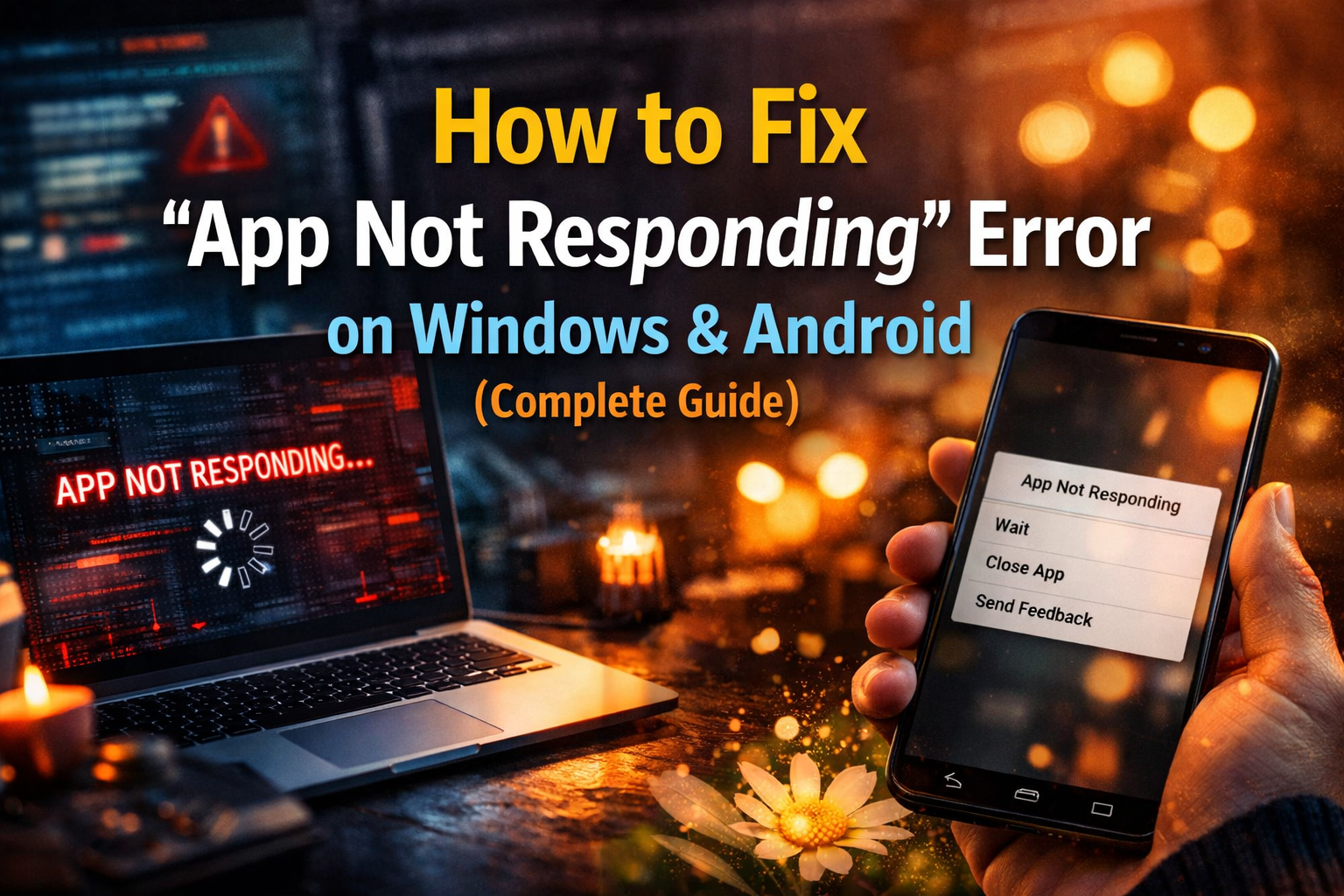
Apps freezing or showing the dreaded “App Not Responding” message can be incredibly frustrating—especially when you’re in the middle of important work or entertainment. Whether you’re using a Windows PC or an Android phone, this issue is more common than you might think. The good news? In most cases, it’s fixable without needing advanced technical skills.
This complete guide will walk you through why apps stop responding, and more importantly, how to fix them step-by-step on both Windows and Android devices. Everything is explained in simple language so anyone can follow along.
Why Apps Stop Responding
Before jumping into solutions, it helps to know what causes the problem. When an app becomes unresponsive, it usually means the system is struggling to process its requests.
Common Causes of “App Not Responding” Errors
- Low system memory (RAM)
- Too many apps running at once
- Outdated software or apps
- Corrupted files or app data
- Background processes interfering
- Overheating devices
- Bugs in the app itself
Quick Fix Checklist (Try This First)
Before diving into deeper solutions, try these quick fixes:
- Wait a few seconds (sometimes the app recovers)
- Close and reopen the app
- Restart your device
- Check for updates
- Free up storage space
If the issue continues, move on to detailed solutions below.
Fixing “App Not Responding” Error on Windows
Windows PCs can experience freezing apps due to system overload, outdated drivers, or software conflicts. Let’s break it down.
Force Close the Frozen App
When an app stops responding, the fastest fix is to force close it.
Steps:
- Press Ctrl + Shift + Esc to open Task Manager
- Find the unresponsive app
- Click on it
- Select End Task
This stops the app immediately.
Restart Your Computer
Restarting clears temporary memory and resets processes.
Why it works:
- Removes temporary glitches
- Frees RAM
- Stops background conflicts
Check System Resource Usage
Sometimes your system is overloaded.
How to check:
- Open Task Manager
- Look at CPU, Memory, and Disk usage
If usage is high:
- Close unused apps
- Disable startup programs
Disable Startup Programs
Too many startup apps slow down your system.
Steps:
- Open Task Manager
- Go to the Startup tab
- Disable unnecessary programs
Update Windows and Drivers
Outdated software can cause compatibility issues.
Steps:
- Go to Settings > Update & Security
- Click Check for updates
Also update:
- Graphics drivers
- System drivers
Run System File Checker (SFC Scan)
This tool repairs corrupted system files.
Command:
- Open Command Prompt (Admin)
- Type: sfc /scannow
- Press Enter
Reinstall the Problematic App
If only one app is freezing, it might be corrupted.
Steps:
- Uninstall the app
- Restart your PC
- Reinstall the latest version
Adjust Virtual Memory
Low RAM can cause apps to freeze.
Steps:
- Search “Advanced system settings”
- Go to Performance Settings
- Click “Advanced”
- Adjust Virtual Memory
Scan for Malware
Malware can slow down or freeze apps.
Use:
- Windows Defender
- Any trusted antivirus software
Windows Troubleshooting Table
| Problem Cause | Solution | Difficulty |
|---|---|---|
| High RAM usage | Close apps / increase memory | Easy |
| Corrupted system files | Run SFC scan | Medium |
| App bug | Reinstall app | Easy |
| Outdated drivers | Update drivers | Medium |
| Malware | Run antivirus scan | Medium |
Fixing “App Not Responding” Error on Android
Android devices also face similar issues, especially due to limited resources and background apps.
Force Stop the App
This is the quickest solution on Android.
Steps:
- Go to Settings
- Tap Apps
- Select the problematic app
- Tap Force Stop
Restart Your Phone
Simple but effective.
Benefits:
- Clears temporary memory
- Fixes minor bugs
- Refreshes system processes
Clear App Cache and Data
Corrupted cache is a major cause of app freezing.
Steps:
- Go to Settings > Apps
- Select the app
- Tap Storage
- Choose:
- Clear Cache (safe)
- Clear Data (resets app)
Update the App
Developers release updates to fix bugs.
Steps:
- Open Google Play Store
- Search for the app
- Tap Update
Free Up Storage Space
Low storage can slow down apps.
Tips:
- Delete unused apps
- Remove large files
- Clear downloads folder
Check for Android System Updates
Outdated Android versions can cause compatibility issues.
Steps:
- Go to Settings > Software Update
- Tap Download and Install
Disable Background Apps
Too many background apps use memory.
Steps:
- Close recent apps
- Use built-in optimization tools
Remove Problematic Apps
Some apps conflict with others.
If issue started recently:
- Uninstall recently installed apps
Reset App Preferences
This resets all app settings without deleting data.
Steps:
- Go to Settings > Apps
- Tap three dots (menu)
- Select Reset App Preferences
Factory Reset (Last Option)
If nothing works, reset your phone.
Warning:
- This deletes all data
Steps:
- Backup your data
- Go to Settings > System > Reset
- Choose Factory Reset
Android Troubleshooting Table
| Problem Cause | Solution | Difficulty |
|---|---|---|
| Corrupted cache | Clear cache | Easy |
| Low storage | Free space | Easy |
| App bugs | Update app | Easy |
| System issues | Update Android | Medium |
| Severe problems | Factory reset | Hard |
Advanced Fixes for Persistent Issues
If the problem keeps coming back, try these advanced solutions.
Check Device Temperature
Overheating affects performance.
Signs:
- Device feels hot
- Apps slow down
Fix:
- Let device cool down
- Avoid heavy apps for long periods
Use Lite Versions of Apps
Heavy apps consume more resources.
Examples:
- Facebook Lite
- YouTube Go
Monitor Background Processes
Use tools to monitor resource usage.
On Windows:
- Task Manager
On Android:
- Developer Options
Upgrade Hardware (Windows Only)
If your PC is old:
- Add more RAM
- Upgrade to SSD
Common Mistakes to Avoid
Avoid these errors when fixing app issues:
- Ignoring updates
- Installing apps from unknown sources
- Running too many apps at once
- Not restarting your device regularly
- Skipping backups before resetting
Visual Breakdown: App Freeze Causes
App Not Responding
        |
  ---------------------
  |        |         |
Memory   Software   Hardware
Issues    Bugs       Limits
Pro Tips to Prevent Future Errors
- Restart your device weekly
- Keep apps updated
- Avoid installing unnecessary apps
- Use antivirus protection
- Clean storage regularly
When to Seek Professional Help
If none of the fixes work, you may need expert help.
Signs:
- Frequent crashes
- Device overheating constantly
- Apps crashing immediately after opening
Final Thoughts
The “App Not Responding” error is annoying, but it’s usually easy to fix with the right steps. Whether you’re using Windows or Android, most problems come down to memory issues, outdated software, or corrupted data.
Start with simple fixes like restarting your device or clearing cache. If the issue continues, move on to advanced solutions like reinstalling apps or updating your system.
By following this guide, you’ll not only fix current issues but also prevent future app crashes—keeping your devices running smoothly and efficiently.
