
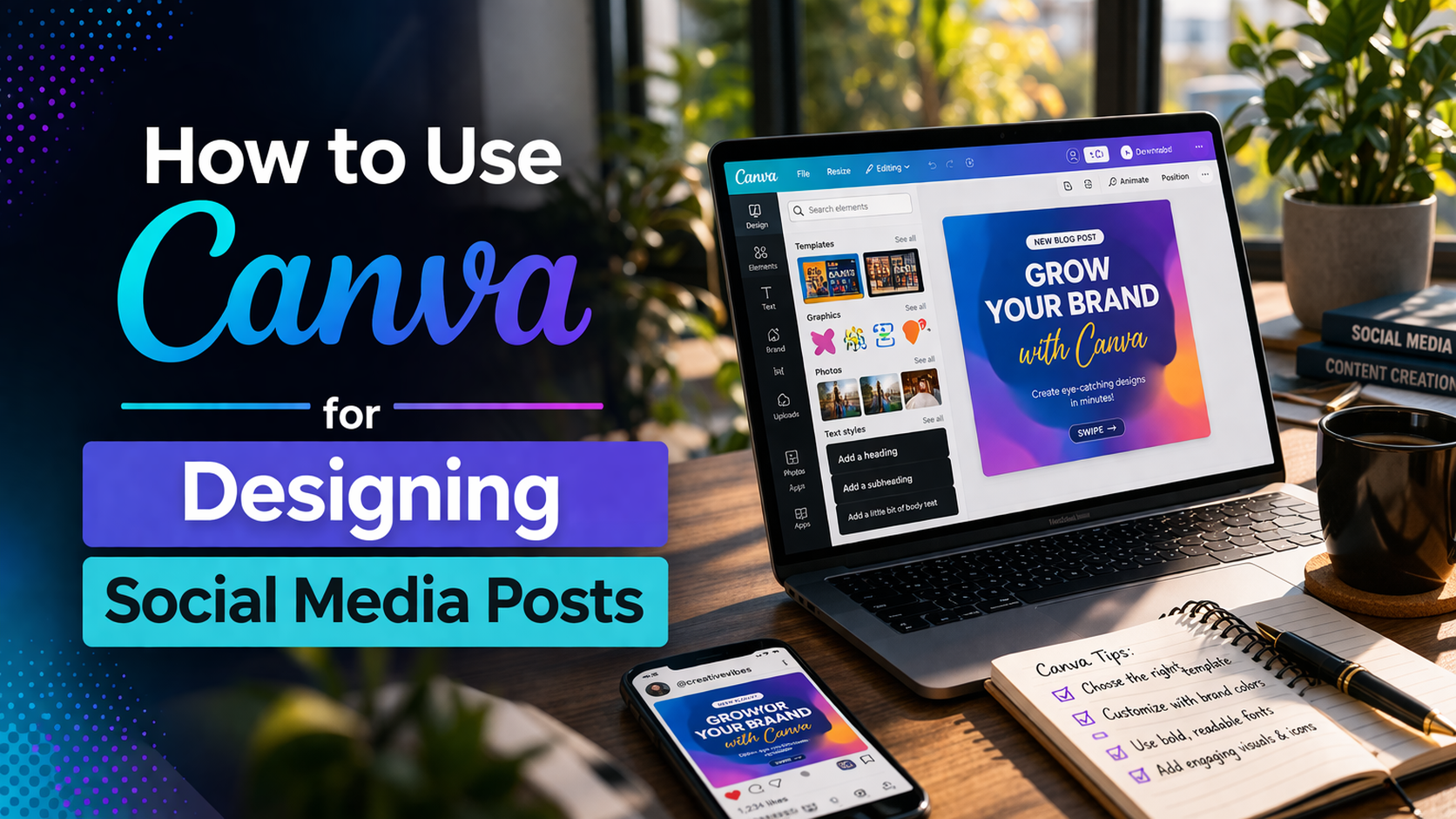
Designing eye-catching social media posts is no longer limited to professional designers. With tools like Canva, anyone can create visually appealing graphics for platforms such as Instagram, Facebook, LinkedIn, and Twitter (X). Whether you are a small business owner, content creator, student, or beginner, Canva simplifies the design process with ready-made templates and an easy drag-and-drop interface.
This guide will walk you through everything you need to know about how to use Canva for designing social media posts. From creating an account to exporting your final design, each step is explained in a simple and practical way.
By the end of this article, you will understand how to:
- Choose the right template
- Customize designs effectively
- Use design elements like text, images, and colors
- Maintain consistency in branding
- Export and publish high-quality posts
What Is Canva and Why Use It for Social Media Design?
Canva is an online graphic design tool that allows users to create professional-looking designs without needing advanced skills. It works directly in your browser and also offers mobile apps.
Key Benefits of Canva
- User-friendly interface with drag-and-drop features
- Thousands of free templates for social media posts
- Access to stock photos, icons, and illustrations
- Pre-sized layouts for different platforms
- Collaboration features for teams
- No need for advanced design software knowledge
Why Canva Is Ideal for Social Media Posts
Social media platforms require visually engaging content to attract attention. Canva helps by:
- Providing platform-specific dimensions
- Offering ready-to-use layouts
- Making it easy to maintain brand consistency
- Allowing quick edits and updates
Getting Started with Canva
Before designing your first post, you need to set up your Canva account.
Step 1: Create an Account
You can sign up using:
- Email address
- Google account
- Facebook account
Once registered, you will be directed to the Canva dashboard.
Step 2: Explore the Dashboard
The dashboard is where you start your design process. It includes:
- Search bar for templates
- Suggested design categories
- Recent projects
- Create a design button
Choosing the Right Social Media Template
Canva provides templates optimized for different platforms.
Common Social Media Sizes
| Platform | Recommended Size (Pixels) |
|---|---|
| Instagram Post | 1080 x 1080 |
| Instagram Story | 1080 x 1920 |
| Facebook Post | 1200 x 630 |
| Twitter/X Post | 1600 x 900 |
| LinkedIn Post | 1200 x 627 |
How to Select a Template
- Click on “Create a Design”
- Search for the platform (e.g., Instagram Post)
- Browse available templates
- Choose one that matches your content style
Tips for Choosing Templates
- Pick clean and simple designs for professional content
- Use bold and colorful templates for promotional posts
- Choose minimal layouts for text-heavy content
Understanding Canva’s Design Interface
Once you select a template, you enter the design editor.
Main Components of the Editor
- Sidebar Panel: Contains templates, elements, uploads, text, and more
- Canvas Area: The workspace where your design appears
- Top Toolbar: Options for editing text, colors, alignment, and positioning
- Layers Panel: Helps manage overlapping elements
Customizing Your Social Media Post
Customization is the most important step in Canva. This is where you make the design your own.
Editing Text
To edit text:
- Click on the text box
- Replace the default text with your content
- Adjust font style, size, and color
Best Practices for Text Design
- Use readable fonts
- Avoid using too many font styles in one design
- Keep text short and clear
- Highlight important words using bold or color
Adding and Editing Images
You can use:
- Canva’s built-in stock photos
- Uploaded images from your device
How to Add Images
- Go to the “Uploads” or “Photos” tab
- Drag and drop an image onto the canvas
- Resize and position as needed
Image Editing Options
- Crop images
- Adjust brightness and contrast
- Apply filters
- Add frames or shapes
Using Colors Effectively
Color plays a major role in visual appeal.
Tips for Choosing Colors
- Stick to 2–3 main colors
- Use contrasting colors for readability
- Match colors with your brand identity
- Avoid overly bright combinations that strain the eyes
Example Color Combinations
| Purpose | Color Combination |
|---|---|
| Professional | Blue, White, Grey |
| Creative | Purple, Pink, Orange |
| Minimal | Black, White, Beige |
| Energetic | Red, Yellow, Black |
Adding Shapes, Icons, and Elements
Canva offers a wide range of design elements such as:
- Lines
- Shapes
- Icons
- Stickers
- Illustrations
How to Use Elements
- Click on the “Elements” tab
- Search for a keyword (e.g., “arrow”, “star”)
- Drag the element onto your design
- Adjust size, color, and position
Designing for Different Social Media Platforms
Each platform has its own style and audience expectations.
Instagram Posts
- Focus on visuals and aesthetics
- Use minimal text
- Maintain square format (1:1 ratio)
Facebook Posts
- Mix of text and visuals
- Suitable for promotions and announcements
- Horizontal layouts work well
LinkedIn Posts
- Professional tone
- Clean and simple design
- Avoid overly flashy elements
Twitter/X Posts
- Short and impactful content
- Use clear visuals and concise messaging
Maintaining Brand Consistency
If you are creating posts for a brand, consistency is key.
Elements of Brand Consistency
- Logo placement
- Color scheme
- Font style
- Tone of messaging
How Canva Helps with Branding
- Brand Kit feature (for premium users)
- Saved colors and fonts
- Reusable templates
Using Canva Templates vs Custom Designs
Template-Based Design
Pros:
- Fast and beginner-friendly
- Professionally designed layouts
- Saves time
Cons:
- Limited uniqueness
- Similar designs used by others
Custom Design
Pros:
- Unique and personalized
- Full creative control
Cons:
- Requires more time
- Needs basic design understanding
Step-by-Step Example: Creating a Social Media Post
Here is a simple workflow:
- Open Canva and select “Instagram Post”
- Choose a template
- Replace placeholder text with your message
- Upload and insert your image
- Adjust colors to match your theme
- Add icons or decorative elements
- Align all elements properly
- Preview your design
- Download or share directly
Exporting and Downloading Your Design
Once your design is complete, you need to export it.
Steps to Download
- Click on the “Share” button
- Select “Download”
- Choose file format:
- PNG (best for quality images)
- JPG (smaller file size)
- PDF (for printing)
- Click “Download”
Recommended File Formats
| Use Case | Format |
|---|---|
| Social media posts | PNG |
| Web images | JPG |
| Print materials |
Advanced Tips for Better Designs
1. Use White Space Wisely
Avoid overcrowding your design. White space improves readability.
2. Maintain Visual Hierarchy
- Headline should be largest
- Subtext smaller
- Supporting elements balanced
3. Align Elements Properly
Use Canva’s alignment tools to ensure everything looks organized.
4. Stick to a Grid Layout
Grids help maintain structure and symmetry in your design.
5. Keep Text Minimal
Social media users scroll quickly, so concise messaging works best.
Common Mistakes to Avoid
- Using too many fonts in one design
- Overloading the design with elements
- Ignoring spacing and alignment
- Using low-quality images
- Not optimizing for platform dimensions
Canva Free vs Canva Pro
Canva Free Features
- Thousands of templates
- Basic elements and images
- Limited storage
Canva Pro Features
- Premium templates and assets
- Brand kit tools
- Background remover
- Resize tool (Magic Resize)
- More storage
Comparison Table: Canva Free vs Pro
| Feature | Free Version | Pro Version |
|---|---|---|
| Templates | Limited | Extensive |
| Stock Images | Limited | Full access |
| Brand Kit | No | Yes |
| Background Remover | No | Yes |
| Resize Tool | No | Yes |
Best Practices for Social Media Design in Canva
- Keep designs simple and focused
- Use high-quality images
- Maintain consistent branding
- Optimize for mobile viewing
- Test different design styles for engagement
- Stay updated with trends
Conclusion
Canva is one of the easiest and most powerful tools for designing social media posts, especially for beginners. Its intuitive interface, vast template library, and customization options make it suitable for anyone looking to create professional-looking content without advanced design skills.
By following the steps outlined in this guide, you can confidently:
- Choose and customize templates
- Use text, images, and elements effectively
- Maintain brand consistency
- Export high-quality designs for any platform
Whether you are building a personal brand, promoting a business, or simply sharing content online, Canva gives you the tools needed to create visually engaging posts that stand out in crowded social media feeds.
With regular practice and experimentation, you will gradually improve your design skills and develop a consistent visual style that resonates with your audience.
