
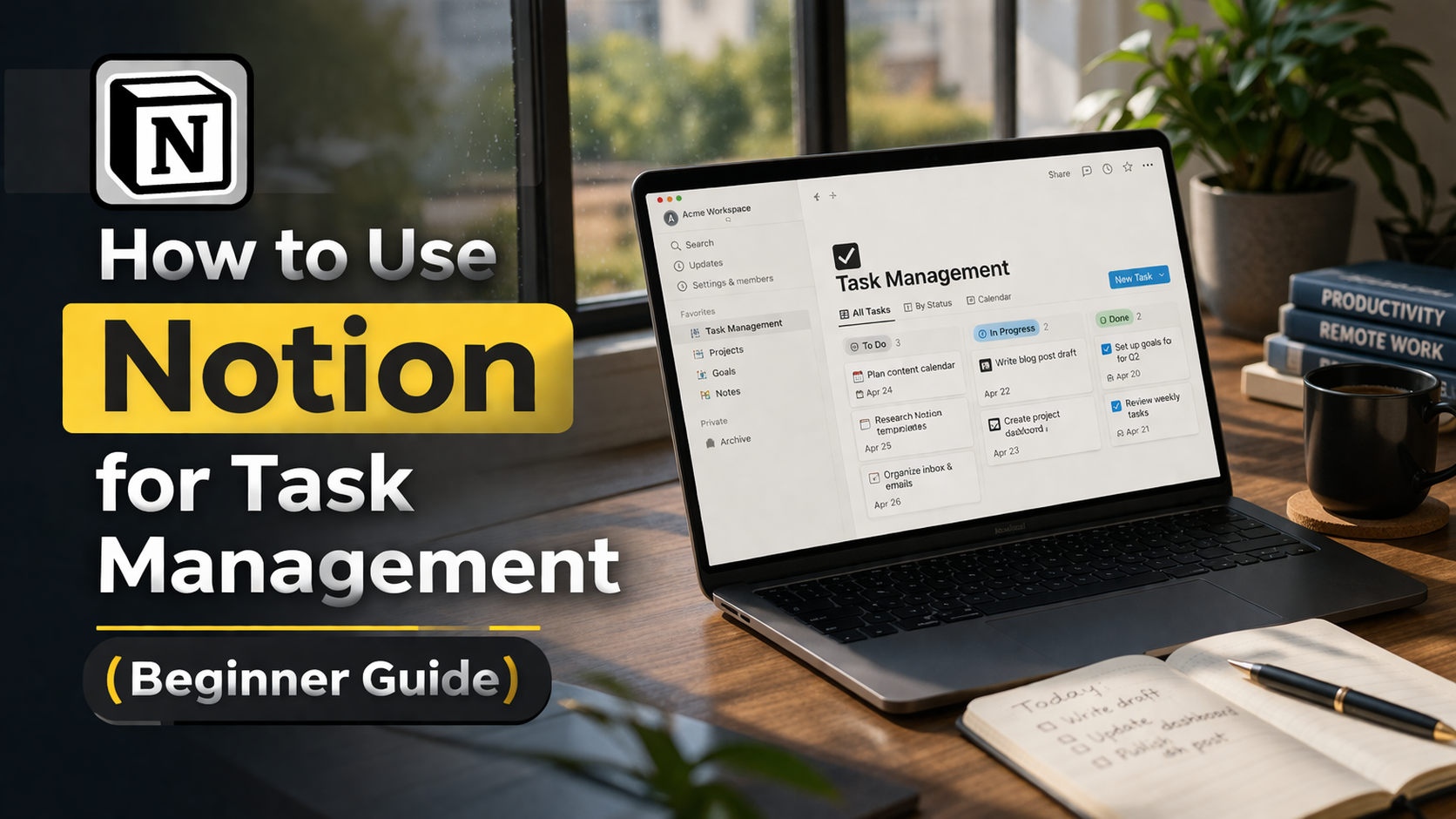

Managing tasks can feel overwhelming when you have schoolwork, projects, personal goals, and daily responsibilities all competing for your attention. Without a clear system, it’s easy to forget tasks, miss deadlines, or waste time deciding what to do next.
That’s where Notion comes in.
Notion is an all-in-one productivity tool that helps you organize tasks, take notes, manage projects, and build a system that fits your personal workflow. In this beginner guide, you’ll learn how to use Notion for task management step by step, even if you’ve never used it before.
What Makes Notion Useful for Task Management?
Before jumping into setup, it’s important to understand why Notion is different from simple to-do list apps.
Key Benefits of Notion
- Combines tasks, notes, and databases in one place
- Fully customizable layouts
- Works on desktop, mobile, and web
- Supports collaboration with teams or classmates
- Allows filtering, sorting, and organizing tasks in multiple ways
- Lets you build your own productivity system instead of following fixed templates
Instead of using multiple apps, Notion allows you to centralize everything in one workspace.
Getting Started with Notion
Step 1: Create an Account
- Go to the Notion website
- Sign up using your email or Google account
- Choose a personal or team workspace
- Download the desktop or mobile app (optional but recommended)
Once inside, you’ll see a clean workspace where you can start building pages.
Understanding the Notion Interface
When you open Notion, everything is built around pages and blocks.
Basic Concepts
- Pages: Like documents or folders where you store content
- Blocks: Individual elements such as text, headings, lists, tables, and tasks
- Sidebar: Used to navigate between pages
- Workspace: Your entire Notion environment
You can create unlimited pages and nest them inside each other to stay organized.
Building a Simple Task Management System
Let’s create a basic task system that you can use daily.
Step 1: Create a Task Page
- Click “New Page” in the sidebar
- Name it something like “Task Manager” or “To-Do List”
- Choose an empty page or a template
Step 2: Add a Database Table
In Notion, tasks are best managed using a database.
To create one:
- Type
/table - Select “Table – Full Page” or “Inline Table”
- This will create a structured task list
Understanding Task Database Properties
Each task in Notion is stored as a row in a table, and each column is a property.
Common Properties to Use
| Property Name | Type | Purpose |
|---|---|---|
| Task Name | Title | The name of the task |
| Status | Select | To track progress (To Do, Doing, Done) |
| Due Date | Date | Deadline for the task |
| Priority | Select | Importance level (High, Medium, Low) |
| Tags | Multi-select | Categories like Work, Study, Personal |
Creating a Task in Notion
To add a task:
- Click on a new row in the table
- Enter the task name
- Fill in properties like due date, priority, and status
Example:
- Task: “Finish math assignment”
- Status: To Do
- Priority: High
- Due Date: March 30
Organizing Tasks with Views
One of Notion’s strongest features is views. A view allows you to see the same data in different formats.
Common Views You Can Use
- Table View
- Board View (Kanban style)
- Calendar View
- List View
Board View for Task Stages
A board view groups tasks by status.
For example:
- To Do
- In Progress
- Completed
This makes it easy to track workflow visually.
Calendar View for Deadlines
Calendar view helps you:
- See deadlines at a glance
- Avoid missing due dates
- Plan your week better
Example Task Management Layout
Here’s a simple structure you can follow:
Main Page Structure
- Dashboard Page
- Task Database
- Today’s Tasks View
- Upcoming Tasks Calendar
- Completed Tasks Archive
Filtering and Sorting Tasks
Filters and sorting help you focus on the right tasks.
Common Filters
- Show only tasks due today
- Show tasks marked “High Priority”
- Show incomplete tasks only
Sorting Options
- Sort by due date (earliest first)
- Sort by priority (high to low)
- Sort by status
Setting Up a Daily Task Workflow
To stay organized, follow this simple routine:
Morning Routine
- Open your Notion dashboard
- Check today’s tasks
- Prioritize 3–5 important tasks
- Start working on the first task
During the Day
- Update task status as you progress
- Add new tasks when needed
- Avoid cluttering your list
Evening Review
- Mark completed tasks
- Move unfinished tasks to the next day
- Reflect on progress
Using Notion Templates for Task Management
Notion offers templates that make setup faster.
Popular Template Types
- Simple to-do list
- Weekly planner
- Project tracker
- Habit tracker
- Student assignment tracker
Templates are helpful because they already include structure, saving you time.
Advanced Task Management Features
Once you’re comfortable, you can use more advanced features.
Subtasks
Break large tasks into smaller steps.
Example:
- Main Task: “Prepare presentation”
- Research topic
- Create slides
- Practice speaking
Relations and Linked Databases
You can connect tasks to other databases like:
- Projects
- Notes
- Clients
- Subjects
This is useful for organizing complex workflows.
Rollups
Rollups allow you to summarize related data.
For example:
- Count how many tasks are completed in a project
- Track progress automatically
Comparing Notion Task Setup Options
Here’s a simple comparison of different ways to manage tasks in Notion:
| Method | Best For | Difficulty | Flexibility |
|---|---|---|---|
| Simple List | Beginners | Easy | Low |
| Table Database | Task tracking with details | Medium | High |
| Board View | Workflow visualization | Medium | High |
| Calendar View | Deadline management | Easy | Medium |
| Advanced System | Project management | Hard | Very High |
Common Mistakes Beginners Should Avoid
Many beginners make similar mistakes when using Notion.
Mistake 1: Overcomplicating Setup
- Avoid creating too many databases
- Start simple and expand gradually
Mistake 2: Not Updating Tasks
- A task system only works if you maintain it
- Update status and deadlines regularly
Mistake 3: Ignoring Filters
- Without filters, your task list becomes cluttered
- Use filters to focus on relevant tasks
Mistake 4: Trying to Use Every Feature
- Notion has many tools, but you don’t need all of them
- Focus on what helps your workflow
Tips to Stay Consistent with Notion
Here are some practical habits:
Keep It Simple
Start with:
- One task database
- One dashboard
- One daily routine
Review Weekly
Spend 10–15 minutes each week:
- Checking completed tasks
- Updating upcoming deadlines
- Cleaning up old tasks
Use Mobile Access
Install Notion on your phone to:
- Add tasks on the go
- Check your list anytime
- Stay updated
Sample Daily Task Dashboard Layout
Here’s an example of how your dashboard might look:
Dashboard Sections
- Today’s Tasks (filtered view)
- Upcoming Tasks (next 7 days)
- Priority Tasks
- Completed Tasks
- Quick Add Button
Workflow Chart Example
Here’s a simple workflow you can follow:
- Capture tasks
- Organize tasks
- Prioritize tasks
- Execute tasks
- Review and update
This cycle keeps your system clean and effective.
Why Notion Works Well for Task Management
Notion stands out because it allows you to:
- Build a personalized productivity system
- Combine notes and tasks in one place
- Visualize your workflow in multiple formats
- Scale from simple lists to advanced systems
- Adapt as your needs grow
Unlike traditional apps, Notion doesn’t force you into a fixed structure. Instead, it gives you the tools to create your own.
Conclusion
Learning how to use Notion for task management can significantly improve how you organize your daily life. Whether you are a student managing assignments, a professional handling projects, or someone trying to stay on top of personal goals, Notion provides a flexible and powerful system.
By starting with a simple task database, organizing tasks with views, and maintaining a consistent routine, you can turn Notion into a central hub for productivity. As you become more comfortable, you can explore advanced features like templates, relations, and automation to further improve your workflow.
The key is not to build the perfect system right away, but to start simple, stay consistent, and gradually refine your setup.
