
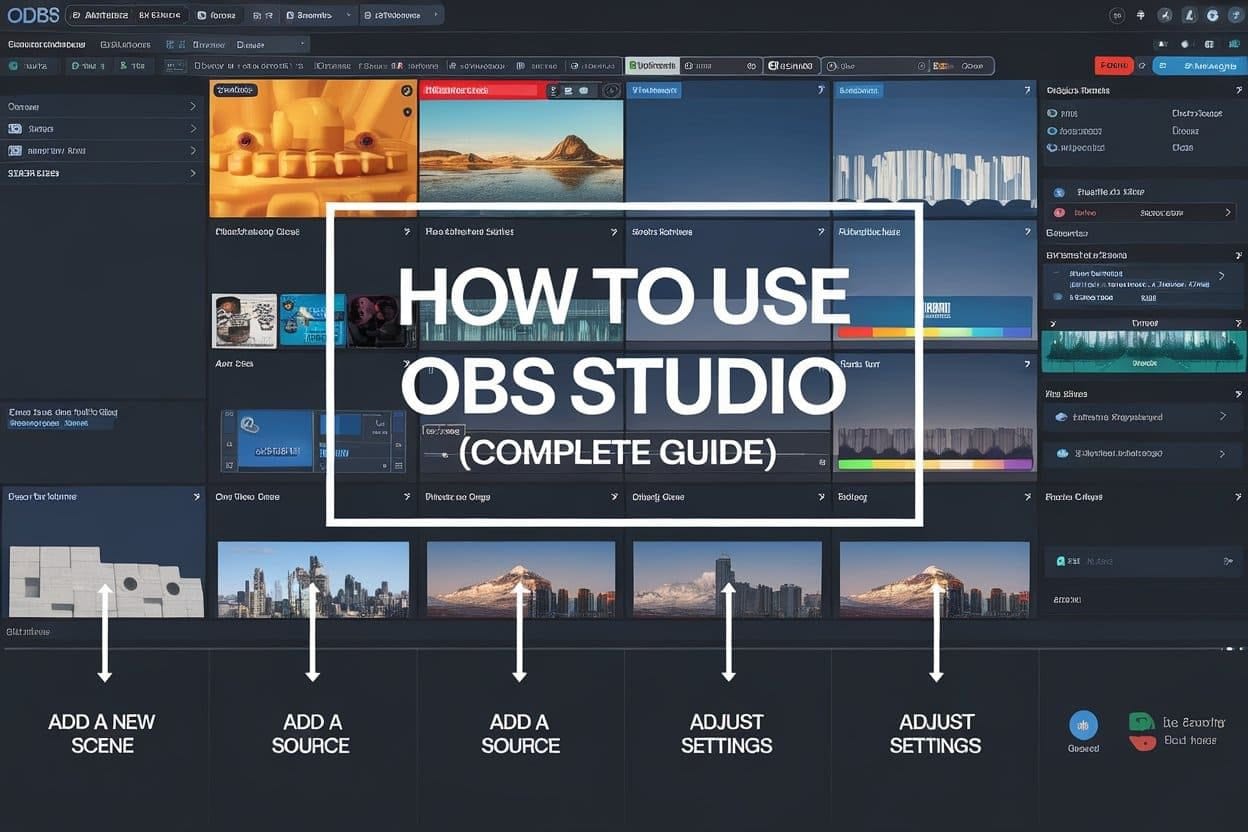
Learn how to use OBS Studio with this complete beginner-friendly guide. Step-by-step instructions for recording, streaming, and optimizing settings on PC.
OBS Studio (Open Broadcaster Software) is a versatile, cross-platform solution trusted by millions for high-quality video recording and live streaming. As free and open-source software, it offers full customization without the cost barriers of proprietary alternatives.
Available for Windows, macOS, and Linux, OBS Studio supports a wide range of input sources—including webcams, microphones, screen captures, and external devices—making it ideal for gamers, educators, podcasters, and live streamers.
Its active community and regular updates ensure reliability and performance optimization across different use cases. For more information and to download the latest version, visit the official OBS Studio website.
Getting started with OBS Studio involves configuring basic settings such as audio, video resolution, and output mode. The interface may appear complex at first, but its modular layout allows users to gradually build scenes using sources like display capture, images, and browser windows.
Beginners can follow built-in wizards to optimize settings based on their internet speed and hardware capabilities. With proper setup, OBS enables smooth 1080p or even 4K streaming to platforms like Twitch, YouTube, and Facebook Live.
One of OBS Studio’s standout features is its support for real-time video mixing and transitions, allowing creators to produce professional-looking broadcasts without additional editing software. Users can apply filters to audio and video sources, set up multiple scenes for dynamic switching, and use plugins to extend functionality.
Recording in high-bitrate formats ensures archival quality, while live encoding options balance performance and visual fidelity. The software leverages GPU acceleration through encoders like x264 and NVENC, making it efficient even on mid-tier systems.
For those looking to deepen their understanding, the official OBS Wiki provides comprehensive documentation on advanced features, troubleshooting, and plugin integration.
Tutorials from reputable creators on YouTube also offer step-by-step guidance tailored to specific streaming goals. By mastering OBS Studio, users gain full control over their media production, paving the way for polished recordings and engaging live content that stands out in today’s digital landscape.
Step 1: Downloading and Installing OBS Studio (How to use OBS Studio)
To begin using OBS Studio, head over to the official OBS Studio website, where you can download the latest version tailored for your operating system—be it Windows, macOS, or Linux.
The software is completely free and open-source, maintained by a dedicated community of developers. Downloads are secure and regularly updated to support new features and security improvements, ensuring a reliable experience across all platforms.
Installation is simple and user-friendly: just run the downloaded installer file and follow the step-by-step on-screen instructions.
No advanced technical knowledge is required, making it accessible even for beginners. After installation, launch OBS Studio to access the initial setup wizard, which helps you configure essential preferences such as audio devices, video sources, and default recording settings.
During the first launch, OBS will prompt you to set up basic streaming or recording parameters. You’ll have the option to specify your preferred streaming platform—such as Twitch, YouTube, or Facebook Gaming—and configure your output resolution based on your display and performance needs.
This initial configuration ensures your streams or recordings are optimized from the start.
With everything installed and configured, you’re ready to start creating content. OBS Studio provides a powerful yet flexible environment for capturing gameplay, webcam feeds, desktop activity, and more.
Its modular interface allows users to customize scenes and sources with ease, laying the foundation for professional-quality broadcasts and recordings right from your personal computer.
Step 2: Configuring Your Settings for Optimal Performance
Properly configuring your settings in OBS Studio is a crucial step before beginning any streaming or recording session. By navigating to the ‘Settings’ menu, users can fine-tune essential parameters like video resolution, frame rate, and output bitrate—each playing a significant role in the quality and performance of your stream.
For instance, a resolution of 1920×1080 at 60 frames per second is ideal for high-quality content, but it demands more from your system and internet connection.
Adjusting these settings thoughtfully ensures a balance between visual fidelity and smooth performance.
For those new to OBS, the Auto-Configuration Wizard offers a user-friendly solution to optimize settings automatically. This built-in tool analyzes your hardware specifications and internet speed to recommend the best configuration tailored to your setup.
It eliminates much of the guesswork involved in manual adjustments, making it especially helpful for beginners who may not be familiar with terms like encoding or keyframe intervals.
More information about using the wizard can be found in the official OBS documentation.
While automatic settings are a great starting point, advanced users often revisit these configurations to make manual tweaks based on specific needs—such as lowering bitrate for better upload stability or increasing CPU usage for higher encoding quality.
Regardless of experience level, regularly reviewing and updating your settings ensures you’re getting the most out of OBS. Resources like Speedtest by Ookla can help assess your internet bandwidth to support informed bitrate decisions.
Properly configuring your audio devices is essential for delivering high-quality recordings or live streams. Within the Audio section of your setup, take the time to select the correct microphone to ensure your voice is captured clearly and without distortion.
Whether you’re using a built-in mic or an external USB/XLR microphone, choosing the right input device helps maintain professional audio standards.
Make sure to test the levels to avoid clipping or low volume, which can detract from the overall viewer experience.
In addition to your microphone, don’t overlook the importance of selecting the appropriate desktop audio source. This setting determines whether system sounds—such as music, alerts, or video playback—are included in your recording or stream. If you’re sharing gameplay, tutorials, or presentations with sound, enabling desktop audio ensures your audience hears everything they’re supposed to.
Most platforms, like OBS Studio, allow you to manage multiple audio sources independently for greater control.
For best results, use headphones during monitoring to prevent audio feedback or echo, especially when desktop audio is enabled alongside a microphone. Position your microphone correctly—ideally within six to twelve inches from your mouth—and consider using a pop filter to reduce plosive sounds.
Regularly check your audio settings before going live or starting a recording session to avoid technical issues.
For more detailed guidance on optimizing audio settings, resources like the YouTube Live streaming guide offer valuable tips tailored to content creators.
Taking these steps ensures that both your voice and system audio are captured accurately, providing a seamless and professional listening experience for your audience.
Step 3: Adding Sources to Your Scene
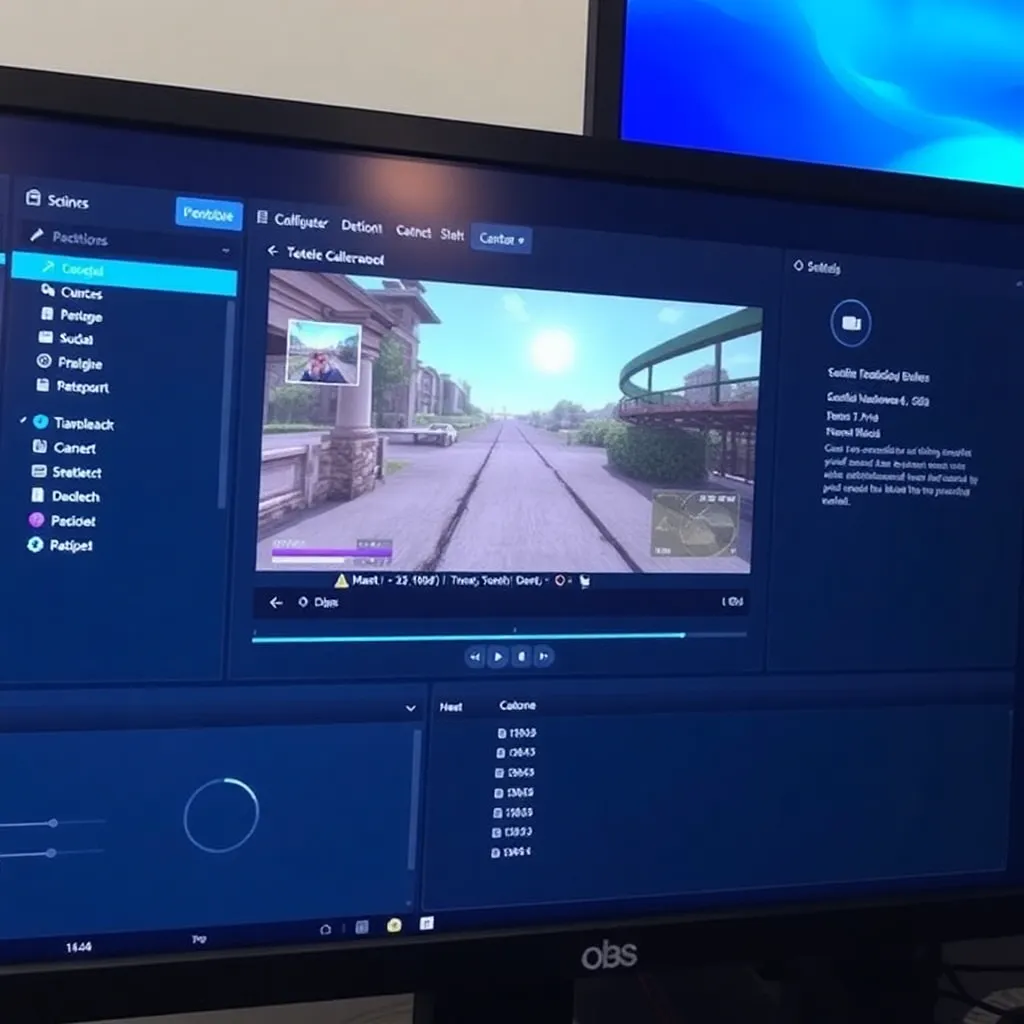
Scenes in OBS Studio act as customizable layouts that allow you to switch between different visual setups seamlessly during a stream or recording. Whether you’re gaming, hosting a webcam interview, or delivering a presentation, each scene can be tailored to fit the specific needs of that moment.
This flexibility makes OBS a powerful tool for content creators across various platforms. For more information on how to get started with scenes, visit the official OBS documentation.
To build a scene, use the ‘Sources’ box located at the bottom of the OBS interface. Here, you can add multiple types of sources such as Display Capture to record your screen, Video Capture Device to include your webcam feed, and Audio Input Capture to ensure your microphone is properly integrated.
You can also enhance your scene with overlays by adding Image or Text sources to display logos, alerts, or captions. Each source functions as a layer that contributes to the final composite output.
Once a source is added, right-clicking it opens a context menu where you can fine-tune its properties, including size, position, opacity, and visibility.
The transform options let you scale and rotate elements, while the properties panel allows deeper customization like chroma key filtering for green screen effects or adjusting audio levels.
Mastering these controls ensures a professional look and smooth transitions between scenes.
Step 4: Streaming Live to Platforms Like Twitch or YouTube
To begin live streaming, navigate to the ‘Stream’ tab within the Settings menu of your broadcasting software. Here, you can select your preferred streaming platform—options typically include Twitch, YouTube Live, and Facebook Live.
Each platform provides a unique stream key, which acts as a secure identifier allowing your software to connect directly to your channel.
Once you’ve chosen your platform, paste the stream key into the designated field in the settings. Make sure the key is entered correctly, as an incorrect key will prevent your stream from going live.
After confirming your settings, click the ‘Start Streaming’ button to initiate the broadcast. Your software, such as OBS (Open Broadcaster Software), will then encode video and audio data in real time and transmit it to the selected service for viewers to access.
While streaming, it’s essential to monitor your stream health using the built-in stats panel. This panel displays critical information like upload speed, dropped frames, and encoding performance.
A stable internet connection and properly configured bitrate are crucial for maintaining stream quality. For best practices on optimal settings, refer to the official documentation on OBS Project.
If you notice high latency or frequent disconnections, consider lowering your resolution or bitrate to match your available bandwidth.
Regularly checking your stream status ensures a smooth experience for both you and your audience. Always test your setup with a private stream before going live publicly to catch any technical issues early.
Step 5: Recording High-Quality Videos Locally
When you’re not broadcasting live, OBS Studio allows you to record high-quality videos directly to your hard drive with minimal setup. By navigating to the ‘Output’ settings and selecting ‘Advanced’ mode, you gain greater control over your recording configuration.
Here, you can choose your preferred recording format—MP4 is widely compatible with most editing software and platforms, while MKV offers better error resilience during long recordings. Make sure to set the output path to a drive with sufficient storage space to avoid interruptions during capture.
The choice of encoder plays a crucial role in balancing video quality and system performance. The x264 encoder is highly efficient and delivers excellent compression with good quality, making it ideal for most users.
Alternatively, hardware encoders like NVIDIA’s NVENC offload encoding tasks from the CPU to the GPU, reducing system strain—especially beneficial for gaming or resource-intensive applications. You can adjust bitrate, keyframe interval, and other parameters to fine-tune the output based on your needs. More details on optimal settings can be found in the official OBS documentation.
Once configured, simply click ‘Start Recording’ to begin capturing your screen, webcam, or any configured sources.
OBS will run silently in the background, saving the file to the directory specified in the settings. This recorded content is perfect for post-production editing in software like DaVinci Resolve or Adobe Premiere, or for direct upload to platforms such as YouTube.
Remember to check your storage regularly and manage files efficiently to maintain a smooth workflow.
Conclusion: Mastering OBS for Professional Results
With consistent practice, OBS Studio evolves into an essential tool for creators aiming to produce high-quality video content.
Its open-source nature and cross-platform compatibility make it a favorite among streamers and video producers alike. By learning how to configure scenes effectively—organizing sources like webcams, screenshares, and images—users gain precise control over their visual layout.
The flexibility to switch between scenes seamlessly ensures professional-looking transitions during live broadcasts or recordings.
Audio mixing in OBS Studio is another powerful feature that enhances production value. Users can balance microphone levels, desktop audio, and external inputs using the mixer panel, applying filters such as noise suppression and gain to improve clarity.
Properly calibrated audio prevents common issues like echo or low volume, which are critical for viewer engagement.
For detailed guidance on audio setup, the official OBS documentation offers comprehensive tutorials and best practices.
Configuring output settings correctly is crucial for achieving optimal performance and quality. Adjusting bitrate, resolution, and frame rate based on your hardware and streaming platform ensures smooth delivery without overwhelming your system.
Platforms like YouTube and Twitch provide recommended settings that can be easily applied within OBS. Experimenting with these parameters in test recordings helps identify the ideal balance between visual fidelity and system resources.
The vibrant OBS user community is a valuable resource for troubleshooting and inspiration. Forums, subreddits like r/OBS, and dedicated Discord servers offer support from experienced users who share tips, scene templates, and plugins.
Taking advantage of this collective knowledge accelerates the learning curve and encourages creative experimentation—all while preparing beginners to stream and record with confidence and professionalism.
