
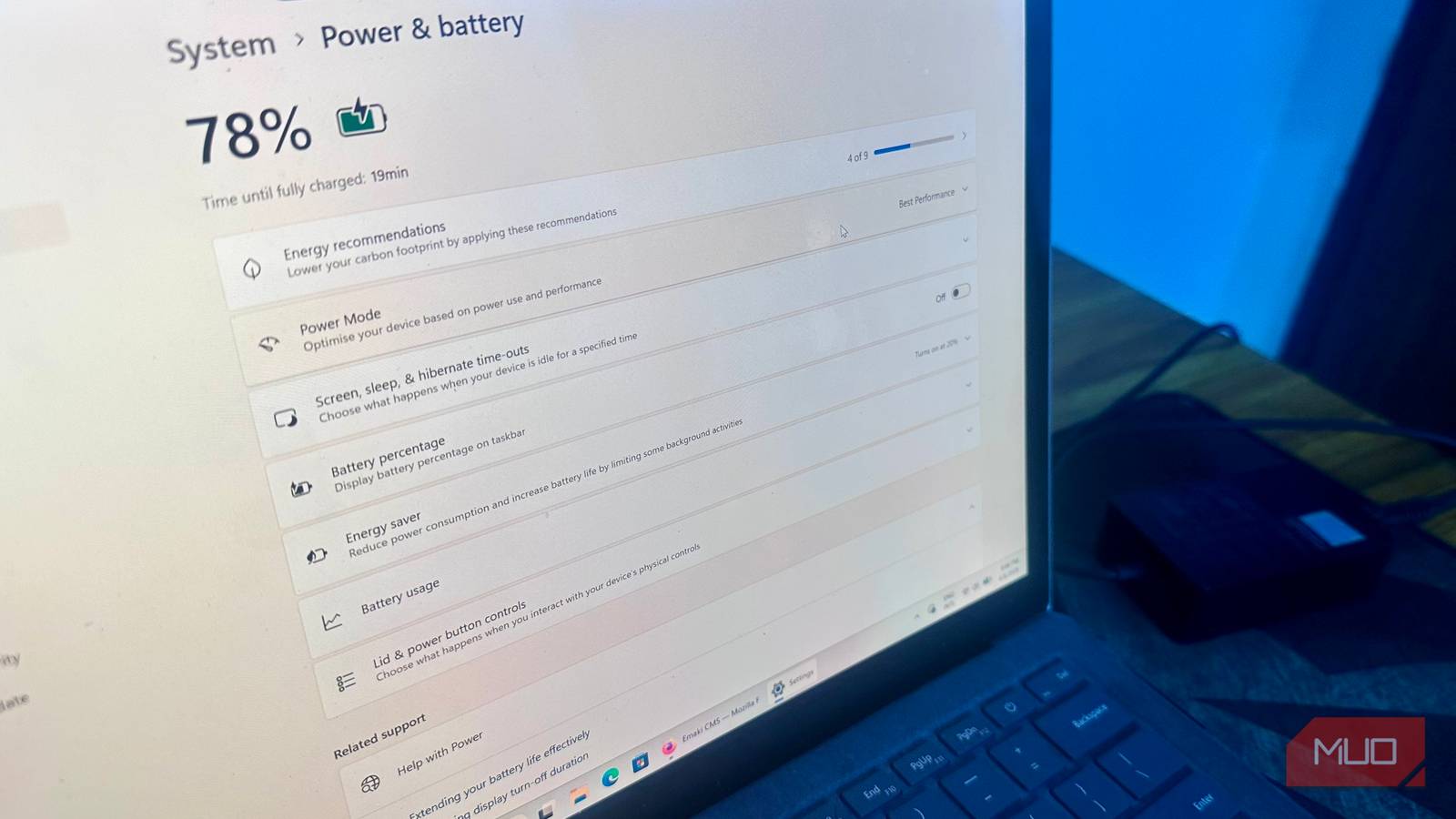
The past few days, I’d been noticing stuttering and random freezes while using my Surface Laptop, even when plugged in. I just ignored it for a while, thinking it was one of those ‘just Windows things’ and that I should probably avoid opening multiple apps at the same time unless necessary. However, the issue remained even after debloating Windows and reducing multitasking. Eventually, I figured it might be the laptop’s power settings, since Windows prioritizes efficiency over performance by default. And sure enough, tweaking Windows’ power settings did fix the issue for me.
I changed just one power setting
And it was related to the CPU
It may seem like there’s not much you can do with power settings in Windows. The power settings page offers basic options to switch power plans, enable power-saving features, and adjust sleep/hibernation settings. Changing the power plan to Best Performance doesn’t do much either, because the Balanced power plan scales up performance under load, anyway.
The power setting that will make a difference is called Minimum processor state, and you won’t find it on the main power settings page. Instead, open Control Panel -> Power Options -> Change plan settings -> Change advanced power settings. Expand the Processor power management option, and you’ll see the Minimum processor state option, which is set to 5% by default. The setting defines the lowest frequency at which the CPU can operate when not performing heavy tasks. Naturally, it also affects the CPU’s voltage draw.
Raising the Minimum processor state (Plugged in) to a number like 10-15% can prevent your CPU from entering deeper sleep states (C-States), in which the CPU turns off some of its core components. If the processor has entered one of these C-states, and you suddenly resume something you were doing in an app, there will be some lag because the processor turns on these components again, and “wakes up.” Usually, this lag is imperceptible, but not in my case.
I left the Minimum processor state (On battery) option at 5%, because I prefer better battery life over responsiveness.
Changing the power setting won’t magically improve performance
But it may make your laptop feel more responsive
Changing the Minimum processor state setting to something higher won’t technically make your laptop “faster.” It won’t improve rendering speeds or increase video game FPS. It just reduces interrupt latency (often measured as DPC latency), keeping your processor closer to ready when a task that requires more processing power arrives. It will help reduce delays when launching apps or video games, especially if the laptop was idle beforehand.
Only change the setting when you notice delays across multiple apps, not just one. Plus, the issue is usually noticeable during a light workload. If you’re facing stuttering and freezes during heavy tasks, it may have more to do with your computer’s specifications: increasing the Minimum processor state won’t make a difference.
For a better overview of what’s causing your laptop to stutter, consider using a tool like LatencyMon. Run the tool, and press the green Start monitor button on the top-right. Once LatencyMon completes the test, click on the Drivers tab. If you see Acpi.sys listed towards the top, that can indicate a firmware or power-management-related latency issue, since the ACPI driver handles power management on Windows.

- OS
-
Windows
- Price model
-
Free and Paid
LatencyMon is a Windows latency monitoring tool that detects DPC and driver issues causing audio stutter and system lag.
In addition to Minimum processor state, consider changing the Link State Power Management setting too. You can find this under the PCI Express option in the Advanced Power Settings window. Change the Plugged in option to Off. This prevents your laptop’s PCIe bus from dropping into a low-power state when idle and reduces latency for GPUs and SSDs. Again, this won’t improve your laptop’s maximum performance, but it will make performance more consistent.
There are trade-offs
That aren’t limited to higher energy usage
A higher Minimum processor state value equals a higher power draw when idle. This, in turn, results in more heat. On a desktop computer, this would be totally okay, since PC cases offer more avenues for heat dissipation. However, on a laptop, especially a thinner one like my Surface Laptop 4, it means more noise and a hotter… surface. There’s also a case to be made that setting the value too high could negatively impact performance: if the CPU operates at too high a temperature when idle, the system’s thermal throttling kicks in. Of course, this will only happen if you set the value abnormally high, at 70–80%, which can consume the thermal headroom your laptop needs for actual tasks.

How Changing This One Setting Keeps My Laptop Cool
It only takes a minute, but it could help keep your laptop cool and boost performance.
