
I kept noticing a subtle delay in my remote desktop sessions. This was not a full disconnect or a timeout, just a consistent, irritating lag between what I typed and when it appeared on the remote machine. The kind of thing you learn to live with because nothing you try seems to fix it.
It would have been easy to blame my ISP, but it wasn’t an issue with the speed or the router itself. However, the fix was to tweak two registry values I’d never heard of, buried deep under my network adapter’s settings. They control a decades-old Windows optimization that trades responsiveness for efficiency, but they were causing the annoying lag, so I had to tweak and disable them to fix the problem.
Nagle’s Algorithm is why your TCP feels sluggish
The old optimization that bundles your data instead of sending it right away
That delay I was experiencing had a name, and it’s been around since the 1980s. To understand it, you need to know a little about how TCP works. TCP is the protocol your computer uses for most internet traffic. It breaks your data into small packets, sends them in order, and waits for the other side to confirm it received each one. Those confirmations are called ACKs.
The problem is that when an app sends tiny bits of data, like a few keystrokes or a small command, each one still gets wrapped in about 40 bytes of headers. Send enough of those tiny packets, and you’re wasting bandwidth on packaging instead of actual content. That’s where Nagle’s Algorithm comes in. It’s a TCP optimization from RFC 896 that tries to bundle those small writes together. If there’s already data in flight waiting to be acknowledged, Nagle tells the stack to hold new data back and wait, either until the previous data is acknowledged or until there’s enough to send a full-sized packet.

I changed one registry value and my Windows PC feels instantly faster
This registry change fixed the sluggishness I’d learned to tolerate.
On its own, that sounds reasonable. But there’s another optimization running alongside it called delayed ACKs, where the receiving side waits about 100 to 200 milliseconds before sending its acknowledgment, hoping to piggyback it on outgoing data. When Nagle’s bundling on the sender side meets delayed ACKs on the receiver side, you get a deadlock of politeness. The sender won’t send because it’s waiting for an ACK. The receiver won’t ACK because it’s waiting to piggyback. Each tiny message picks up an extra 100 to 200 milliseconds of delay that has nothing to do with your actual network speed.Two registry values fix it instantly
Disabling both the sender-side bundling and the receiver-side ACK delay
The fix is two registry values that target each half of the problem. TcpNoDelay set to 1 disables Nagle’s Algorithm, so your small writes go out immediately instead of being held back. TcpAckFrequency set to 1 disables delayed ACKs, so your machine acknowledges every incoming packet right away instead of waiting to piggyback.
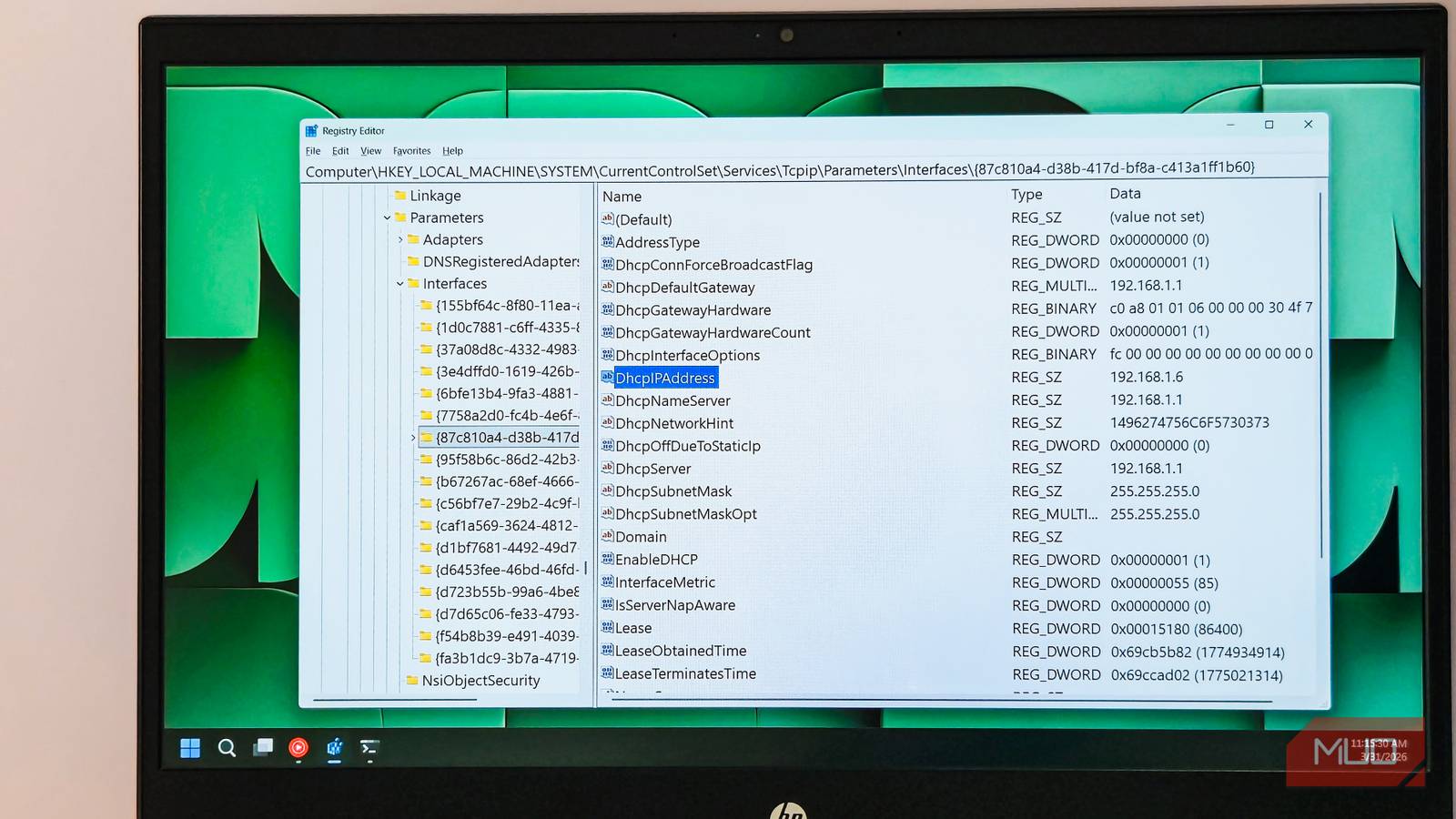
Before making any changes, it’s a good idea to create a system restore point so you can roll back if needed. To apply the tweaks, open Registry Editor by pressing Win + R, typing regedit, and pressing Enter. Navigate to HKEY_LOCAL_MACHINESYSTEMCurrentControlSetServicesTcpipParametersInterfaces. You’ll see several subkeys with long ID strings. Each one represents a network adapter. To figure out which one is yours, open Command Prompt and run ipconfig to see your current IP address, then click through the subkeys until you find the one where DhcpIPAddress or IPAddress matches.
Once you’ve found the right adapter, right-click in the right pane, select New > DWORD (32-bit) Value, and create a value named TcpNoDelay. Set it to 1. Then create another DWORD value named TcpAckFrequency and set it to 1 as well. Close the Registry Editor and restart your PC.
After the restart, my remote desktop sessions felt noticeably snappier, and the sticky delay on keystrokes was gone. The difference wasn’t dramatic in the way a speed upgrade feels, but that subtle, annoying lag I’d been living with simply wasn’t there anymore. Small packets now leave as soon as the app writes them, and ACKs come back promptly, so the connection stays responsive instead of stalling on every tiny exchange.
UDP games won’t benefit, and that’s most of them
Why does this tweak only help TCP-based traffic

If you came here hoping this would fix your game lag, there’s a caveat. Nagle’s Algorithm is a TCP-only optimization. Most modern online games, especially first-person shooters, battle royales, and fast-paced action titles, send their latency-critical gameplay data over UDP, not TCP. UDP doesn’t use Nagle’s Algorithm at all, so disabling it on the TCP side won’t change anything for those games.
When a game does use TCP, it’s usually for non-critical stuff like chat, matchmaking, or login, things where a few extra milliseconds of coalescing delay doesn’t affect your aim or your reaction time. The handful of older titles that leaned heavily on TCP, like early World of Warcraft, were the exception rather than the rule. Modern game engines are built around UDP precisely because it avoids this kind of algorithmic latency.
Your ping in games is also determined by physical distance, ISP routing, and congestion along the path to the server. No client-side registry tweak can shorten that route. If your ping is high, there are other Windows 11 settings worth changing that can reduce perceived lag, but Nagle’s Algorithm isn’t the bottleneck for UDP games.

- OS
-
Windows
- Minimum CPU Specs
-
1Ghz/2 Cores
Windows 11 is Microsoft’s latest operating system featuring a centered Start menu, Snap Layouts, virtual desktops, enhanced security with TPM 2.0, and deeper integration with Microsoft Teams and AI-powered Copilot.
Bad internet is still bad internet
Disabling Nagle’s Algorithm won’t fix a fundamentally slow or congested connection. If your ISP is routing your traffic through too many hops, or your Wi-Fi signal is weak, or your bandwidth is genuinely maxed out, no registry tweak will make that go away. What this does fix is the artificial delay that Windows introduces on top of an otherwise fine connection, the kind of lag where your speed test looks normal, but interactive tasks still feel sluggish.
For me, it solved a very specific and very annoying problem with remote desktop responsiveness. If you rely on RDP, SSH, or any chatty TCP-based workflow where small, frequent messages need to feel instant, these two registry values are worth trying. Just keep in mind that the trade-off is more small packets on the wire, which is fine for modern broadband, but worth knowing about if you’re on a heavily constrained network.
