
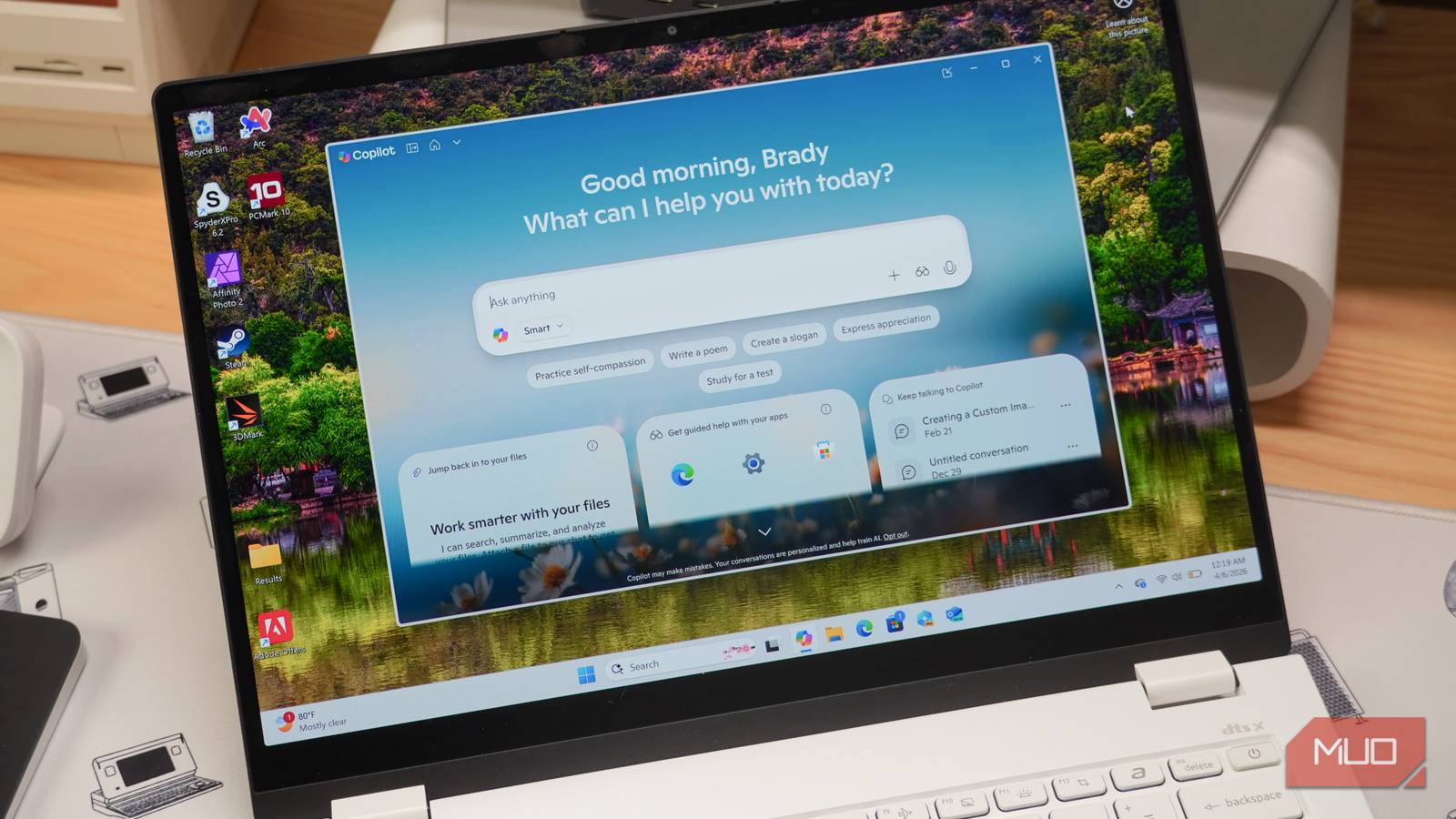
Microsoft Copilot is intertwined with Windows 11, and the AI assistant is built into both the operating system and the apps you use daily. Whether you’re using a Microsoft Copilot+ PC with at least 40 TOPS of on-device processing power like the Acer Swift Edge 14 AI or a run-of-the-mill Windows 11 PC, the Copilot assistant is a core part of the experience. However, it doesn’t have to be. You can disable the Copilot app and more AI services in Windows 11 to reclaim system resources, storage space, and room on the taskbar.
I did it in seconds on my Swift Edge 14 AI review unit and instantly gained roughly 200MB of system memory. Copilot uses CPU time and RAM, even when it’s idling in the background. On a laptop or desktop PC with limited memory, there’s no reason to waste idle RAM usage running background services like Copilot. If you’re tired of seeing Copilot on your taskbar or are frustrated with fluctuations in idle CPU or RAM usage, these are the easy and hard ways to eliminate it from your Windows 11 computer.
Copilot is secretly wasting resources
It’s taking up valuable Windows 11 taskbar space, too
Microsoft’s Copilot app isn’t an app at all. Copilot is no longer a progressive web app (PWA) in recent versions of Windows 11, but it is still heavily web-based using WebView. It’s like running a mini browser within a native application. So, the Copilot app in Windows 11 is a native desktop app in name and in technicality only. Copilot uses WebView2 and runs the Microsoft Edge browser within its app window. This is important to remember, because apps built on the web with browser components like WebView 2 end up using significantly more system resources than their truly native counterparts.
Firing up Task Manager in Windows 11 is an easy way to see the system resources Copilot consumes while running in the background and under heavy load. Task Manager shows the main Copilot processes and any currently running subprocesses using WebView2 Runtime or Microsoft Edge. It’s not uncommon to spot Copilot using up to 250MB to 500MB of memory while idling. That number could easily jump to more than 1GB when it is being actively used.
Similarly, Copilot can cause CPU usage to spike while running in the background. AI PCs could also see increased NPU usage while Copilot is working, even in the background. The Microsoft Copilot app for Windows 11 accounts for nearly 300MB of storage, although that isn’t much for modern PCs with at least 512GB or 1TB of on-device storage. The most important factor is memory usage. Laptops and low-end desktop PCs with 8GB or 16GB RAM might struggle if Copilot is consuming up to half a gigabyte of memory in the background.

I disabled one Windows 11 service I’d never heard of and freed up nearly 1GB of idle RAM
A sneaky service that can take gigabytes of memory.
Removing Copilot frees up memory and storage
Reclaim those system resources for the apps you really need

There’s no shame in keeping Copilot on your Windows 11 PC if you get value out of the AI assistant daily. Those that never or rarely use Copilot on their computer are probably better off disabling and uninstalling it. You can always use the Copilot web client in your browser if you need Microsoft’s AI tools. Opting for the Copilot web client when needed eliminates the WebView app consuming resources constantly, even when it isn’t being actively used.
The simplest way to uninstall Copilot is to open the Settings app in Windows 11 and find the Apps tab. Then, click Installed apps and locate Copilot. Finally, click the three-button menu beside Copilot and select Uninstall to remove it from your system. The app will show a brief Uninstalled message when the process is complete, and it will disappear from your Installed apps list. It’ll no longer consume system resources, and it won’t take up space on your taskbar either.

Another option is to disable Copilot using the Registry Editor. After launching the Register Editor, find the HKET_Current_User entry. Click Software and Policies, then navigate to Microsoft → Windows → CurrentVersion → WindowsCopilot. This is where you’ll find the option to disable Copilot completely. However, it might not appear in all Windows 11 builds, so your mileage may vary.
Locate the TurnOffWindowsCopilot entry and alter the default value of 0, changing it to 1. This will completely disable Copilot in Windows 11 after you exit the Registry Editor and restart your computer. If the option is available in your Windows 11 build, it’s a surefire way to disable Copilot for good, freeing up storage space, RAM usage, CPU time, and room on the taskbar.

I finally disabled these Windows services and my PC is happier for it
Your PC might be secretly working harder than you are, and not always in ways that benefit you.
You don’t have to stop at Copilot
There’s a script that removes as many Windows AI tools as possible

Uninstalling or disabling Copilot is a quick and simple way to eradicate one AI tool in Windows 11. It’ll instantly help you reclaim system resources for the apps and features you use most. However, if you want to go beyond removing Copilot, there’s a script available on GitHub called Remove Windows AI. It uses a PowerShell Console script to remove Windows AI features and prevent them from re-installing in future updates.
Running this script will not only disable the main Copilot app, but also remove it from other Microsoft apps like Edge, Gaming Copilot, and 365. Additionally, the script disables AI tools like Microsoft Recall, AI in Paint, and AI Voice Effects. It’s a more thorough method of removing Windows AI from your system, but run the script at your own risk.
Whether you simply uninstall the Copilot app or go to the length of running a PowerShell script, the results are clear. Without Copilot, your system runs faster and has more memory available for use with other apps.

- OS
-
Windows 11
- Developer(s)
-
Zoicware
- Price model
-
Free
- Services
-
PowerShell script
Remove Windows AI is a free PowerShell Console script that attempts to remove all of Microsoft’s AI apps and features from Windows 11. The script disables Copilot and Recall, among other features, and installs a custom Windows Update package to prevent them from reinstalling.
