
Out of the box, Windows 11 tries to do a little too much. It recommends apps, pushes services, tracks your data, and adds extra steps to everyday actions. Sure, it’s possible to fix all these things on your own, but that usually means jumping between different sections of the Settings app, or worse, tinkering with the registry.
That’s why I use Wintoys. It’s a simplified version of Windows Settings that groups essential Windows settings in one place. This way, you can fix Windows’ worst default settings in minutes instead of hours.
- OS
-
Windows
- Price model
-
Free
Remove ads and tighten privacy settings
No compromises here

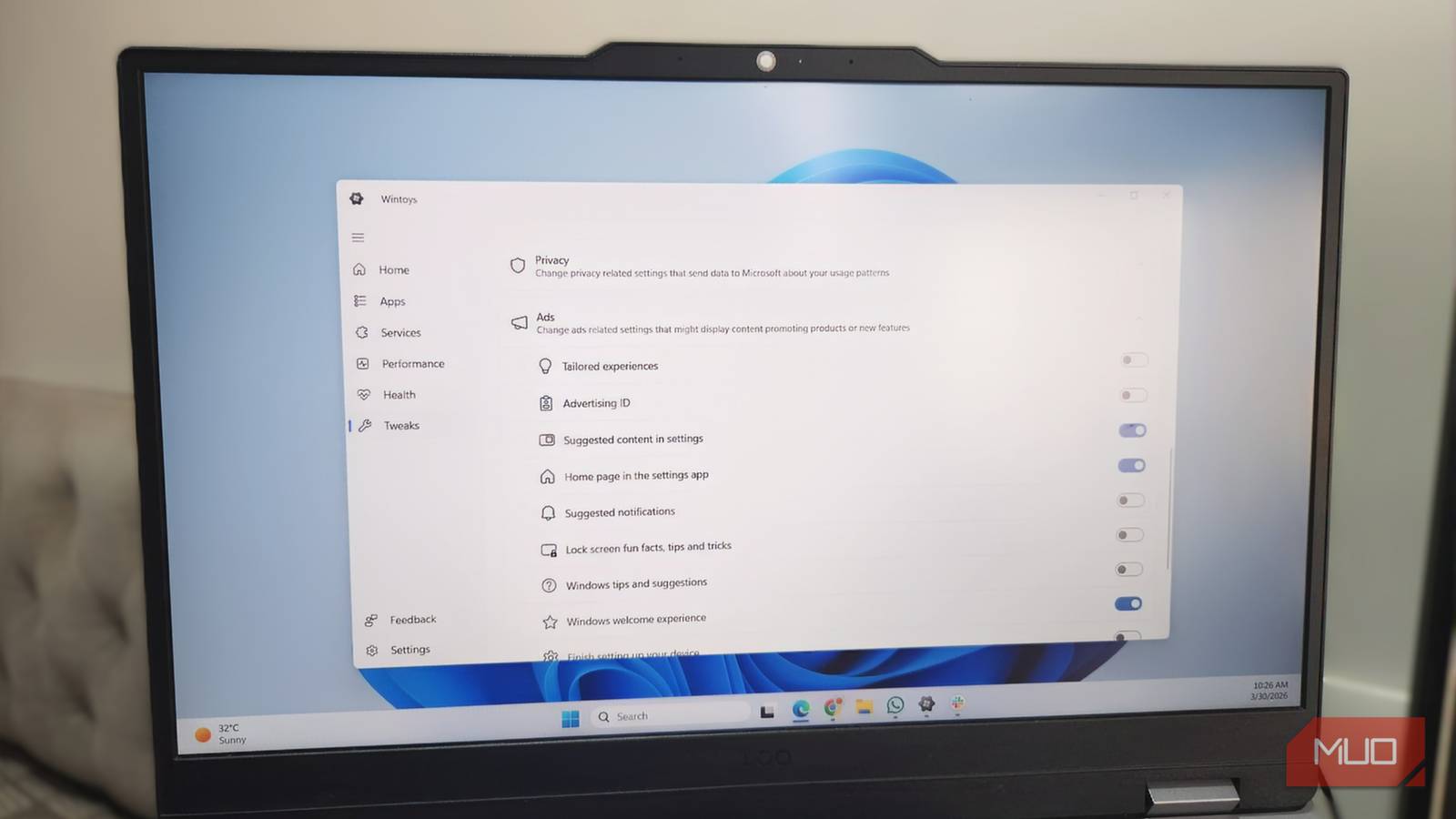
One of the biggest annoyances with Windows 11 is how aggressively it “suggests” things to you. You’ll see content suggestions in the Settings app, tips in notifications, and that bizarre, full-screen “Let’s finish setting up your device” prompt. None of this is essential. In fact, in most cases, it’s Microsoft nudging you toward its own apps and services.
While it’s possible to get rid of all these ads via the Windows Settings app, Wintoys makes it way quicker. Head to Tweaks > Ads, and you’ll see toggles to turn off suggested notifications, lockscreen tips, and more. You simply need to turn off the relevant toggles, and you’re set.
A bigger issue with default Windows 11 settings is how they affect your privacy. For instance, Windows collects all kinds of diagnostic data on your PC and shares it with Microsoft. This can include details about which apps you use, specific features you like, and also the errors you encounter. There’s also the advertising ID, which Microsoft uses to show you personalized ads based on your activity.
Again, it’s possible to stop all of this via the Settings app, but it takes too much time and clicking. In Wintoys, you can head to Tweaks > Privacy to turn off all the privacy-related settings at once.
Ditch Fast Startup, Delivery Optimization, and unwanted services
These “helpful” features do more harm than good

There are certain Windows features that seem helpful when you look at them, but that’s usually not the case.
Take Fast Startup, for example. It sounds great. I mean, who doesn’t want their PC to boot quickly? The problem is how the feature operates. It uses a form of hibernation to boot faster after a shutdown. And it can sometimes interfere with Windows updates, prevent external drives from showing up, and even cause issues when your PC tries to detect new hardware. In a way, Fast Startup ends up creating more problems than it solves.
Another questionable default feature is Delivery Optimization. It allows you to share update files with other PCs on your local network and on the internet. In return, your PC can also download update files from them. But this feature can sometimes cause your internet speeds to drop all of a sudden and even affect system performance. More importantly, this causes Windows to gather more cache data, which means less free storage for you.
Thankfully, Wintoys makes it easy to disable both Fast Startup and Delivery Optimization. All you have to do is visit the Health tab and turn off the relevant toggles.
Beyond these features, Windows also runs dozens of background services. Most of these are essential, but there are some that don’t do anything useful. Services like Windows Mobile Hotspot, Program Compatibility Assistant, SysMain, and Fax often sit in the background, adding little value on a typical PC. Disabling these services can reduce the CPU load and help your PC run better. Typically, you’d need to use the Windows Services app for this. But if you have Wintoys, you can switch to its Services tab and disable them from there.

I Love Windows, but Can’t Ignore These 9 Huge Annoyances in Windows 11
Seriously, Microsoft?
Little tweaks that make Windows feel cleaner
Not every improvement has to be dramatic
Sometimes, it’s the small, thoughtful tweaks that make Windows 11 feel less cluttered. For instance, Windows 11’s right-click menu doesn’t win any awards in terms of usability. If you often find yourself hitting “Show more options,” Wintoys lets you bring back the classic context menu without editing any registry files. Simply head to Tweaks > Desktop and turn on Classic context menu toggle.
Another small but meaningful tweak is cleaning up the Start menu search. By default, Windows mixes local results with Bing-powered web suggestions. That means when you’re just trying to find an app or file, you often see irrelevant online results. It gets more annoying. These only open in Microsoft Edge, regardless of what your default browser is. If you’d rather not see these web results at all, head to Tweaks > Start menu and toggle off Include web results when searching.
Finally, there are Windows’ feedback alerts. These tend to appear at random, asking for your input on certain features. While helpful in theory, they often end up distracting you. The good thing is, you can disable them by heading to Tweaks > System.
Wintoys doesn’t add anything new to Windows 11. It simply makes existing settings easier to access, understand, and actually use. Ever since I’ve installed it, I’ve found myself opening the Settings app less and less.
