
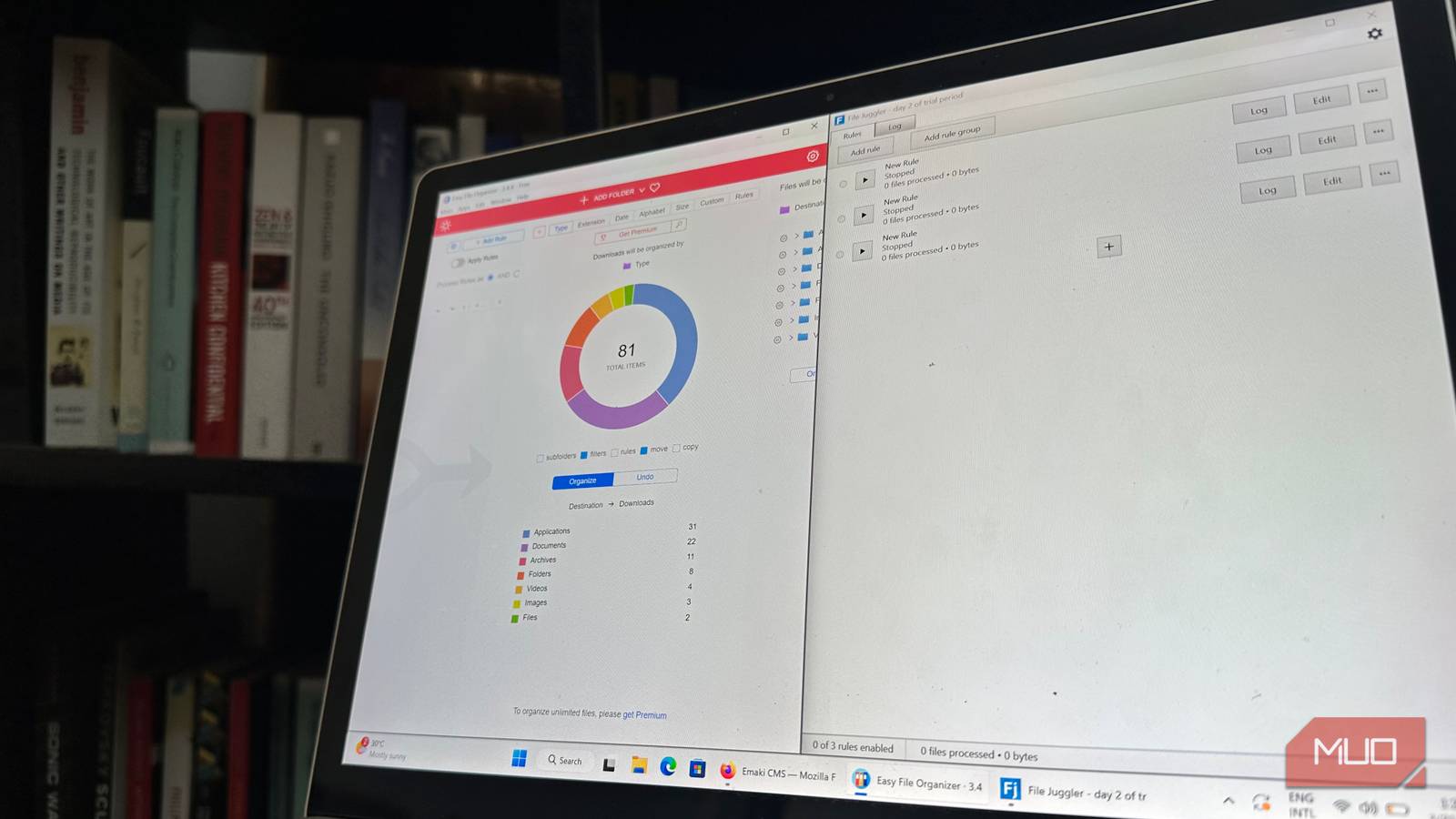
A few days before writing this, my Downloads folder was a complete mess. Years and years of downloading PDFs (that I totally went back and read later), images, random music samples, and app setups had created a monstrosity that could give The Great Pacific Garbage Patch a run for its money. Luckily, cleaning and sorting your Downloads folder is much easier compared to the ocean — maybe because there’s no one else to pass the blame to — and all you’ll need is one of these Windows tools. In fact, each one of them can be set up in a way that you won’t have to manually organize your files again. Ever
Easy File Organizer is beginner-friendly
No need to set up manual rules
The name gives it away. Easy File Organizer is, by far, the easiest file sorting app I’ve come across. The UI is cleanly divided into three parts, each serving a specific purpose. This is a godsend because you don’t have to navigate through various menus to get to what you want: it’s all on the home screen. The free version of the app only lets you sort 30 files at a time per folder. To remove these limits, you can either pay using a monthly subscription or purchase a lifetime license.
To add the source folder (the folder you want to organize), click on the Add Folder button at the top. By default, Easy File Organizer will select the same folder as the destination, too. You can change this by clicking Destination in the section on the right, which displays a preview of how your files will be organized. There are a bunch of sorting rules built in: you can organize your files by Type, Extension, Date, Alphabet, and Size in just two clicks. You can right-click the Custom option to see even more ways to sort your files, including reading the files’ metadata: this lets you organize your photos and music better.
- OS
-
Windows, macOS, and Linux
- Developer
-
Qiplex
Easy File Organizer is a cross-platform utility that lets you organize your files using various presets and custom rules.
Easy File Organizer can also read file content. This proved really helpful because it helped me sort a bunch of PDF documents by their author. However, this feature is limited to text documents, and there’s no Optical Image Recognition (OCR) to speak of. If you want to define custom rules for very specific use cases, click the Add Rule button on the left side of the screen.
Easy File Organizer can also monitor multiple folders simultaneously and sort the files according to the rules you define. To use this feature, click the settings cog in the top-right corner of the screen, then set up the rules in the Auto Rules section.
File Juggler for all your automation needs
Rules within rules within rules
File Juggler targets power users who want to automate their file organization. Granted, there are no presets or one-click organization here, but don’t let that put you off: setting up rules is easy, and most of your work will involve selecting options from drop-down menus. Also, it can monitor virtually unlimited folders simultaneously, with custom rules defined for each folder, or multiple rules for a single folder. File Juggler is a paid tool, but its free trial lets you use it (with all features unlocked) for 30 days before you commit.
To set up a rule, click the Add rule button on the Rules tab. Give the rule a description that helps you know what the rule is for: I used my impressive copywriting skills to come up with “Screensort” for a rule that would automatically copy the screenshots in my Desktop folder and organize them by date. Then, pick the folder(s) you want to monitor: you can type in the address or browse for a folder by clicking the three dots next to the text box. File Juggler can monitor the folder constantly and react when files change, or just monitor the location at predefined intervals.

- OS
-
Windows
- Developer
-
Bitvaerk
File Juggler is a Windows utility that monitors and organizes your files based on the rules you’ve defined.
To choose what files the rule will impact, use the If section. You can define these files by file name, date, type, folder path, file content, and more. The file content feature in File Juggler is perfect for text files because, in addition to adding the exact text, you can also sort them if they contain (or do not contain) one word from a list of words, specific dates, a word in the dictionary, a regular expression, or even a pattern.
The Then section lets you define what to do when the conditions in the If section are met. You can move/copy those files, sort them into folders, extract them, run a specific command, rename them, and more. Of course, you can combine as many of these actions as you want for your specific use case: the possibilities are endless.

5 File Explorer Search Hacks I Can’t Live Without
Search smarter, not harder!
DropIt punches way above its weight
Drop it like it’s sort
DropIt is somewhat of a wildcard because the way it works… is eccentric, but in a good way. And even though it’s a tiny, free, open-source app, it can perform an astonishing amount of actions, including emailing files and uploading them via FTP. Install and run the program, and you’ll see a floating blue arrow on your screen. Files/folders are organized when you drag and drop them on this arrow. But before that, you need to define how and what files will be sorted.
DropIt works using Associations and Profiles. Associations are the rules, while a Profile is a collection of rules. When you switch Profiles, DropIt will only use the rules associated with that specific profile and ignore the rest. This lets you treat the same file types differently depending on what profile you’re using. You can switch between profiles by scrolling on DropIt’s blue arrow on your screen, or right-clicking it and choosing them from Profiles.

- OS
-
Windows
- Developer
-
Lupo PenSuite Team
DropIt is a lightweight Windows utility that automatically organizes files using rules, moving, renaming, compressing, or extracting content based on file type, name, or folder triggers to save time daily.
To create Associations (rules), right-click on DropIt’s blue arrow and click Associations. Use the drop-down menu at the bottom to choose which Profile the Associations are…well, associated with. Click the green + button to add a rule. You’ll have to do much of the heavy lifting in terms of defining what files the rule should affect because DropIt doesn’t have drop-down menus like File Juggler. For example, if you want the rule to affect JPG files in the Downloads folder, you’ll have to type the folder path with *.jpg at the end. There’s a nifty information button that has some example rules that are more than enough for most use cases. Thankfully, there is a drop-down menu for the action you want to perform: you can choose from 21 actions, and its 21 actions cover most common automation needs.
DropIt is the most versatile file-organizing app in terms of what it lets you do, but it has a steeper learning curve than the others.
I no longer sort my files manually
If only Windows Explorer shipped with some of these features
In an ideal world, Windows Explorer would have some sort of built-in automatic file sorting beyond what it currently offers. Thankfully, automatic file sorting apps fill this gap perfectly. Yes, it does take some work to set up these apps, but it’s more than worth it. I no longer select my download folder manually, nor do I worry about creating specific screenshot folders separately. The mild trouble of setting up an automatic file sorting app has been a game-changer for me.

I’ve used Windows forever — but I only just found these 6 file management tricks
Organize smarter, click less, and find everything faster.
