
Whenever my Windows 11 PC starts dragging its feet during boot, I fall into the usual routine to fix a slow startup. Open Task Manager, head to the Startup tab, disable a few obvious offenders, restart, and hope for the best. It usually helps a little. Not dramatically, just enough to feel like progress.
At some point, I saw someone mention msconfig in a forum. It was one of those names I’d come across before, the kind you recognize just enough to scroll past without thinking. This time, I actually opened it. What I found there was not what I expected, because Task Manager had only been showing me half the picture.
Task Manager was only telling me part of the story
What you see isn’t all that’s running
To open msconfig, press Windows + R, type msconfig, and hit Enter. The System Configuration window appears with five tabs across the top: General, Boot, Services, Startup, and Tools. Out of curiosity, I clicked Startup first.
It immediately redirected me to Task Manager.
At first, that redirect feels a bit anticlimactic. But it’s not a bug. Starting with Windows 8 and carrying through to Windows 10 and 11, Microsoft folded startup management into Task Manager. So that tab in msconfig is really just a shortcut now. And to be fair, Task Manager does a better job there by providing more data, such as “Startup impact” ratings (Low, Medium, or High), which gives you a rough sense of how much each app is slowing your boot. If you’ve already been using that tab, you weren’t missing anything on that front.
Windows Task Manager’s startup app list lies — this is the real place to look
Some apps launch with Windows without ever appearing in Task Manager’s startup tab.
But here, that’s only part of the story. Unlike Task Manager, which focuses on startup apps tied to your user account, msconfig goes deeper. It can disable entire services, configure boot modes, and adjust advanced options, such as limiting the number of processors or the maximum memory at boot. That distinction, apps versus services, is the whole point. Msconfig isn’t just another startup manager. It’s the tool Windows leans on for a “Clean Boot,” where you strip the system down to its essentials to track down whatever’s causing crashes or slowdowns.
Task Manager’s Startup tab typically shows only entries from the current user’s Run key, the all-users Run key, and the current user’s Startup folder. That is a tidy, curated list. What it does not show you is the layer of software running beneath all of that: the unnecessary background services that fire up before you even see your desktop.
The Services tab is where things get interesting
This is where the hidden stuff lives

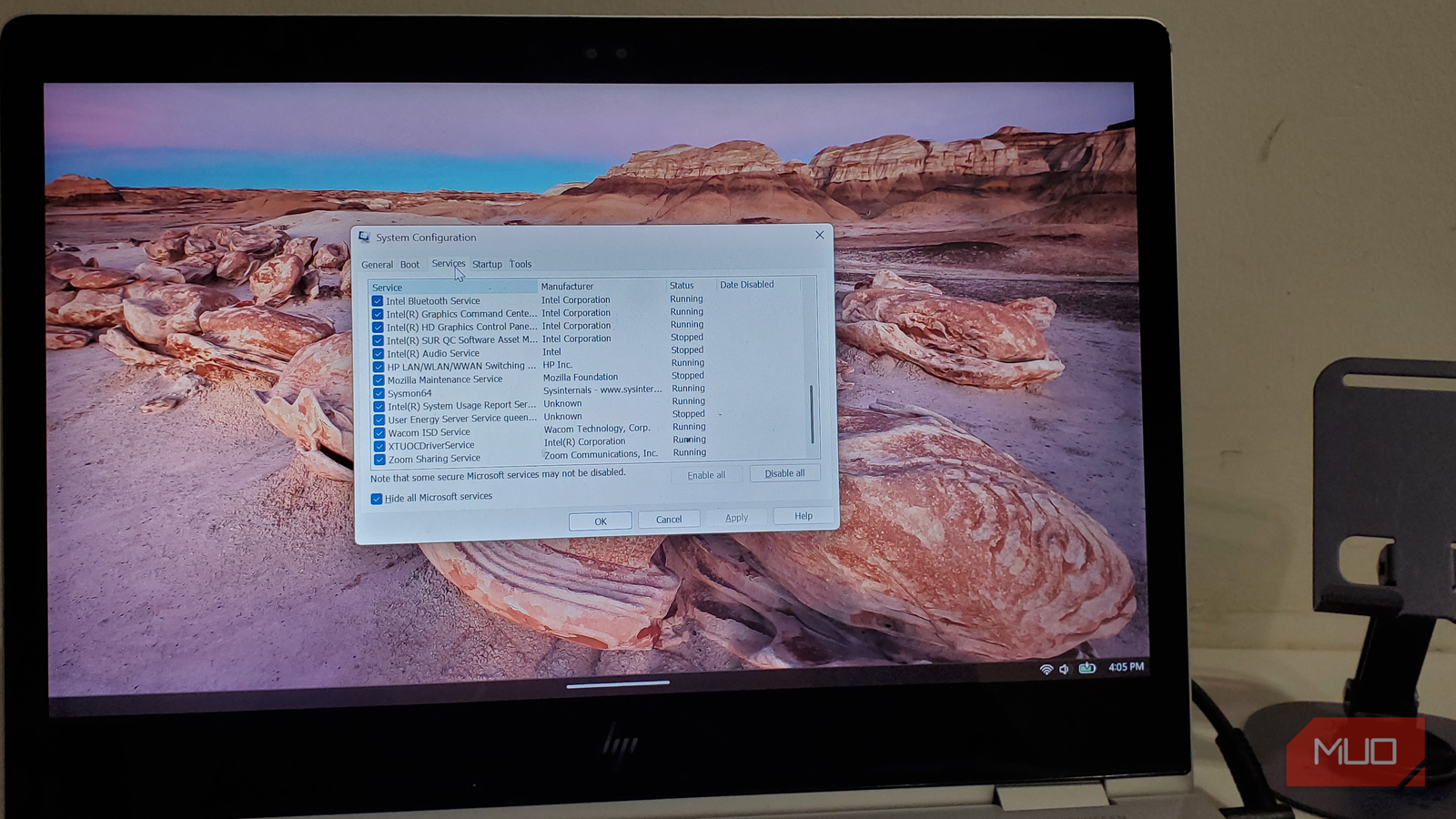
The list that populated on my screen was long and, at first glance, overwhelming when I clicked the Services tab. Dozens of entries, most of them stamped with Microsoft, and then a scattering from apps I’d installed at some point and mostly forgotten about.
What you’re looking at here isn’t a list of apps waiting to be opened. These are services, or, better put, background processes that Windows starts on its own in response to certain triggers. They handle everything from networking and hardware communication to licensing checks for third-party software. And they’re often without a single visible window or icon.
The first thing you should do here is tick the Hide all Microsoft services box. Seriously, don’t skip this. Disabling the wrong Microsoft service can break things in ways that aren’t fun to fix, like your Wi-Fi, Windows Update, or even your ability to log in. That checkbox exists for a reason. Once you enable it, the list shrinks to just third-party services, where surprises tend to live.

4 Windows services that are safe to disable (and 3 you never should)
Windows runs more in the background than it ever tells you.
On my machine, the list was a mix of familiar names and a few that made me pause. I spotted background processes like Brave Update Service and Google Updater Service, both set to run even when I barely think about those apps. There were hardware-related entries such as Intel(R) Bluetooth Service, Intel(R) Graphics Command Center Service, and CxAudioSvc from Conexant, alongside more obscure ones like Energy Server Service, queencreek, and Intel(R) System Usage Report Service, which I wouldn’t have recognized without looking them up. I even found Zoom Sharing Service and Mozilla Maintenance Service sitting there, ready to start with Windows, whether I needed them or not. None of these appeared in Task Manager’s Startup tab because they aren’t typical startup apps. They don’t wait for you to log in because they’re already running by the time you get there.
That said, this isn’t a place to start flipping switches at random. If you don’t recognize a service, look it up first. Some that look like clutter are actually tied to drivers or security tools you don’t want to mess with. Also, not every service runs continuously; some are set to Manual or Trigger Start, meaning they activate only when needed. Disabling the wrong one can lead to weird, hard-to-trace issues.
There is a right way to start pruning
You can break things if you rush this

Once you’ve pinned down which services don’t deserve a spot at startup, msconfig (System Configuration) gives you a tidier, more controlled way to deal with them. If you aren’t sure which ones are problematic, you can disable all third-party services in one sweep, reboot, and see if the issue you’ve been chasing disappears.Again, one important step here, and it really is non-negotiable: tick the “Hide all Microsoft services” box first!
Now, one thing worth knowing before you start: changes made in System Configuration are not tracked or logged by the OS. If you want to roll something back, you’ll need to remember what you did and reverse it yourself. Before you hit “Disable all,” jot down or take a quick screenshot of the Services tab in its original state. It takes maybe half a minute, and it can save you from a frustrating guessing game later if something suddenly stops working.
It all makes more sense now
After I cleared out the leftover services on my own machine and rebooted, the difference wasn’t dramatic, but it was real. The system felt lighter and less cluttered under the hood. More importantly, I finally had a clear picture of what had been running behind the scenes all along. Task Manager wasn’t misleading me; it was just showing the surface-level effects of those services. It had been answering the exact question I asked, just not the one I should have been asking.
