
In one of my all-time favorite books, Tools for Conviviality, the author, Ivan Illich, describes a convivial tool as one that lets the user exercise their autonomy/independence, and creativity. Examples of such tools would be simple screwdrivers or hammers that can be used in many ways and don’t require specialized knowledge to operate or repair. Nor do these tools manipulate you into buying other stuff (a hammer won’t create a demand for a specific kind of nail, for example).
In the world of note-taking apps, Obsidian might just be the perfect convivial tool. Once you familiarize yourself with its basics, its use cases are practically endless. I, for one, primarily use it as a place to track what I’m reading. Among other reasons, the fact that Obsidian doesn’t pigeonhole me into using it in one way (if anything, it promotes experimentation) was what really drew me towards it, and kept me there.
Obsidian doesn’t tell me what to use it for
Nor does it lock me into using it
Most other note-taking apps nudge you to use them a certain way: Notion wants me to build databases, Evernote, to take web-clippings, and Apple Notes wants me to furiously jot down semi-profound observations in lowercase. With Obsidian, you get a blank Markdown file that you can mold to your needs. The fact that it uses Markdown is a big reason why I love Obsidian. Since Markdown is a plaintext format, you aren’t locked into any app’s proprietary file format. It also provides you with just enough structure without being cumbersome.
There is a kind of hierarchy in Obsidian, which is Vaults > Folders > Notes. You may have one Vault for book tracking, and another for article ideas. However, it’s not necessary to use folders; there are other ways to link your notes. If I have a note that fits into multiple categories of thought, I can link it to those categories in other ways instead of putting them into two folders or choosing one category.

- OS
-
Windows, macOS, Linux, Android, iOS, iPadOS
- Developer
-
Dynalist Inc.
Your Obsidian Vault itself is practically a folder on your PC that contains .md files, which can also be opened by Notepad and other plaintext readers. If you want your notes to be available across devices, you can pay for Obsidian Sync, or simply store your Vault in a folder that’s synced to the cloud. Compare that to Notion and Evernote, which use proprietary formats that usually result in lossy exports if you were to switch over to another note-taking app.
It offers a sense of discovery
This applies to both the app itself and the relationship between notes
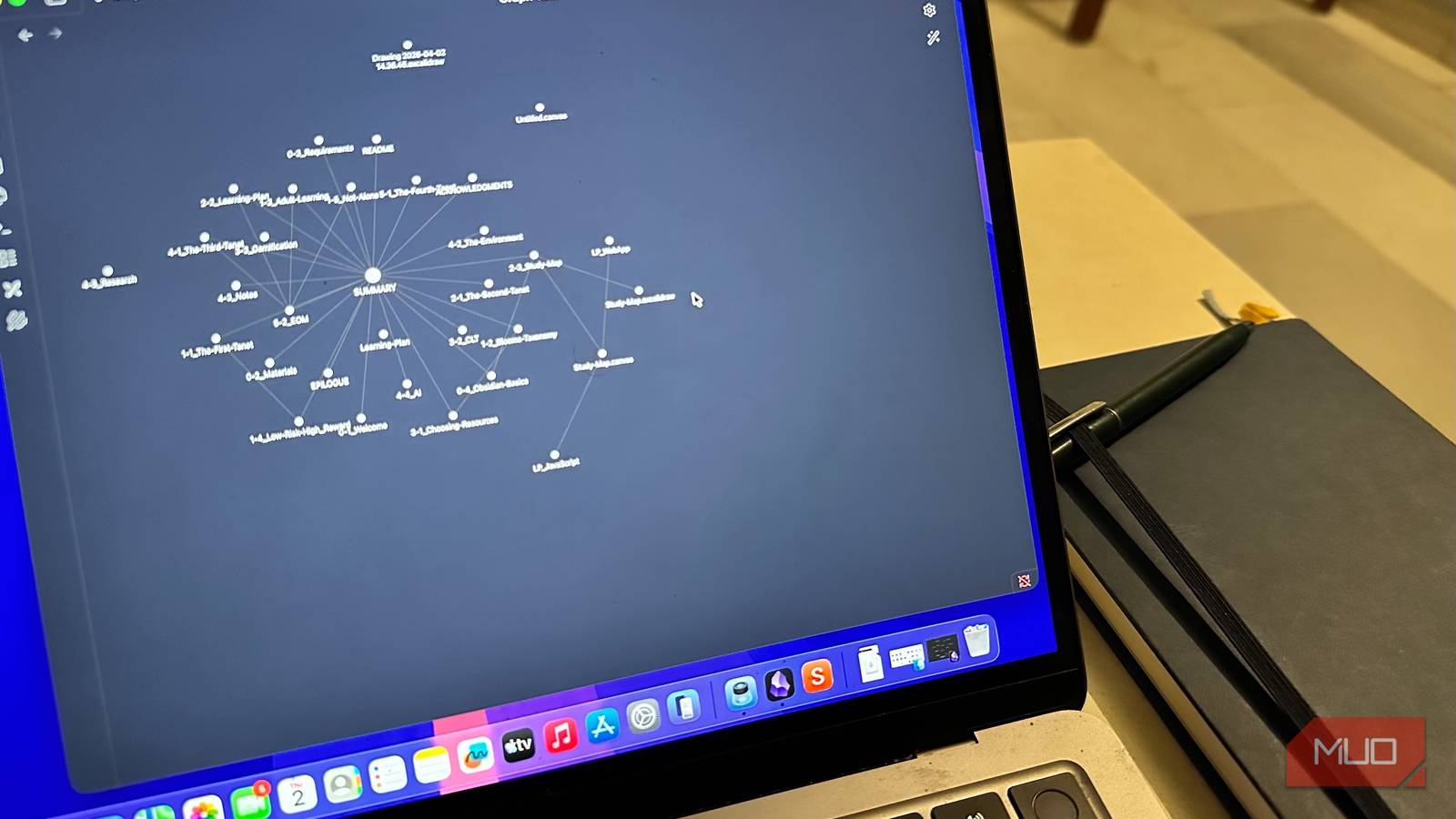
Obsidian gradually reveals its depth through use. I started using it as a book tracker, but gradually realized I wanted to use it to store my article ideas as well, since I mostly get new ideas while reading. Obsidian makes it so easy to create and track these connections: I created a new note in my book tracking vault and started noting down ideas as they came, while simply creating a backlink to the relevant book notes that contained info I could use in the article. Oh, and how do you link notes in Obsidian? Just type the note you want to link to within these [[ ]] brackets. That’s it. Switch to Graph View, and you’ll see a visual representation of the notes you’ve interlinked.

6 Reasons Why Obsidian Is My Go-To App for Deep Research Projects
Deep research feels lighter with Obsidian on hand.
The Templates feature can help you remove any repetitive parts of your workflow. Say I’m creating a new note for an article idea: each note will have a skeletal layout such as an article heading, what ideas I want to cover, a tentative article structure, and resources. Instead of typing in these headings and creating the layout from scratch each time, I can just set up a template in Obsidian and have that layout ready for me. Think of it as a coloring book, where I only have to fill in the color; everything else is already there.
What if I want to do something that vanilla Obsidian won’t let me do yet? For that, you can turn to Community Plugins, which further expand Obsidian’s capabilities. Whether you want to draw, create flowcharts, view your notes in different ways, or connect to external services, there’s a plugin for every need. And when you open a vault that’s using Community Plugins on a new computer, Obsidian will automatically download and install the associated Community Plugins.
Don’t trust the discourse
Obsidian has a learning curve, but it isn’t that steep
A lot of online discourse around Obsidian focuses on people setting up complex note-taking systems and using several community plugins to do complex tasks. Reading all that can quickly overwhelm you, and make it seem like you need to have a second brain ready on Obsidian on day one itself. Let me assure you that’s not the case; you can get the hang of Obsidian faster than you think. Complex systems are collections of simple systems. Focus on building these simple systems first.

I subscribed to Obsidian Sync and it’s the best money I spent last year
Turns out, the peace of mind is worth more than my stubbornness.
