
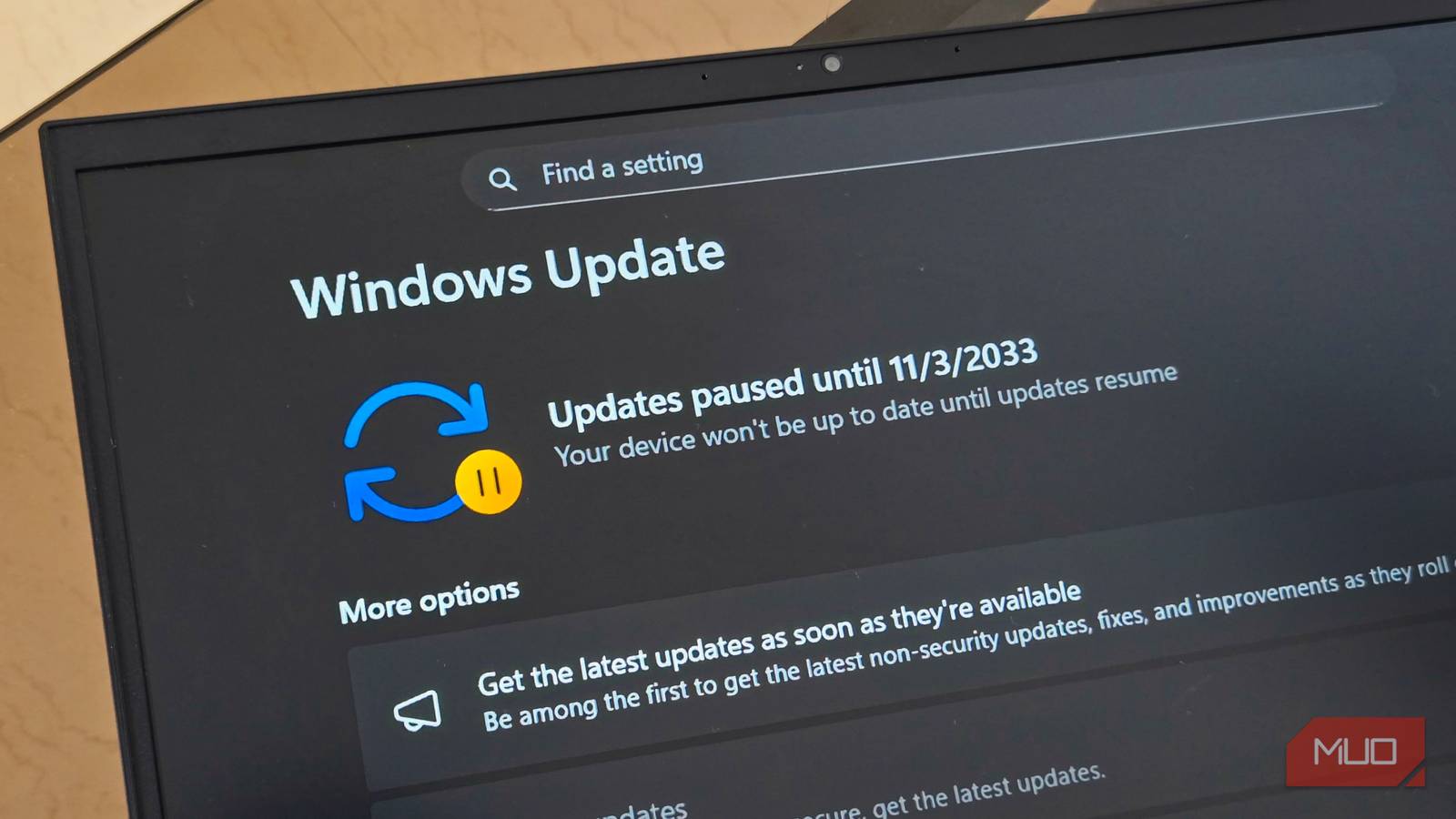
Experts sometimes talk about fixing Windows updates. I only understood why when an automatic background update wiped out my audio configuration. A configuration that had taken a lot of fine-tuning was gone because Windows felt it knew what was better for me.
That was the straw that broke the camel’s back. It was time to take control of how updates happen on my computer.
Windows doesn’t give the best drivers
Compatibility with trade-offs
Windows updates prioritize the most compatible drivers over the best-performing ones. This means there isn’t a guarantee of better performance with system components.
The best updates for fast-moving hardware come quickly and keep pace with driver development. These vendor updates typically fix and improve performance and also support the latest software. However, Windows updates don’t always keep pace with development, and you may be left with an older version that has passed compatibility checks and proper certification.
This is what comparing the different driver sources side by side looks like:
Driver source | What you get | Trade-off | Best for |
|---|---|---|---|
Windows Update | WHQL-tested, auto-installed | Can lag behind vendor releases (especially GPUs/audio) | General users |
Vendor tools/websites | Latest available version | May include new bugs or regressions | Gamers, power users |
OEM drivers | Hardware-tuned versions | Often significantly outdated | Laptop users |
What Windows updates deliver is a stable version. But this is not always the optimal version. So even if Windows Update isn’t breaking your system, it doesn’t guarantee it runs at its best. This realization changed how I consider Windows updates.

I Can’t Use a New Windows Computer Until I Change These 9 Settings
I like to start off on the right foot with my new PC.
I took control instead of waiting for another bad update
Stopping automatic installs meant I wasn’t fixing the same problem twice
Automatic updates potentially have the capacity to undo fixes you’ve implemented because Windows may reinstall or overwrite drivers you had replaced or blocked because they caused problems. So, stopping automatic updates was critical for my computer to act predictably. My first approach was to disable automatic updates using the Device Installation Settings toggle.
Here’s how to do it:
- Press Windows + I to open the Settings app, then click System in the right pane and, on the left, click About.
- In the About pane, scroll down and click the Advanced system settings option to open the System Properties window.
- Select the Hardware tab, then click the Device Installation Settings button and click OK.
This helped, but during major updates, Windows can ignore it. So I added options that are more dependable. One is the Group Policy option on Pro editions of Windows. I toggled off the settings to ensure Windows doesn’t add drivers with updates.
Here’s how to do it:
- Press the Windows + R keys, then type “gpedit.msc” and hit Enter.
- In the left pane, expand the following folders: Computer Configuration, Administrative Templates, Windows Components, Windows Update, then double-click Manage updates offered from Windows Update.
- Open Do not include drivers with Windows Updates, then select the Enable option and click the Apply and OK buttons.
If you use Windows Home, you don’t get Group Policy, but you can update a registry setting to get the same effect.
Here’s how to do it:
- Click the Windows Start icon and search for and open the Registry Editor.
- Copy and paste this directory into the address bar and hit Enter: HKEY_LOCAL_MACHINESOFTWAREPoliciesMicrosoftWindowsWindowsUpdate
- In the left pane, you should have a WindowsUpdate folder; right-click it and select New, then DWORD (32-bit) Value.
- Call this new DWORD (32-bit) Value ExcludeWUDriversInQualityUpdate, then double-click it and change the value from 0 to 1.
In addition to these three solutions, I use rollback in Device Manager rather than uninstalling when a driver update breaks something. When you uninstall, Windows can automatically reinstall the problematic driver. After rolling back, I verify if it solved the problem, and if it did, I ensure Windows doesn’t undo my fix by blocking that specific update.
The first method, using the Device Installation Settings toggle, can easily be overwritten by Windows, but the other three methods — Group Policy (Pro), Registry (Home), and Rollback + hide — are more durable.
What I do instead
Updating drivers manually gave me fewer surprises and more consistent performance

It can be unsafe to leave a system without updates. The device becomes prone to security vulnerabilities, and you may face constant unpatched bugs. But since I don’t want to chase after every new update, my only real option is to verify what every update does before installing it.
For this reason, I favor manual installations over automatic updates. Any update I install must improve performance, add needed support, or fix a current problem, and this is especially true for my GPU drivers.
I update my audio drivers far less frequently and only when I’m sure something is broken. Automatic updates tend to reset audio configurations a lot, so if it’s not broken, I don’t try to fix it. For laptops, I prefer OEM drivers. Although they don’t guarantee the newest updates, whatever you end up with is typically the best-tuned option for that specific device.
Updates must clearly solve a problem before I install them, and if there has been a lot of negative feedback about a specific update, I skip it entirely.
I don’t block every driver
If you opt out of Windows automatic driver updates, a lot can go wrong if you aren’t careful. To avoid this, you must understand that some drivers should never be blocked.
I block GPU drivers, especially if I’m using vendor drivers, because Windows drivers lag. Audio drivers remain blocked if there isn’t an issue with my current setup. But I’m cautious about blocking any network drivers because that action can break connectivity. I don’t block any chipset or storage drivers to avoid tampering with system and boot stability, and I never block security updates because they’re critical for system protection.
