
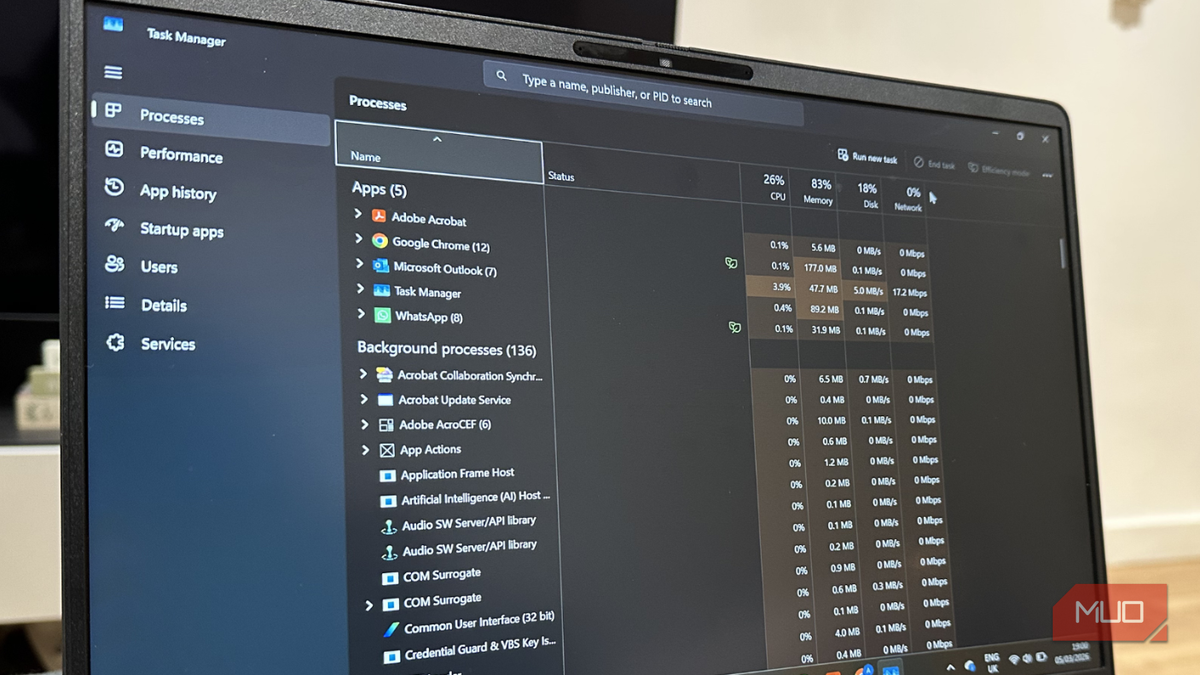
For years, Task Manager has been my go-to tool whenever my PC slows down or something feels off with my machine. After all, it’s one of the most useful tools built into Windows. It gives you a clear, real-time overview of running processes, startup impact, and overall system performance. For a very long time, this felt enough.
Sometimes I noticed gaps between what Task Manager showed and what I was actually experiencing on my PC. Sometimes my system feels unusually busy: the CPU usage would spike all of a sudden, and overall performance would dip without any obvious culprit. No, Task Manager wasn’t wrong, but it wasn’t showing me the full picture.
That’s when I decided to explore some advanced tools. After trying them, I realized how much Windows keeps beneath the surface.
Task Manager doesn’t give you the full picture
It’s accurate, but not complete
Windows’ Task Manager is great at summarizing system activity. It provides a snapshot of which apps are using the most CPU, memory, network, and disk resources on your PC. This makes it easy to identify common problems, like which app is tanking your PC performance.
After using Task Manager for years now, I have realized that this tool focuses on clarity, and not completeness. Of course, it shows you a lot of things. But there are certain things that you don’t see, and they can matter a lot. For example, Task Manager doesn’t show you the exact file or registry activity behind each process.
One day, I was experiencing subtle slowdowns on my PC. When I opened Task Manager, everything looked normal. There were no culprit apps or maxed-out resource usage. While everything appeared normal in Task Manager, my system wasn’t performing as it should.
Process Monitor shows what Task Manager can’t
The invisible activity became visible

The very first tool I tried was Process Monitor (ProcMon), and it changed the way I see my Windows machine. It’s an advanced monitoring tool (a part of Microsoft Sysinternals) that shows real-time file system, Registry, and process/thread activity. Instead of summarizing usage, Process Monitor logs everything in real-time. At first, it might feel like overkill. Yes, it shows you a massive amount of data. I was also overwhelmed when I opened Process Monitor for the first time. But once I started filtering the data, I found it incredibly useful.
For example, I was barely using an app, but it was constantly checking a folder every few seconds. Also, there was a background service that made repeated registry queries. Some processes were doing simple but frequent operations. None of them caused obvious CPU spikes or maxed-out system resources, so Task Manager didn’t flag them as issues. But together, these added to the unnecessary background. As a result, my PC felt sluggish.
That’s how Process Monitor filled in the gaps. You can use Process Monitor to troubleshoot system issues, debug applications, monitor suspicious processes, and detect any threats on your machine.

- OS
-
Windows
- Developer
-
Mark Russinovich and Bryce Cogswell
- Pricing model
-
Free
Process Monitor is an advanced monitoring tool that shows real-time file system, Registry, and process/thread activity.
Resource Monitor breaks down system usage in a better way
The advanced version of Task Manager
When I opened Resource Monitor (a built-in Windows tool) for the first time, I thought of it as an extension of Task Manager. Once I started using it, I realized it’s an advanced and more powerful version. It answers the exact questions that Task Manager couldn’t.
Task Manager tells you what’s happening on your PC, and Resource Monitor tells you why. It breaks down CPU, memory, network, and disk usage in much more detail. This gives you the freedom to trace usage down to specific files, services, and connections.
One moment that stood out to me was when my computer’s RAM usage was unusually high. When I opened Task Manager, the Memory column showed RAM usage around 80-90%. However, none of the listed apps could explain the issue. When I switched to Resource Manager, everything started making sense. I could see memory divided into categories like in use, standby, and cached. I could also find background services that weren’t visible before.
Then I realized that a big chunk of my RAM was being used by system processes, which Task Manager wasn’t clearly showing. I also had a similar experience with disk usage. Task Manager showed spikes, but Resource Manager revealed a background service repeatedly accessing specific files. Instead of guessing, I can now watch the activity in real-time.
HWiNFO reveals hardware-level insights
When your PC slows down with normal usage

Even after digging deeper into the processes, my system sometimes didn’t perform as expected. It felt slower. That’s because not every problem comes from the software. I tried HWiNFO, and it showed me what was happening at the hardware level. It showed temperatures, clock speeds, fan speeds, throttling behavior, and power usage. It’s a free diagnostic tool that provides in-depth hardware analysis and real-time system monitoring.
One time, I noticed that my laptop was slowing down even with a lighter workload. I had opened Google Chrome with a few tabs, one document, and WhatsApp. That time, Task Manager didn’t show anything unusual. However, in HWiNFO, I noticed my CPU temperature steadily rising, followed by a drop in clock speeds. This wasn’t overloaded; the CPU was throttling itself to stay cool.
That’s when I understood my machine wasn’t struggling because of the software. It was intentionally slowing down to protect the hardware. This tool can help you identify malfunctioning hardware, overheating problems, and even give you a detailed inventory of hardware specifications.

- OS
-
Windows
- Developer
-
Martin Malik
HWiNFO is a free diagnostic tool that provides in-depth hardware analysis and real-time monitoring.
Why I still keep Task Manager around
So, have I completely abandoned Task Manager? No. I still use it to close any frozen app, check basic resource usage, and see what’s running behind the scenes. After all, it’s a lightweight and built-in tool that does its job really well, but only for surface-level tasks.
When my machine slows down for no reason, or when performance doesn’t make sense, Task Manager is no longer my final stop. It’s just a starting point. Tools like Process Monitor and Resource Monitor give me a much clearer picture, whereas HWiNFO fills in the hardware side of the story. They help me understand things at a deeper level.
I don’t find Task Manager useless, but it doesn’t tell me the complete story.

How to Identify and Fix High Memory Usage With Task Manager
Take control of your PC’s memory usage.
