
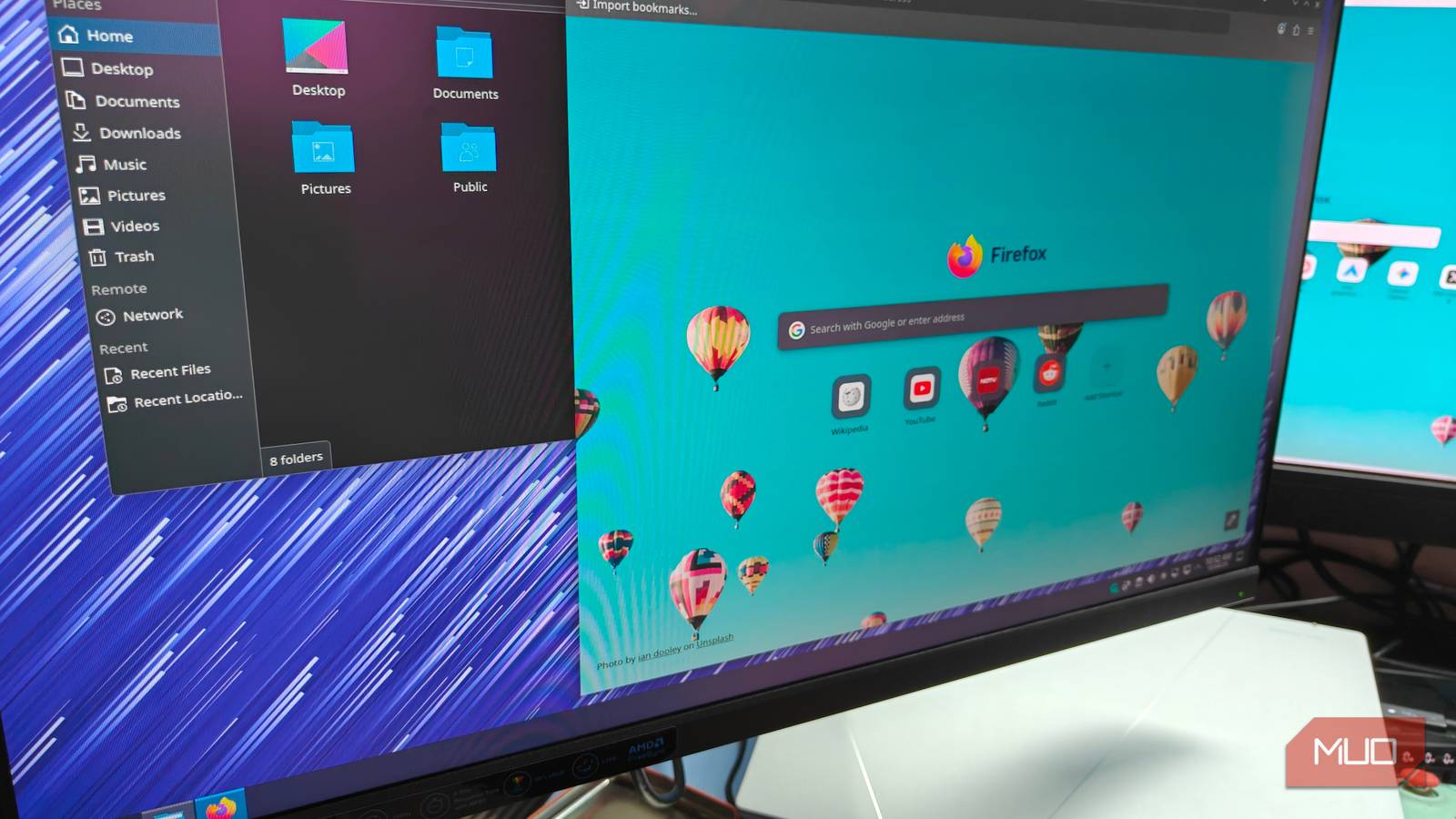
A Desktop Environment (DE) in a Linux-based operating system can be best described as a complete desktop interface, as opposed to a Window Manager in which you have to quite literally build your own system from scratch. Among the best-known desktop environments, GNOME and KDE Plasma stand out, with KDE generally offering more built-in features such as stronger HDR and tearing support in many setups.
Like many newcomers to the world of Linux, I initially started my journey with Fedora, which has the GNOME desktop environment by default. And like most, I was perfectly fine with its many quirks and specific workflow — that is, until I switched over to KDE Plasma for the first time ever.
It was an eye-opening experience, and one that eventually led me on my journey to discover the various alternative Linux desktops on offer, but I seem to keep coming back to KDE for some odd reason. Be it a simpler setup process, or the fact that it just works, the Plasma desktop deserves all the praise it gets, and is something I would recommend without hesitation to most folks.
KDE’s first-party apps are just straight up better
Killer apps define a system

Now, I wouldn’t say that GNOME’s default app set is bad; it’s anything but. For the average user, it is more than plenty and offers decent navigation and, most importantly, a clean, inviting interface. If you want to get into the power user territory, though, it’s where things get a lot more interesting, having KDE taking the lead by a fairly wide margin.
A good point of comparison would be the default file managers for either DE. Nautilus pales in comparison to Dolphin, which has way more advanced features, such as Split View and a much more extensive settings menu. If you fall into that demographic, then Dolphin is almost a no-brainer.
This isn’t limited to file managers. KDE’s whole suite is composed of some very capable apps that can also be a great addition to window managers, even if it brings with it some dependency hell. In comparison, GNOME just feels basic.
Way more granular control and customizability
GNOME actively fights you

In many ways, customizing GNOME can feel like a nightmare, given how rigid its design philosophy is. Want square corners? Tough luck, there’s no easy setting to toggle around with. Same for certain levels of visual presentation and the ability to just ask for just a little extra. It’s in these little details that KDE excels at, and the world is very much your oyster.
That being said, themes are just one way to customize a desktop, and are incomplete without a granular settings page to go along with it, which is also another win for KDE.
GNOME feels like it’s trying to push you down into its (often puzzling) design philosophies, actively enforcing them. KDE, on the other hand, felt like a breath of fresh air that lets you do what you want without restrictions.
Of course, there’s also the default desktop experience, which most will use in its vanilla state. Since both DEs follow very different design philosophies, you’re likely to pick one over the other, as it’s all about user preference.
Minimal extension dependency hell
These tweaks come baked in

One of my major annoyances with GNOME in general had to do with its extension system. Having most of your system options locked behind web-installable extensions just feels like a strange choice, when these should already be baked into the default system menus.
For example, by default, GNOME imposes a horizontal taskbar that sits at the top of your display. Having the taskbar in the traditional Windows-styled bottom bar involves installing a web extension.
KDE, on the other hand, has a very modular taskbar, and can be easily configured to be a vertical or horizontal bar. That’s not counting the various ways you can customize it further, with effects like transparency. This is just one example of how KDE excels in user control and customizability.
This was also what sold me on KDE. It’s a system that works well, has great first-party apps, and has quite a bit of customization baked into well-defined menus, and is also a whole lot more approachable than tiling window managers.
More importantly, it does so by having these configurable options within the desktop environment, and not having to rely on more dependencies.
It’s like comparing macOS and Windows

KDE and GNOME feel analogous to Windows and macOS respectively, at least in terms of their design philosophy. While KDE is more customizable and feature focused, GNOME feels a lot more opinionated. You’ll either learn to love it or hate it.
It’s the same thing with macOS, really. macOS has a very peculiar set of defaults that take a lot of work to override (if at all), along with extension support for just about anything in a way to compensate. GNOME mimics this experience, which can be a bit jarring.
This naturally makes KDE the better pick for those migrating from Windows, like me. It brings with it a familiar UI and offers what I’d say is an even better experience, offering far greater modularity without the bloat.
Some people like the GNOME workflow, and that’s perfectly fine. After all, any desktop is good as long as it gets the basics right and stays out of your way — which is something GNOME does reasonably well. For those looking for a bit extra, there’s always KDE, which seems to only get better with each version update, and that makes me stick around with it.
