
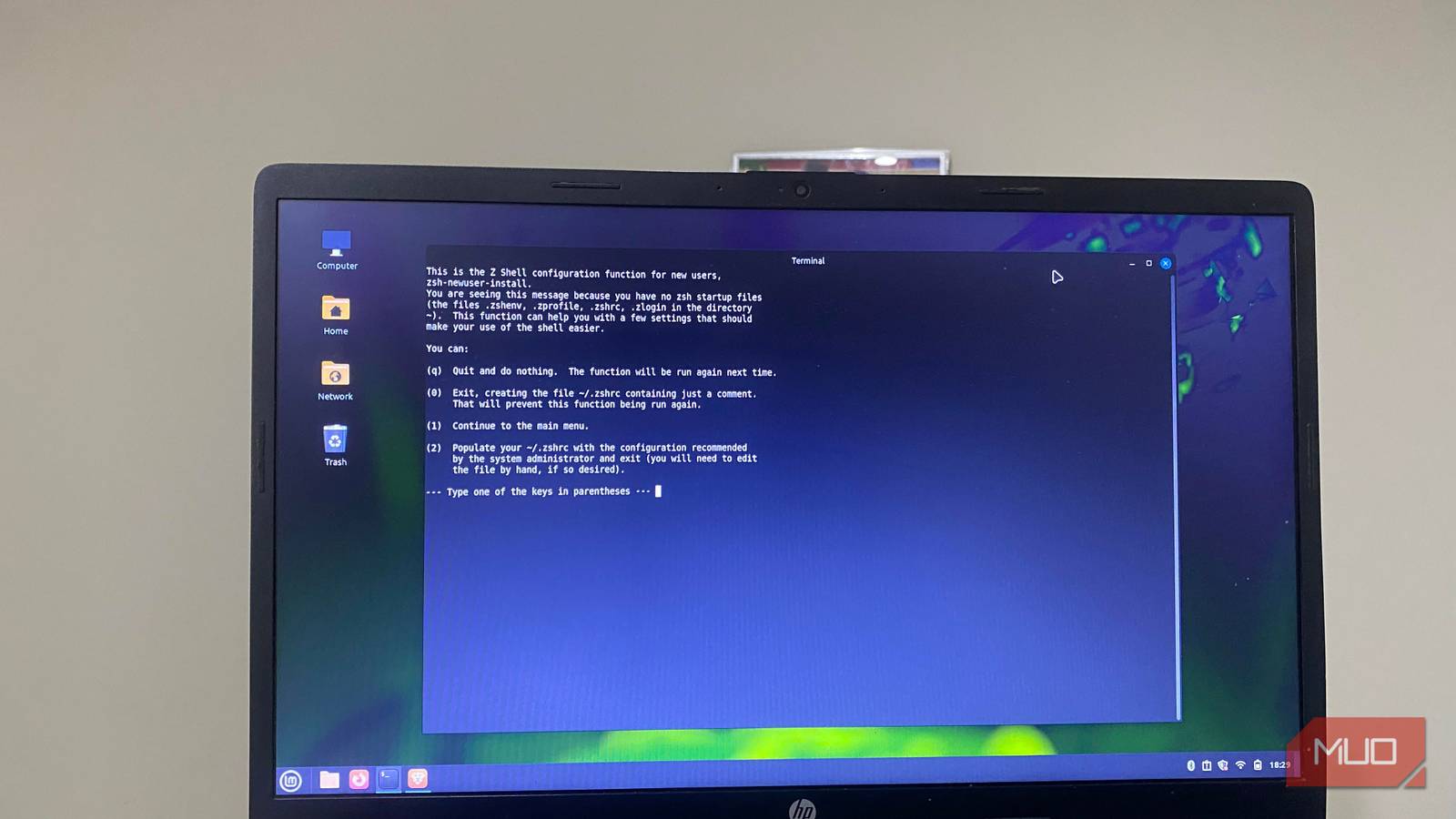
My Linux terminal is one of the most important tools for my daily workflows. However, using it with its default shell can be limiting. Sometimes I find myself second-guessing tab completions, retyping long commands, and losing my flow while performing simple tasks.
When I switched to Zsh, it eliminated much of the friction the default Linux terminal introduces. It didn’t just change how I use the terminal, but it became one of the biggest Linux productivity hacks I’ve adopted.
My first hour with Zsh
It felt different immediately, even before I changed anything
I really didn’t have to do much to notice the difference when I switched to Zsh. Once I opened the new terminal, I was thinking I would have to start configuring things, but as soon as I started typing commands, something was different, and it felt good.
Zsh’s completion system is meaningfully better than Bash’s, even with minimal setup, and it is both flexible and responsive. It encourages me to navigate suggestions naturally rather than blindly going through options. I finally had a lot of control that I didn’t know was lacking in Bash.
Zsh felt like it was actively helping me, especially in places where Bash seemed to be waiting for input. This was a different and immersive experience.
Although I was initially skeptical about switching my default shell, the decision felt easier knowing that changing to Zsh is easily reversible. In fact, you may need to log out and log back in on certain systems for the change to take full effect. Knowing I can first experiment without fear of breaking anything makes it easy to try the shell.
My workflow changed almost overnight
I stopped repeating commands and started relying on the shell itself
After installing Zsh, I got sucked in within the first hour. However, it was the next day, when I went back to my usual workflow that I saw the real impact. A certain repetitiveness to my normal terminal use had disappeared; several tasks that required manual effort felt automatic.
In the past, when I worked with long package management commands or Git operations, I generally had to retype the commands or scroll through a long list of command history to find an exact match. Now, Zsh’s inline suggestions — via the autosuggestions plugin — do the job. They work based on my command history and feel smoother and easier. Once I type a few characters, the shell fills out the rest.
Zsh also improved navigation. Rather than the old method that required using cd commands in sequence, Zsh lets me add a lightweight plugin like z for smarter directory jumping. Here’s what the shift feels like:
Task | Before (Bash) | After (Zsh) | Impact |
|---|---|---|---|
Re-running commands | Manual retyping or history scrolling | Inline suggestions (plugin-based) | Faster execution |
Navigation | Step-by-step cd usage | Faster navigation (with plugins like z) | Less friction |
Command completion | Less context-aware tab completion | More context-aware and navigable completion | Fewer errors |
Even though some of the improvements are due to installed plugins, Zsh makes it easy to integrate into your workflow. It makes the integration feel natural and not bolted on.
Customizing Zsh is what made the difference stick
A few small tweaks turned it into something I now rely on daily

I loved the initial Zsh upgrades, but it got even better with some customization. I defaulted to Oh My Zsh because it made setup easier. It manages your Zsh setup without having to build your configuration from scratch.
I resisted the urge to use multiple plugins and stuck to those for auto-suggestions, syntax highlighting, and smarter navigation—features I absolutely needed. This way, the terminal didn’t feel cluttered, yet it still transformed my daily workflow.
The prompt was a small change that had a significant impact on my terminal use. With clear information in front of me, like my current directory or Git branch, I could run commands without first double-checking where I was. I also started using aliases in a more deliberate way. They became full habits rather than occasional shortcuts. While these were all separate small tweaks, together their effects compounded, and my terminal use became more efficient.

- OS
-
Linux
- Price model
-
Free
Oh My Zsh is an open source, framework that is community-driven used for managing your zsh configuration.
The learning curve almost made me quit
Although there are several benefits to this new workflow, the transition wasn’t entirely smooth. I was initially doing too much at once, exploring themes, plugins, and configuration. This got overwhelming very fast, and it made the setup more confusing than helpful.
I complicated things by constantly tweaking my configuration file, especially when I lacked a clear goal. It made it harder to understand why certain things were not working. It was only when I took a step back and simplified things that the setup became more approachable. That meant adding only what I really needed. It allowed my workflow to guide me through the configuration and was far easier than customizing every aspect upfront.
I had an interesting timeline: a very exciting first hour, with a few frustrating first days, and then it started to click. Speed was one of the most significant boosts Zsh brought. But the most satisfying change was how naturally the shell seemed to start anticipating my steps. Bash still makes sense for portable scripts and server environments, but Zsh is a clear upgrade for daily interactive use.

I replaced GNOME with the new COSMIC, and it feels like the future of Linux
It’s fast, furious, and somewhat bonkers, but it gets the job done.
