
I keep a running note of everything. Film recommendations, random thoughts at night, questions I want to ask my wife when I get home, and names of people I keep forgetting. It is a habit that has followed me across a dozen apps over the years, and the problem with that kind of habit is that you rarely stop to ask who else might have access to all those little windows into your life. When I finally did ask that question, I did not love what I found out about the apps I had been using.
I stumbled upon Notesnook while looking for something, anything, that would not treat my private notes as a resource to be mined. While looking through lists of the best free note-taking apps for Android and desktop, Notesnook stood out because it offered end-to-end encryption as a core feature and was open source on top of that. I went in expecting to find the usual catches. I am still looking for them.
- OS
-
Windows, macOS, Linux, Web, Android, iOS
- Developer
-
Streetwriters
- Price model
-
Freemium with paid Pro plan
Notesnook is a privacy-focused note-taking app with end-to-end encryption, powerful organization tools, and cross-device syncing. It’s designed as a secure alternative to mainstream note-taking apps without sacrificing speed or features.
Your password never leaves the room
Real encryption, not the marketing kind

Most apps that claim to care about your privacy are really just saying they use HTTPS. Notesnook points at something much deeper, and it’s worth unpacking what’s happening behind the scenes because this is where the app actually earns the headline.
When you sign up, Notesnook does not store your notes in a way the server can read. It runs it through Argon2 using a predictable, per-user salt derived from a fixed client salt combined with your email. The server receives only the data it needs to authenticate and sync your account, while the notes themselves remain encrypted on your device. So, even in the worst case, there’s nothing readable to pull back out.

What Is Salting in Password Security and How Does It Work?
You might’ve heard of the term “salting” when it comes to securing passwords, but what is it and how does salting actually work?
During account setup and login, the app uses password-derived cryptographic material to generate encryption keys, while the server still cannot decrypt your notes. That key is strong, irreversible, and crucially, it never leaves your device. From there, every single note you create is encrypted individually using XChaCha-Poly1305 before it’s uploaded. The server doesn’t decrypt it, process it, or peek inside, because it literally can’t.
XChaCha20-Poly1305 is a modern authenticated encryption method that tends to outperform AES in software contexts, and pairing it with Argon2 makes brute-force attacks wildly impractical. Each guess would demand real-time and memory, not just raw computing power.
If that still feels like a lot to take on trust, Notesnook does something pretty unusual. It offers an open-source verification tool called Vericrypt. You can take actual encrypted data from your account, run it through the tool offline, and confirm that everything checks out. Nothing gets sent anywhere. It’s just you, the ciphertext, and a way to independently verify the math.
Now let’s get into Notesnook
Fort Knox vibes, but the front door is wide open
Given all of the above, you might expect Notesnook to feel clinical, maybe even a little intimidating. It doesn’t, and in fact, the onboarding is just like any other. You can do it on any platform, but for this run-through, I used an Android phone. Tap Get Started, enter your email, create a strong password that you will not forget, confirm it, and hit Continue. Once registered, sync remains disabled until you confirm your email address; a banner at the top of the home screen will let you know. After email confirmation, the app displays a full-screen card that welcomes you to encrypted sync across unlimited devices. The desktop sign-up experience is nearly identical, with the form sitting on the right side of a split screen.
If you’re coming in with years of notes from somewhere else, you don’t have to start from scratch; you can migrate them to Notesnook in Settings. Navigate to Import and Export, then open Notesnook Importer, and a dropdown reveals a long list of supported sources: Evernote, Google Keep, Obsidian, Simplenote, Joplin, Zoho Notebook, Skiff Pages, and several others, including raw Markdown, HTML, and plain text files. Select your export file, and Notesnook takes it from there.
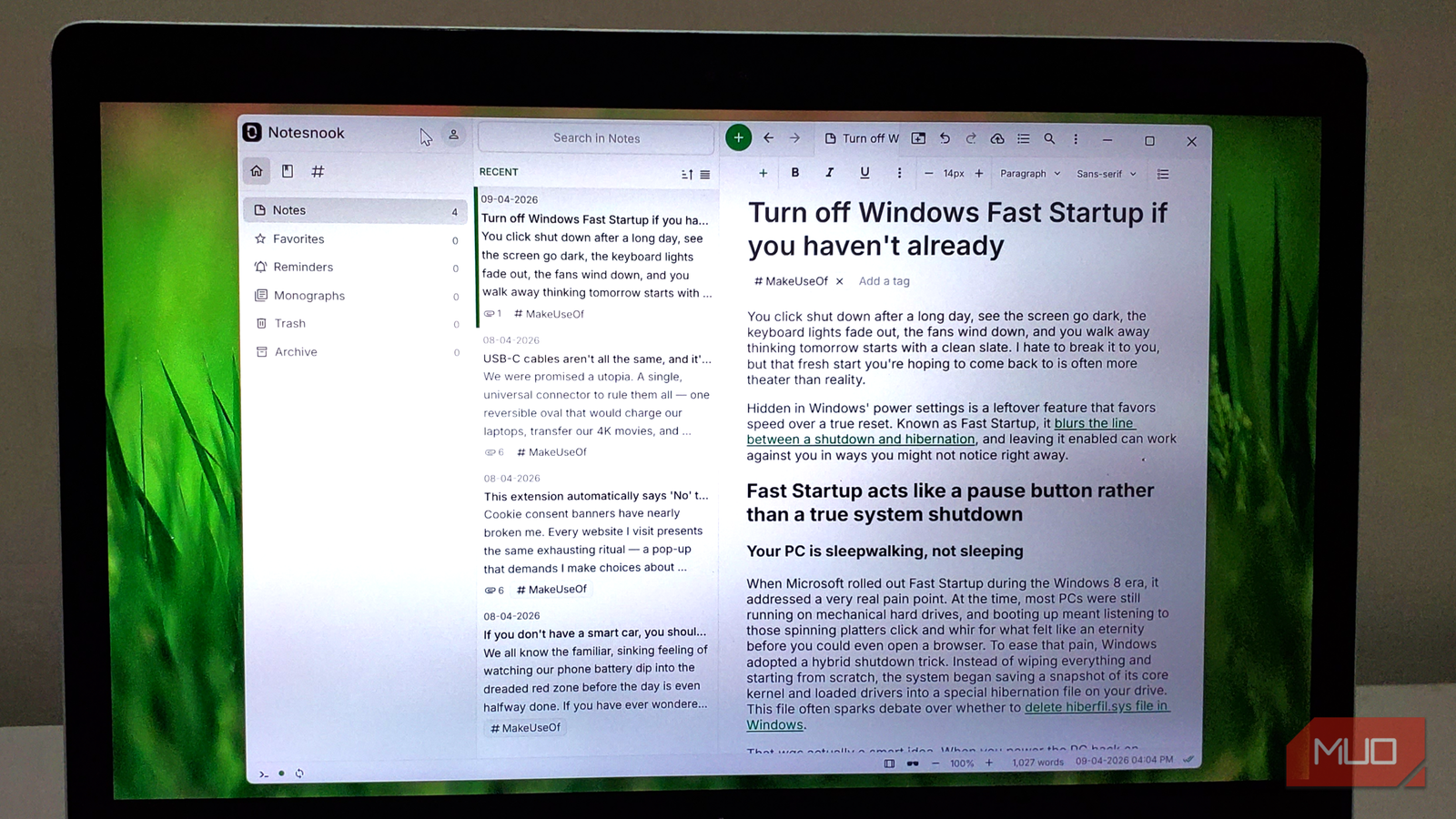
The main interface on desktop is a clean three-column layout: a sidebar on the left for navigation, a note list in the middle, and the editor on the right. On mobile, those panels stack and slide as needed. The sidebar covers the main sections: Notes, Favorites, Reminders, Monographs, Trash, and Archive. Monographs is an interesting one. You can publish any note as a link and even set a password to limit who can read it. The Notebooks and Tags tabs sit at the top of the sidebar, and a green plus button in the top-right corner of any screen creates a new note.
If you lean on the keyboard, there’s a command palette tucked away behind Ctrl + P on the desktop. From there, you can create notes, notebooks, tags, reminders, color labels, jump between sections, toggle focus mode or dark mode, and even open the attachment manager.
The safe is also a very good desk
The bunker has really good lighting
Security is what pulled me into Notesnook in the first place. The editor is what made me stay. And the sheer depth of it is what eventually made me comfortable with the idea that this could be my main writing space.
Inside any note, the toolbar gives you the expected basics: bold, italic, and underline. The three-dot overflow expands to strikethrough, subscript, superscript, highlight, text color, and inline math. The green plus icon on the left opens the block inserter, where you can drop in a task list, an outline list, a code block, math formulas, a callout, a blockquote, an image, an embed, or a table. Markdown shortcuts work natively throughout the editor, so typing two asterisks around a word bolds it without interrupting your flow.
If you right-click a note in the list, it reveals a full context menu that says a lot about how much thought went into this. You can pin a note, mark it read-only, favorite it, lock it with a vault password, set a reminder, archive it, assign a color, move it into a notebook, tag it, publish it as a password-protected Monograph link, export it, duplicate it, copy a direct link, disable sync for that note, set an expiry date, or send it to trash. It’s a long list, but it’s not overwhelming because everything is exactly where you’d expect it.
There is also an App Lock, which you can enable from Settings. It automatically locks the entire Notesnook database after a set period of inactivity, so if you leave your laptop open at a coffee shop or hand your phone to someone, your notes are not one swipe away. On mobile, it supports biometric authentication, so unlocking is fast even with thorough protection.
Your notes called: They want a better landlord
The free tier covers the core experience well, with limited storage and caps on organization features and reminders, while paid plans raise those limits. Paid plans start at around $1.67 per month on the Essential annual plan, rising to approximately $5.83 per month for the Pro annual plan, which adds 10GB of storage, full-quality images, unlimited notebooks and tags, and App Lock. A five-year Pro plan further reduces the effective monthly cost if you’re ready to commit long-term.
Privacy in a notes app usually implies either strong protection or a rich feature set, but rarely both. Notesnook makes a pretty compelling argument that maybe that trade-off was never as necessary as we thought.
