
Now that Windows 11 has what Microsoft calls the Full Screen Experience, I’m all in.
I’m mainly a console gamer. Have been since I stole my younger brother’s PlayStation 1 back in the 90s and continue to be with my PS5 and big screen TV. I like sitting back on the couch, using my controller, and not having to stress about a keyboard and mouse interfaces. Of course, I do play games on my Windows 11 PC, too, but I’d rather lean back than lean in.
I’ve tried Steam Big Picture mode, and while it’s useful, it still has some rough edges. Most notably, I have to set up Big Picture mode on my laptop (which is connected via HDMI to my TV) with the mouse and keyboard, and then I can sit on the couch and move around through the games Steam has on offer.
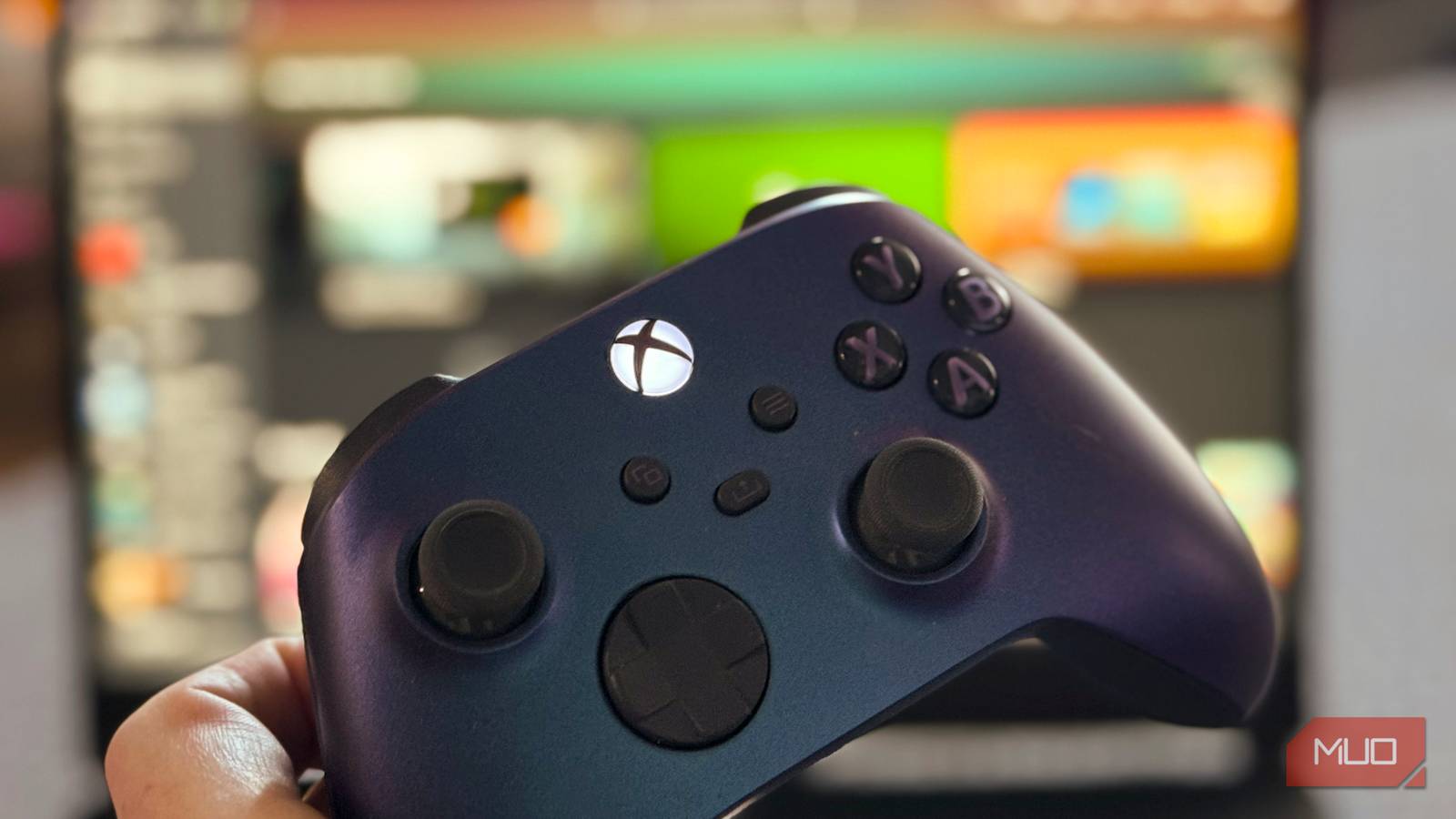
Not so with Windows 11’s Full Screen Experience. Once I have my Xbox Wireless Controller connected via Bluetooth to my PC, I can just press the Xbox button to bring up a menu and launch my favorite games. And not just Xbox games, either. This experience shows all my games across the various stores, including Steam and Epic. It’s this last bit alone that has me ready to ditch Steam when I’m sitting at my couch and want to relax with a controller and my laptop.
How it all works
First off, the feature has been part of Windows Insider and Xbox Insider since November of last year. And still, I haven’t seen it pop up on either of my PC laptops, which is a darn shame. I tried this on both my own MSI gaming PC and a Lenovo laptop that I’m reviewing for the site, and it works on both.
First up, make sure you have the Xbox app (and the Steam app, if you want to access those games this way) installed and logged into on your PC. Then, connect an Xbox Wireless Controller (the kind that comes with Xbox Series X or S) via the Bluetooth panel.

- Brand
-
Microsoft
- Operating System
-
Xbox system software
- Storage
-
1TB
- VR Support
-
No
- Resolution
-
4K
- App Store
-
Microsoft Store
Now that you have the controller connected, press the Xbox button, and you’ll see a little toolbar at the top of your screen. There’s a Home icon to the left, which gets you all sorts of options for capturing your gaming session, Xbox Social lists, Gaming Copilot, Edge Game Assist, device management, performance metrics, and settings. You can use your controller to navigate all of these windows, even closing them with the X. Each window has a little icon in the Home bar, too, for easy access.
Navigate back up to the bar, or hit the Xbox button on your controller if you’ve gotten out of it, and you can choose the Controller bar, with icons of your recently played games and gaming stores available (mine shows Xbox Game Pass, Steam, Battle.net, and Epic Game Store). You can navigate to the game you want to play, or open one of your gaming stores to see what’s there.
Launch Steam and you’re there in big Picture mode, which is a great way to manage it; no more messing with Steam before sitting on the couch. I opened Battle.net, but it wasn’t in full-screen mode yet. You still need to have that ready when you start the app from Full Screen Experience. Once I did, though, I was able to move through the user interface easily using the controller.
Everything is accessible with the controller, which makes this way better than just a single store’s full screen experience. I love being able to start a game from the couch from Steam, GamePass, Epic, and Battle.net without having to get up and fiddle with the mouse.
What doesn’t work
It’s not all roses

As I said above, unless you have the gaming store’s app set up as maximized or full screen, you’ll have to fiddle a bit with the mouse before it launches that way. There were plenty of glitches when the feature first launched, with fixes needed right away and likely more to come.
And, of course, if the game you want to play doesn’t support your controller, then you’re not going to have much fun with it, no matter how easy it is to launch with Xbox mode.
Some users over at NeoGaf prefer the Steam Big Picture user interface, which is totally fair. We all have our preferences. I like that Windows 11’s Full Screen Experience lets me navigate the entire user interface with the controller and allows me to manage all my games, not just the Steam ones. If the latter is your only game store, then it makes sense to use that interface.
The big picture
Bottom line, I like this Windows full-screen experience, or Xbox Mode. Whatever you call it, it puts everything I need into a controller-based interface that lets me launch and play games on my PC with a controller. Whether I have my laptop hooked up to the living room TV or my wide-screen monitor, playing with the controller (and navigating all the preferences, windows, and game stores) is a big win for me. Give it a try yourself and see what works for you.
