
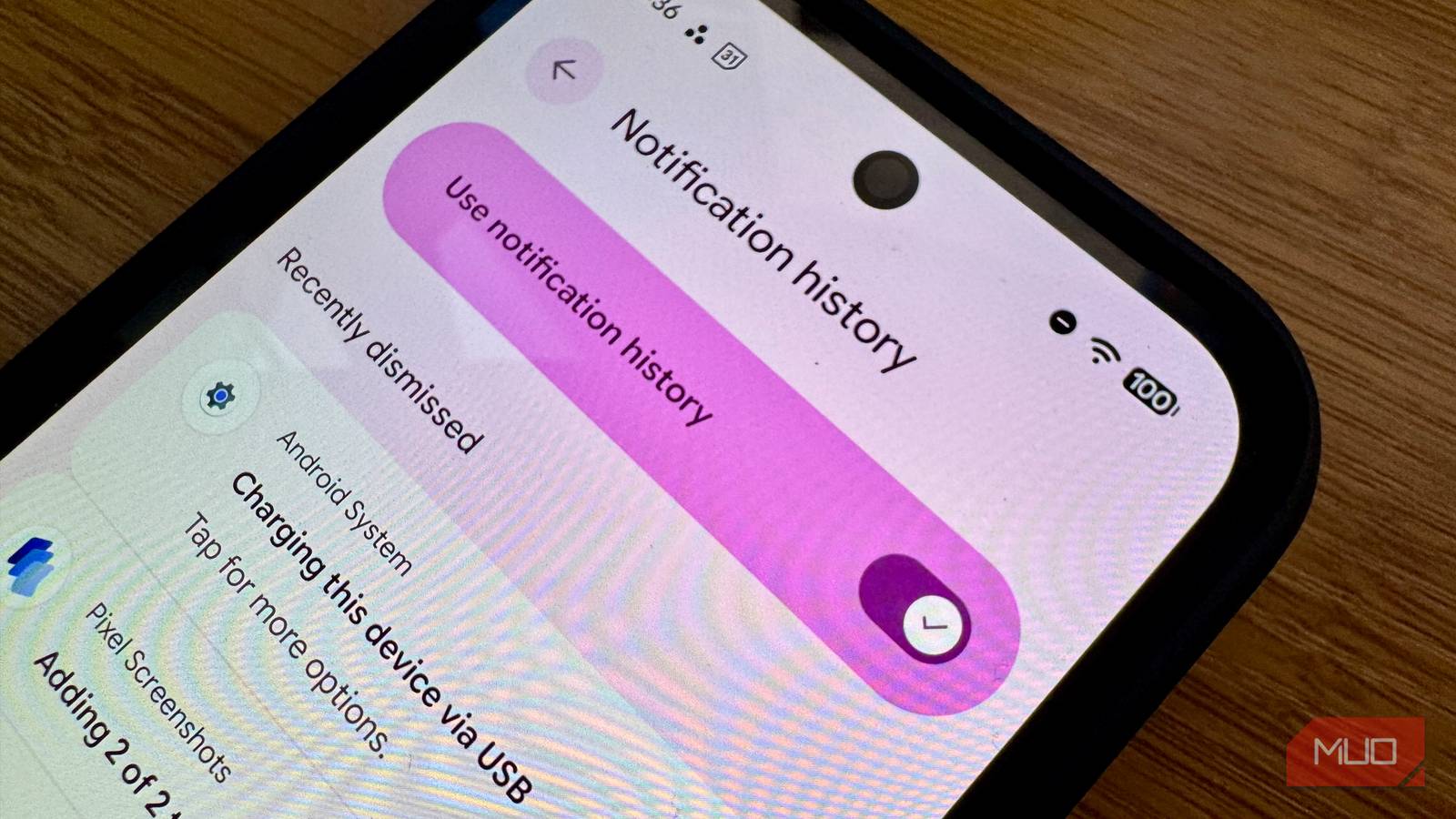
When I found out that Android keeps track of all of my notifications, I figured I’d check it out. I was expecting a nice little list of some missed alerts, but instead I got a full on 24 hours of notification receipts that showed me just how relentless my Android notification system is. I wish I’d never turned it on.
Notification history has been around since Android 11, but I doubt many folks know much about it. It’s buried deep enough in the Settings that I didn’t even know it existed. It’s also off by default, so you’ll need to turn it on to get the full effect.
What Android notification history actually does
There’s a 24-hour limit
The history stores a rolling 24-hour log of every dismissed notification, sorted per app. There’s a recently dismissed section at the top with a full list of notifications that you’ve gotten in the last 24 hours underneath that, expandable per app. Tap the logged notification and you’ll open the source app, just like when you tap from your lock screen. A long press will take you to the apps’ notification settings page.
Disabling the history will cleanly wipe the whole log. Your history won’t reappear, and you’ll have to wait for the next notifications to start coming in before you see anything in that spot again.
As with many things Android, of course, whether you can find this on your own Android device will depend on who makes it. On my Pixel, which is pretty much the Platonic ideal of an Android OS, you can find this at Settings > Notifications > Notification history. On my OnePlus Open, I found it at Settings > Notifications & Quick Settings > More settings > Notification history.
Navigate to those settings and hit the toggle to ON, and you’re good to go. Your device will start logging every notification you get, whether you see it or not.
If you’re an iPhone user, there’s a similar feature, though it’s perhaps a bit more limited. You can find all the notifications you’ve not dismissed by swiping down from the top of your screen. They won’t be broken down by app, and you won’t see any notifications you’ve gotten rid of. Android wins out here by including notifications you’ve dismissed, as well as ones you’ve missed. iOS does hang on to your Notifications until you do something with them, however, while Android only hangs on to the last 24 hours of them.
What I saw when I turned it on
There sure were a lot
To be completely honest, when I first dropped into this feature in the settings, there was nothing there. I hadn’t turned it on just yet.
Once I did, and waited until the next day, I was surprised by the sheer number of notifications I got. It really made me want to dig into my Settings even more and start blocking as many as I can. You can head into Settings > Notifications > App notifications to toggle notifications off on a per-app basis.
Also, since the history groups all these alerts by app with a count, it’s super easy to figure out which are the worst offenders. Games with re-engagement pings, shopping apps, social platforms, and, well, Gmail, fire off tons of alerts all the time. You can always just turn off those specific apps’ notifications, unless you really need them.
It’s also kind of creepy to see the timestamped chronological log of everything my phone gets. It feels oddly invasive, even though it’s all my own data, services, and systems. Plus, notifications I just dismissed are still there. Why are we tracking them?
You can long-press any notification in the log, and it goes right to that app’s nortificat9ion settings so you can turn those off. Use this historical list as a way to audit the noisiest apps on your phone. Check it after it’s been working for 24 hours and then get rid of the worst offenders.
Should you keep it on?

Of course, whether you mind keeping a log of every notification that comes through your phone is up to you. If you enable Notification history on your Android phone, try it for a few 24-hour periods and see how it feels. Use it as a deliberate audit to see what garbage notifications you can disable per app. If you finally want to get rid of the log, because it feels kind of spy-like, then toggle the feature OFF and Android will wipe the entire list completely; it will never come back. When you turn the history back on, you’ll have to wait another 24 hours before new notifications start rolling in and the history re-populates.
You can also use Notification history as a way to recover notifications you swiped away but want back. Of course, you’ll have to have the feature turned on before you do that.
