
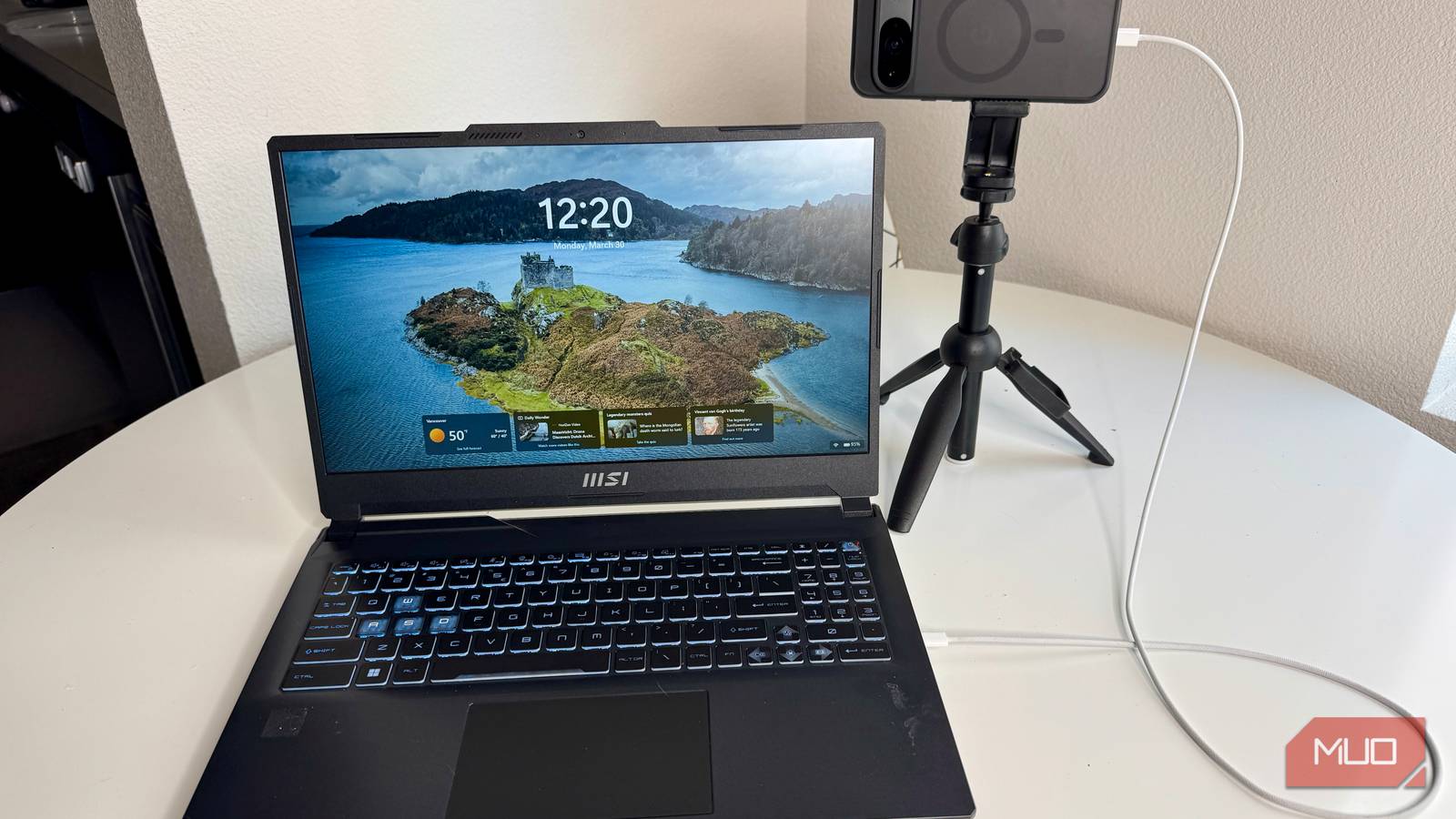
I was out at a coffee shop doing some writing the other day and had to hop on a quick meeting. My Windows 11 laptop has a built-in webcam just like most laptops do these days, so I set that up for my Google Meet session.
Wow did it look bad. The image was lower resolution and smeary; a far cry from the quality I’m used to with the Logitech C920 1080p webcam that I have on my desk at home. I wished I had brought it along, but I hadn’t.
Then I thought — wait a minute! I’ve got a Pixel, and I’m pretty sure I can use it as a webcam (Spoiler: you totally can).
Luckily, I had a USB-C cord in my bag and a little portable tripod (I have no idea why). With a simple plug-in and set up, I was able to set up for my next remote meeting and wow does it look a lot better.
Easy to set up
Not as easy as Google says, though

The instructions on Google’s support page say:
- With a data-supported USB cable, connect your phone to your device.
- On your phone, tap the Charging this device through USB notification.
- Under “Use USB for,” select Webcam.
That’s not what my experience was. I tried two different USB cables to see if my Pixel would pop up a little notification. Not so. I had to take the following steps after plugging it in.
- Launch Settings, then tap Connected devices
- Tap USB at the top, under Other devices
- Make sure USB controlled by is set to This device
- Tap Webcam
- Launch your video conferencing software (Google Meet in this case)
- Choose your phone as the camera input.
Once I found the settings to designate my Pixel as a webcam, I was able to choose it as a source in Meet.
Note: I had to choose Android Phone from the source list, instead of Pixel 9. It’s a little counterintuitive, but not a deal breaker.
Comparing images
The Pixel wins, in my book
I spent a little time checking on all three of my webcams: the Pixel 9, my Logitech C290, and the built-in webcam on my laptop. While the Pixel and the Logitech should be the same resolution, I still think the Pixel has the advantage here. The built-in cam just does not cut it, even in the controlled conditions of my office at home.
The Pixel appears to have a better color reproduction, too, which makes sense as it’s a camera for people to take photos with, not just talk to their bosses on.
My laptop’s webcam is fine, it works, but it’s just unable to handle the indirect sunshine coming from my office window, and truly looks like what you’d expect a basic webcam would look like. Ugh.
What if you don’t have a Pixel
Phone Link to the rescue

Windows 11 has a feature called Phone Link, and you can use it to set up your Android phone as a wireless webcam.
First, you’ll want to dip into Settings on your PC, hit Bluetooth & devices, then Mobile devices. Click on the Add device button and follow the prompts on your PC and phone to link them up. I had to scan a QR code to get my OnePlus Open to link to my PC.
Once it’s linked, drop into Settings > Mobile devices, and toggle the Use as a connected camera to ON. This should allow you to use your linked Android phone as a webcam. This time, you can choose the model of your Android device as a virtual camera in Google Meet, and it should work. My OnePlus gave me the option of switching the front or back camera along with a button to Pause video from my phone.
If you don’t love the wireless camera option via Windows 11, there are plenty of third-party apps like DroidCam that are worth a look.

- SoC
-
Google Tensor G4
- Display
-
6.3-inch Actua pOLED display, 1080 x 2424 resolution, 60-120Hz, 3000 nits peak brightness
- RAM
-
8GB
- Storage
-
128GB, 256GB
- Battery
-
5,100 mAh
- Ports
-
USB-C
The Google Pixel 10a is a budget-oriented smartphone with a flat back and long battery life. It’s powered by the same Tensor G4 chip as its predecessor, and many key specs are identical to the Pixel 9a. However, you do get a brighter screen, better modem, new software features, and Android 16 with seven years of software support.
But should you replace your webcam with a Pixel?
It depends on what you need

Ultimately, I needed a solution for a better webcam image than the cam built into my PC laptop. If I didn’t already have a comparable external ebcam like the Logitech C290, I would definitely start using my Pixel 9 as a webcam on the go. It only requires a little software setup (and having it with me when I’m at the coffee shop). Other than that (and perhaps a phone tripod or something similar), it’s a great solution for a solid image that will handle light better than the little camera at the top of my laptop’s screen.
That said, if you already have a higher quality webcam that you carry with you, you can likely skip all the extra stuff. My webcam is smaller than my phone tripod, has an integrated stand to set on top of my screen, and comes with its own cable, so it makes more sense to put that in my bag before I head to the coffee shop next time.
However, if you’re looking for an easy way to use the mobile phone you likely already have with you, wired or wireless, give the above steps a try and get back to us on how it worked for you.
