
I’ve been using Windows for as long as I can remember. All the way back to that chunky beige tower in our living room when dial-up wasn’t just internet, it was a whole personality. Over time, I’ve picked up my fair share of Windows shortcuts that save hours every week, little tweaks, and the usual bag of tricks. Enough to feel like, yeah, I know my way around this thing. But Windows has been around forever, and it shows. Features pile up over the years, the way rooms do in an old house, and every now and then, you stumble on a door you somehow never noticed. This proves that even if you’ve used Windows for years, there are still features you don’t know.
That’s more or less how it happened. Just a random Tuesday afternoon, my screen was cluttered with too many browser tabs, a spreadsheet, a couple of File Explorer windows, music playing somewhere in the background, everything competing for attention. At some point, almost absentmindedly, I grabbed a window and shook it. Everything else disappeared.
For a split second, I thought I’d accidentally triggered some weird shortcut. I shook the window again. All the minimized apps popped right back into place. I tried it one more time just to be sure, and again, the desktop cleared itself instantly, like Windows had been waiting years for me to figure this out.
My screen was a mess, and Windows knew it all along
A feature older than your current laptop, probably
My screen management habit for years has been to minimize this, click that, and dig through the taskbar like I’d misplaced something important. Everyone does this, right? Not exactly.
Microsoft had already built a fix for this back in 2009. It’s called Aero Shake, and it first showed up in Windows 7 as part of the then-polished Aero desktop experience. It’s still around in Windows 11, just under a slightly less catchy name: Title bar window shake. The idea is that you grab a window by its title bar, give it a quick shake, and every other open window vanishes into the taskbar. If you shake it again, they all pop right back as if nothing happened.
Back when it launched, Aero Shake was part of a trio of window management features, alongside Aero Snap and Aero Peek. Snap went on to become the star of the show, eventually evolving into the Snap Layouts people actively rely on today. Shake, on the other hand, slipped through the cracks. Most Windows users I know have never even heard of it, which makes sense. There’s no hint that it exists, nor is there any tooltip, friendly nudge, or button suggesting you give it a try.

These Windows Features Are Perfect for Multitaskers
Get a grip on your tasks with these perfect multitasking features
One toggle buried in plain sight
Settings you walked past a hundred times
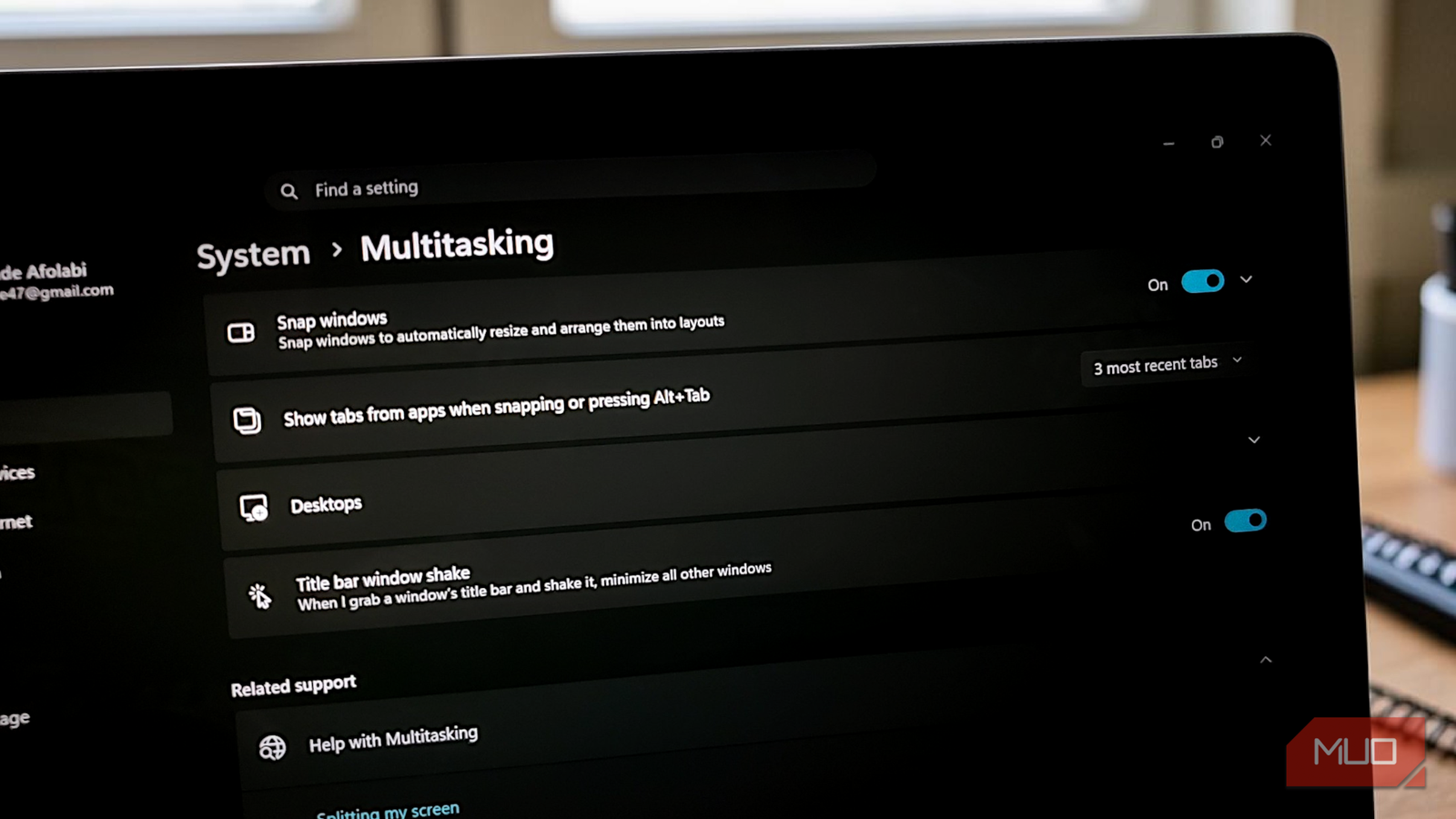
The feature is still in Windows 11, but Microsoft now ships it turned off. So if you’ve ever tried shaking a window and nothing happened, that’s probably why. Windows is essentially waiting for you to opt in.
Turning it back on only takes a moment. You can open the Windows System Settings from the Start menu or press Win + I. Head to System, scroll down to Multitasking, and look for the toggle labeled Title bar window shake. That’s it. The change takes effect immediately. You can even test it right away by grabbing the Settings window itself and giving it a quick, deliberate shake. Everything else on your desktop should collapse into the taskbar, leaving just that one window in view. If you then shake the same window a second time, all the previously minimized windows come back exactly as they were.

4 Windows 11 features hiding in plain sight that I can’t stop recommending
Windows 11 is powerful, but only if you remember these features.
If you prefer the more hands-on route, you can also enable it through the Registry. Just like other simple registry tweaks that offer a productivity boost, the process is relatively straightforward. Open the Run dialog with Win + R, type regedit, and press Enter. Then navigate to:
HKEY_CURRENT_USERSoftwareMicrosoftWindowsCurrentVersionExplorerAdvanced In the right pane, look for a DWORD called DisallowShaking and double-click it. Set its value to 0 to enable the feature, or to 1 to keep it off. Close the Registry Editor, and that’s it. The change takes effect right away, with no need to restart.
This is what focus mode looks like in practice
Shaking changed how I work
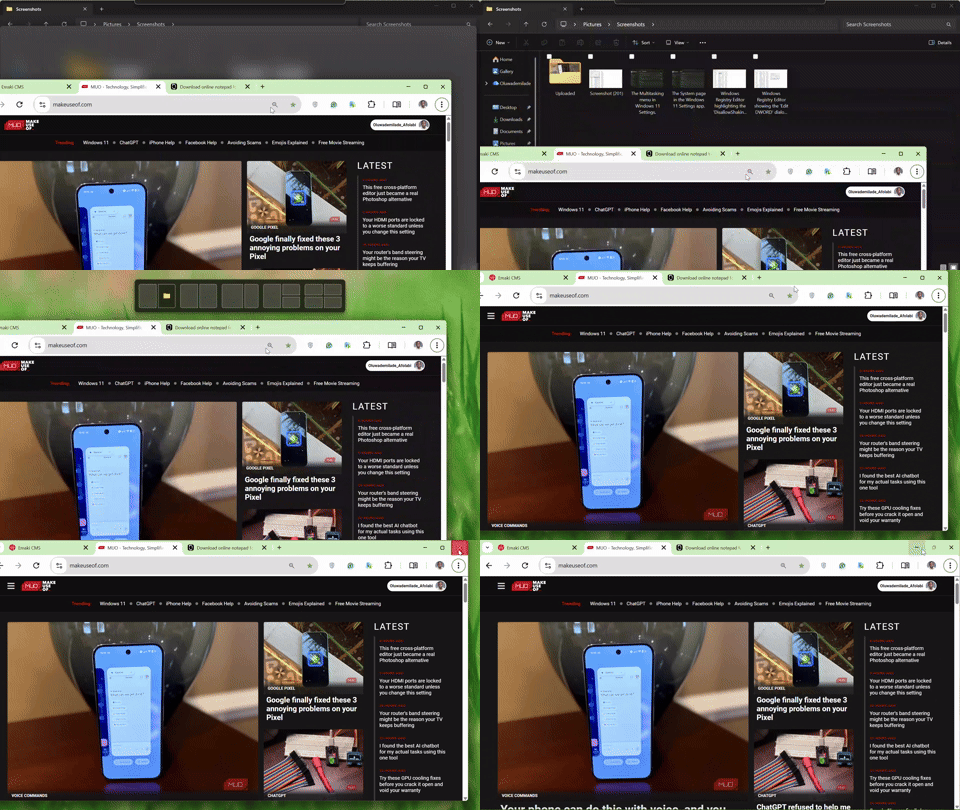
Now, when I’m writing, and the screen starts to feel crowded, one quick shake clears the noise without me losing my place across a dozen open apps. It’s faster than minimizing windows one by one, and it doesn’t disrupt whatever layout I already had going. It’s also useful during video calls. If I need a clean desktop before sharing my screen on Zoom, I grab the active window and give it a good, quick shake.
It also pairs nicely with Snap Layouts. I can snap the windows I care about into place, then shake away everything else. Between snapping and shaking, Windows actually has a pretty capable window management system built in, and I somehow missed half of it for years.
Go shake something and see what happens
After fifteen years of clicking through the taskbar and minimizing windows one by one, this felt like a good find. Windows had the solution sitting there the whole time. It just never occurred to me to shake things up.
